
...
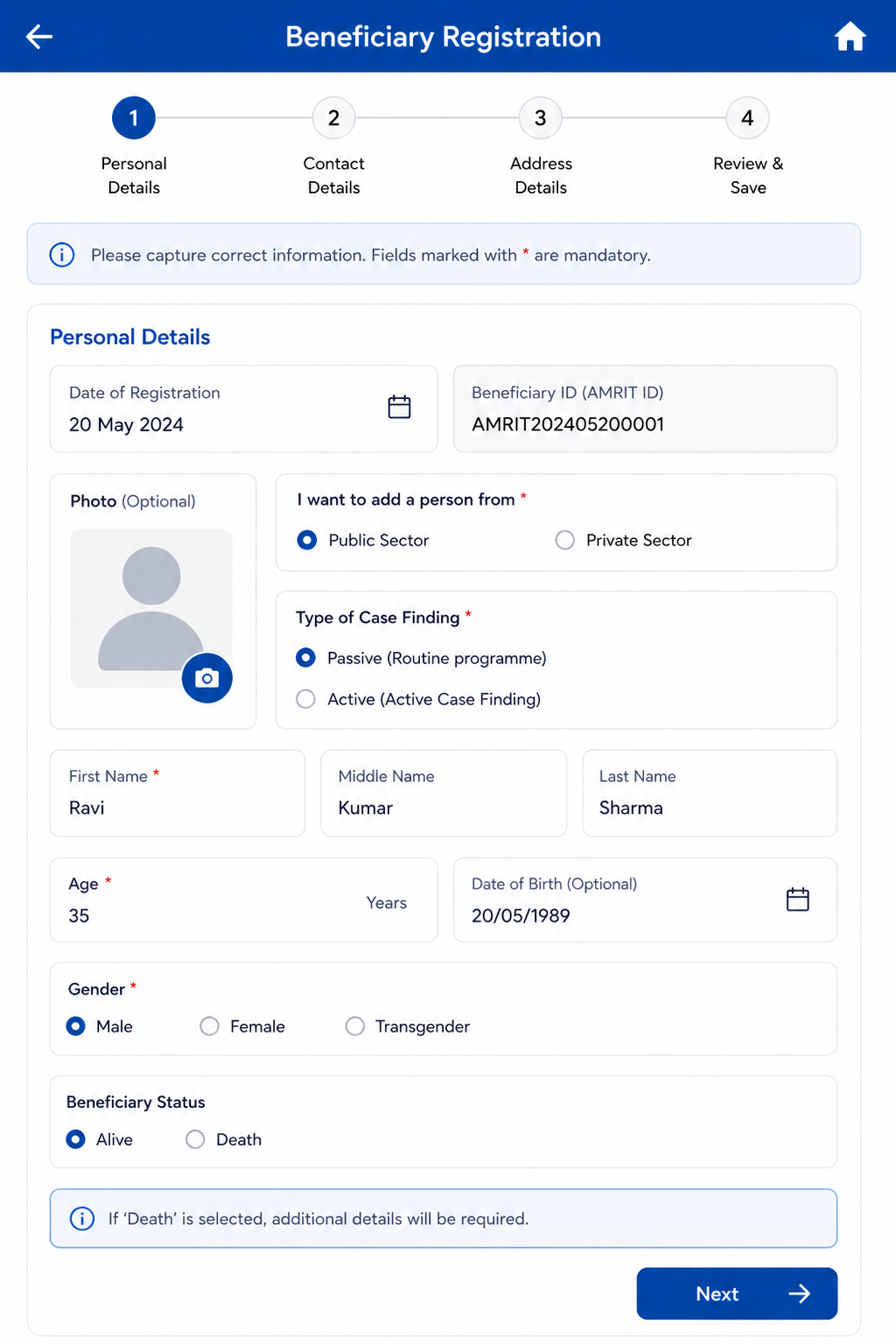
4.3 Beneficiary Registration — Field Specifications
...
- Editable on clicking "Edit" option.
Field Name | Input Type | Options / Values | Logic & Validations |
Date of Registration |
| ||
Beneficiary ID (AMRIT ID) |
| ||
Photo | Camera | Optional |
|
I want to add a person from* | Radio | · Public Sector
| · Mandatory · Single select
|
Type of Case Finding* | Radio | · Passive (Routine programme)
| · Mandatory · Single select
|
First Name* | Text Input | · Free text | · Mandatory · Only English letters
|
Middle & Last Name* | Text Input |
| · Mandatory · Only English letters
|
Beneficiary Status | Radio Button | · Alive · Death | · Enable only in the “Edit” Beneficiary screen · Auto-populate, if ‘Death’ is reported from any module · Default value is “Alive” · If “Death” is selected, enable below four fields and mark it mandatory- 1. Date of Death 2. Time of Death 3. Reason for Death
|
Date of Death | Date picker | · Enable if “Beneficiary status”= “Death” · Mandatory if enabled · By default, date is null · Not greater than Today’s Date · Accept ‘Date of Death’ after date of registration
| |
Time of Death | Time picker | · Show only if above value is “Death”
| |
Reason for Death (Type of Death) | · Maternal Death · Natural Death · Accident · Infectious Disease · Animal Bite Death · Suicide · Undetermined | · Enable if “Beneficiary status”= “Death” · Mandatory if enabled
| |
Place of Death |
| · Enable if “Beneficiary status”= “Death” · Mandatory if enabled
| |
Other Place of Death | Textbox |
| |
Age* | Number Input | 1–99 | · Required. · Numeric. Min 1 Max 99 in years
|
Date of Birth | Date Picker |
| |
Gender* | Radio | · Male · Female · Transgender | · Mandatory
|
Mobile number not available | Checkbox |
| |
Primary Phone* | Number |
| |
Whose mobile number | dropdown | · Self · Husband · Mother · Father · Family Head
|
|
Address* | Text |
|
|
State* | Dropdown |
| |
District* | Dropdown |
| |
TU* | Dropdown |
| |
Health Facility* | Dropdown | · Required. Must select. · Cascaded | |
Village* | Dropdown |
| |
Caste* | Radio | · SC · ST · Other | · Mandatory
|
Religion | radio button |
|
|
Area* | Radio | · Tribal-NPVTG · Tribal-PVTG · Rural · Urban · Urban Slum · Unknown | · Mandatory Default Unknown. |
Marital Status* | Radio | · Single · Married · Unknown | · Mandatory · Default Unknown. |
Are you Pregnant* | radio button |
|
|
Husband's/ Wife's Name | Textbox | · Optional
All letter should be in caps | |
Father's Name | Textbox | · |
|
Mother's Name | Textbox | · |
|
Occupation* | Dropdown | · Unknown · Student · Unemployed · Homemaker · Farmer · Laborer / Daily Wage Worker · Self-employed / Business · Government Employee · Private Employee · Health Care Worker · Retired / Pensioner · Other | · Mandatory · Default Unknown. |
Socioeconomic Status* | Radio | · APL · BPL · Unknown | · Mandatory
|
Cancel | Button |
· No |
· If selected "no" then do not erase the patient health data and let the page remain open so it can be submitted by volunteer as sometime by mistake cancel button is clicked. |
Submit |
Continue next to "Anthropometry" Screen |
...
AC-REG-03: Given 'Mobile number not available' is checked, When the form is submitted, Then the system stores 9999999999 as the primary phone number.
4.4 Anthropometry Screen
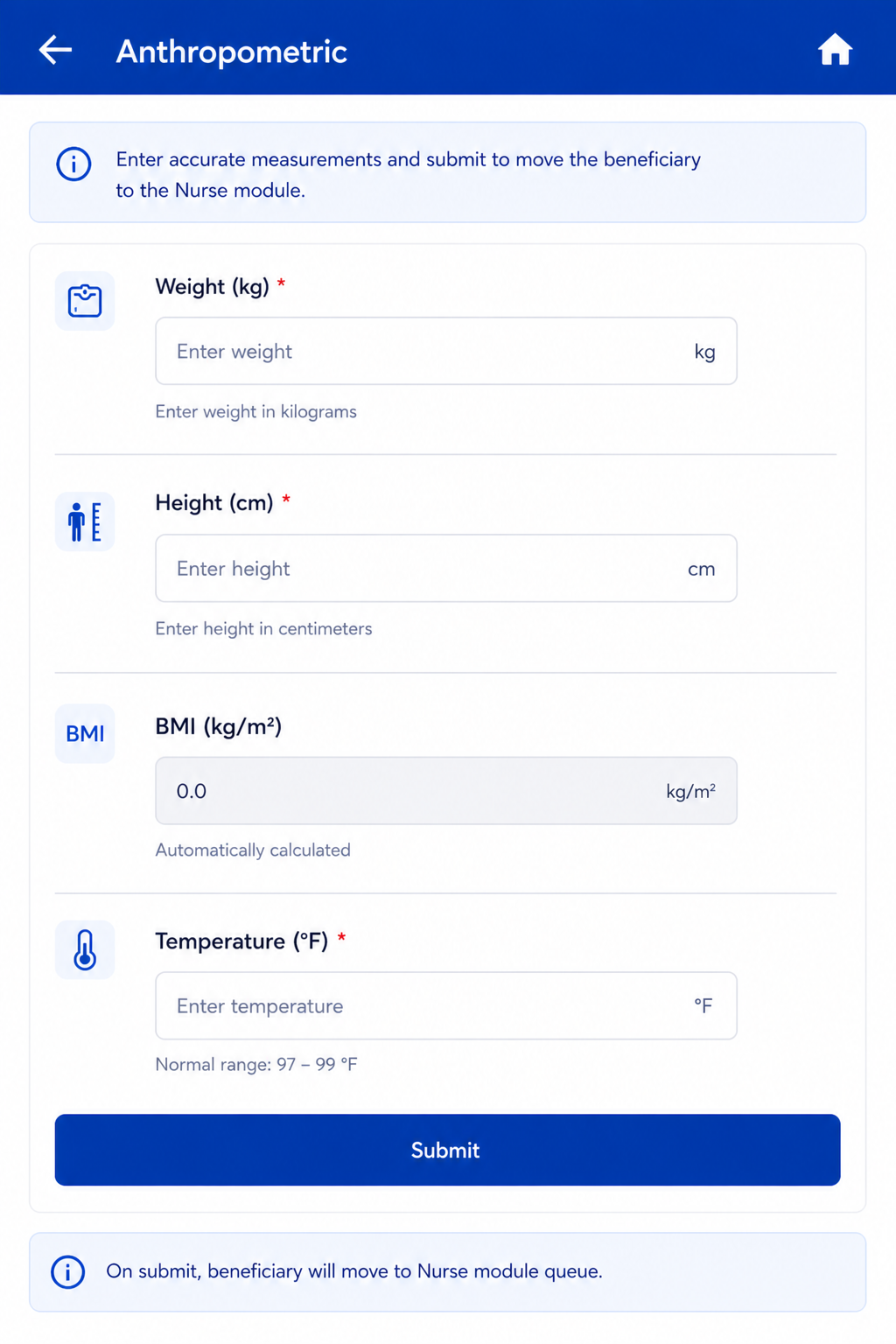
Follows immediately after Registration Submit. Same actor: Registration Officer. On Anthropometry Submit → Beneficiary moves to Nurse module queue.
...
Field Name | Input / Type | Options / Values | Logic & Validations |
Weight (Kgs) | Number input | Numeric | Numeric; 1 decimal place allowed. |
Height (cms) | Number input | Numeric | Numeric; 1 decimal place allowed. |
BMI = Weight / (Height/100)² | Auto-calculated (read-only) | Calculated value | Auto-calculated when both Height and Weight are entered. Formula: Weight ÷ (Height ÷ 100)². Display to 1 decimal place. Non-editable. |
Temperature (Degree Fahrenheit) | Radio + free textbox | Free textbox also provided for manual entry. Normal range shown: 97–99°F. If >= 100 selected → show alert 'Refer to Health and Wellness Centre' and show beneficiary in Referral card on Home. | |
Submit | Button | — | Beneficiary moves to Nurse module queue. |
5. Nurse Flow
Once a beneficiary is registered and anthropometry is completed, they appear in the Nurse module queue. The Nurse role covers four sequential screens: General Examination → TB Screening → General OPD (optional/skippable) → Diagnostics Screen.
...