
Table of Contents outline true
Getting Started
| outline | true |
|---|
Teams Vs WhatsApp
In today’s digital workplace, choosing the right communication platform is crucial for productivity and collaboration. This section compares Microsoft Teams and WhatsApp, focusing on their suitability for Piramal Foundation use.
...
Microsoft Teams offers a comprehensive, secure, and scalable solution specifically designed for business needs. Its integration capabilities, advanced features, and focus on professional collaboration make it the superior choice for organizations looking to enhance digital workplace communication.
Teams Interface
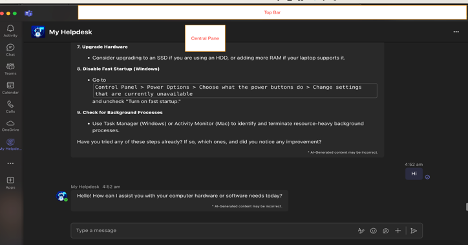
Microsoft Teams offers a user-friendly interface designed for efficient communication and collaboration. Here’s a breakdown of the main elements:
...
- Teams Bar: Lists all your teams and channels, Allows quick navigation between different workspaces
- Central Pane: The main working area where conversations, files, and other content are displayed
- Top Bar: Contains the search box, command box, and profile picture, quick access to settings and commands
Customizing Profile
Personalizing your profile helps teammates identify you and adds a personal touch to your interactions.
- Click on your profile picture in the top right corner
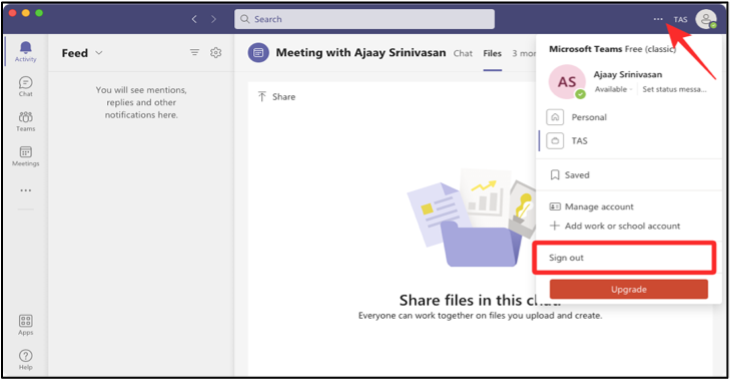
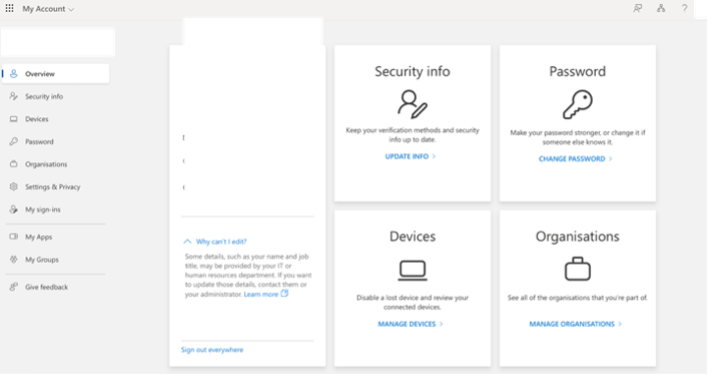
- Click on “View account” which will take you to browser and you are able to modify Password and change security info.
...
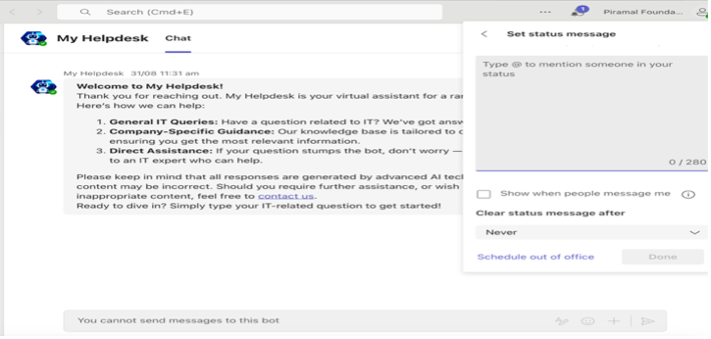
- Set Status Message
Best Practices for profile: -
- Use a clear, professional profile picture
- Ensure your display name is easily recognizable
- Keep your job title and department up to date
Teams and Channels
Channels
Channels in Microsoft Teams are dedicated sections within a team that organize conversations, files, and tools by specific topics, departments, or projects. Channels provide structure to team communication and allow members to focus on areas of interest, workstreams, or responsibilities.
...
Types of Channels in Teams
- Standard Channels
- Visible to all team members: Everyone in the team can see and participate in the conversations, files, and content shared in these channels.
- Default general channel: Every team in Microsoft Teams starts with a "General" channel. You can create more standard channels to categorize conversations by specific projects, tasks, or subjects.
- Private Channels
- Restricted access: These channels are only visible to specific members of the team who have been given access. This is useful for sensitive discussions, or when a subgroup of the team needs a focused space.
- Private communication: Although it's part of the main team, it is a secure, dedicated area where only selected members can access conversations and files.
- Shared Channels
- Cross-team collaboration: A new type of channel where people from multiple teams or even external organizations can work together in one channel, while still being a part of their respective teams.
- Secure collaboration: Ideal for guest access and external partners, these channels allow secure communication with users outside your organization.
Benefits of Using Channels
...