
...
Benefits of Using Channels
- Organization and Structure
- Channels help categorize work by breaking down broad discussions into focused conversations about specific topics. This makes it easier to locate relevant content.
- For example, in a marketing team, you might have separate channels for Content Creation, Social Media Strategy, and Campaign Tracking.
- Centralized Collaboration
- In each channel, you can chat, share files, start meetings, and use apps to stay productive all in one place. The files shared in a channel are stored in SharePoint, making them accessible to all team members.
- You can attach relevant documents and other resources that are important for the work in that channel.
- Customization and Apps
- Channels allow you to integrate tools and apps like Planner, Trello, or OneNote directly into the channel tabs. This helps streamline workflows and gives team members quick access to the tools they need.
- For example, you could have a tab for your project management app (e.g., Planner) to keep track of tasks in a specific project channel.
- Focused Discussions
- Threads within channels allow for focused discussions under specific posts. Instead of one long conversation, you can reply to specific messages and keep discussions organized.
- This eliminates confusion that often occurs in group chats or email threads where multiple topics are being discussed simultaneously.
- Accessibility
- Channel conversations, files, and apps are accessible to team members from any device, whether desktop or mobile, providing flexibility and remote collaboration.
- You can also be notified of mentions in channels and follow specific discussions to stay informed about critical updates.
Using Channels Effectively
- Naming Channels
- Use clear and descriptive names for your channels, so team members instantly understand what discussions or activities belong in each one. For example: An Operations team might create channels like State wise capacity building, Project Updates, and Customer Feedback.
- Avoid vague or overly broad names, as this can lead to confusion and reduce the effectiveness of the channel system.
- Organizing Content
- You can pin important messages to the top of a channel, ensuring key information is always easy to find.
- Use channel-specific files and tabs for easy access to resources that are relevant to conversations.
- Using Notifications
...
- You can follow a channel by selecting the "More options" (three dots) next to the channel name and clicking Channel notifications. This allows you to be notified of all new activity or only certain types of posts.
Key Features of Channels
- Files Tab: Automatically includes a tab for all files shared in the channel, making document sharing and access seamless.
- Posts Tab: Where conversations happen. Every channel has a “Posts” tab, which holds all the discussions and messages.
- Add Tabs: You can add tabs for apps, files, or tools directly in a channel. For example, you could add a Power BI report to view team analytics.
- Meetings: You can schedule or start meetings directly from a channel, and meeting chats and notes will be visible to the team.
- Planner Integration: Use Microsoft Planner as a tab in the channel for task management and tracking, especially useful for project-related channels.
- Best Practices for Channels
- Don’t over-create channels: Too many channels can lead to clutter. Only create a new channel when there’s a clear need to separate discussions.
- Use private channels wisely: Only use private channels for sensitive discussions or work that doesn't need to involve the whole team.
- Leverage apps: Maximize the productivity of your channels by integrating project management tools, file-sharing systems, and other business applications into your channel tabs.
- Be mindful of tagging: Use @mentions in channels to notify team members or specific individuals when something requires their attention, but don’t overuse them.
In summary, channels in Microsoft Teams are the foundation for collaboration, organization, and communication within a team. They help keep discussions focused, make resources easily accessible, and integrate various tools and apps to enhance team productivity.
...
Creating a Team
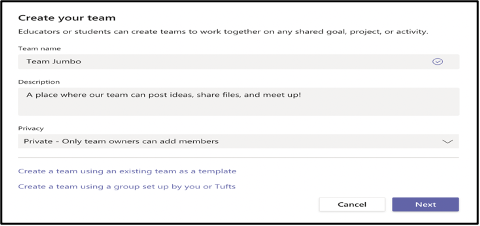
Teams are the foundation of collaboration in Microsoft Teams. Here’s how to create one:
...
Name your team and add a description
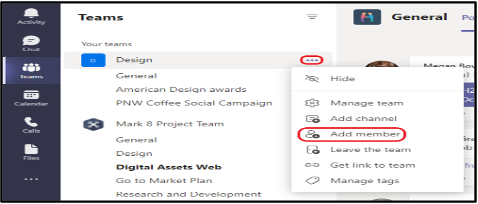
Add member
1.3. Creating Channels Within a Team
...