
...
Personalizing your profile helps teammates identify you and adds a personal touch to your interactions.
- Click on your profile picture in the top right corner
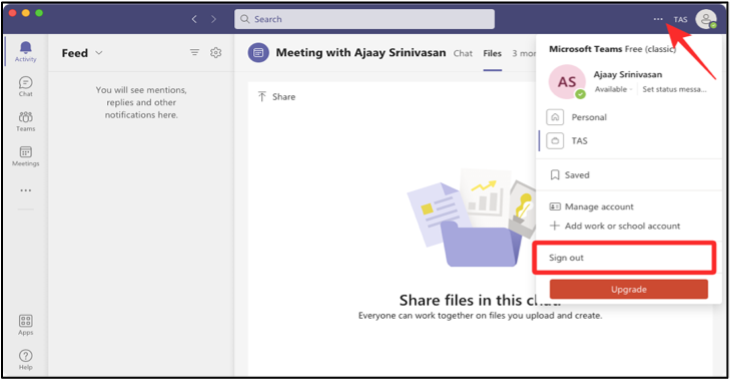
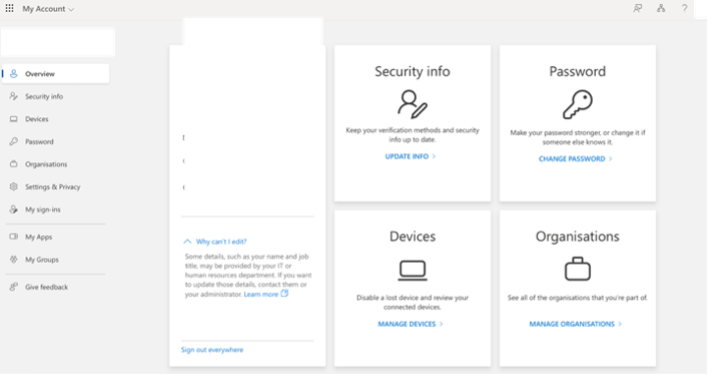
- Click on “View account” “View account” which will take you to browser and you are able to modify Password and change security info.
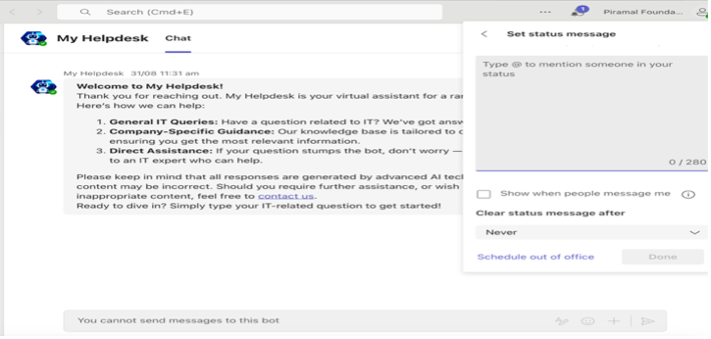
- Set Status Message
Best Practices for profile: -
...
Teams are the foundation of collaboration in Microsoft Teams. Here’s how to create one:
- Click the “Teams” icon in the App Bar and click “+”
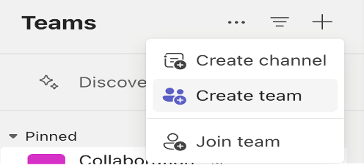
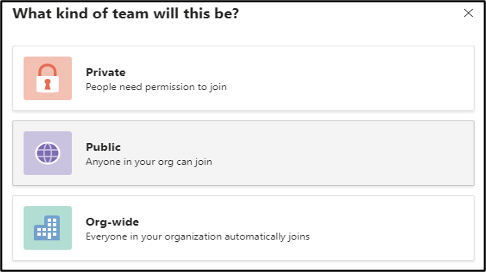
- Choose the type of team: Private, Public, or Org-wide
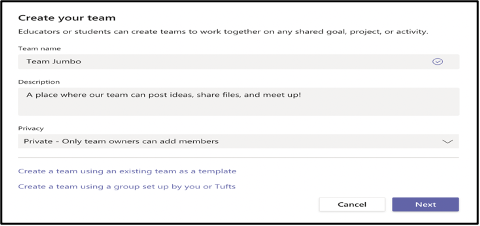
- Name your team and add a description
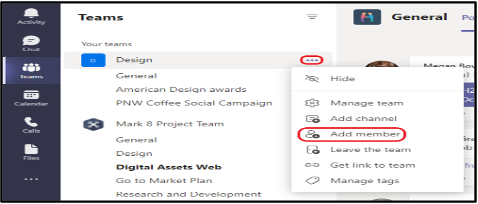
- Add member
...
Creating Channels Within a Team
Channels are subcategories within a team, used to organize conversations, files, and tools around specific topics.
To create a new channel:
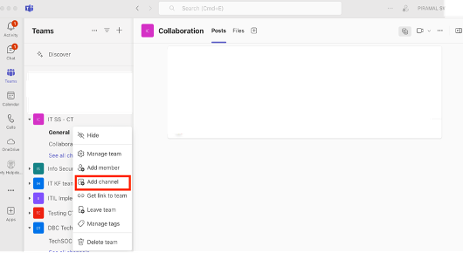
- Navigate to the team you wish to create channel for and click on “… “(More Options) and Add channel
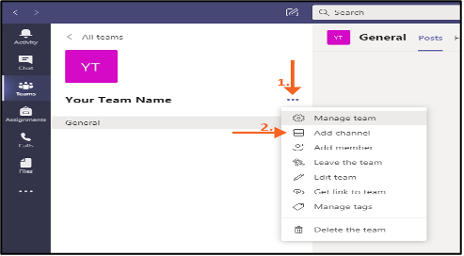
- Name the channel and add a description
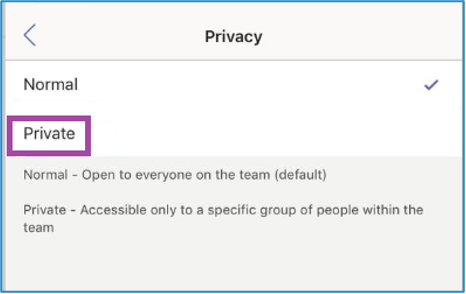
- Choose privacy settings (Standard or Private) [prefer selecting private channel if it’s not for entire organization
Best Practices: -
- Use clear, descriptive names
- Avoid creating too many channels
- Consider using private channels for sensitive discussions
...
Creating Shared Channels Within a Team
Detailed Guide on Creating Shared Channels in Microsoft Teams for other tenants of Piramal Foundation entities
...
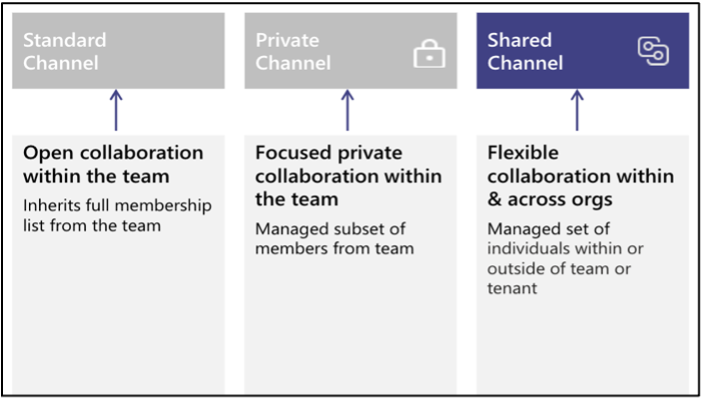
Shared channels are a way to collaborate with users inside and outside of your organization without needing to add them as a member of the entire team. Unlike guest access that requires external members to join the entire team, shared channels allow external users to collaborate specifically on relevant channel content.
- Key Features:
...
- External collaborators (guests) can access specific channels.
...
- Shared channels live within a team, but guests only see the shared channel.
...
- No need to switch tenants to collaborate with external users.
...
- Shared channels support chat, file sharing, meetings, and app integrations like any other channel.
Create a New Shared Channel
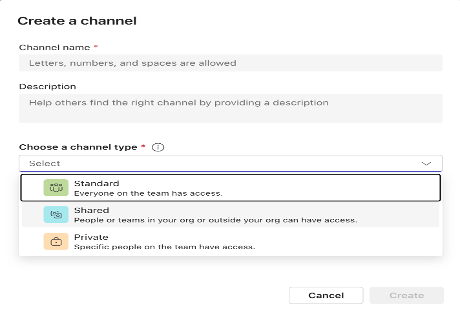
Set Up Channel Content
- After creating the channel, you can add tabs, files, and apps just like in a standard channel.
- Use the shared channel for specific project-based conversations, file sharing, and collaboration with external partners.
- Guest Invitation Acceptance
...
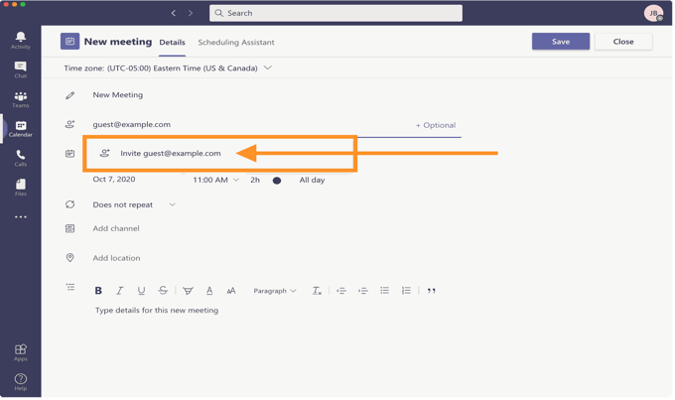
- External users will receive an invitation via email. They can accept the invitation and access the shared channel using their existing Teams account without switching tenants.
- Managing Permissions and Access Control
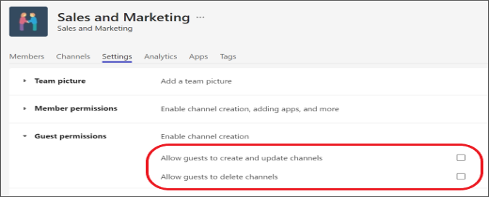
Managing permissions in shared channels is crucial to ensure that users only access what they need. You can adjust permissions for both internal and external users as follows:
...
- Navigate to the “shared channel” in Teams.
- Click on the ellipsis (`...`) next to the channel name and select “Manage Channel”.
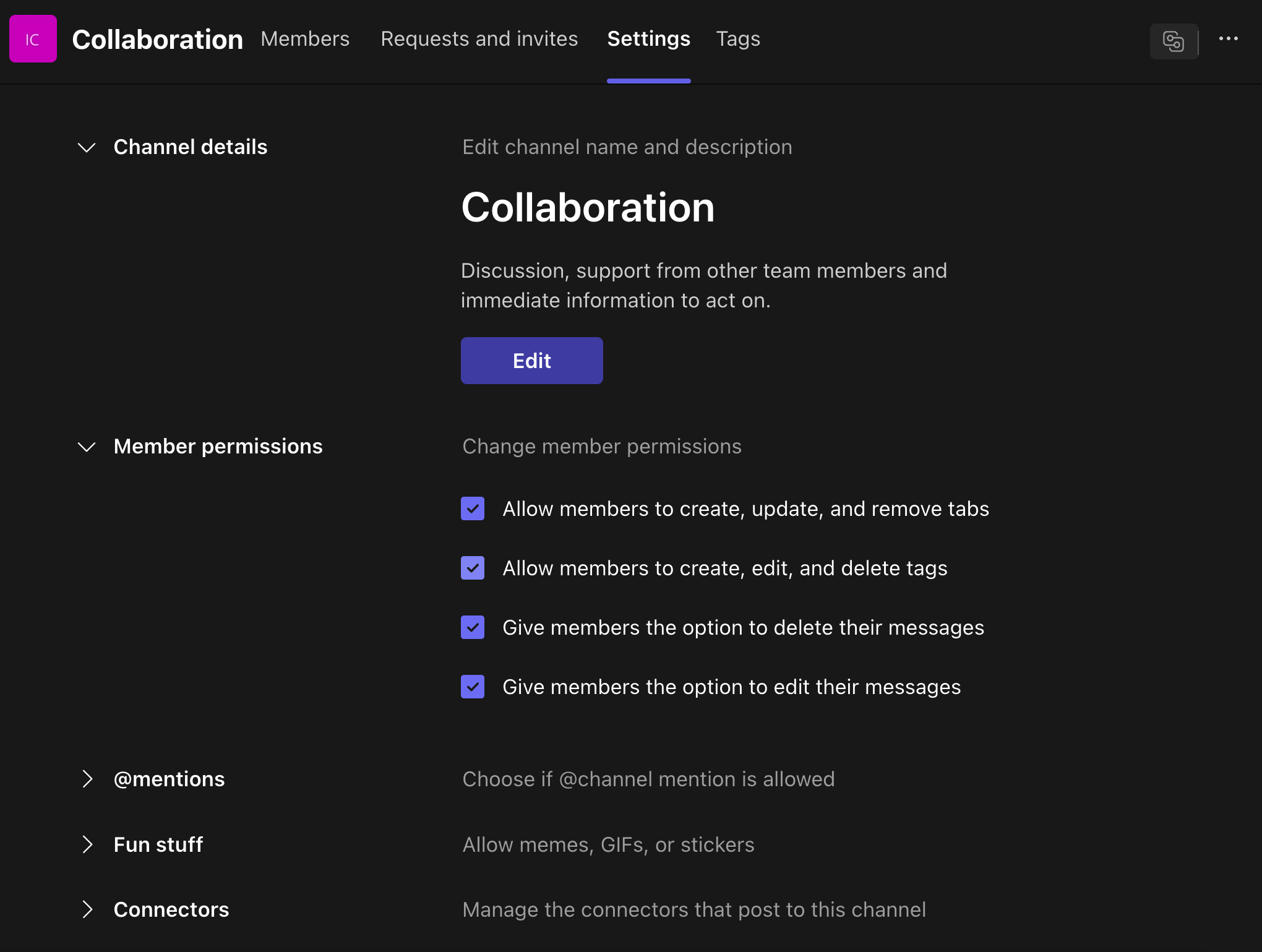
- Adjust roles and permissions as needed.
...
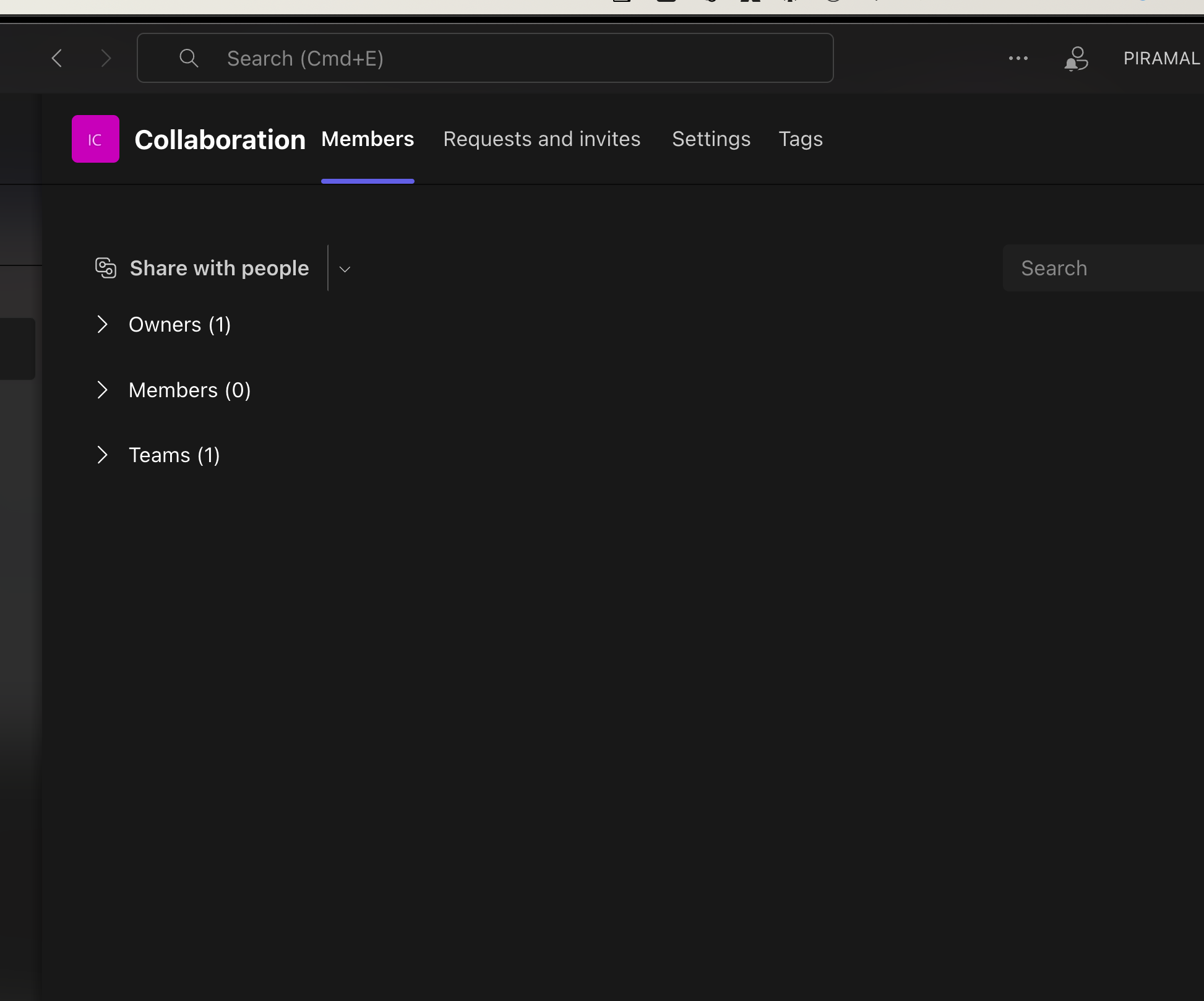
Members
- Owners: Users who can manage the channel, including adding/removing members.
...
- Members: Users who can view and participate in channel activities, but do not have administrative rights.
- Teams: Teams already created
- Restricting Guest Access:
...
- Guests cannot create new channels, remove members, or access any files outside of the shared channel.
- Key Differences Between Shared, Private, and Standard Channels
2. Communication
...
Communication
The Chat feature in Teams allows for quick, direct communication with individuals or groups.
- Basic Chat Functionality
- One-on-one chats
- Group chats (up to 250 people)
- Persistent chat history
- Read receipts
- Typing indicators
- Presence indicators (Available, Busy, Do Not Disturb, etc.)
- @mentions for individuals or groups
- Reply to specific messages
- Chat in channels within teams
- Message Formatting and Content
- Rich text formatting (bold, italic, underline, etc.)
- Bulleted and numbered lists
- Code snippets with syntax highlighting
- Tables
- Hyperlinks
- Emojis and GIFs
- Stickers and memes
- Voice messages
- Screen captures and annotations
- File Sharing and Collaboration
- Drag-and-drop file sharing
- Share files from OneDrive and SharePoint
- Co-edit shared Office documents in real-time
- View and edit files without leaving the chat
- Pin important files for easy access
- Media and Communication
- Instant transition from chat to audio call
- Instant transition from chat to video call
- Screen sharing directly from chat
- In-line image and video previews
- YouTube video playback within chat
- Integration and Productivity
- Schedule meetings directly from chat
- Create tasks and to-do items
- Integrate third-party apps and bots in chats
- Share code snippets from developer tools
- Polls and surveys within chats
- Praise feature for recognizing colleagues
- Organization and Management
- Bookmark important messages
- Pin important chats to the top
- Filter chats by unread, mentions, or favorites
- Search functionality within chats
- Chat history retention and compliance features
- Pop out chats into separate windows
- Advanced Features
- Priority notifications for urgent messages
- Read-only channels for announcements
- Private channels within teams
- Sensitivity labels for classified conversations
- AI-powered suggested replies
- Language translation of chat messages
- Immersive Reader for accessibility
- Mobile-Specific Features
- Push notifications
- Offline message drafts
- Share location
- Swipe actions for quick responses
- Dark mode
- Security and Compliance
- End-to-end encryption for sensitive chats
- Data Loss Prevention (DLP) in chats
- eDiscovery for chat content
- Retention policies for chat messages
- Multi-factor authentication for access
Analytics and Insights
- Personal productivity insights
- Team collaboration analytics
...