
...
- Microsoft Teams
- Purpose: Designed for workplace collaboration and communication
- Target Users: Businesses and organizations of all sizes
- Purpose: Originally for personal messaging, with some business features added
- Target Users: Primarily individuals, with a separate WhatsApp Business app
...
- Use a clear, professional profile picture
- Ensure your display name is easily recognizable
- Keep your job title and department up to date
Teams and Channels
Channels
Channels in Microsoft Teams are dedicated sections within a team that organize conversations, files, and tools by specific topics, departments, or projects. Channels provide structure to team communication and allow members to focus on areas of interest, workstreams, or responsibilities.
...
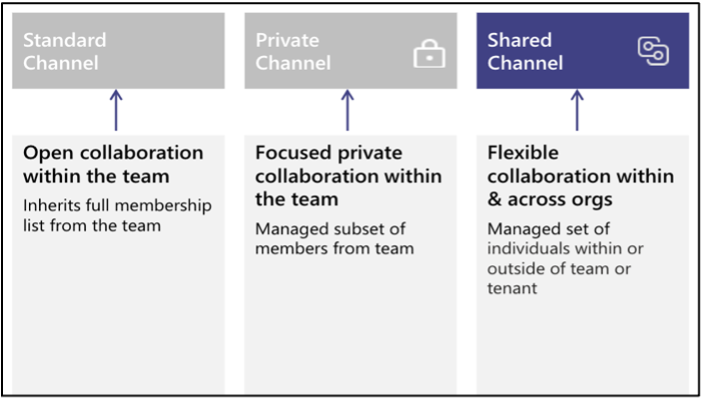
- Key Differences Between Shared, Private, and Standard Channels
Communication
The Chat feature in Teams allows for quick, direct communication with individuals or groups.
...
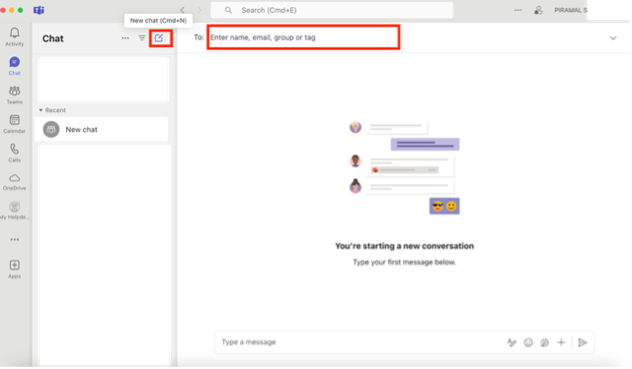
Click the “New chat” button at the top of the chat list, Type the name(s) of the person or people you want to chat with
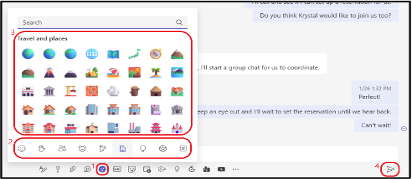
Compose your message in the box at the bottom of the screen
Best Practices for Chat in Microsoft Teams: -
- Use Channels for Team Conversations: For structured team-wide communication, use channels instead of group chats.
- Keep Conversations Organized: Use threads in channels and reply to specific messages in group chats to maintain context.
- Leverage Integrations: Utilize apps and bots in chats to automate workflows, assign tasks, and improve collaboration.
- Stay On Topic: For quick, direct conversations, keep personal or non-work-related chats separate to maintain professionalism in the workspace.
...
Meetings
Microsoft Teams provides robust features for conducting virtual meetings, from quick check-ins to large presentations.
...
Scheduling a Meeting
- To schedule a meeting:
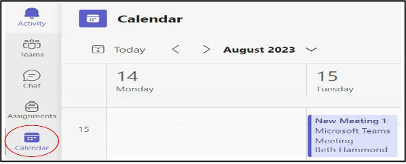
- Click the “Calendar” icon in the App Bar
- Click “New meeting” in the top right corner
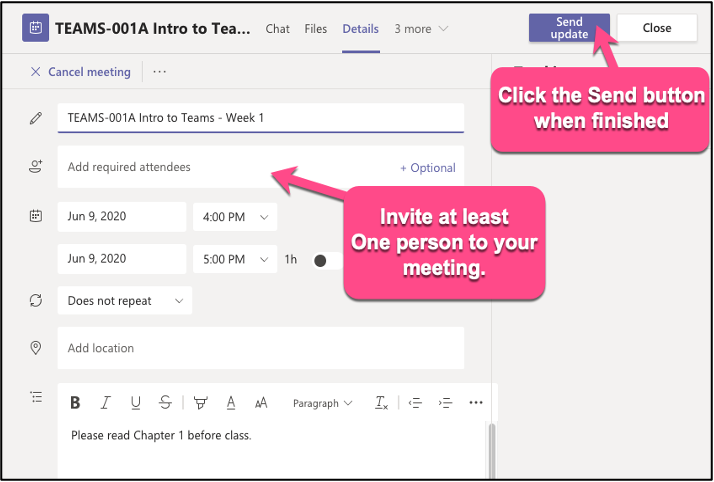
- Fill in the meeting details:
- Title
- Date and time
- Participants
- Location
- Description
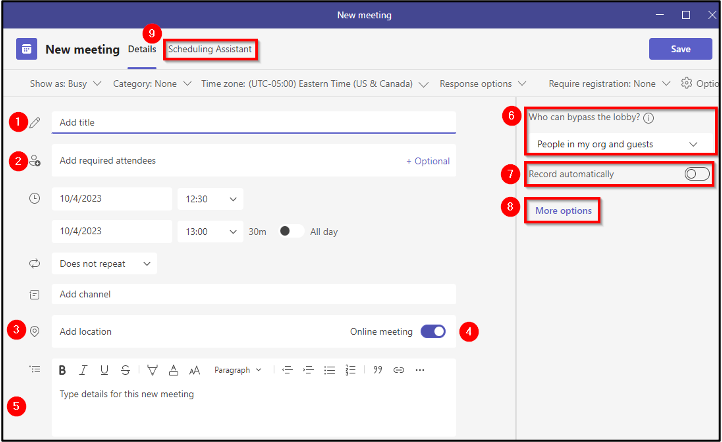
- Click “Send” to schedule and send invitations
...
Joining a Meeting
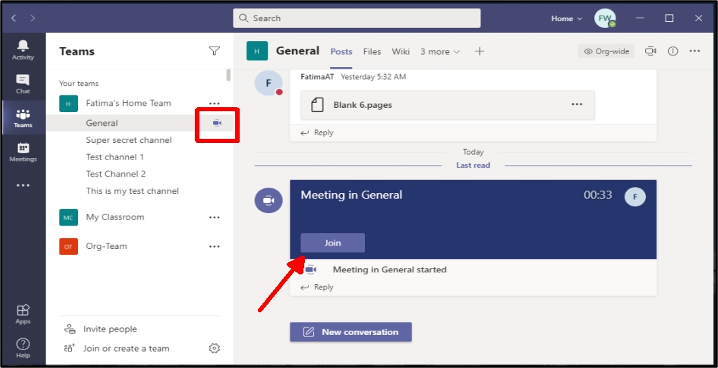
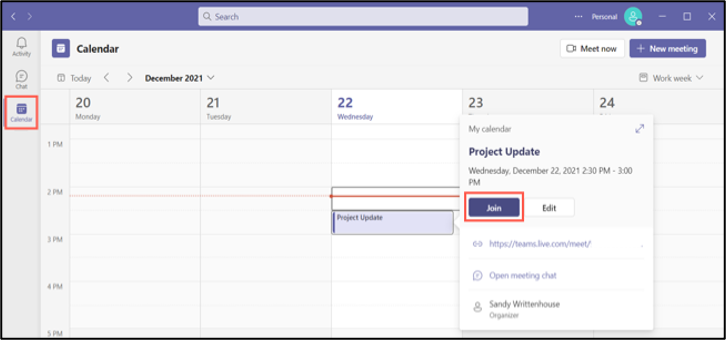
There are multiple ways to join a Teams meeting:
- From a chat
- From the calendar
...
In-Meeting Controls
During a meeting, you have access to various controls:
- Camera on/off
...
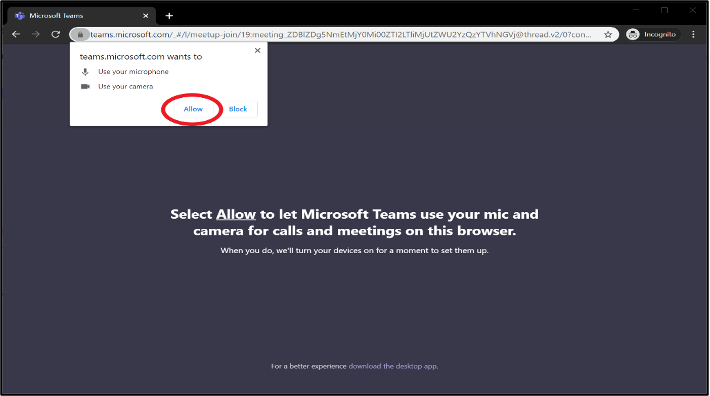
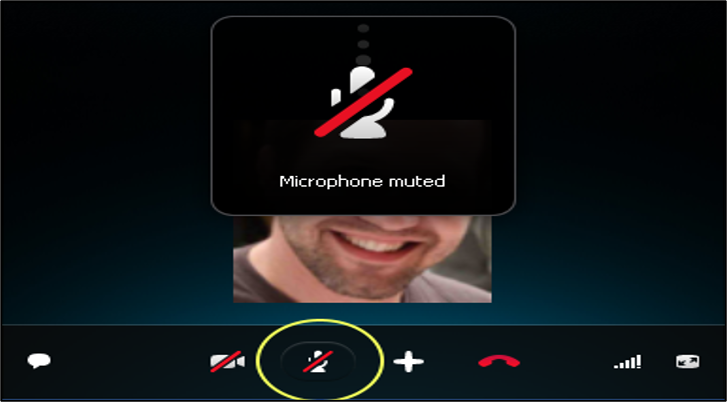
- Microphone mute/unmute
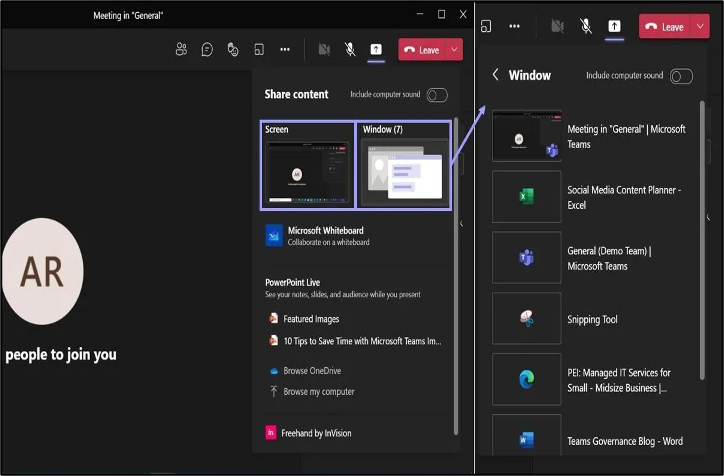
Share screen
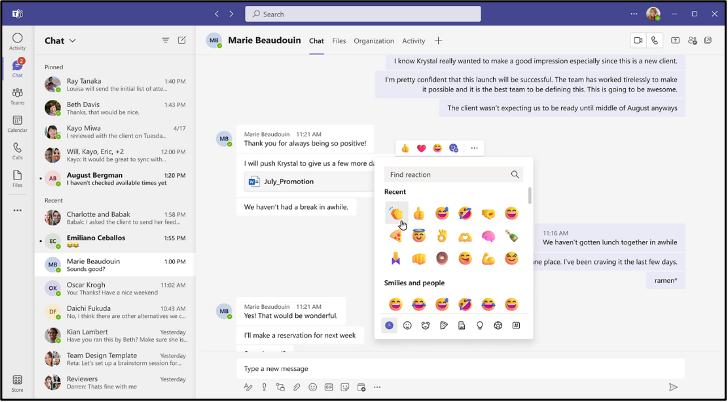
Reaction
Raise your hand for any queries
More options (…)
Best Practices for Meetings: -
- Test your audio and video before joining
- Use background blur or virtual backgrounds in distracting environments
- Mute your microphone when not speaking
- Use the raise hand feature to indicate you want to speak
4. File Sharing and Collaboration
Teams integrate seamlessly with other Microsoft 365 apps, allowing for easy file sharing and real-time collaboration.
...
Controls
When you share your screen in a Teams meeting, you'll have several controls to manage the sharing experience:
- Basic Controls:
- Stop Sharing: This button immediately stops sharing your screen.
- Pause Sharing: Temporarily pauses the screen sharing, allowing you to focus on other tasks or prevent distractions.
- Resume Sharing: Resumes screen sharing after pausing.
- Advanced Controls (depending on your Teams version and settings):
- Select a Region: Allows you to share only a specific portion of your screen, rather than the entire display.
- Include Audio: Determines whether to share system audio along with your screen content.
- Annotate: Enables you to draw or write on the shared screen, making it a useful tool for highlighting specific areas or explaining concepts.
- Show Participants' Cursors: Displays the cursors of other meeting participants on the shared screen, making it easier to follow along and collaborate.
- Reaction
- Raise your hand for any queries
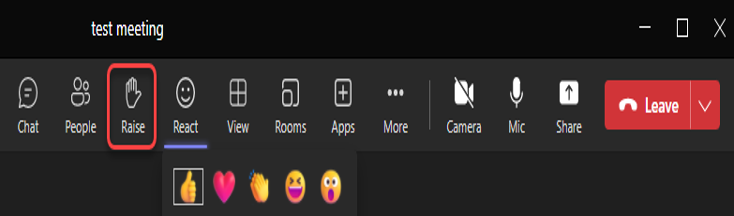
- More options (…)
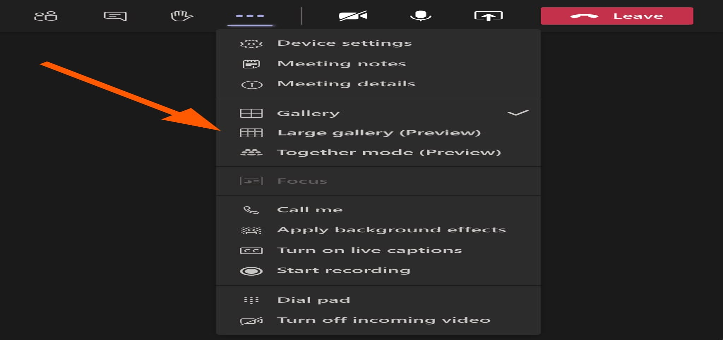
Best Practices for Meetings: -
- Test your audio and video before joining
- Use background blur or virtual backgrounds in distracting environments
- Mute your microphone when not speaking
- Use the raise hand feature to indicate you want to speak
File Sharing and Collaboration
Microsoft Teams offers robust file sharing and collaboration features that make it a powerful tool for teams. Here's a breakdown of the key capabilities:
File Storage and Access:
OneDrive Integration: Teams is seamlessly integrated with OneDrive, Microsoft's cloud storage service. This allows you to store and access files directly within Teams channels.
Shared Folders: Create shared folders within channels to organize and manage files related to specific projects or topics.
Version History: Teams automatically tracks versions of files, making it easy to revert to previous versions if necessary.
Offline Access: Download files for offline access, ensuring you can work on them even when you're not connected to the internet.
- Collaboration Features:
Co-authoring: Multiple users can edit a document simultaneously, making it ideal for collaborative projects.
Real-time Comments: Add comments directly to files to provide feedback or ask questions.
@ Mentions: Tag team members or channels within comments to notify them or request their input.
File Requests: Request specific files from other team members or external collaborators.
- File Management and Organization:
Search Functionality: Quickly find files using keywords, file types, or even the content within the files.
File Types Supported: Teams supports a wide range of file types, including documents, spreadsheets, presentations, images, and more.
File Sharing Permissions: Control who can access and edit files by setting appropriate permissions.
Integration with Other Microsoft Apps: Easily share files from other Microsoft apps like Word, Excel, and PowerPoint directly into Teams channels.
- Additional Features:
File Templates: Create and use custom file templates to streamline document creation and ensure consistency.
File Expiration: Set expiration dates for files to automatically delete them after a certain period.
File Retention Policies: Implement retention policies to manage file storage and compliance requirements.
By leveraging these file sharing and collaboration features, Teams can significantly enhance productivity, teamwork, and communication within organization.
Sharing Files in a Chat or Channel
- Click the attachment icon (Attach File) in the compose box
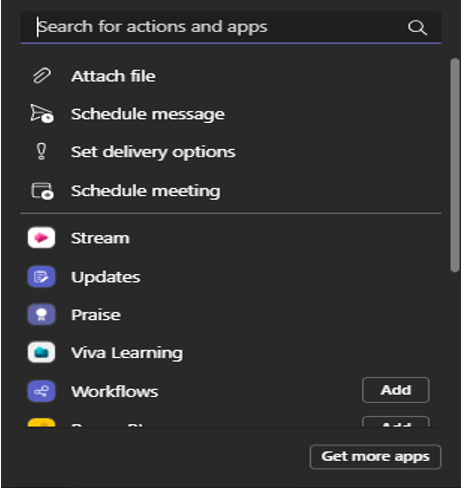
To share a file:
- Choose the file source (recent, OneDrive, or upload from your device), Select the file and click “Share” to share a file
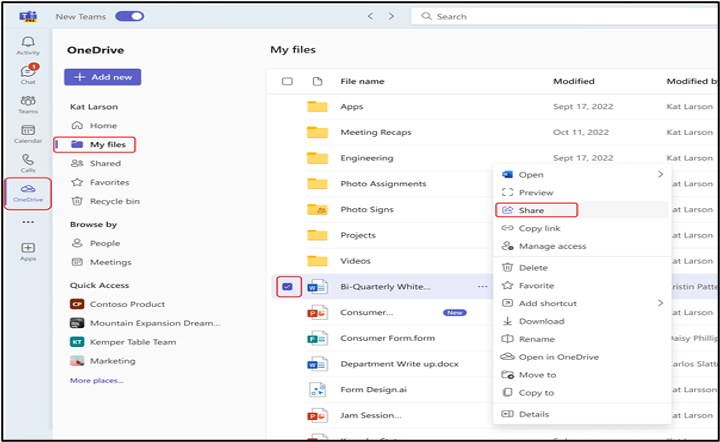
...
Co-authoring Documents
Teams allow real-time co-authoring of Microsoft 365 documents.
...