
Table of Contents outline true
Getting Started
Teams Vs WhatsApp
In today’s digital workplace, choosing the right communication platform is crucial for productivity and collaboration. This section compares Microsoft Teams and WhatsApp, focusing on their suitability for Piramal Foundation use.
...
- Use a clear, professional profile picture
- Ensure your display name is easily recognizable
- Keep your job title and department up to date
...
Teams and Channels
Channels
Channels in Microsoft Teams are dedicated sections within a team that organize conversations, files, and tools by specific topics, departments, or projects. Channels provide structure to team communication and allow members to focus on areas of interest, workstreams, or responsibilities.
...
In summary, channels in Microsoft Teams are the foundation for collaboration, organization, and communication within a team. They help keep discussions focused, make resources easily accessible, and integrate various tools and apps to enhance team productivity.
Creating a New Team
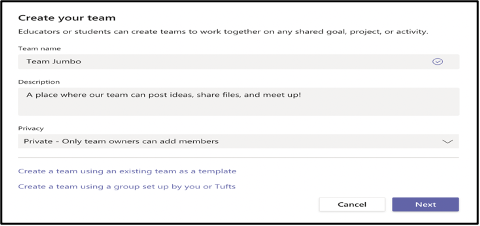
Teams are the foundation of collaboration in Microsoft Teams. Here’s how to create one:
...
- Name your team and add a description
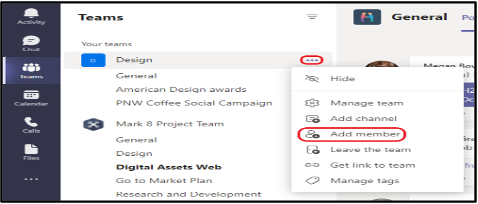
- Add member
...
Creating Channels Within a Team
Channels are subcategories within a team, used to organize conversations, files, and tools around specific topics.
...
- Analytics and Insights
- Personal productivity insights
- Team collaboration analytics
Chat
Click the “New chat” button at the top of the chat list, Type the name(s) of the person or people you want to chat with
...
- Use Channels for Team Conversations: For structured team-wide communication, use channels instead of group chats.
- Keep Conversations Organized: Use threads in channels and reply to specific messages in group chats to maintain context.
- Leverage Integrations: Utilize apps and bots in chats to automate workflows, assign tasks, and improve collaboration.
- Stay On Topic: For quick, direct conversations, keep personal or non-work-related chats separate to maintain professionalism in the workspace.
...
Meetings
Microsoft Teams provides robust features for conducting virtual meetings, from quick check-ins to large presentations.
...
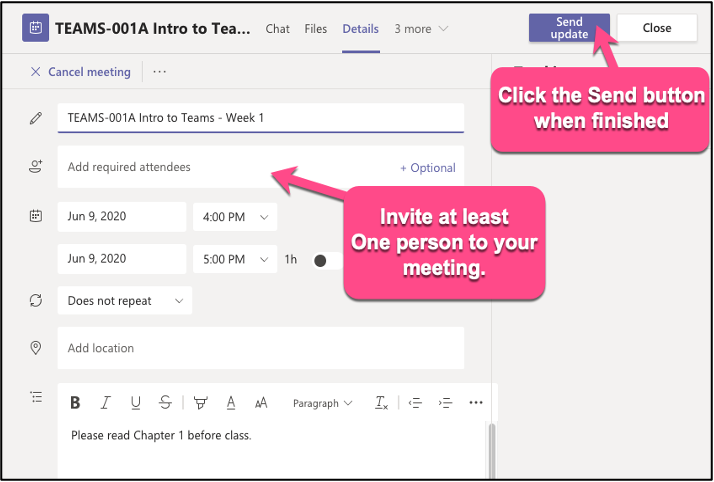
- Click “Send” to schedule and send invitations
...
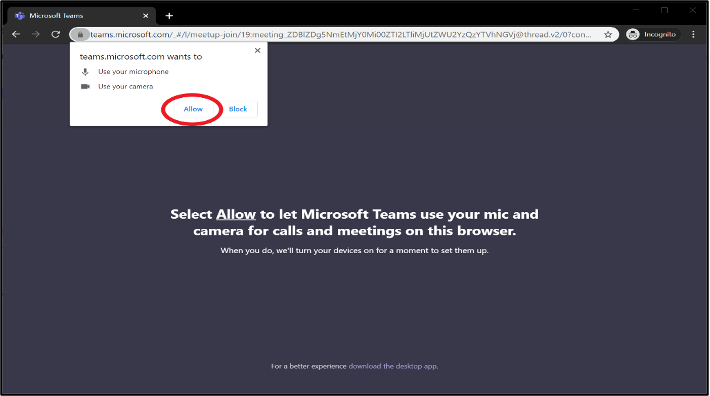
Joining a Meeting
There are multiple ways to join a Teams meeting:
- From a chat
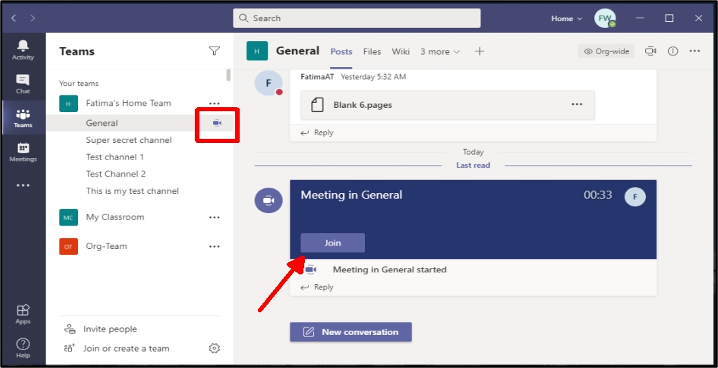
- From the calendar
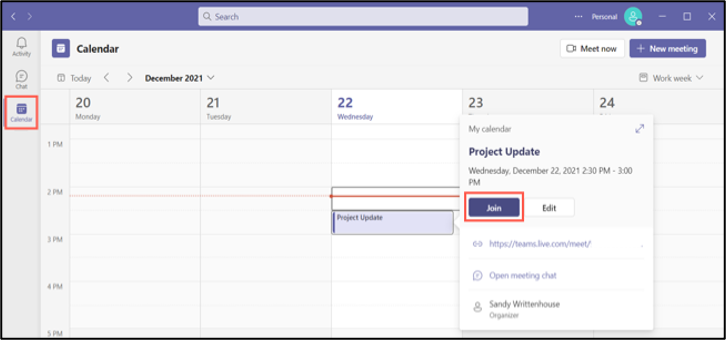
...
In-Meeting Controls
- Camera on/off
- Microphone mute/unmute
...
By leveraging these file sharing and collaboration features, Teams can significantly enhance productivity, teamwork, and communication within organization.
Sharing Files in a Chat or Channel
- Click the attachment icon (Attach File) in the compose box
...
- Choose the file source (recent, OneDrive, or upload from your device), Select the file and click “Share” to share a file
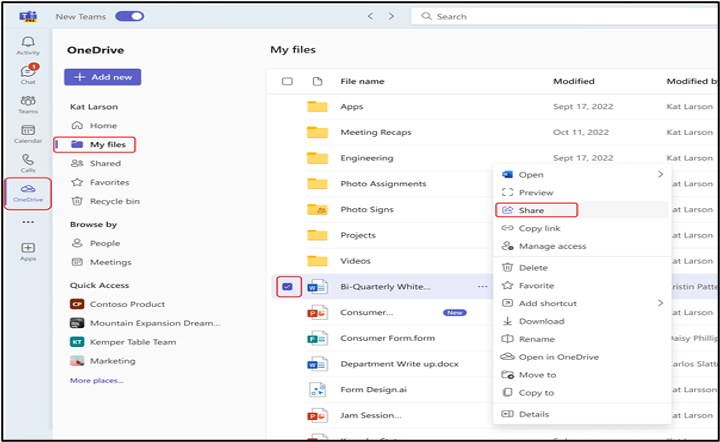
...
Co-authoring Documents
Teams allow real-time co-authoring of Microsoft 365 documents.
...
- Use descriptive file names
- Utilize version history for important documents
- Communicate with co-authors using comments or the chat feature
...
Advanced Features
Using Apps and Integrations
Teams can be customized with various apps and integrations to enhance productivity.
...
- Click on the app and then “Add” to install it

...
Using Apps in Chats and Channels
Many apps can be used directly within chats and channels.
...