
...
- Microsoft Teams
- Purpose: Designed for workplace collaboration and communication
- Target Users: Businesses and organizations of all sizes
- WhatsApp
- Purpose: Originally for personal messaging, with some business features added
- Target Users: Primarily individuals, with a separate WhatsApp Business app
Detailed Comparison of Microsoft Teams and WhatsApp
|
...
Microsoft Teams offers a comprehensive, secure, and scalable solution specifically designed for business needs. Its integration capabilities, advanced features, and focus on professional collaboration make it the superior choice for organizations looking to enhance digital workplace communication.
Let’s understand the features of Microsoft Teams in detail.
...
Teams Interface
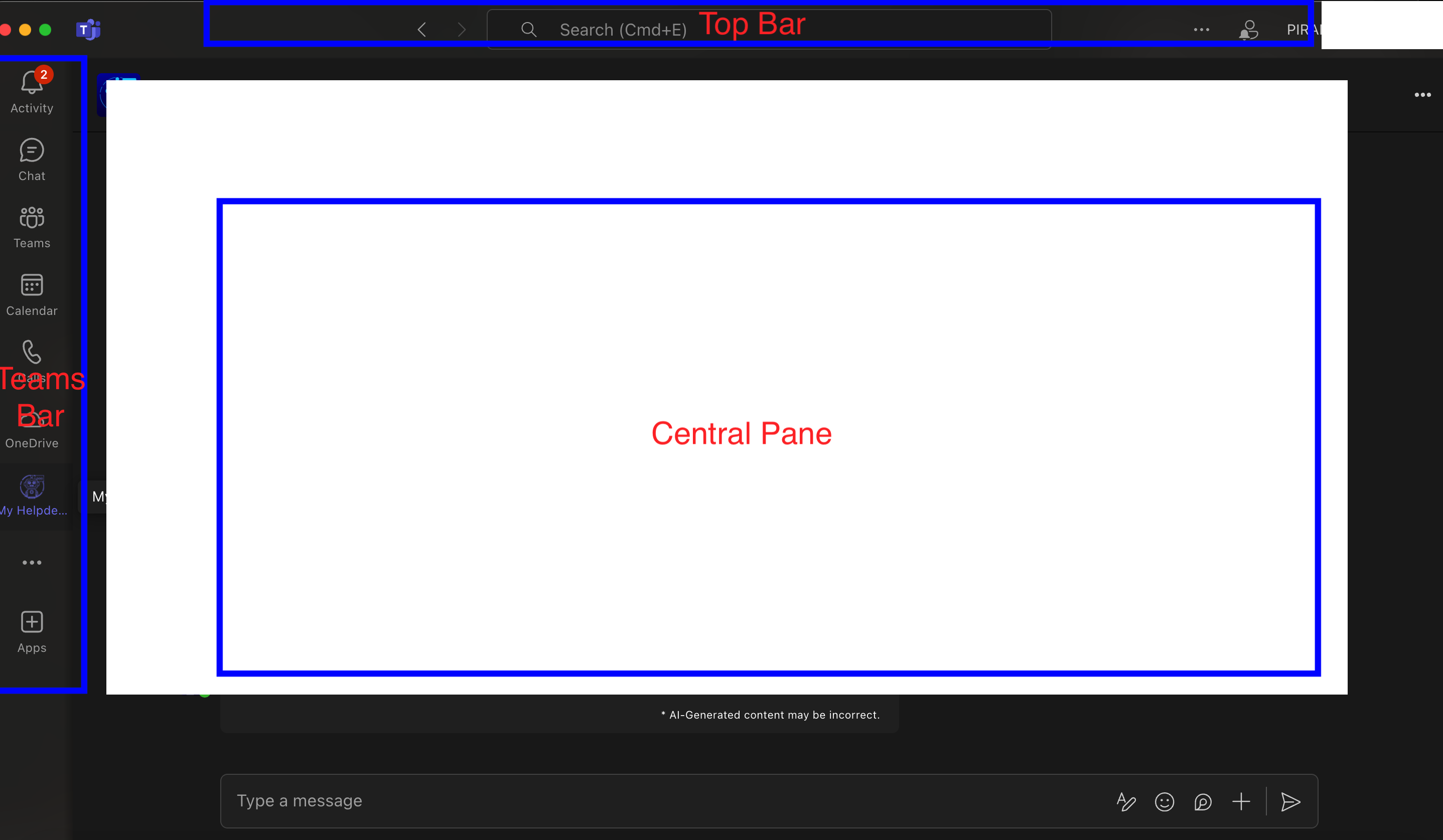
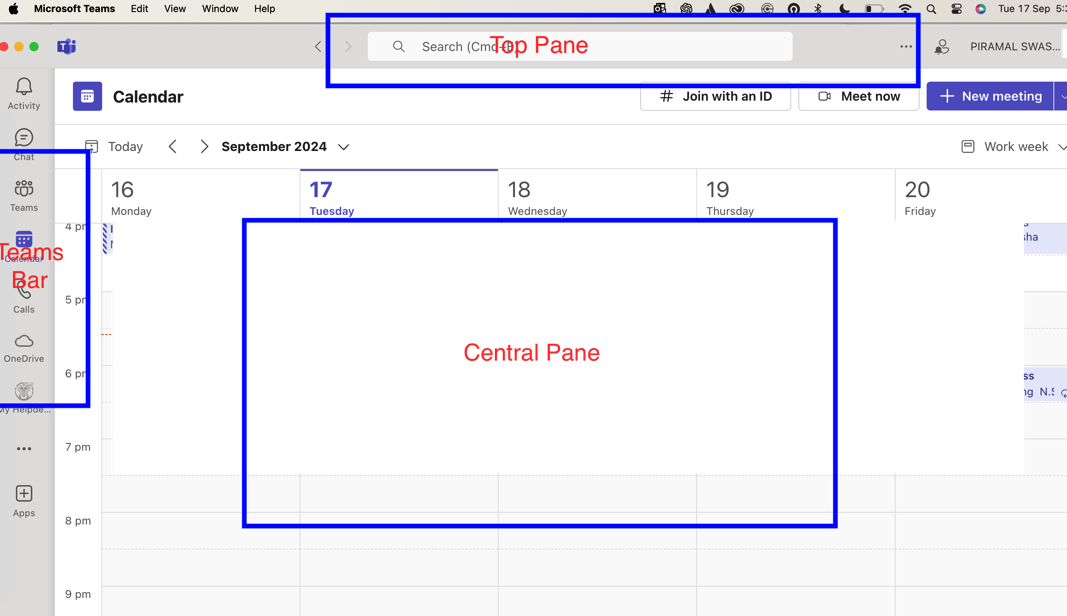
Microsoft Teams offers a user-friendly interface designed for efficient communication and collaboration. Here’s a breakdown of the main elements:
...
- Teams Bar: Lists all your teams and channels, Allows quick navigation between different workspaces
- Central Pane: The main working area where conversations, files, and other content are displayed
- Top Bar: Contains the search box, command box, and profile picture, quick access to settings and commands
...
Customizing Profile
...
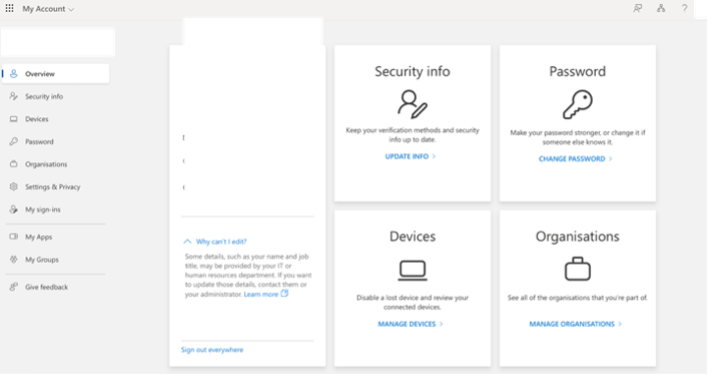
- Click on “View account” which will take you to browser and you are able to modify Password and change security info.
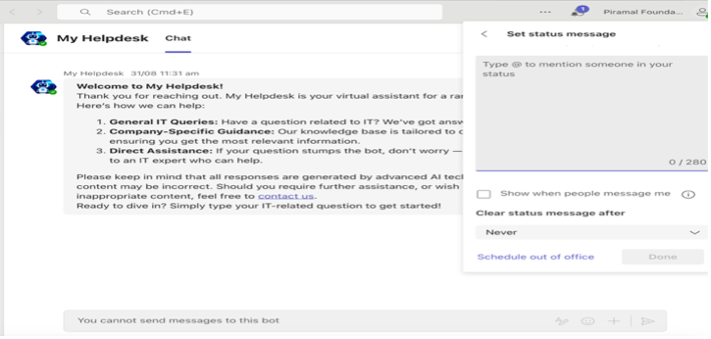
- Set Status Message
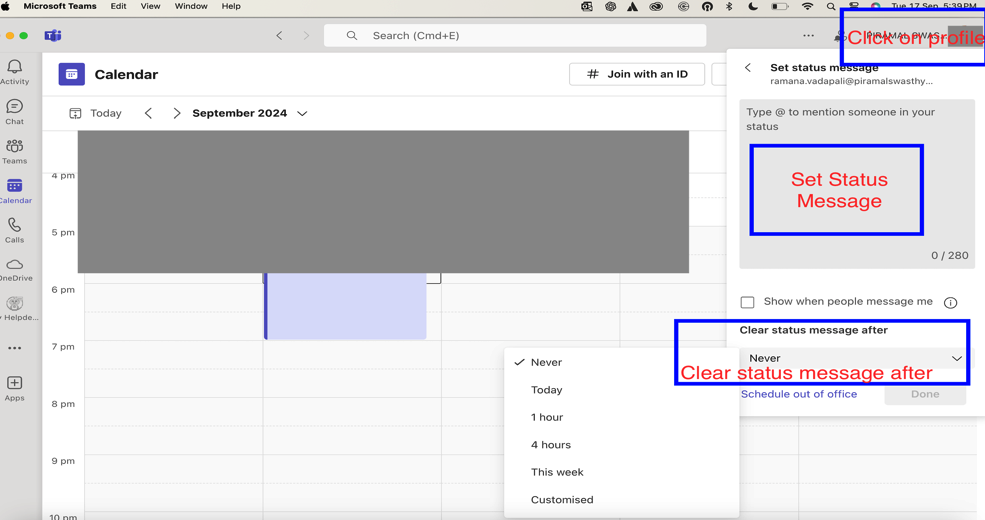
Best Practices for profile: -
...
- Click the “Teams” icon in the App Bar and click “+”

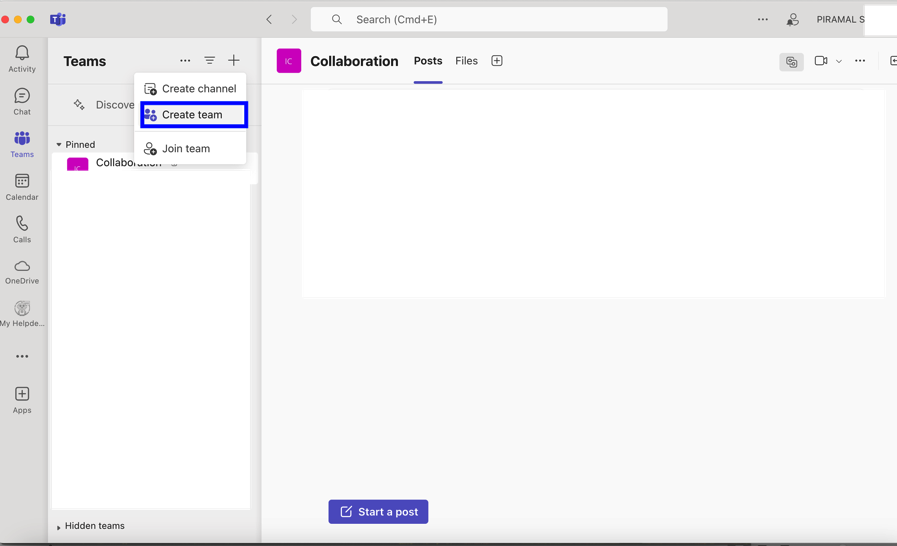
- Choose the type of team: Private, Public, or Org-wide
...
- Navigate to the team you wish to create channel for and click on “… “(More Options) and Add channel
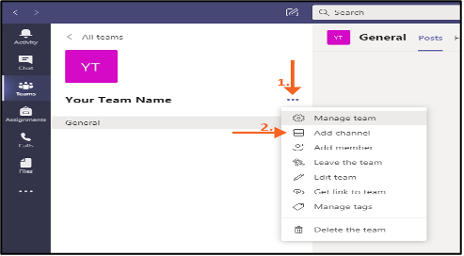
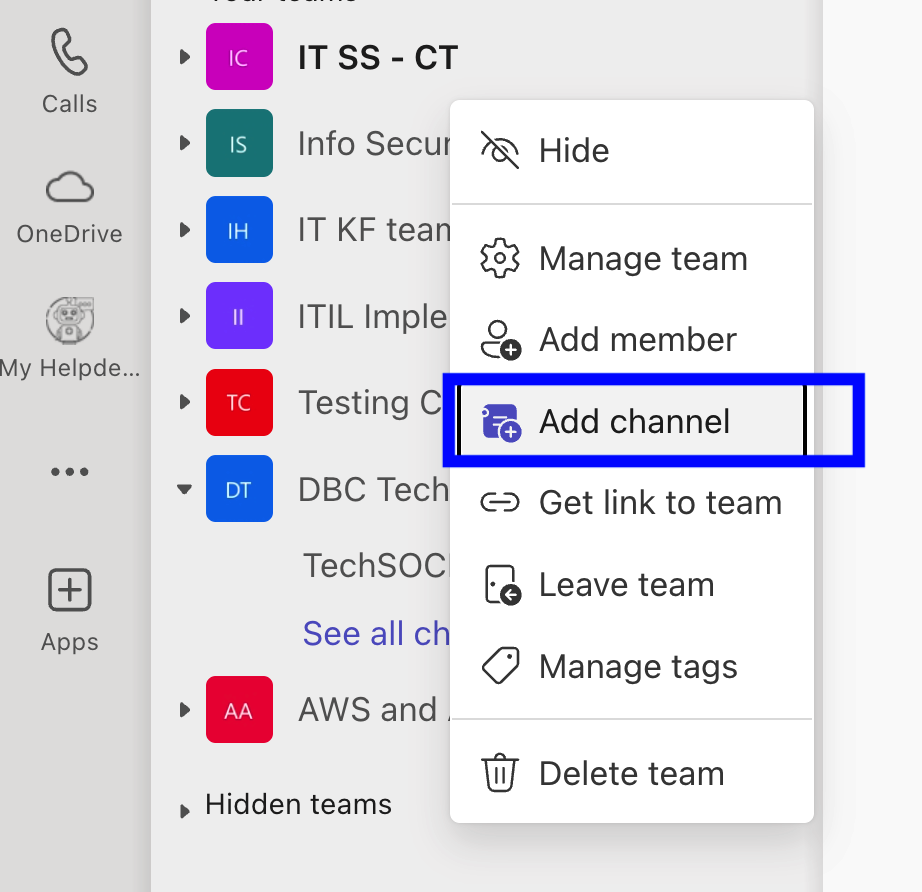
- Name the channel and add a description
...
- Owners: Users who can manage the channel, including adding/removing members.
- Members: Users who can view and participate in channel activities, but do not have administrative rights.
- Teams: Teams already created
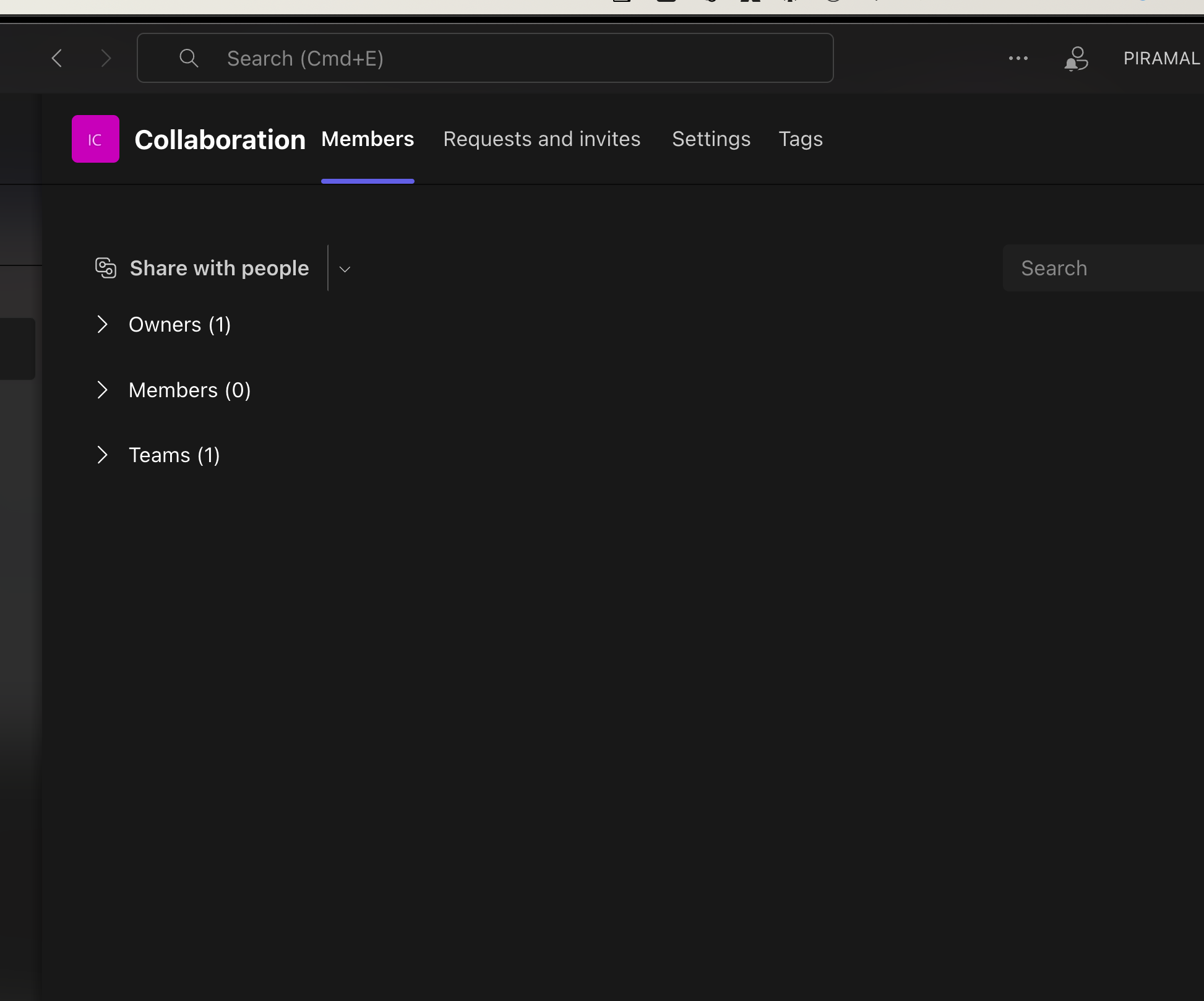
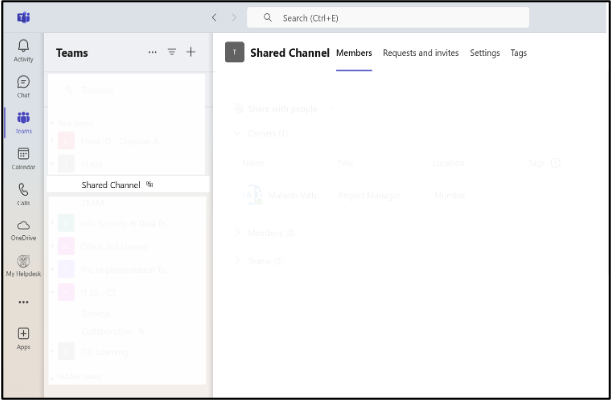
- Restricting Guest Access:
- Guests cannot create new channels, remove members, or access any files outside of the shared channel.
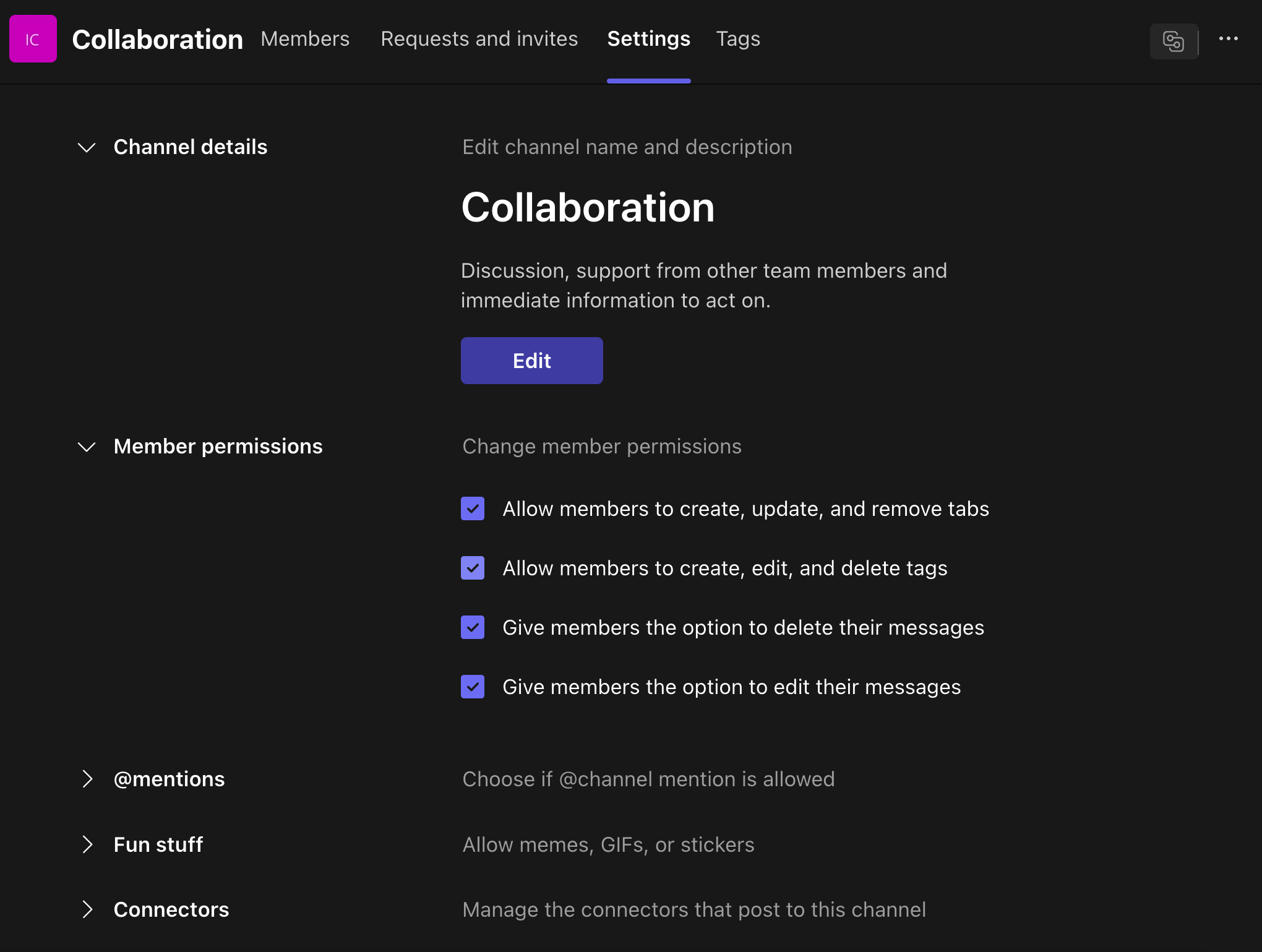
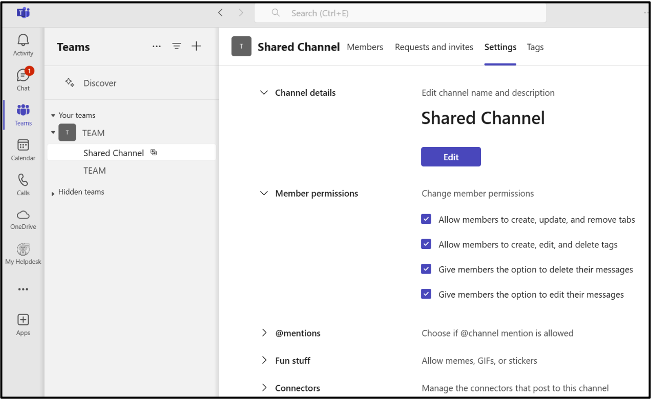
- Key Differences Between Shared, Private, and Standard Channels
...
There are multiple ways to join a Teams meeting:
- From a chat
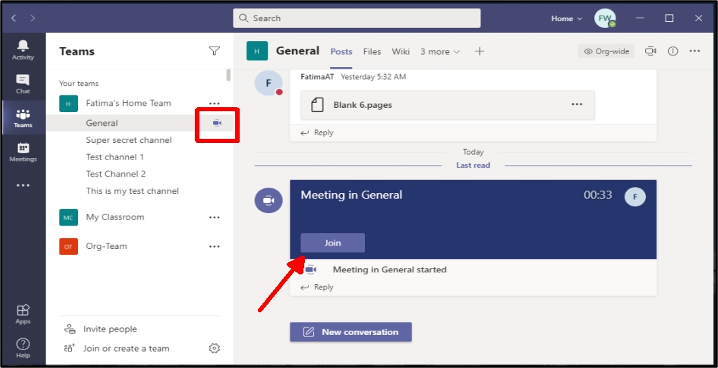
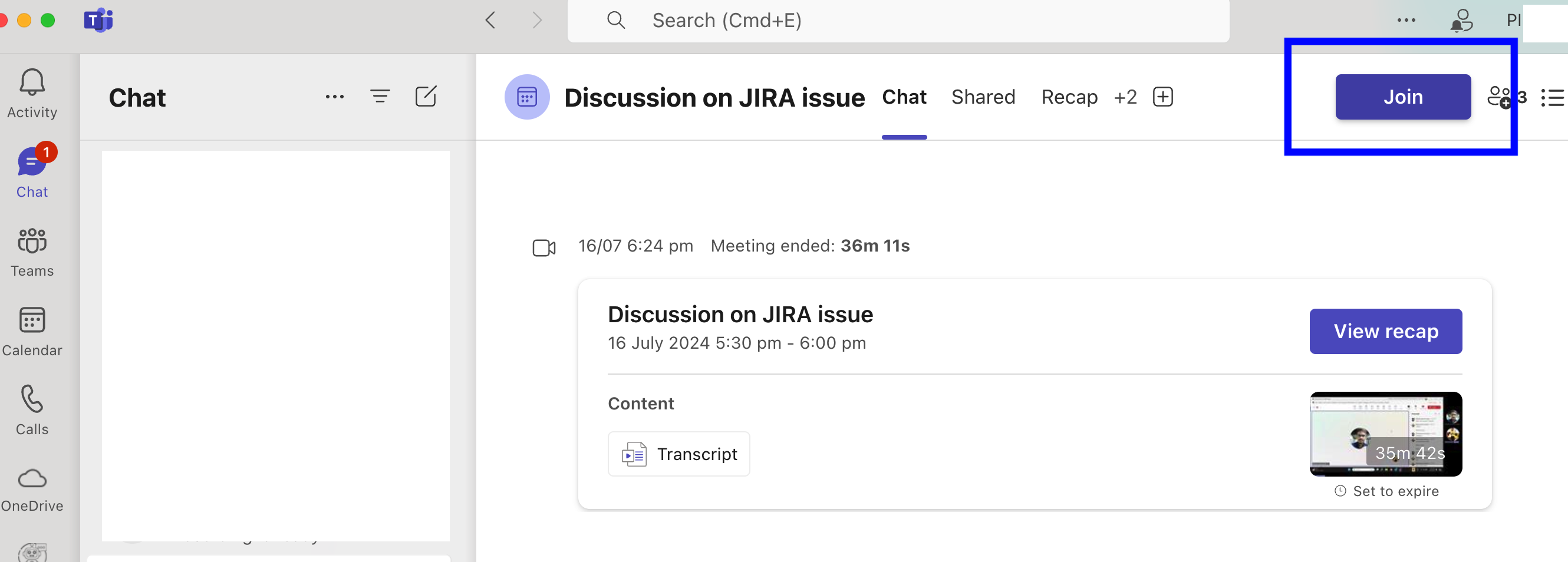
- From the calendar
...
In-Meeting Controls
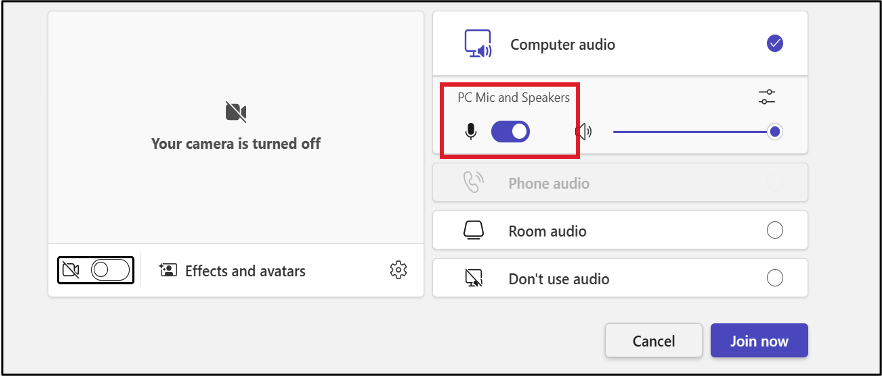
- Camera on/off
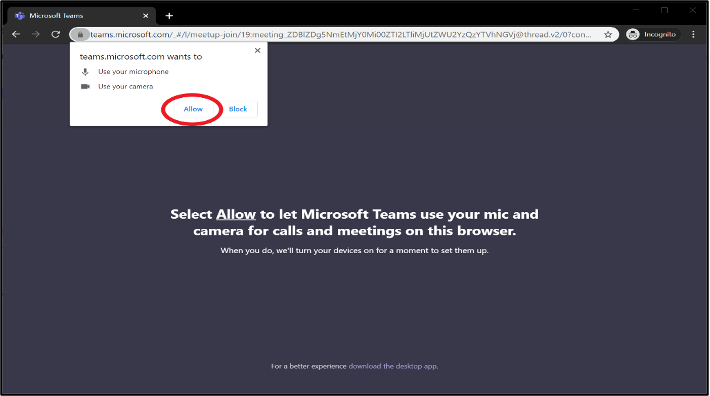
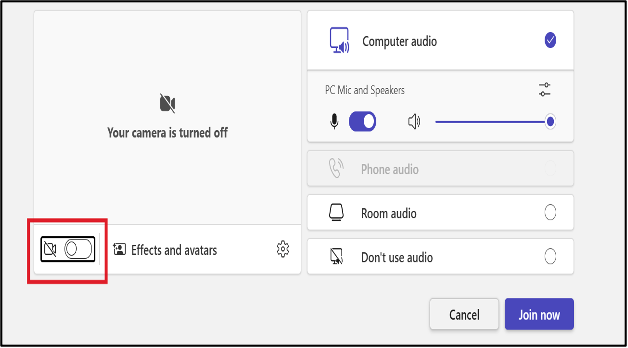
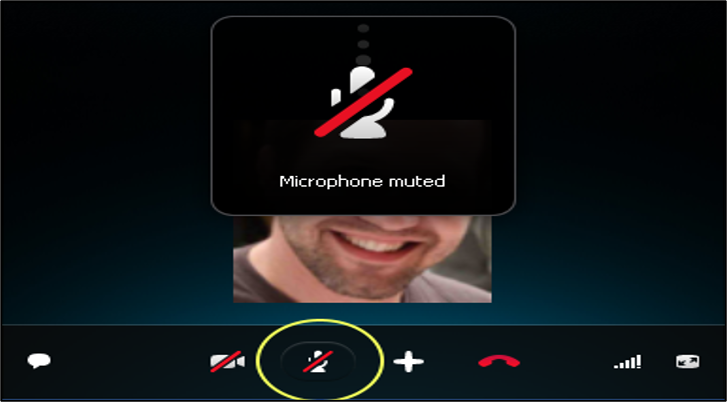
- Microphone mute/unmute
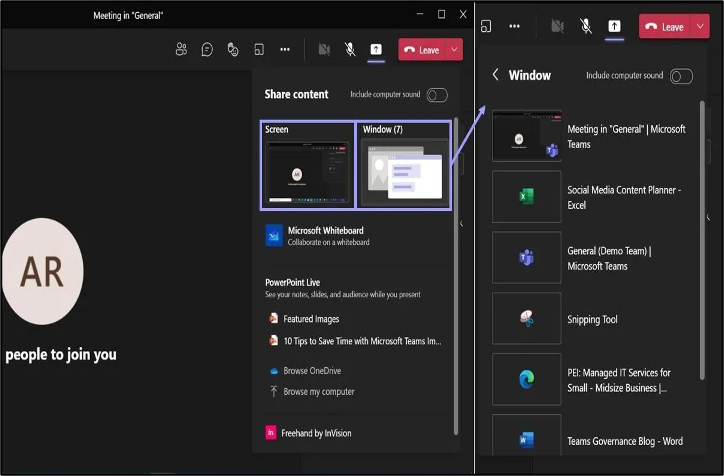
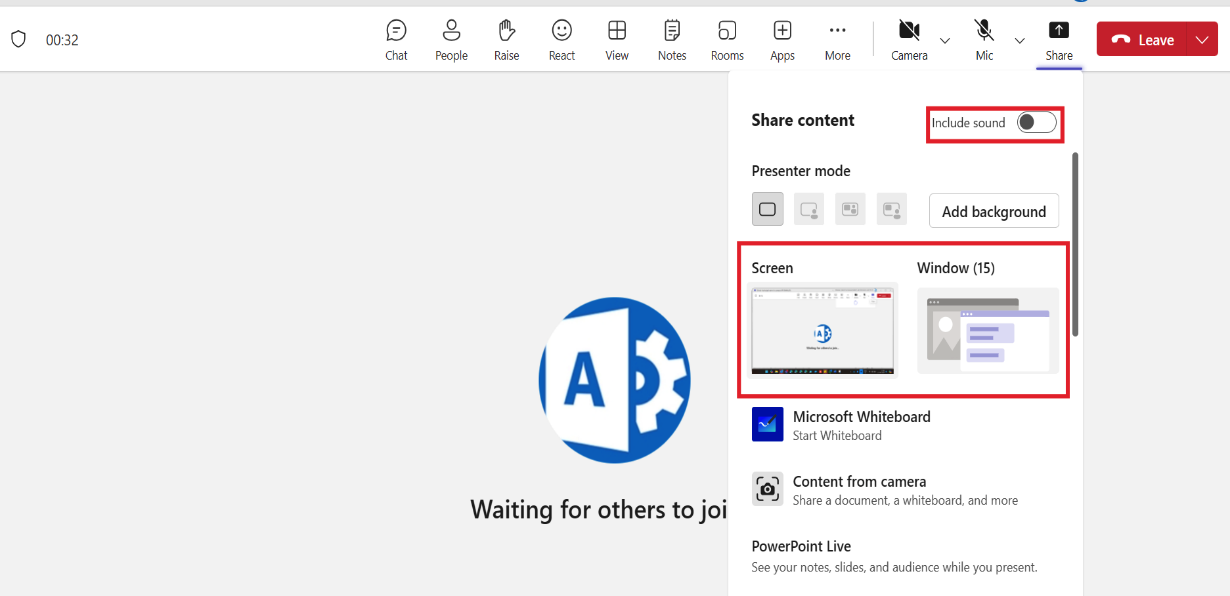
Share screen Controls
...
- Basic Controls:
- Stop Sharing: This button immediately stops sharing your screen.
- Pause Sharing: Temporarily pauses the screen sharing, allowing you to focus on other tasks or prevent distractions.
- Resume Sharing: Resumes screen sharing after pausing.
- Advanced Controls (depending on your Teams version and settings):
- Select a Region: Allows you to share only a specific portion of your screen, rather than the entire display.
- Include Audio: Determines whether to share system audio along with your screen content.
- Annotate: Enables you to draw or write on the shared screen, making it a useful tool for highlighting specific areas or explaining concepts.
- Show Participants' Cursors: Displays the cursors of other meeting participants on the shared screen, making it easier to follow along and collaborate.
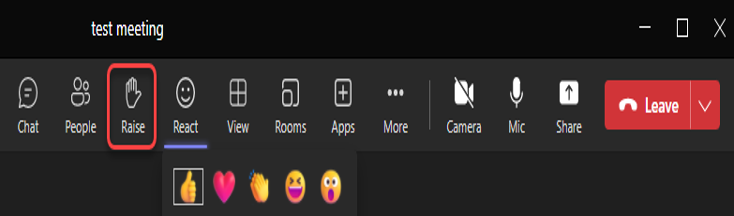
- Reaction
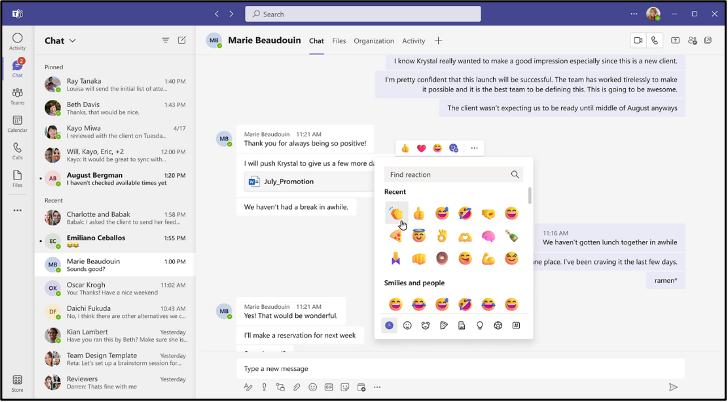
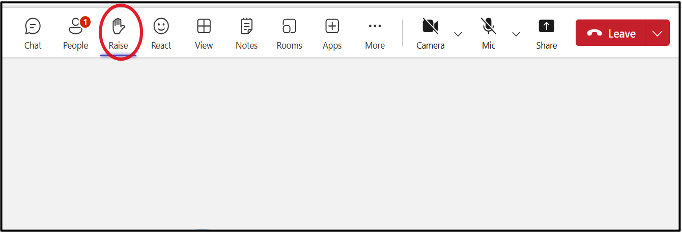
- Raise your hand for any queries
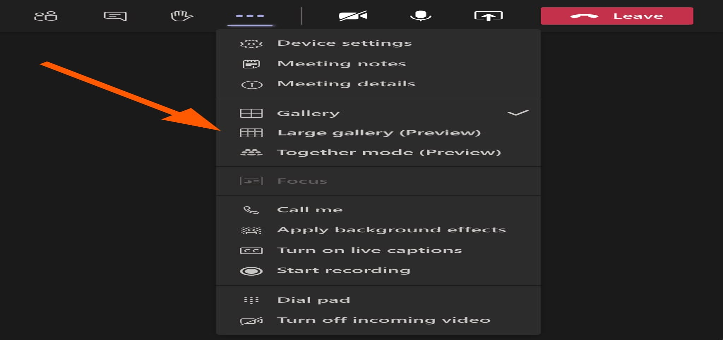
- More options (…)
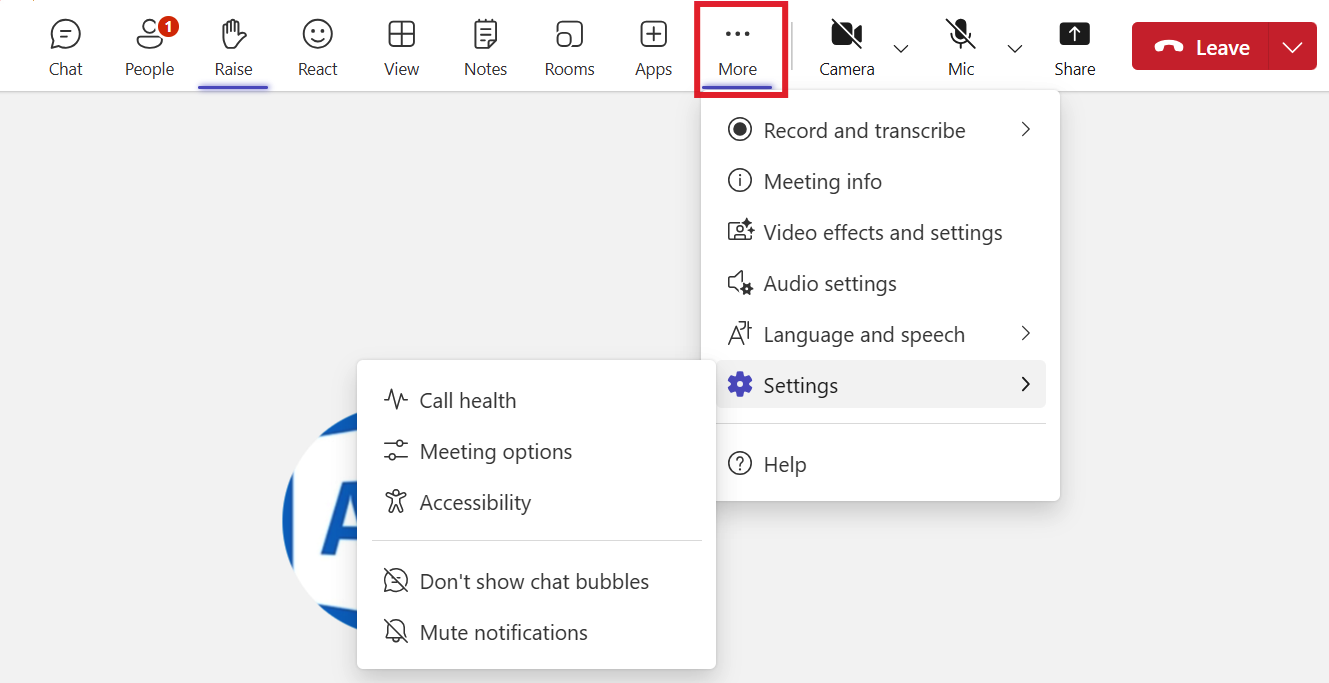
Best Practices for Meetings: -
...
- Click the attachment icon (Attach File) in the compose box
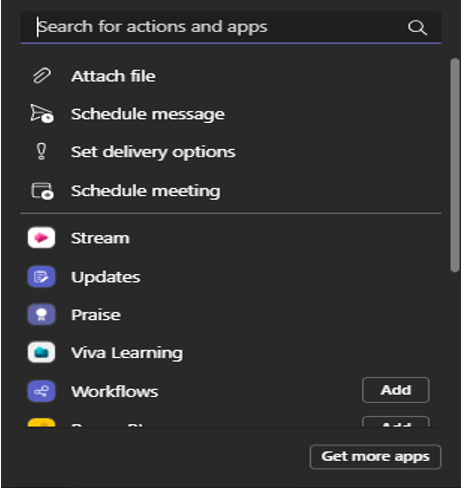
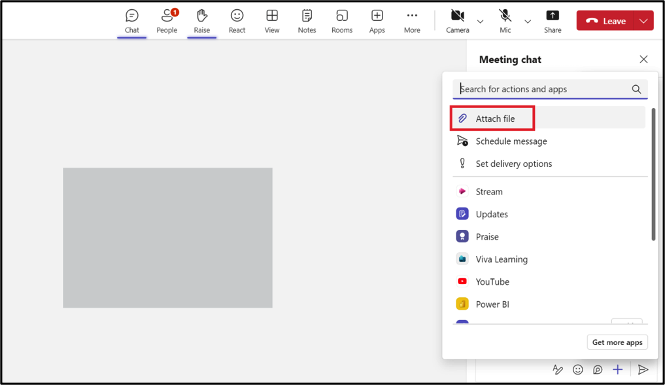
- Choose the file source (recent, OneDrive, or upload from your device), Select the file and click “Share” to share a file
...
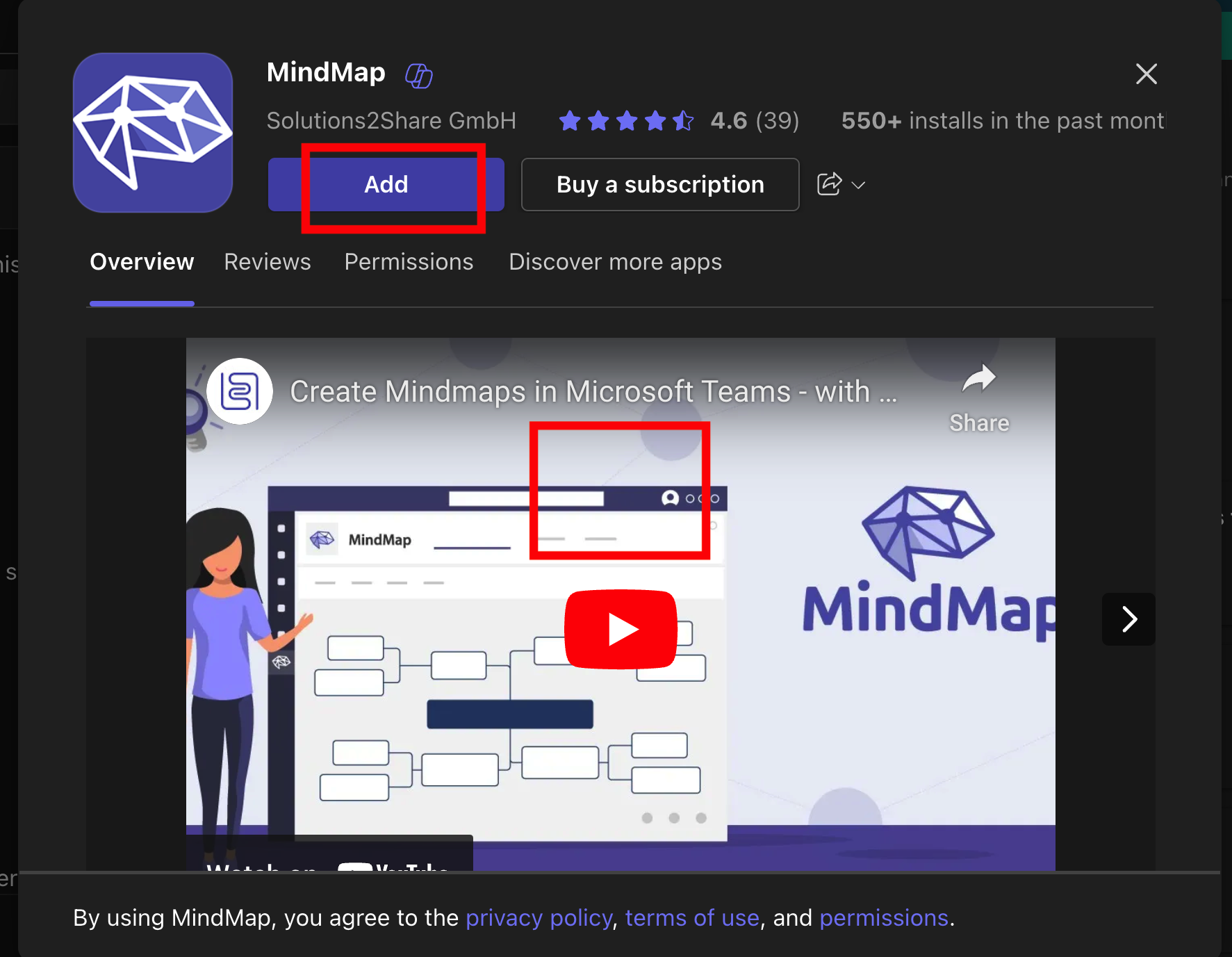
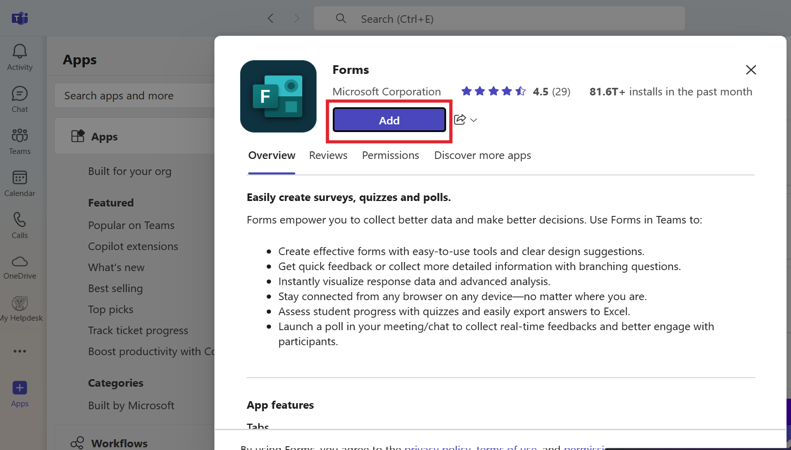
- Click on the app and then “Add” to install it
...
Using Apps in Chats and Channels
...