Table of Contents outline true style none separator braces
...
About Microsoft Teams
Microsoft Teams has become a central hub for all business communication within our organizations, streamlining collaboration and enhancing productivity. With features like real-time chat, audio and video conferencing, file sharing, and integration with other Microsoft 365 applications, Teams enables seamless communication between departments and remote workers. It ensures that employees can easily collaborate, share information, and stay connected, regardless of their location.
Moreover, Teams consolidates various communication tools into a single platform, reducing the need for multiple applications. With threaded conversations, project-based channels, and easy access to documents and workflows, Teams creates a structured environment where communication is not only efficient but also organized and traceable. This leads to better decision-making, quicker responses, and a more engaged workforce.
Getting Started
...
As we strive for better collaboration and productivity, it's essential to standardize our communication tools across the organization. While WhatsApp may be a convenient tool for personal messaging, it is not designed to meet the needs of a professional business environment. Microsoft Teams, on the other hand, offers a secure, organized, and integrated platform specifically built for workplace communication and collaboration.
Teams and WhatsApp Comparison
In today’s digital workplace, choosing the right communication platform is crucial for productivity and collaboration. This section compares Microsoft Teams and WhatsApp, focusing on their suitability for Piramal Foundation use.
- Microsoft Teams
- Purpose: Designed for workplace collaboration and communication
- Target Users: Businesses and organizations of all sizes
- WhatsApp
- Purpose: Originally for personal messaging, with some business features added
- Target Users: Primarily individuals, with a separate WhatsApp Business app
Detailed Comparison of Microsoft Teams and WhatsApp
|
...
Microsoft Teams offers a comprehensive, secure, and scalable solution specifically designed for business needs. Its integration capabilities, advanced features, and focus on professional collaboration make it the superior choice for organizations looking to enhance digital workplace communication.
Let’s understand the features of Microsoft Teams in detail.
...
Teams Interface
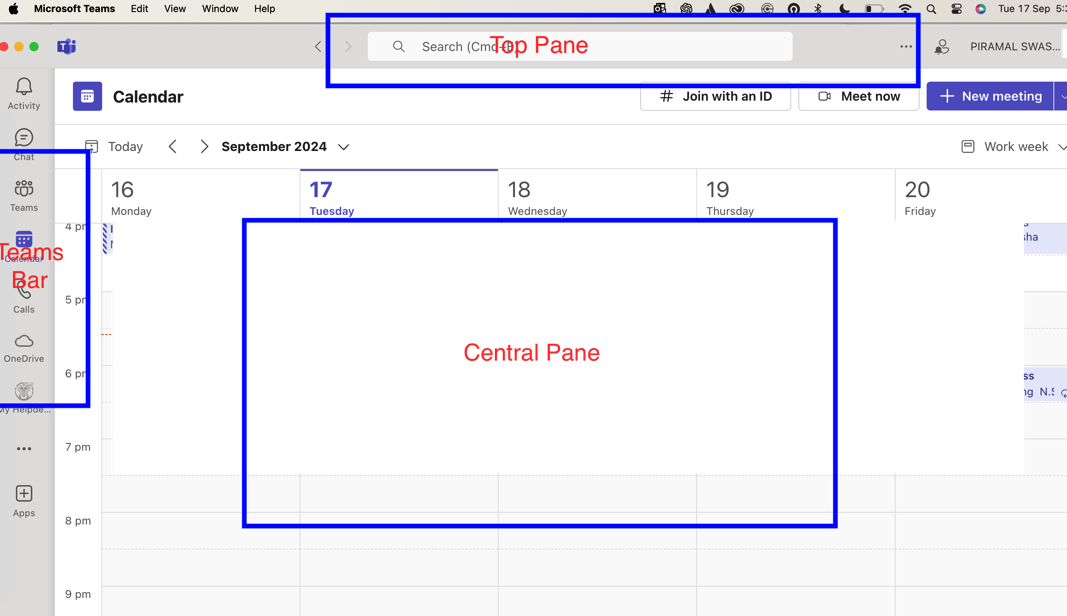
Microsoft Teams offers a user-friendly interface designed for efficient communication and collaboration. Here’s a breakdown of the main elements:
...
- Teams Bar: Lists all your teams and channels, Allows quick navigation between different workspaces
- Central Pane: The main working area where conversations, files, and other content are displayed
- Top Bar: Contains the search box, command box, and profile picture, quick access to settings and commands
...
Customizing Profile
Personalizing your profile helps teammates identify you and adds a personal touch to your interactions.
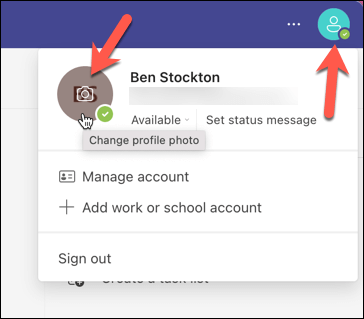
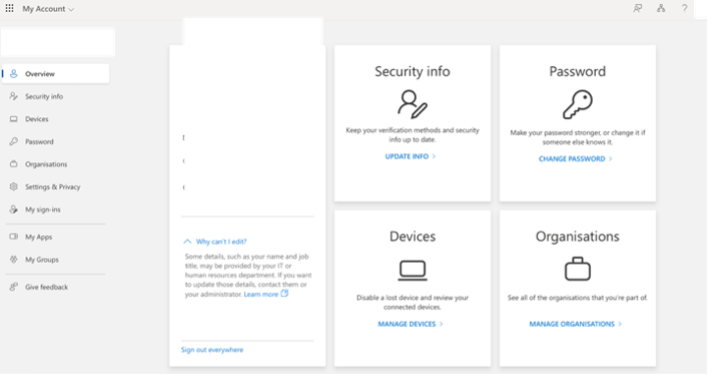
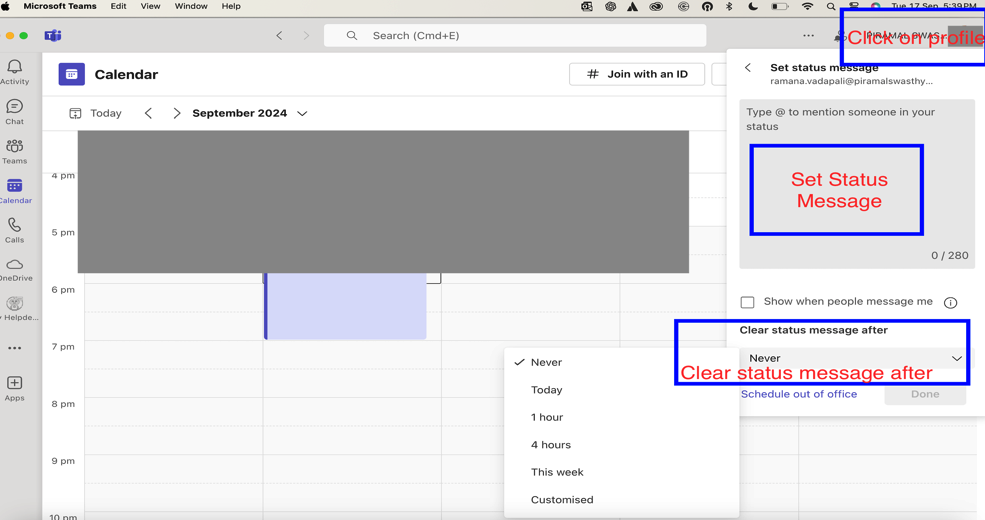
- Click on your profile picture in the top right corner
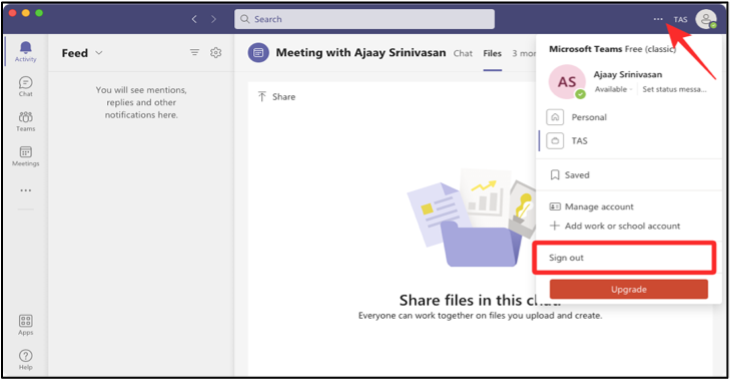
- Click on “View account” which will take you to browser and you are able to modify Password and change security info.
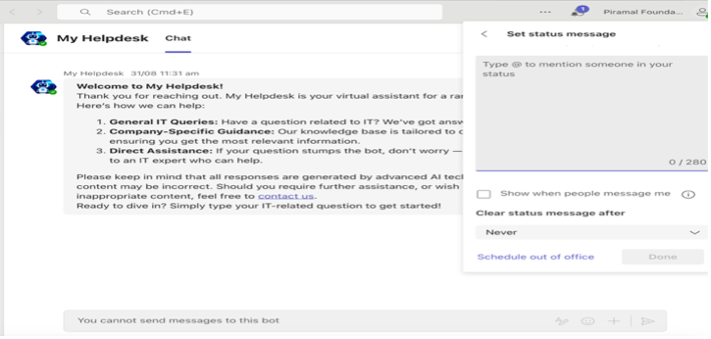
- Set Status Message
Best Practices for profile: -
- Use a clear, professional profile picture
- Ensure your display name is easily recognizable
- Keep your job title and department up to date
...
Teams and Channels
Channels
Channels in Microsoft Teams are dedicated sections within a team that organize conversations, files, and tools by specific topics, departments, or projects. Channels provide structure to team communication and allow members to focus on areas of interest, workstreams, or responsibilities.
...
In summary, channels in Microsoft Teams are the foundation for collaboration, organization, and communication within a team. They help keep discussions focused, make resources easily accessible, and integrate various tools and apps to enhance team productivity.
Creating a New Team
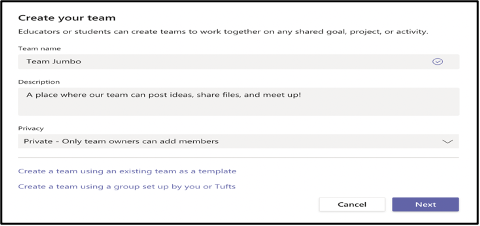
Teams are the foundation of collaboration in Microsoft Teams. Here’s how to create one:
...
- Click the “Teams” icon in the App Bar and click “+”

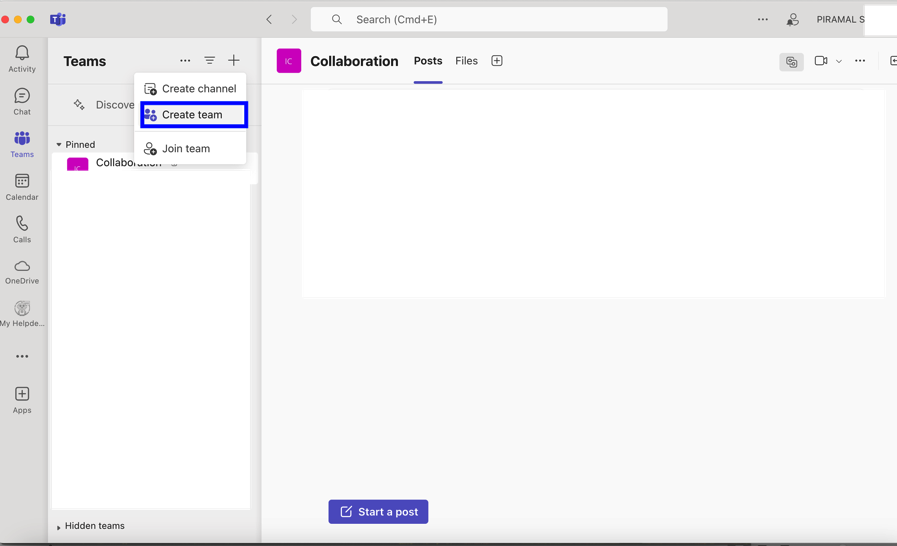
- Choose the type of team: Private, Public, or Org-wide
...
- Name your team and add a description
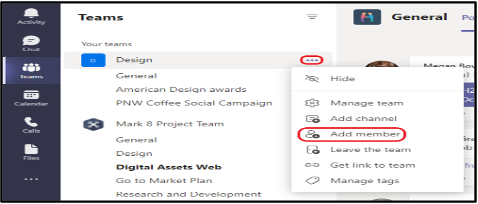
- Add member
...
Creating Channels Within a Team
Channels are subcategories within a team, used to organize conversations, files, and tools around specific topics.
...
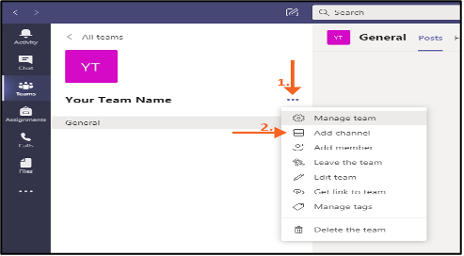
- Navigate to the team you wish to create channel for and click on “… “(More Options) and Add channel
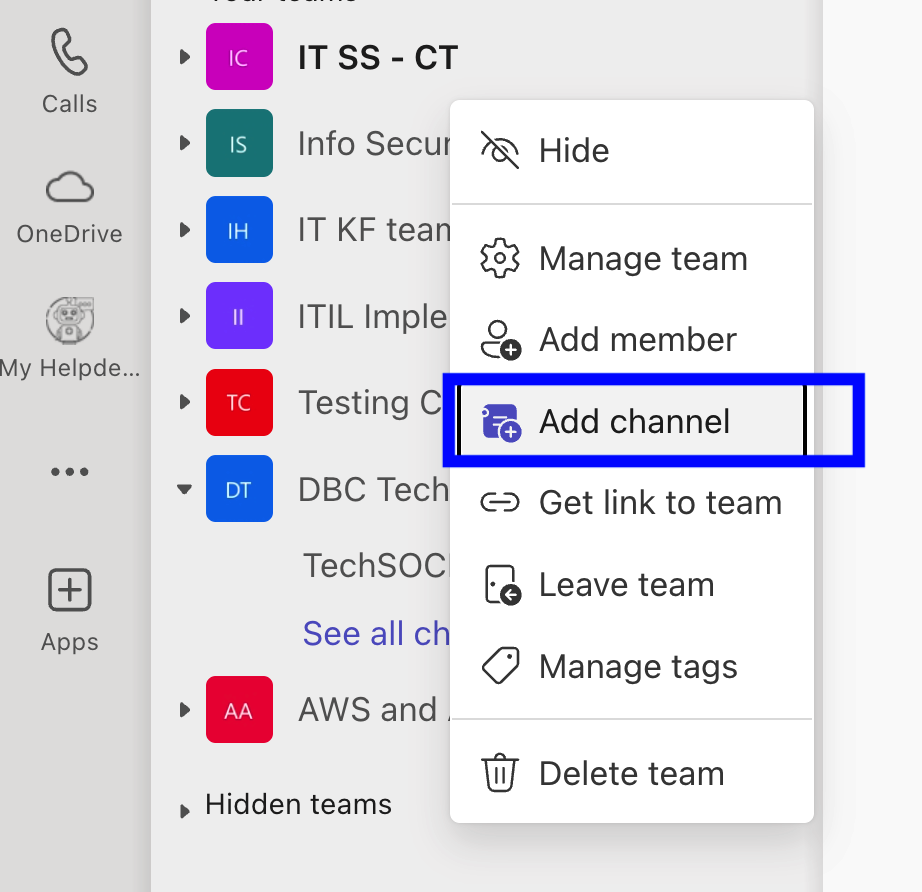
- Name the channel and add a description
...
- Choose privacy settings (Standard or Private) [prefer selecting private channel if it’s not for entire organization
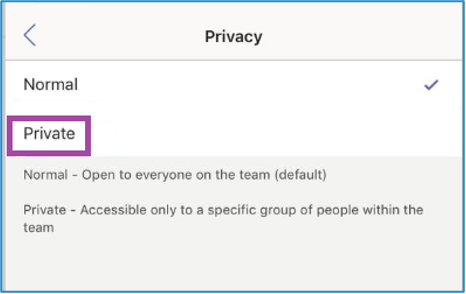
Best Practices: -
- Use clear, descriptive names
- Avoid creating too many channels
- Consider using private channels for sensitive discussions
...
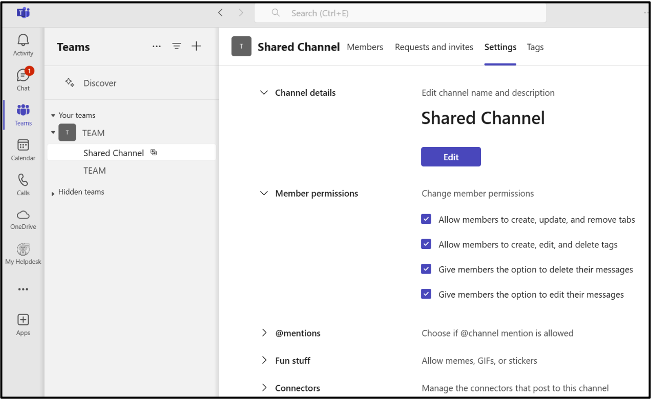
Creating Shared Channels Within a Team
...
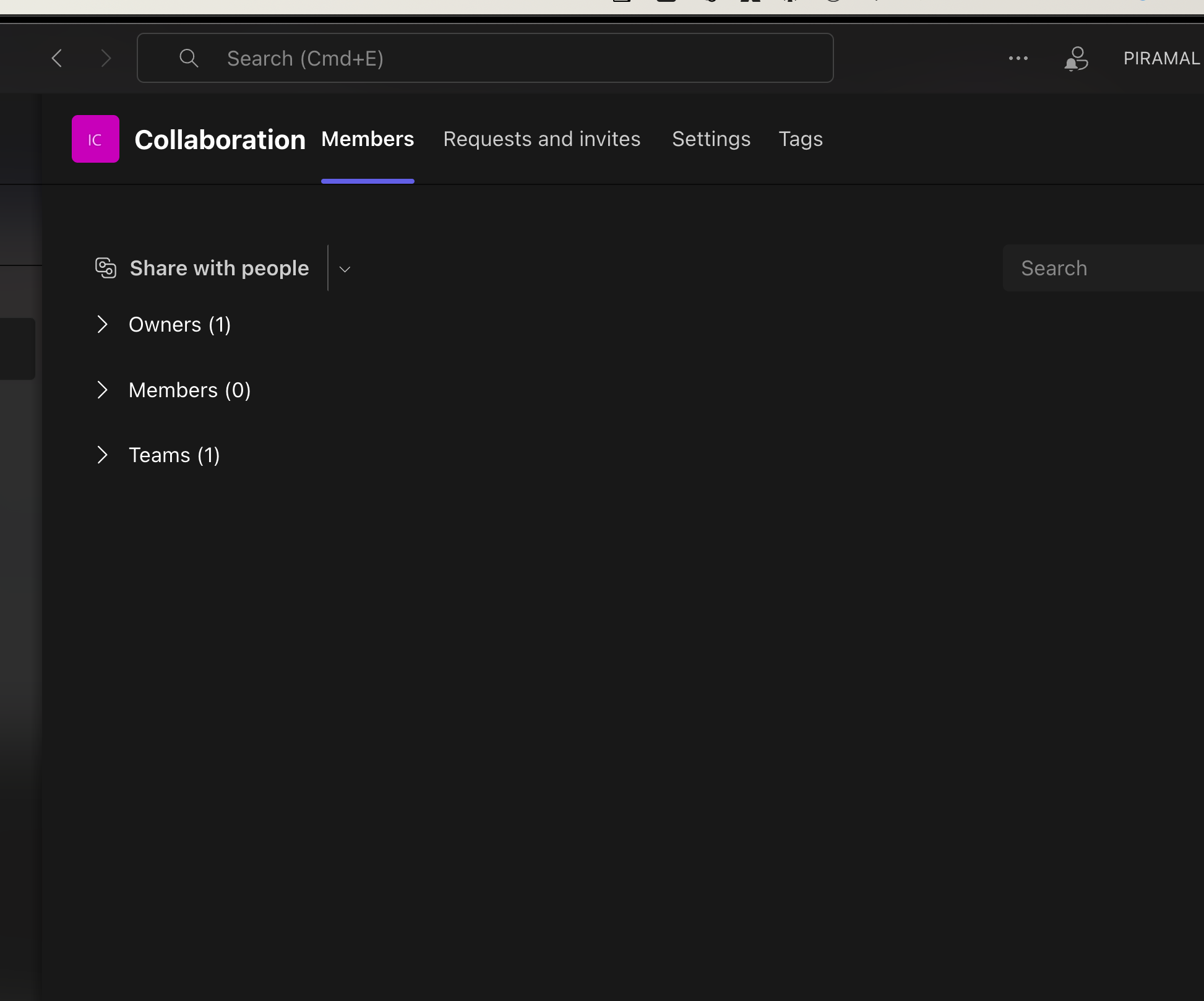
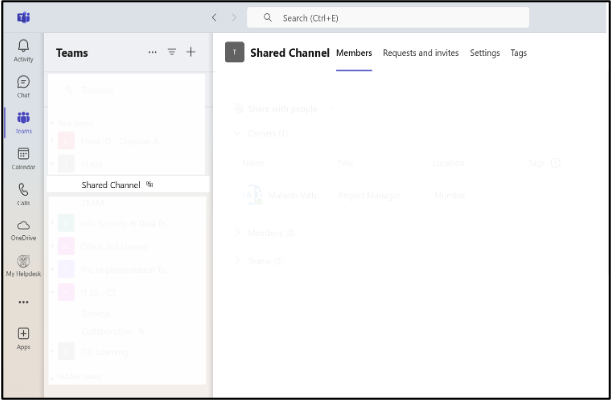
- Owners: Users who can manage the channel, including adding/removing members.
- Members: Users who can view and participate in channel activities, but do not have administrative rights.
- Teams: Teams already created
- Restricting Guest Access:
- Guests cannot create new channels, remove members, or access any files outside of the shared channel.
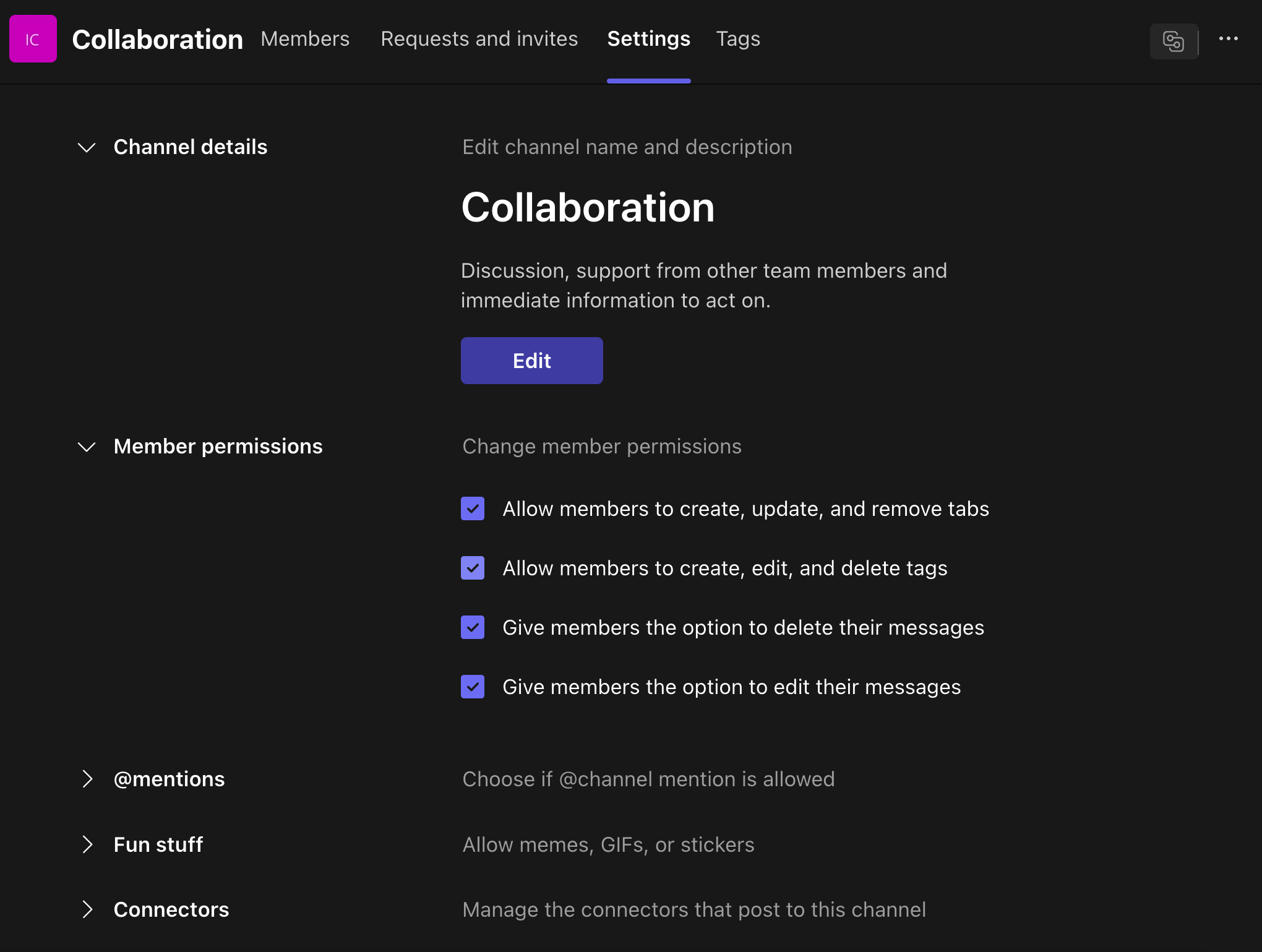
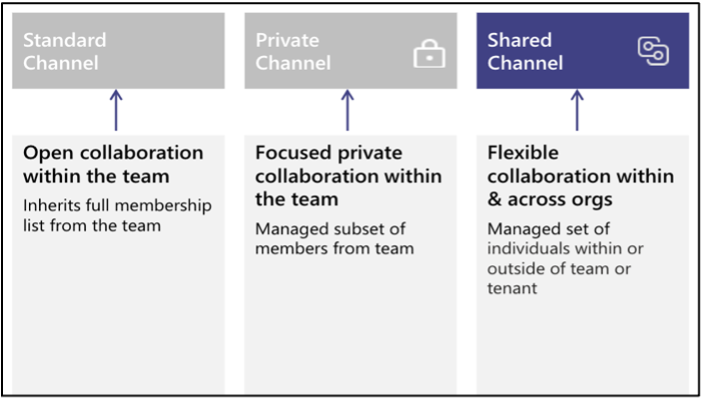
- Key Differences Between Shared, Private, and Standard Channels
...
Communication
The Chat feature in Teams allows for quick, direct communication with individuals or groups.
...
- Analytics and Insights
- Personal productivity insights
- Team collaboration analytics
Chat
Click the “New chat” button at the top of the chat list, Type the name(s) of the person or people you want to chat with
...
Compose your message in the box at the bottom of the screen
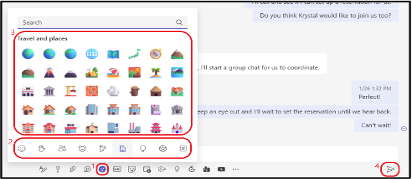
Best Practices for Chat in Microsoft Teams: -
- Use Channels for Team Conversations: For structured team-wide communication, use channels instead of group chats.
- Keep Conversations Organized: Use threads in channels and reply to specific messages in group chats to maintain context.
- Leverage Integrations: Utilize apps and bots in chats to automate workflows, assign tasks, and improve collaboration.
- Stay On Topic: For quick, direct conversations, keep personal or non-work-related chats separate to maintain professionalism in the workspace.
...
Meetings
Microsoft Teams provides robust features for conducting virtual meetings, from quick check-ins to large presentations.
...
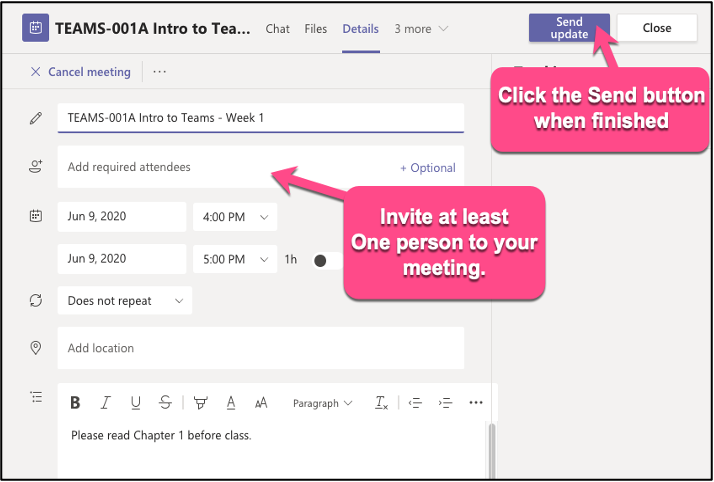
- Click “Send” to schedule and send invitations
...
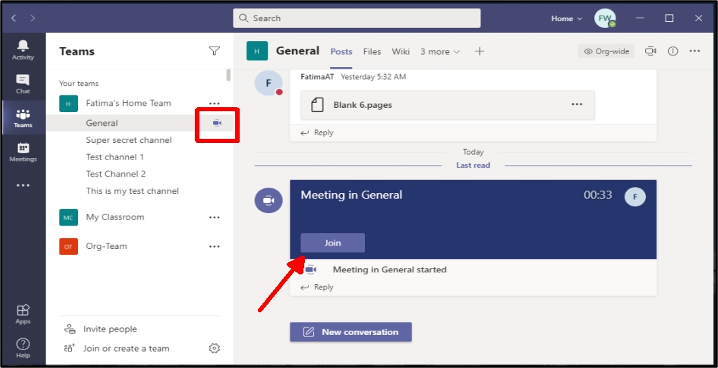
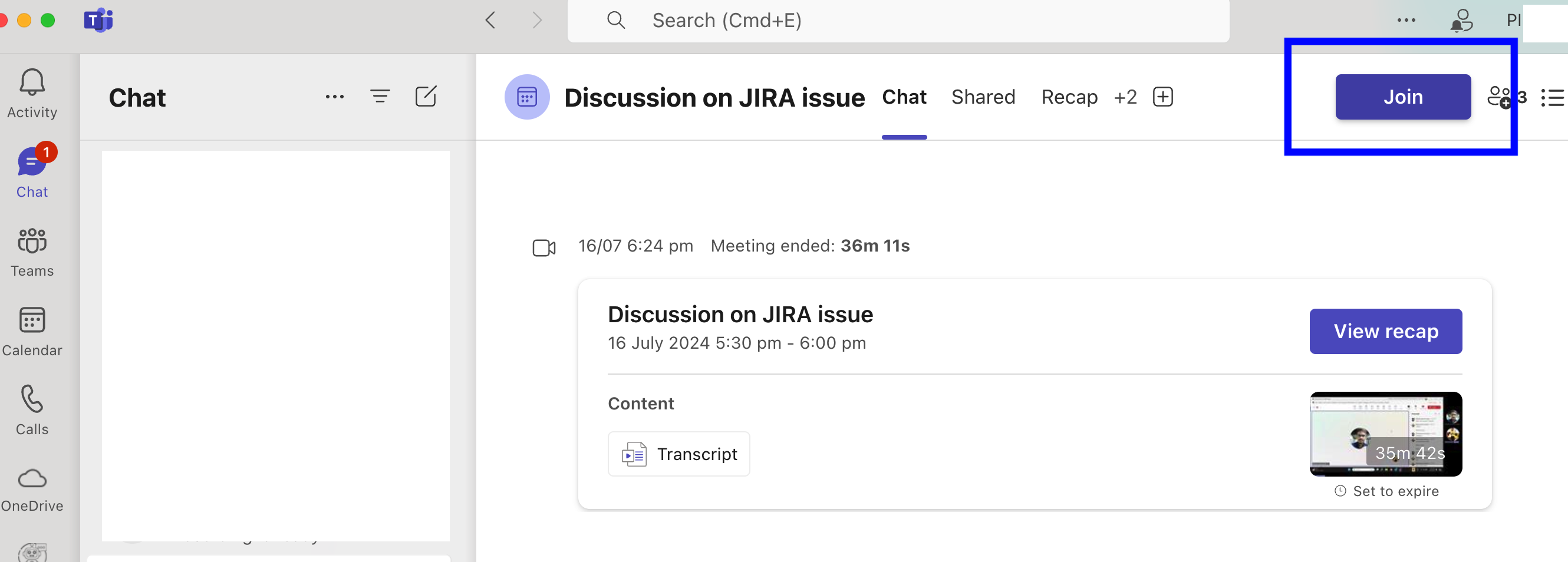
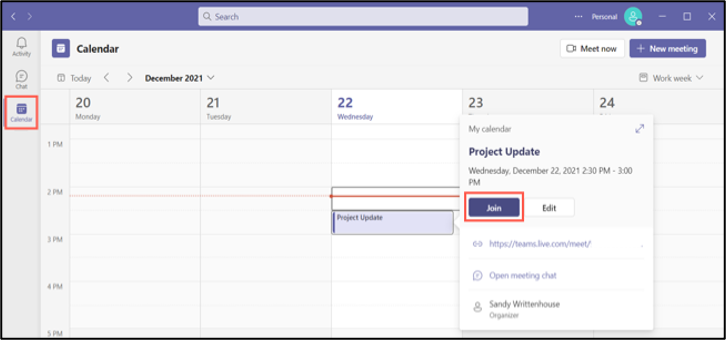
Joining a Meeting
There are multiple ways to join a Teams meeting:
- From a chat
- From the calendar
...
In-Meeting Controls
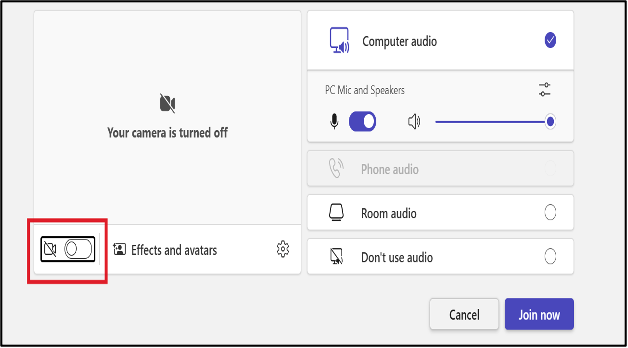
- Camera on/off
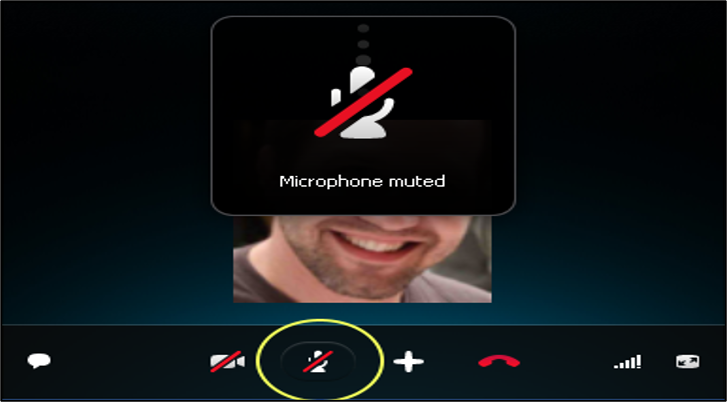
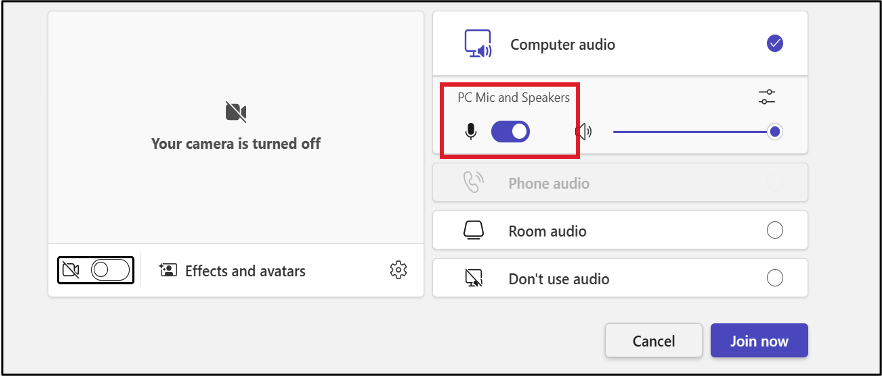
- Microphone mute/unmute
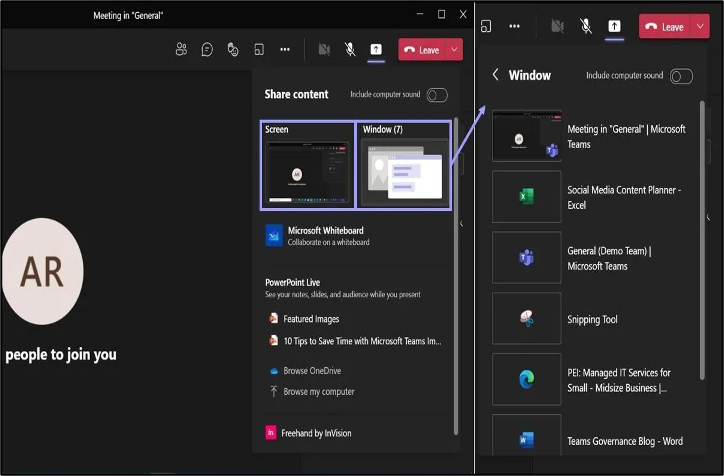
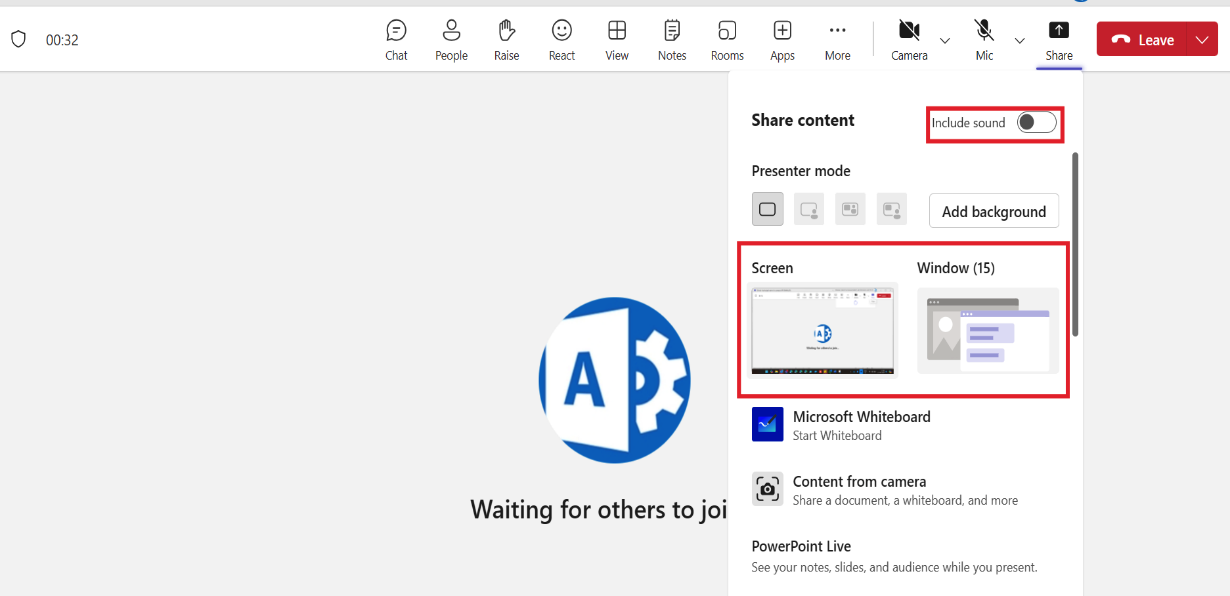
Share screen Controls
...
- Basic Controls:
- Stop Sharing: This button immediately stops sharing your screen.
- Pause Sharing: Temporarily pauses the screen sharing, allowing you to focus on other tasks or prevent distractions.
- Resume Sharing: Resumes screen sharing after pausing.
- Advanced Controls (depending on your Teams version and settings):
- Select a Region: Allows you to share only a specific portion of your screen, rather than the entire display.
- Include Audio: Determines whether to share system audio along with your screen content.
- Annotate: Enables you to draw or write on the shared screen, making it a useful tool for highlighting specific areas or explaining concepts.
- Show Participants' Cursors: Displays the cursors of other meeting participants on the shared screen, making it easier to follow along and collaborate.
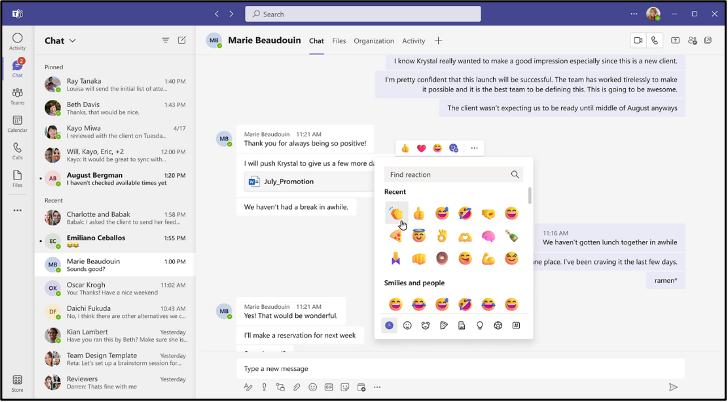
- Reaction
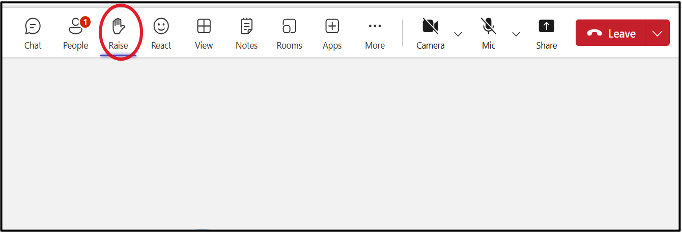
- Raise your hand for any queries
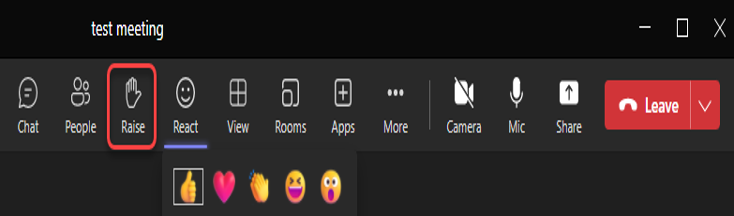
- More options (…)
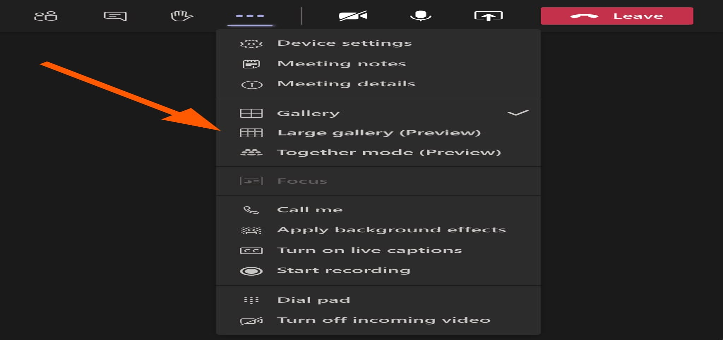
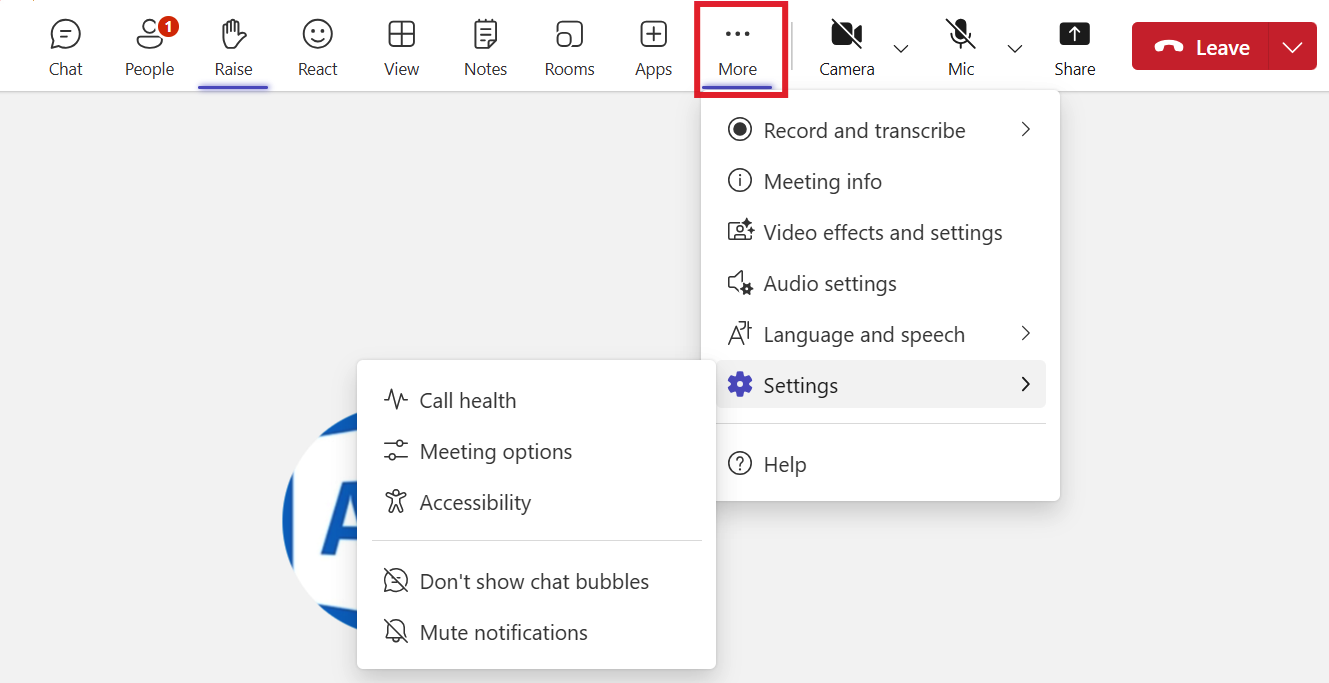
Best Practices for Meetings: -
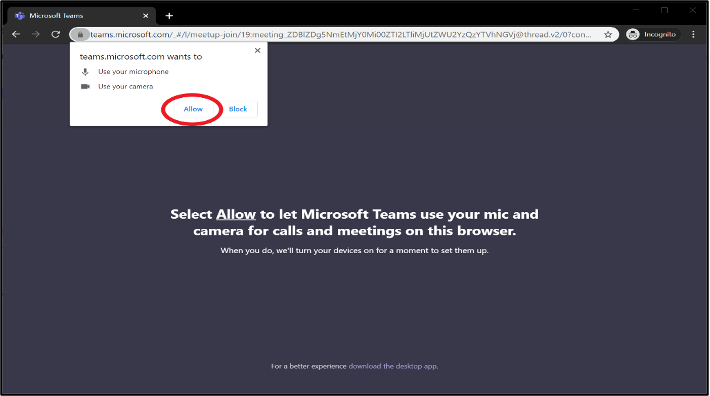
- Test your audio and video before joining
- Use background blur or virtual backgrounds in distracting environments
- Mute your microphone when not speaking
- Use the raise hand feature to indicate you want to speak
...
File Sharing and Collaboration
Microsoft Teams offers robust file sharing and collaboration features that make it a powerful tool for teams. Here's a breakdown of the key capabilities:
...
By leveraging these file sharing and collaboration features, Teams can significantly enhance productivity, teamwork, and communication within organization.
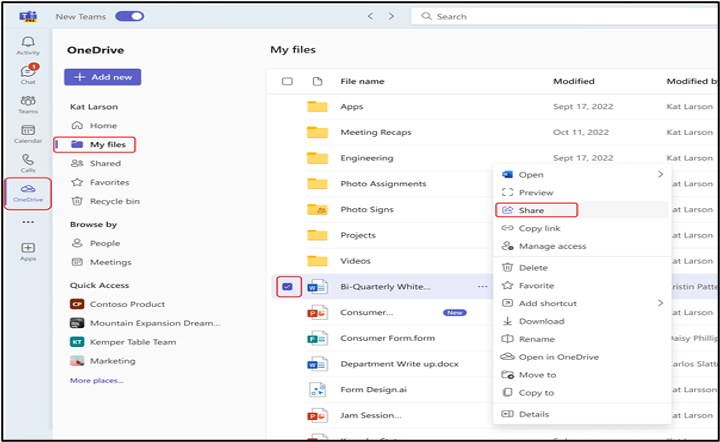
Sharing Files in a Chat or Channel
- Click the attachment icon (Attach File) in the compose box
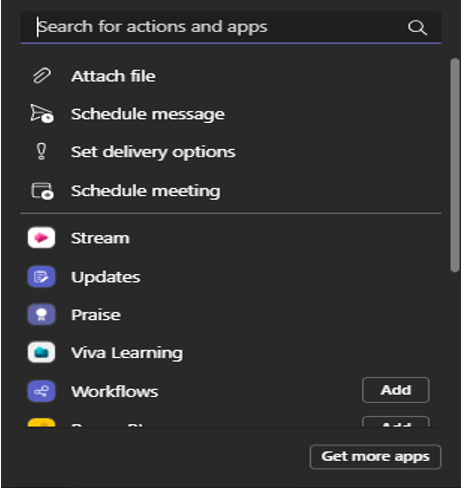
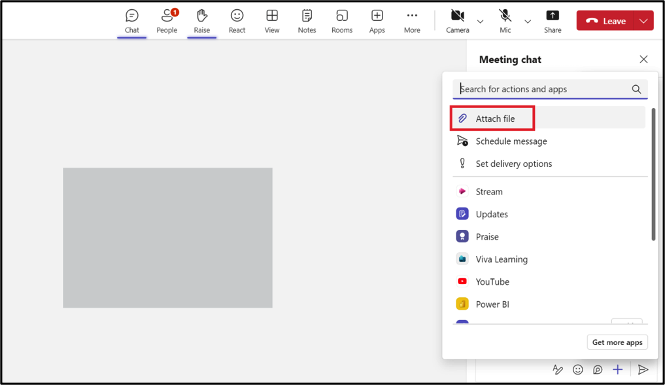
- Choose the file source (recent, OneDrive, or upload from your device), Select the file and click “Share” to share a file
...
Co-authoring Documents
Teams allow real-time co-authoring of Microsoft 365 documents.
To co-author:
- Share a document in a chat or channel:
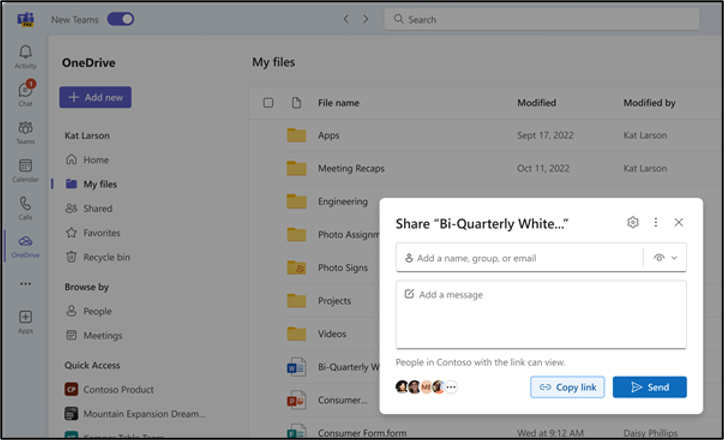
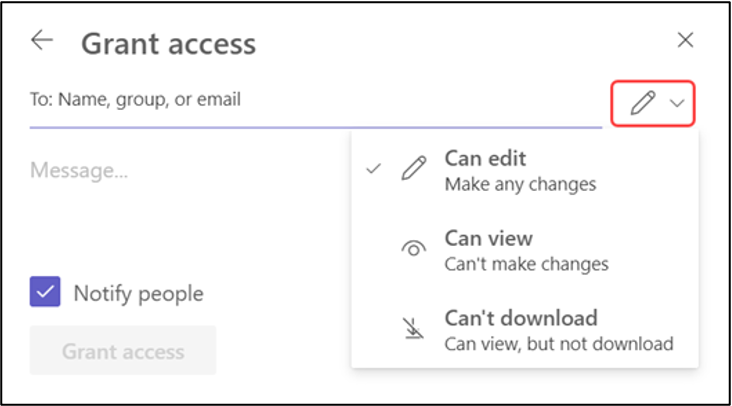
- Grant Edit Access
...
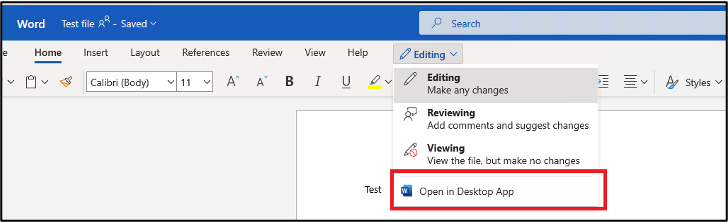
- Click on the document to open it, choose “Edit in Teams” for basic editing or “Open in App” for full functionality
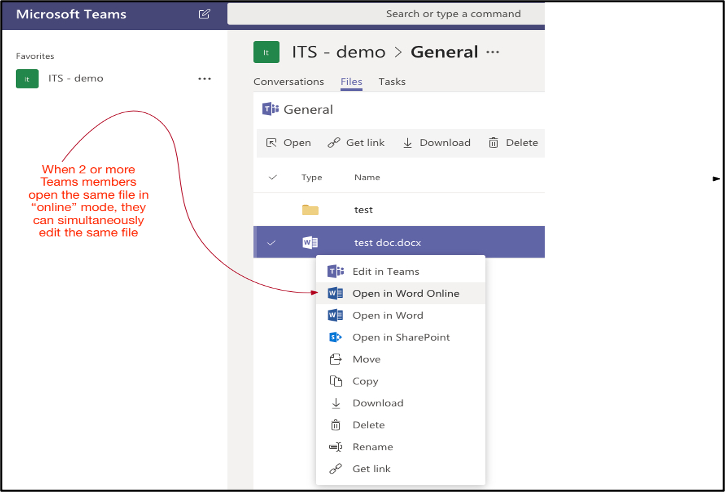
- Multiple team members can now edit simultaneously
Best Practices for File Collaboration: -
- Use descriptive file names
- Utilize version history for important documents
- Communicate with co-authors using comments or the chat feature
...
...
Advanced Features
...
Using Apps and Integrations
Teams can be customized with various apps and integrations to enhance productivity.
To add an app:
- Click the “Apps” icon in the App Bar
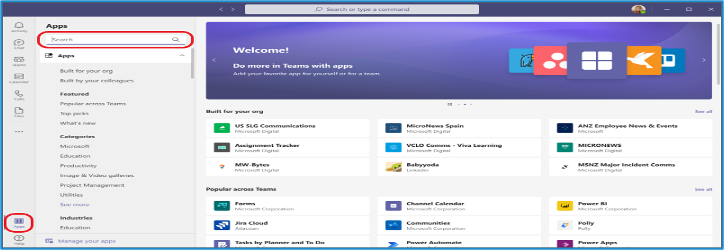
- Browse or search for the desired app
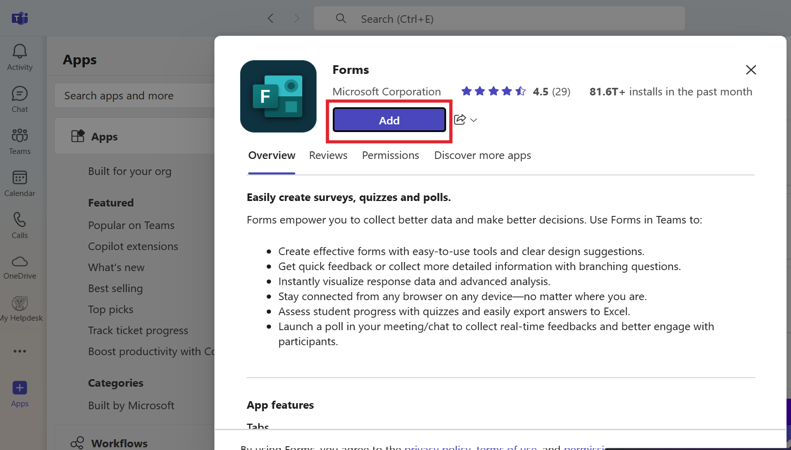
- Click on the app and then “Add” to install it
...
...
Using Apps in Chats and Channels
Many apps can be used directly within chats and channels.
To use an app in a conversation:
- Click the “…” or ‘+’ beside the compose box
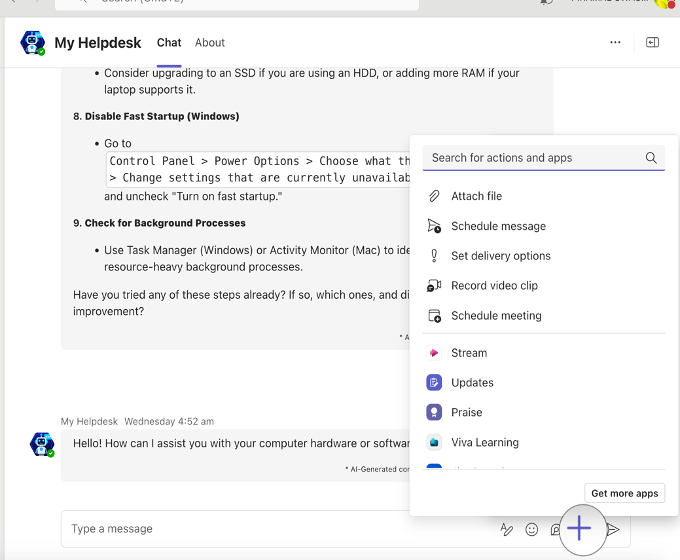
- Select the app you want to use
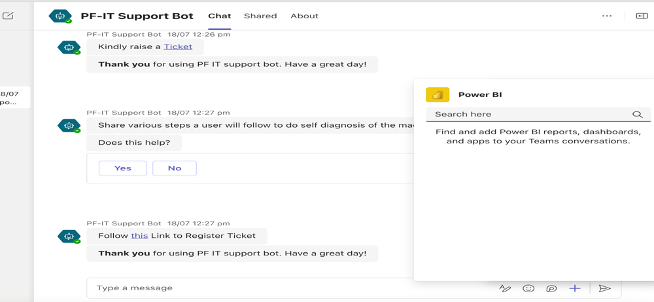
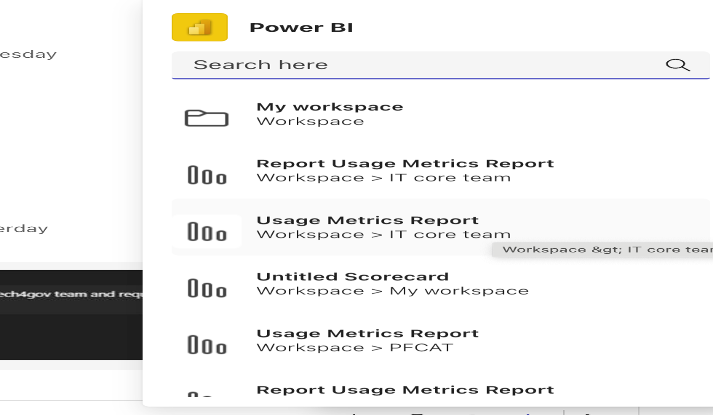
- Follow the app’s interface to create content or take actions
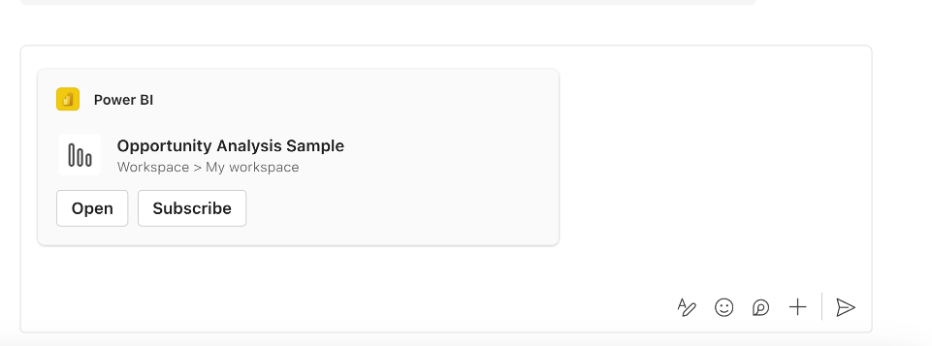
- The app’s output will appear in your conversation
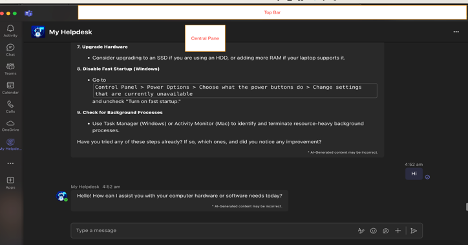
Popular Types of Teams Apps: - Project management tools - Polls and surveys - Workflow automation - External service integrations (e.g., CRM systems., Jira, Confluence, My Helpdesk)
...
...
FAQs
...
General Questions
Q1: What is Microsoft Teams?
...
A: Microsoft Teams has both free and paid versions. The free version offers core features, while paid versions (part of Microsoft 365 subscriptions Piramal Foundation entities have) provide additional features and integration with other Microsoft tools.
...
Account and Profile
Q4: How do I change my profile picture in Teams?
A: Click on your profile icon in the top right corner, select “Manage account,” then “Change photo.” You can upload a new image or take a photo using your device’s camera.
...
Teams and Channels
Q5: What’s the difference between a team and a channel in Microsoft Teams?
...
A: Teams show receipts in chats. You’ll see a small icon appear in the corner of your message once it’s been read. Note that read receipts can be turned off in settings.
...
File Sharing and Collaboration
Q11: Where are my files stored in Teams?
...
A: During a meeting, click the “Share content” button (it looks like a rectangle with an arrow pointing up). You can choose to share your entire screen, a specific window, or a PowerPoint file.
...
Apps and Integrations
Q14: Can I add other apps to Microsoft Teams?
...
A: The Tasks app in Teams combines personal tasks from To Do and team tasks from Planner. You can access it from the left sidebar. Here, you can create, assign, and track tasks for yourself and your team.
...
Troubleshooting
Q16: What should I do if I’m having audio/video issues in a Teams meeting?
...
After deleting the contents, restart Teams.
...
If you’re experiencing issues, Connect with IT Helpdesk of Piramal Foundation
Portal : https://support.piramalfoundation.org
Email : it.helpdesk@piramalfoundation.org