Table of Contents outline true
...
1. Getting Started
1.1. Teams Vs WhatsApp
In today’s digital workplace, choosing the right communication platform is crucial for productivity and collaboration. This section compares Microsoft Teams and WhatsApp, focusing on their suitability for Piramal Foundation use.
Microsoft Teams
- Purpose: Designed for workplace collaboration and communication
- Target Users: Businesses and organizations of all sizes
- Purpose: Originally for personal messaging, with some business features added
- Target Users: Primarily individuals, with a separate WhatsApp Business app
Detailed Comparison
...
Feature
...
Microsoft Teams
...
...
Purpose
...
Workplace collaboration
...
Personal messaging, limited business use
...
Video Conferencing
...
Advanced (screen sharing, background blur, recording)
...
Basic video calls
...
File Sharing
...
Up to 250GB, version control, co-authoring
...
Up to 100MB, no version control
...
Organization
...
Channels, threads, wiki functionality
...
Linear chat structure
...
Integration
...
Microsoft 365, extensive third-party apps
...
Limited integrations
...
Security
...
Enterprise-grade, compliance certifications
...
End-to-end encryption, limited controls
...
Scalability
...
Designed for large organizations
...
Limited group sizes, fewer organizational features
...
Admin Controls
...
Extensive permissions and policy management
...
Limited admin features in Business version
style none separator braces
...
About Microsoft Teams
Microsoft Teams has become a central hub for all business communication within our organizations, streamlining collaboration and enhancing productivity. With features like real-time chat, audio and video conferencing, file sharing, and integration with other Microsoft 365 applications, Teams enables seamless communication between departments and remote workers. It ensures that employees can easily collaborate, share information, and stay connected, regardless of their location.
Moreover, Teams consolidates various communication tools into a single platform, reducing the need for multiple applications. With threaded conversations, project-based channels, and easy access to documents and workflows, Teams creates a structured environment where communication is not only efficient but also organized and traceable. This leads to better decision-making, quicker responses, and a more engaged workforce.
Getting Started
As we strive for better collaboration and productivity, it's essential to standardize our communication tools across the organization. While WhatsApp may be a convenient tool for personal messaging, it is not designed to meet the needs of a professional business environment. Microsoft Teams, on the other hand, offers a secure, organized, and integrated platform specifically built for workplace communication and collaboration.
Teams and WhatsApp Comparison
In today’s digital workplace, choosing the right communication platform is crucial for productivity and collaboration. This section compares Microsoft Teams and WhatsApp, focusing on their suitability for Piramal Foundation use.
- Microsoft Teams
- Purpose: Designed for workplace collaboration and communication
- Target Users: Businesses and organizations of all sizes
- WhatsApp
- Purpose: Originally for personal messaging, with some business features added
- Target Users: Primarily individuals, with a separate WhatsApp Business app
Detailed Comparison of Microsoft Teams and WhatsApp
|
Key Advantages of Microsoft Teams
- Comprehensive Collaboration Tools
- Unified platform for chat, video calls, and document collaboration
- Seamless transition between communication methods
- Professional Environment
- Clear separation between work and personal communication
- Features designed specifically for business use
- Enhanced Productivity
- Deep integration with Microsoft 365 suite
- Ability to work on documents without leaving the app
- Superior Organization
- Channel-based structure for topic-specific discussions
- Easy file organization and retrieval
- Compliance and Control
- Robust administrative controls
- Compliance with industry regulations (GDPR, HIPAA, etc.)
- Scalability
- Supports large organizations with complex structures
- Facilitates external collaboration
- Advanced Security
- Enterprise-grade security features
- Multi-factor authentication and encryption
Limitations of WhatsApp
- Limited file sharing capabilities
- Lack of advanced organizational features
- Potential for mixing personal and professional communication
- Insufficient administrative controls for organizations resulting Data Privacy Issues
- Not designed for handling sensitive business data
Conclusion
Microsoft Teams offers a comprehensive, secure, and scalable solution specifically designed for business needs. Its integration capabilities, advanced features, and focus on professional collaboration make it the superior choice for organizations looking to enhance digital workplace communication.
Let’s understand the features of Microsoft Teams in detail.
...
Teams Interface
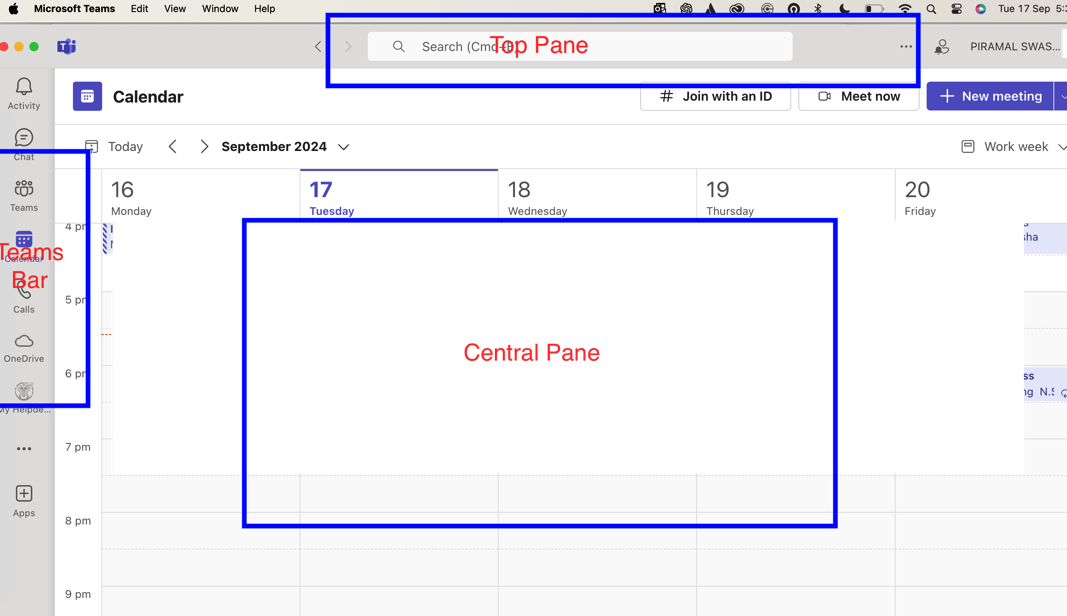
Microsoft Teams offers a user-friendly interface designed for efficient communication and collaboration. Here’s a breakdown of the main elements:
- Left Sidebar: Contains the App Bar and the Teams Bar
- Central Pane: Displays the content of your selected tab
- App Bar: Located on the far left Contains icons for Activity, Chat, Teams, Calendar, Calls, and Files
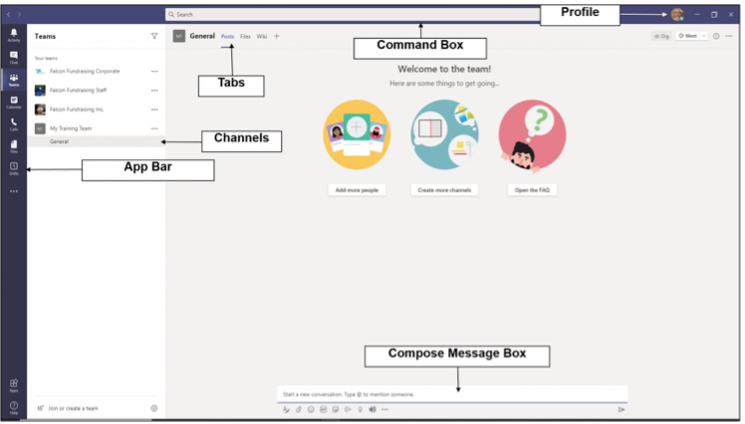
- Teams Bar: Lists all your teams and channels, Allows quick navigation between different workspaces
- Central Pane: The main working area where conversations, files, and other content are displayed
- Top Bar: Contains the search box, command box, and profile picture, quick access to settings and commands
...
Customizing Profile
Personalizing your profile helps teammates identify you and adds a personal touch to your interactions.
- Click on your profile picture in the top right corner
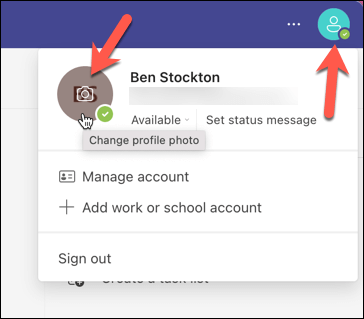
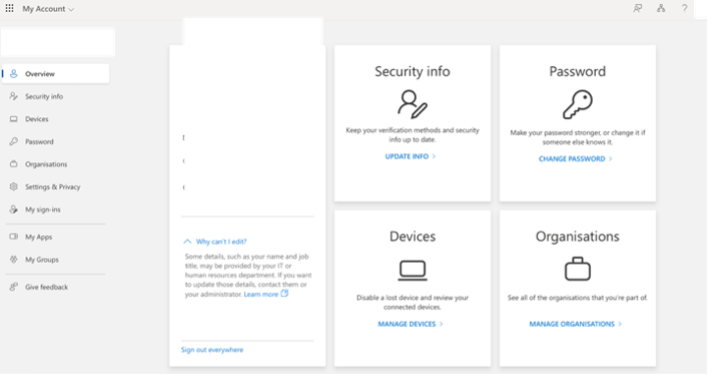
- Click on “View account” which will take you to browser and you are able to modify Password and change security info.
- Set Status Message
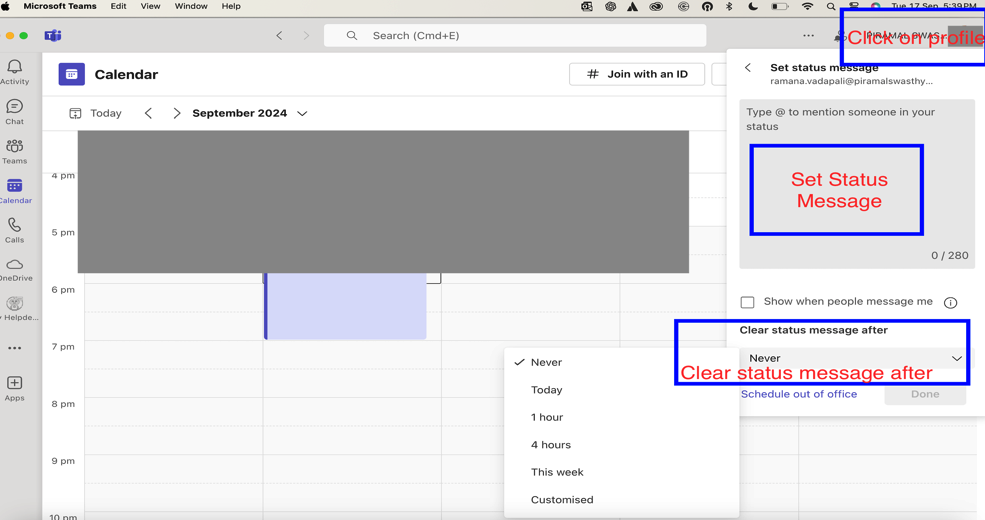
Best Practices for profile: -
- Use a clear, professional profile picture
- Ensure your display name is easily recognizable
- Keep your job title and department up to date
...
Teams and Channels
Channels
Channels in Microsoft Teams are dedicated sections within a team that organize conversations, files, and tools by specific topics, departments, or projects. Channels provide structure to team communication and allow members to focus on areas of interest, workstreams, or responsibilities.
The primary purpose of channels is to enable organized collaboration within a team by providing:
- A focused space for conversations about a particular topic or project.
- The ability to share relevant files, links, and information without cluttering other channels.
- Easy access to tools, apps, and documents related to that specific channel.
Each team can have multiple channels, and members can subscribe to the ones that are most relevant to their roles or work. Conversations in channels are persistent, meaning they remain accessible for reference even after they've taken place.
Types of Channels in Teams
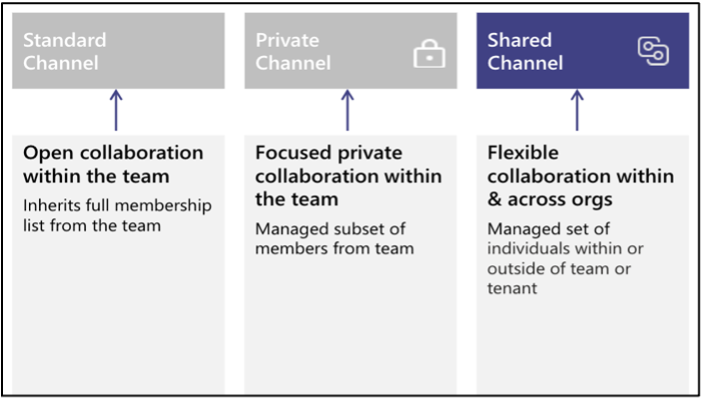
- Standard Channels
- Visible to all team members: Everyone in the team can see and participate in the conversations, files, and content shared in these channels.
- Default general channel: Every team in Microsoft Teams starts with a "General" channel. You can create more standard channels to categorize conversations by specific projects, tasks, or subjects.
- Private Channels
- Restricted access: These channels are only visible to specific members of the team who have been given access. This is useful for sensitive discussions, or when a subgroup of the team needs a focused space.
- Private communication: Although it's part of the main team, it is a secure, dedicated area where only selected members can access conversations and files.
- Shared Channels
- Cross-team collaboration: A new type of channel where people from multiple teams or even external organizations can work together in one channel, while still being a part of their respective teams.
- Secure collaboration: Ideal for guest access and external partners, these channels allow secure communication with users outside your organization.
Benefits of Using Channels
- Organization and Structure
- Channels help categorize work by breaking down broad discussions into focused conversations about specific topics. This makes it easier to locate relevant content.
- For example, in a marketing team, you might have separate channels for Content Creation, Social Media Strategy, and Campaign Tracking.
- Centralized Collaboration
- In each channel, you can chat, share files, start meetings, and use apps to stay productive all in one place. The files shared in a channel are stored in SharePoint, making them accessible to all team members.
- You can attach relevant documents and other resources that are important for the work in that channel.
- Customization and Apps
- Channels allow you to integrate tools and apps like Planner, Trello, or OneNote directly into the channel tabs. This helps streamline workflows and gives team members quick access to the tools they need.
- For example, you could have a tab for your project management app (e.g., Planner) to keep track of tasks in a specific project channel.
- Focused Discussions
- Threads within channels allow for focused discussions under specific posts. Instead of one long conversation, you can reply to specific messages and keep discussions organized.
- This eliminates confusion that often occurs in group chats or email threads where multiple topics are being discussed simultaneously.
- Accessibility
- Channel conversations, files, and apps are accessible to team members from any device, whether desktop or mobile, providing flexibility and remote collaboration.
- You can also be notified of mentions in channels and follow specific discussions to stay informed about critical updates.
Using Channels Effectively
- Naming Channels
- Use clear and descriptive names for your channels, so team members instantly understand what discussions or activities belong in each one. For example: An Operations team might create channels like State wise capacity building, Project Updates, and Customer Feedback.
- Avoid vague or overly broad names, as this can lead to confusion and reduce the effectiveness of the channel system.
- Organizing Content
- You can pin important messages to the top of a channel, ensuring key information is always easy to find.
- Use channel-specific files and tabs for easy access to resources that are relevant to conversations.
- Using Notifications
- You can follow a channel by selecting the "More options" (three dots) next to the channel name and clicking Channel notifications. This allows you to be notified of all new activity or only certain types of posts.
Key Features of Channels
- Files Tab: Automatically includes a tab for all files shared in the channel, making document sharing and access seamless.
- Posts Tab: Where conversations happen. Every channel has a “Posts” tab, which holds all the discussions and messages.
- Add Tabs: You can add tabs for apps, files, or tools directly in a channel. For example, you could add a Power BI report to view team analytics.
- Meetings: You can schedule or start meetings directly from a channel, and meeting chats and notes will be visible to the team.
- Planner Integration: Use Microsoft Planner as a tab in the channel for task management and tracking, especially useful for project-related channels.
- Best Practices for Channels
- Don’t over-create channels: Too many channels can lead to clutter. Only create a new channel when there’s a clear need to separate discussions.
- Use private channels wisely: Only use private channels for sensitive discussions or work that doesn't need to involve the whole team.
- Leverage apps: Maximize the productivity of your channels by integrating project management tools, file-sharing systems, and other business applications into your channel tabs.
- Be mindful of tagging: Use @mentions in channels to notify team members or specific individuals when something requires their attention, but don’t overuse them.
In summary, channels in Microsoft Teams are the foundation for collaboration, organization, and communication within a team. They help keep discussions focused, make resources easily accessible, and integrate various tools and apps to enhance team productivity.
Creating a New Team
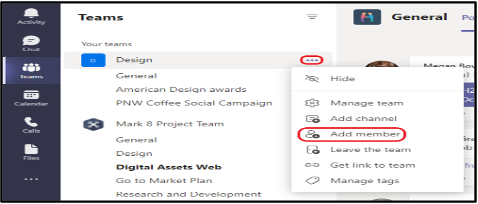
Teams are the foundation of collaboration in Microsoft Teams. Here’s how to create one:
- Click the “Teams” icon in the App Bar and click “+”
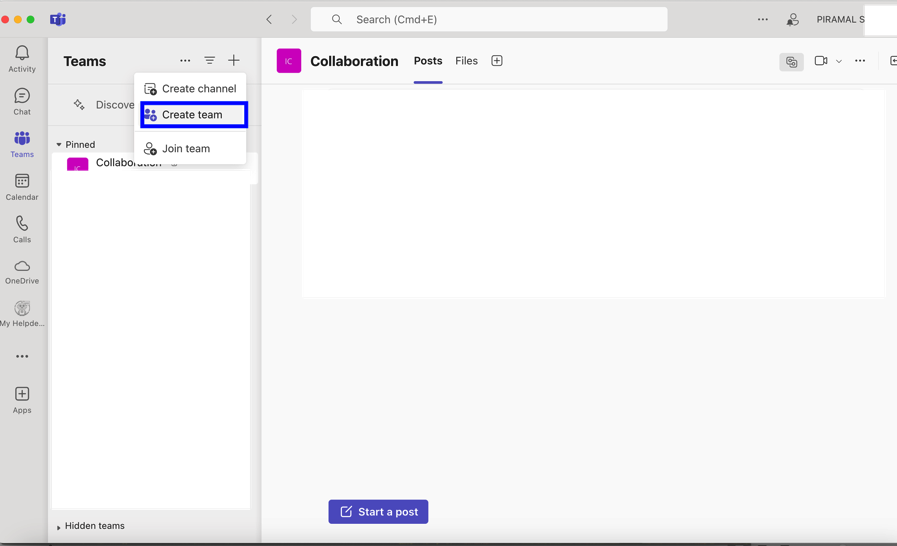
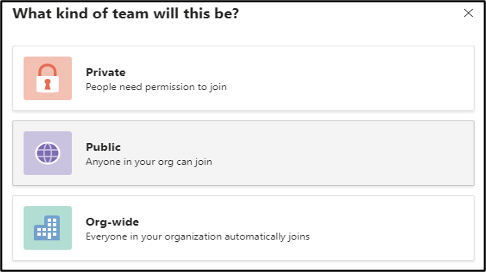
- Choose the type of team: Private, Public, or Org-wide
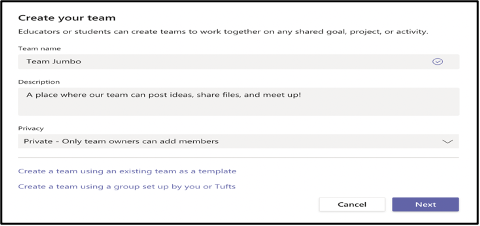
- Name your team and add a description
- Add member
...
Creating Channels Within a Team
Channels are subcategories within a team, used to organize conversations, files, and tools around specific topics.
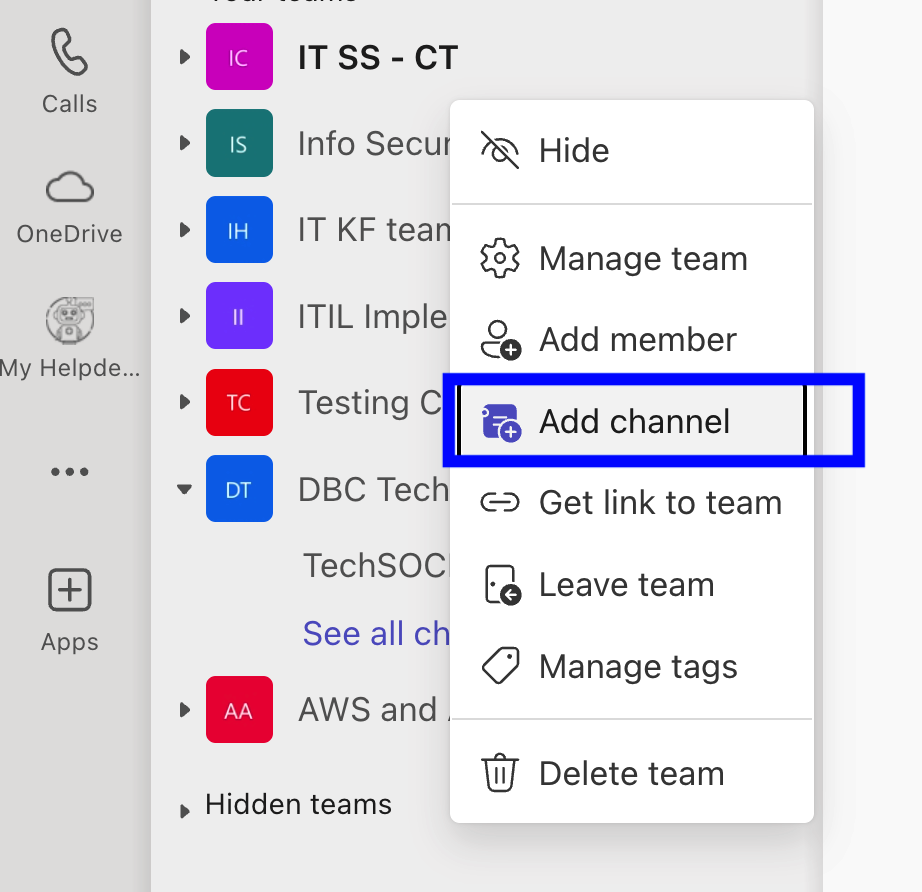
To create a new channel:
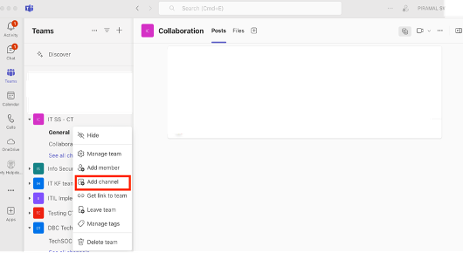
- Navigate to the team you wish to create channel for and click on “… “(More Options) and Add channel
- Name the channel and add a description
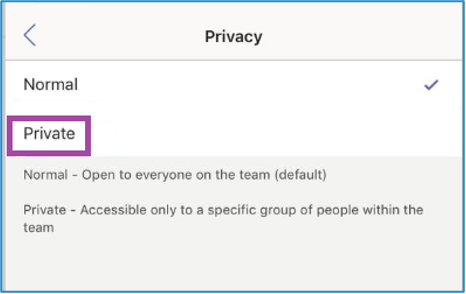
- Choose privacy settings (Standard or Private) [prefer selecting private channel if it’s not for entire organization
Best Practices: -
- Use clear, descriptive names
- Avoid creating too many channels
- Consider using private channels for sensitive discussions
...
Creating Shared Channels Within a Team
Detailed Guide on Creating Shared Channels in Microsoft Teams for other tenants of Piramal Foundation entities
Shared Channels in Microsoft Teams are a feature designed to simplify collaboration between organizations by allowing users from external organizations to access a specific channel without needing to be part of the whole team. This is especially useful for projects, collaborations, or partnerships where shared resources between Piramal Foundation entities are necessary
This guide explains the steps to set up and manage shared channels for guest collaboration.
Overview of Shared Channels
Shared channels are a way to collaborate with users inside and outside of your organization without needing to add them as a member of the entire team. Unlike guest access that requires external members to join the entire team, shared channels allow external users to collaborate specifically on relevant channel content.
- Key Features:
- External collaborators (guests) can access specific channels.
- Shared channels live within a team, but guests only see the shared channel.
- No need to switch tenants to collaborate with external users.
- Shared channels support chat, file sharing, meetings, and app integrations like any other channel.
Create a New Shared Channel
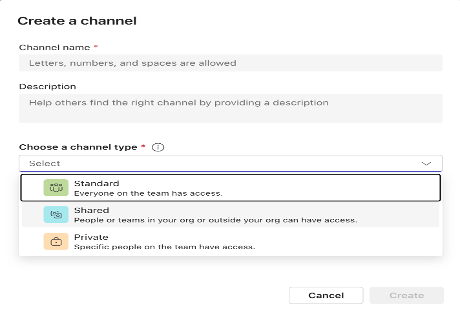
Set Up Channel Content
- After creating the channel, you can add tabs, files, and apps just like in a standard channel.
- Use the shared channel for specific project-based conversations, file sharing, and collaboration with external partners.
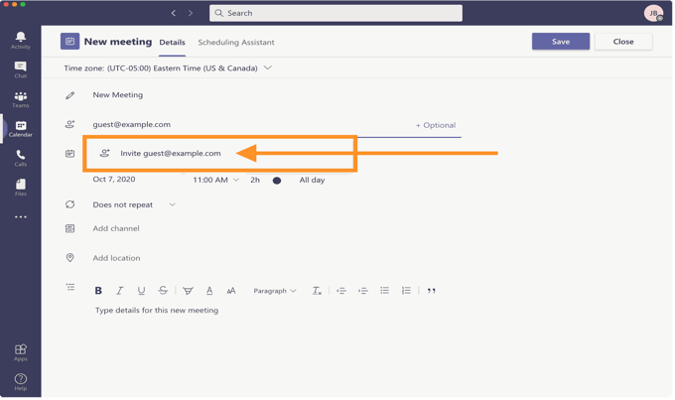
- Guest Invitation Acceptance
- External users will receive an invitation via email. They can accept the invitation and access the shared channel using their existing Teams account without switching tenants.
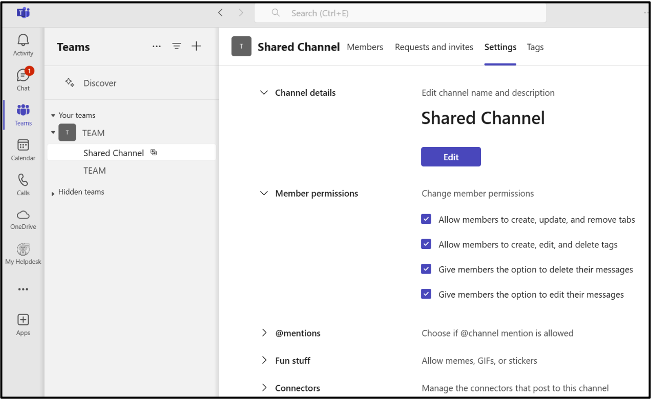
- Managing Permissions and Access Control
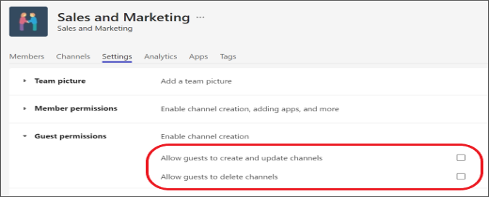
Managing permissions in shared channels is crucial to ensure that users only access what they need. You can adjust permissions for both internal and external users as follows:
Managing Permissions:
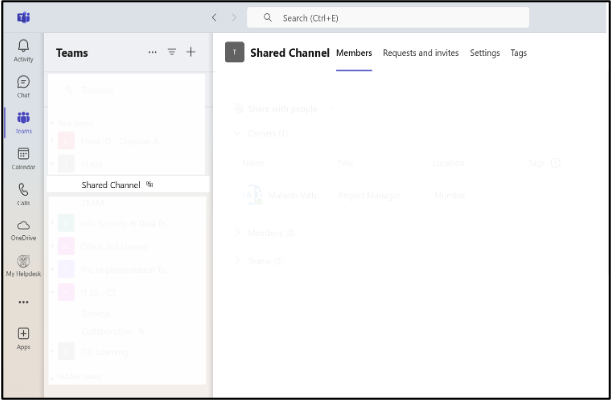
- Navigate to the “shared channel” in Teams.
- Click on the ellipsis (`...`) next to the channel name and select “Manage Channel”.
- Adjust roles and permissions as needed.
Members
- Owners: Users who can manage the channel, including adding/removing members.
- Members: Users who can view and participate in channel activities, but do not have administrative rights.
- Teams: Teams already created
- Restricting Guest Access:
- Guests cannot create new channels, remove members, or access any files outside of the shared channel.
- Key Differences Between Shared, Private, and Standard Channels
...
Communication
The Chat feature in Teams allows for quick, direct communication with individuals or groups.
- Basic Chat Functionality
- One-on-one chats
- Group chats (up to 250 people)
- Persistent chat history
- Read receipts
- Typing indicators
- Presence indicators (Available, Busy, Do Not Disturb, etc.)
- @mentions for individuals or groups
- Reply to specific messages
- Chat in channels within teams
- Message Formatting and Content
- Rich text formatting (bold, italic, underline, etc.)
- Bulleted and numbered lists
- Code snippets with syntax highlighting
- Tables
- Hyperlinks
- Emojis and GIFs
- Stickers and memes
- Voice messages
- Screen captures and annotations
- File Sharing and Collaboration
- Drag-and-drop file sharing
- Share files from OneDrive and SharePoint
- Co-edit shared Office documents in real-time
- View and edit files without leaving the chat
- Pin important files for easy access
- Media and Communication
- Instant transition from chat to audio call
- Instant transition from chat to video call
- Screen sharing directly from chat
- In-line image and video previews
- YouTube video playback within chat
- Integration and Productivity
- Schedule meetings directly from chat
- Create tasks and to-do items
- Integrate third-party apps and bots in chats
- Share code snippets from developer tools
- Polls and surveys within chats
- Praise feature for recognizing colleagues
- Organization and Management
- Bookmark important messages
- Pin important chats to the top
- Filter chats by unread, mentions, or favorites
- Search functionality within chats
- Chat history retention and compliance features
- Pop out chats into separate windows
- Advanced Features
- Priority notifications for urgent messages
- Read-only channels for announcements
- Private channels within teams
- Sensitivity labels for classified conversations
- AI-powered suggested replies
- Language translation of chat messages
- Immersive Reader for accessibility
- Mobile-Specific Features
- Push notifications
- Offline message drafts
- Share location
- Swipe actions for quick responses
- Dark mode
- Security and Compliance
- End-to-end encryption for sensitive chats
- Data Loss Prevention (DLP) in chats
- eDiscovery for chat content
- Retention policies for chat messages
- Multi-factor authentication for access
- Analytics and Insights
- Personal productivity insights
- Team collaboration analytics
Chat
Click the “New chat” button at the top of the chat list, Type the name(s) of the person or people you want to chat with
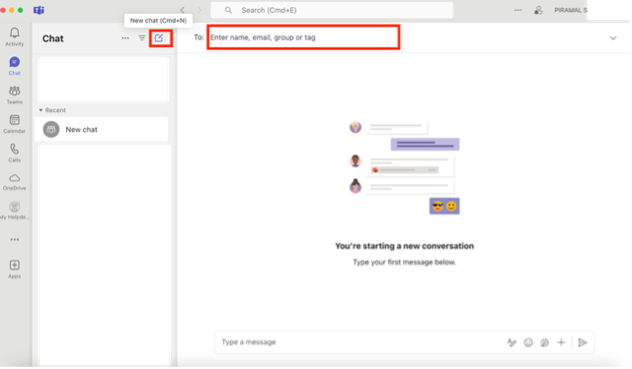
Compose your message in the box at the bottom of the screen
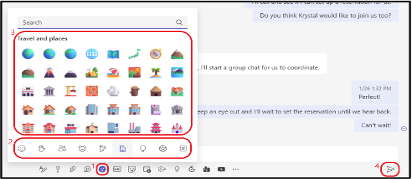
Best Practices for Chat in Microsoft Teams: -
- Use Channels for Team Conversations: For structured team-wide communication, use channels instead of group chats.
- Keep Conversations Organized: Use threads in channels and reply to specific messages in group chats to maintain context.
- Leverage Integrations: Utilize apps and bots in chats to automate workflows, assign tasks, and improve collaboration.
- Stay On Topic: For quick, direct conversations, keep personal or non-work-related chats separate to maintain professionalism in the workspace.
...
Meetings
Microsoft Teams provides robust features for conducting virtual meetings, from quick check-ins to large presentations.
Scheduling a Meeting
- To schedule a meeting:
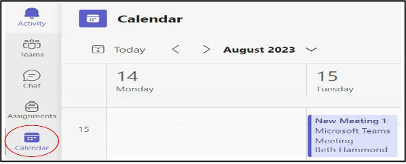
- Click the “Calendar” icon in the App Bar
- Click “New meeting” in the top right corner
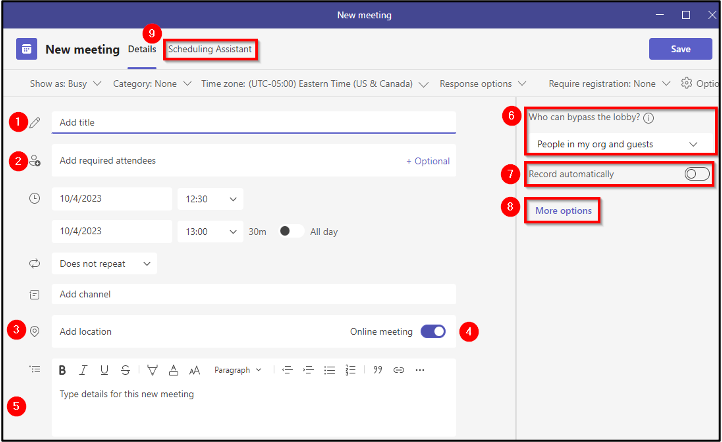
- Fill in the meeting details:
- Title
- Date and time
- Participants
- Location
- Description
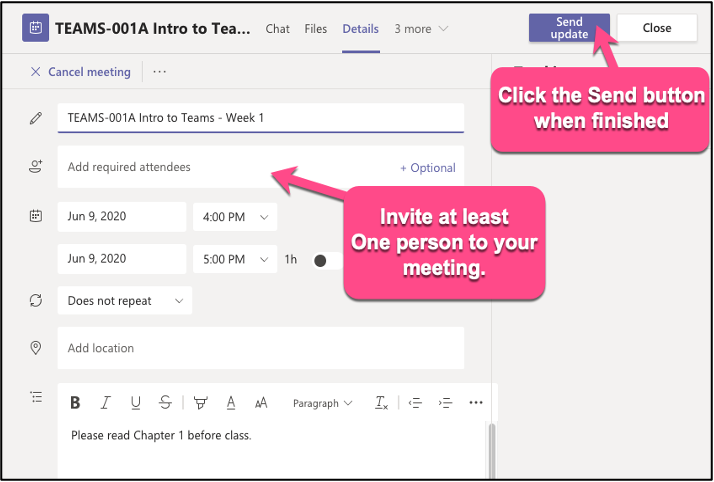
- Click “Send” to schedule and send invitations
...
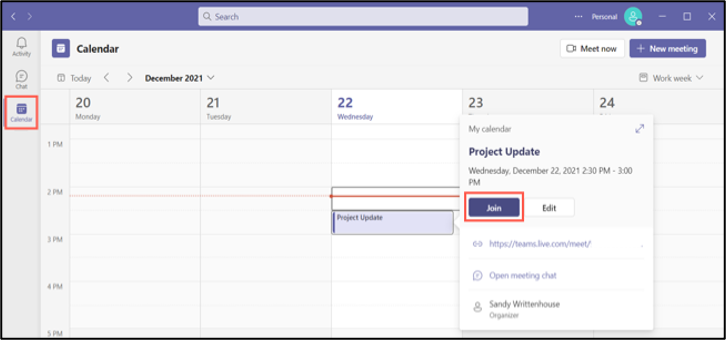
Joining a Meeting
There are multiple ways to join a Teams meeting:
- From a chat
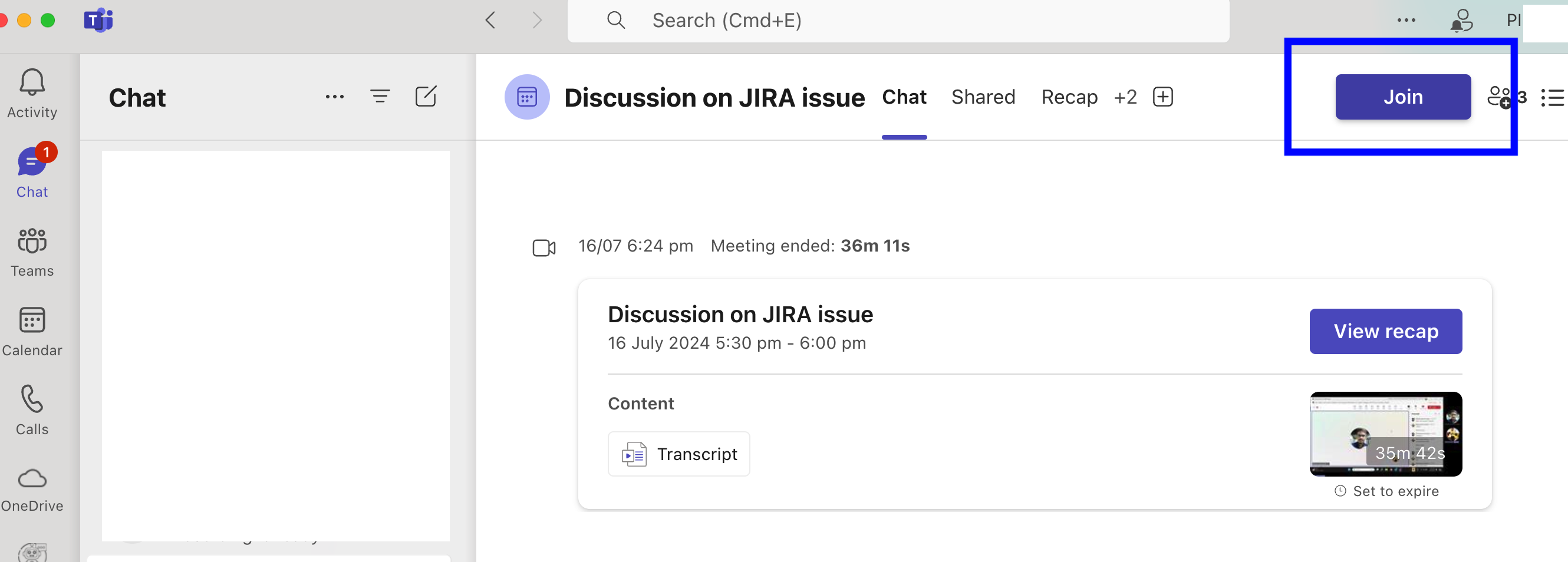
- From the calendar
...
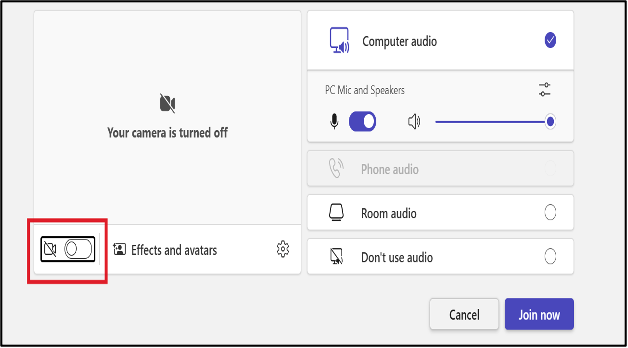
In-Meeting Controls
- Camera on/off
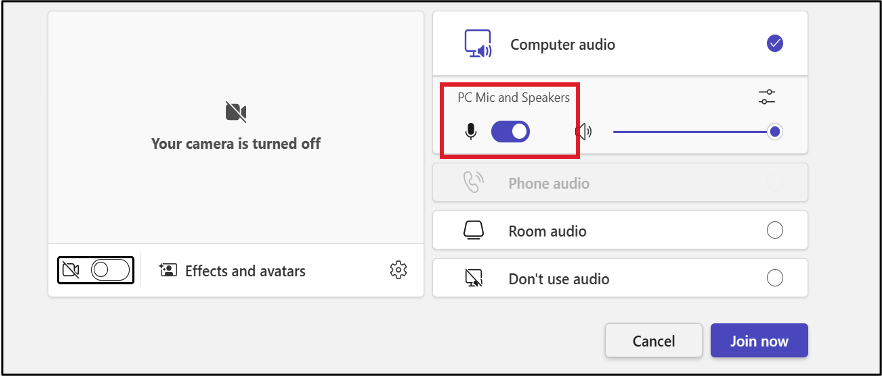
- Microphone mute/unmute
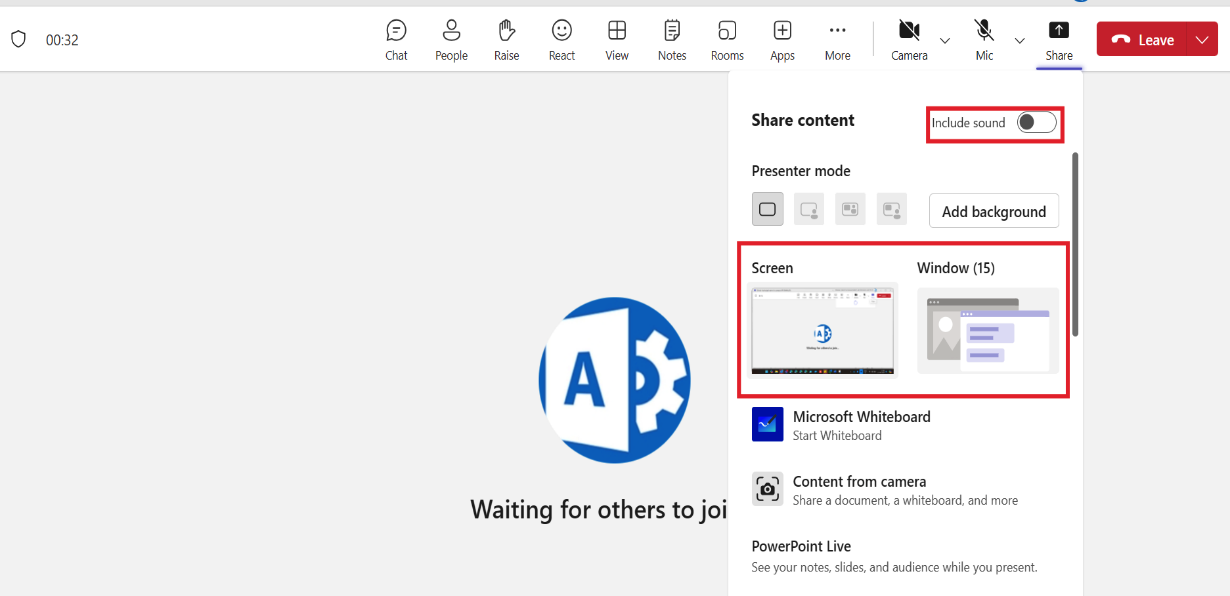
Share screen Controls
When you share your screen in a Teams meeting, you'll have several controls to manage the sharing experience:
- Basic Controls:
- Stop Sharing: This button immediately stops sharing your screen.
- Pause Sharing: Temporarily pauses the screen sharing, allowing you to focus on other tasks or prevent distractions.
- Resume Sharing: Resumes screen sharing after pausing.
- Advanced Controls (depending on your Teams version and settings):
- Select a Region: Allows you to share only a specific portion of your screen, rather than the entire display.
- Include Audio: Determines whether to share system audio along with your screen content.
- Annotate: Enables you to draw or write on the shared screen, making it a useful tool for highlighting specific areas or explaining concepts.
- Show Participants' Cursors: Displays the cursors of other meeting participants on the shared screen, making it easier to follow along and collaborate.
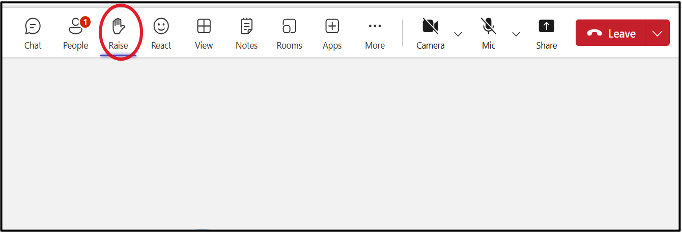
- Reaction
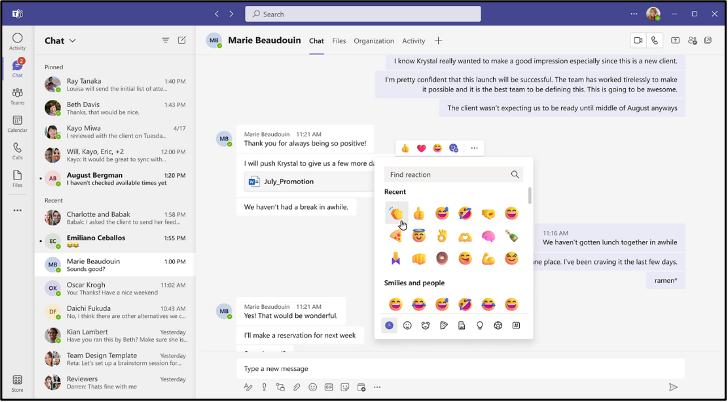
- Raise your hand for any queries
- More options (…)
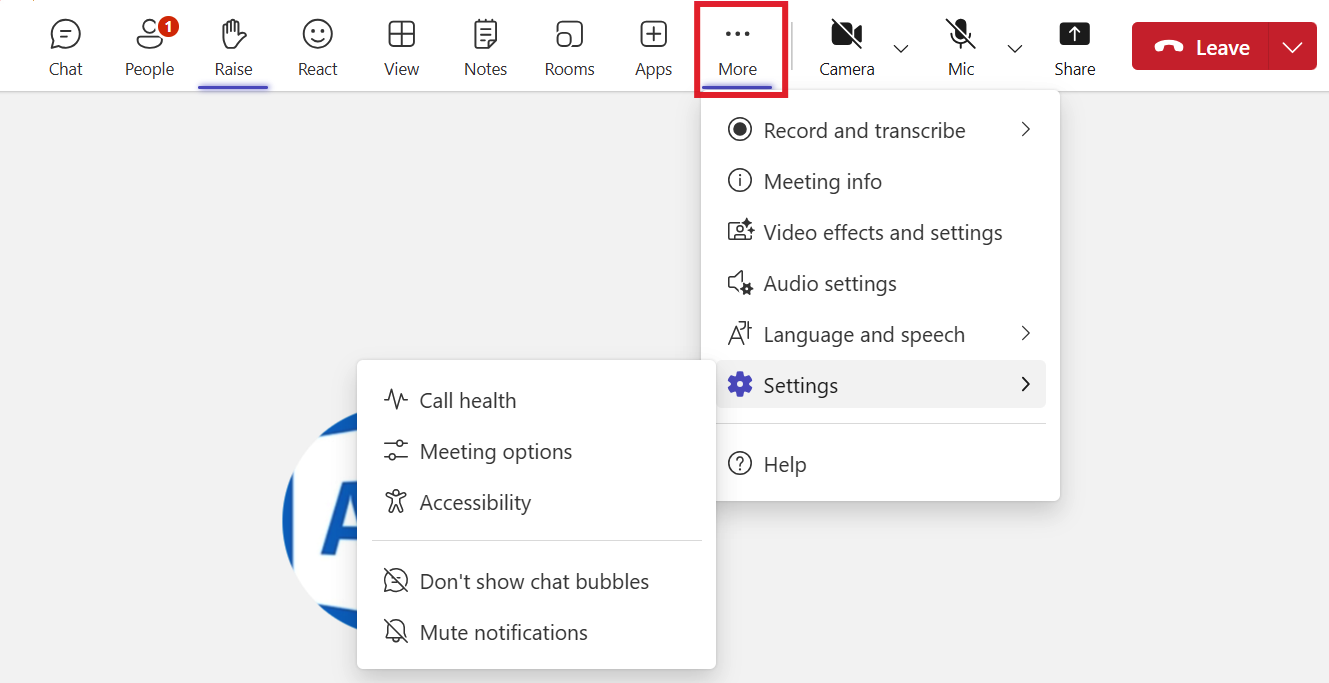
Best Practices for Meetings: -
- Test your audio and video before joining
- Use background blur or virtual backgrounds in distracting environments
- Mute your microphone when not speaking
- Use the raise hand feature to indicate you want to speak
...
File Sharing and Collaboration
Microsoft Teams offers robust file sharing and collaboration features that make it a powerful tool for teams. Here's a breakdown of the key capabilities:
File Storage and Access:
OneDrive Integration: Teams is seamlessly integrated with OneDrive, Microsoft's cloud storage service. This allows you to store and access files directly within Teams channels.
Shared Folders: Create shared folders within channels to organize and manage files related to specific projects or topics.
Version History: Teams automatically tracks versions of files, making it easy to revert to previous versions if necessary.
Offline Access: Download files for offline access, ensuring you can work on them even when you're not connected to the internet.
- Collaboration Features:
Co-authoring: Multiple users can edit a document simultaneously, making it ideal for collaborative projects.
Real-time Comments: Add comments directly to files to provide feedback or ask questions.
@ Mentions: Tag team members or channels within comments to notify them or request their input.
File Requests: Request specific files from other team members or external collaborators.
- File Management and Organization:
Search Functionality: Quickly find files using keywords, file types, or even the content within the files.
File Types Supported: Teams supports a wide range of file types, including documents, spreadsheets, presentations, images, and more.
File Sharing Permissions: Control who can access and edit files by setting appropriate permissions.
Integration with Other Microsoft Apps: Easily share files from other Microsoft apps like Word, Excel, and PowerPoint directly into Teams channels.
- Additional Features:
File Templates: Create and use custom file templates to streamline document creation and ensure consistency.
File Expiration: Set expiration dates for files to automatically delete them after a certain period.
File Retention Policies: Implement retention policies to manage file storage and compliance requirements.
By leveraging these file sharing and collaboration features, Teams can significantly enhance productivity, teamwork, and communication within organization.
Key Advantages of Microsoft Teams
...
- Unified platform for chat, video calls, and document collaboration
- Seamless transition between communication methods
...
- Clear separation between work and personal communication
- Features designed specifically for business use
...
- Deep integration with Microsoft 365 suite
- Ability to work on documents without leaving the app
...
- Channel-based structure for topic-specific discussions
- Easy file organization and retrieval
...
- Robust administrative controls
- Compliance with industry regulations (GDPR, HIPAA, etc.)
...
- Supports large organizations with complex structures
- Facilitates external collaboration
...
- Enterprise-grade security features
- Multi-factor authentication and encryption
Limitations of WhatsApp
- Limited file sharing capabilities
- Lack of advanced organizational features
- Potential for mixing personal and professional communication
- Insufficient administrative controls for organizations resulting Data Privacy Issues
- Not designed for handling sensitive business data
Conclusion
Microsoft Teams offers a comprehensive, secure, and scalable solution specifically designed for business needs. Its integration capabilities, advanced features, and focus on professional collaboration make it the superior choice for organizations looking to enhance digital workplace communication.
1.2. Teams Interface Overview
Microsoft Teams offers a user-friendly interface designed for efficient communication and collaboration. Here’s a breakdown of the main elements:
- Left Sidebar: Contains the App Bar and the Teams Bar
- Central Pane: Displays the content of your selected tab
- Top Bar: Houses the search function, settings, and your profile
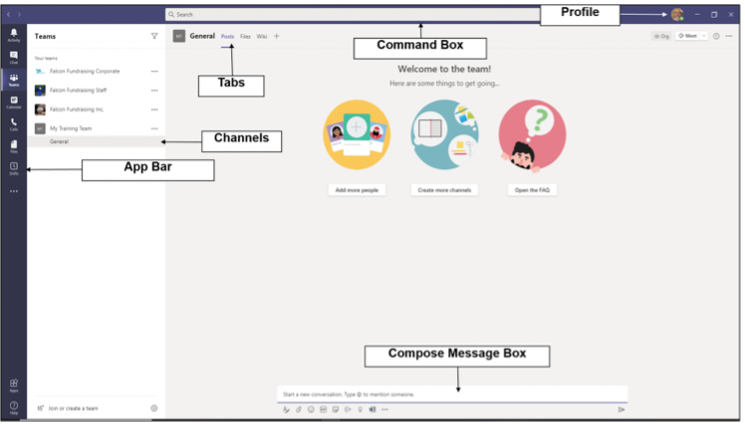
App Bar: Located on the far left Contains icons for Activity, Chat, Teams, Calendar, Calls, and Files
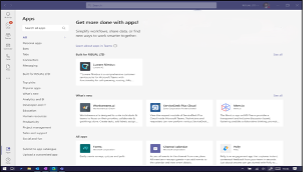
Teams Bar: Lists all your teams and channels, Allows quick navigation between different workspaces
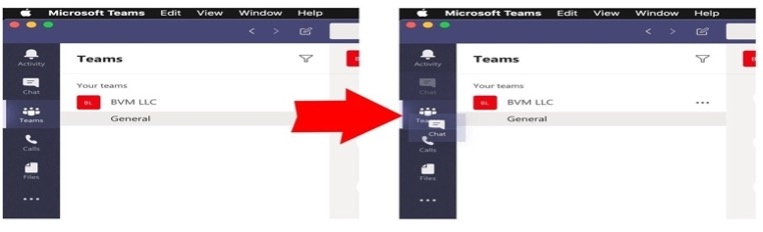
Central Pane: The main working area where conversations, files, and other content are displayed
Top Bar: Contains the search box, command box, and profile picture, quick access to settings and commands
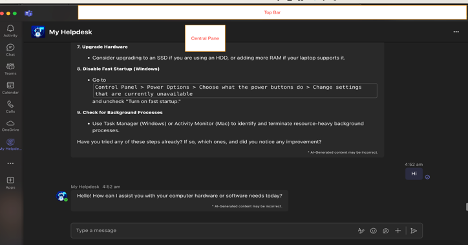
1.3. Customizing Profile
Personalizing your profile helps teammates identify you and adds a personal touch to your interactions.
Click on your profile picture in the top right corner
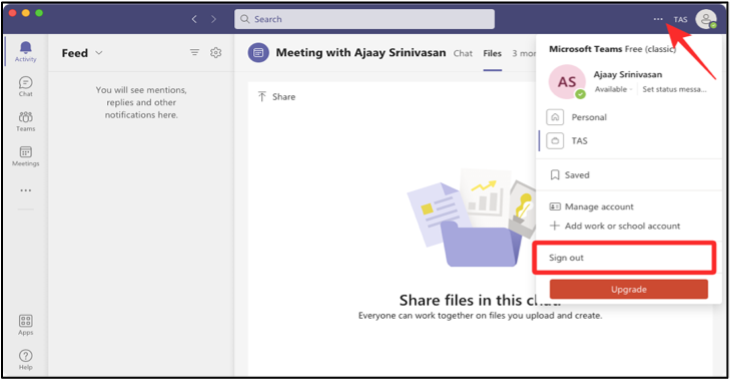
Click on “View account” which will take you to browser and you are able to modify Password and change security info. Please reach out to HR if you require changes in Location, Company, Job Title etc. in your profile.
Set Status Message
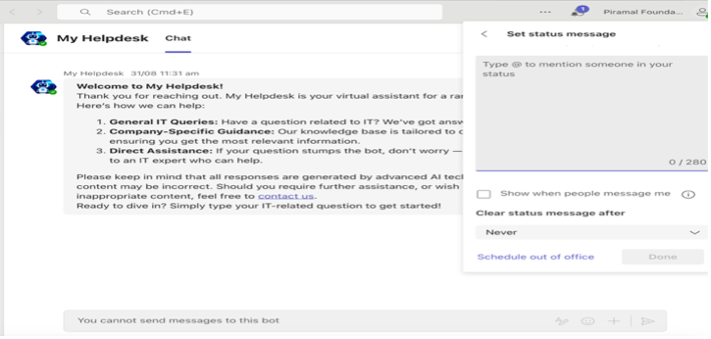
Best Practices for profile: -
- Use a clear, professional profile picture
- Ensure your display name is easily recognizable
- Keep your job title and department up to date
1. Teams and Channels
1.1. Channels
Channels in Microsoft Teams are dedicated sections within a team that organize conversations, files, and tools by specific topics, departments, or projects. Channels provide structure to team communication and allow members to focus on areas of interest, workstreams, or responsibilities.
The primary purpose of channels is to enable organized collaboration within a team by providing:
- A focused space for conversations about a particular topic or project.
- The ability to share relevant files, links, and information without cluttering other channels.
- Easy access to tools, apps, and documents related to that specific channel.
Each team can have multiple channels, and members can subscribe to the ones that are most relevant to their roles or work. Conversations in channels are persistent, meaning they remain accessible for reference even after they've taken place.
Types of Channels in Teams
- Standard Channels
- Visible to all team members: Everyone in the team can see and participate in the conversations, files, and content shared in these channels.
- Default general channel: Every team in Microsoft Teams starts with a "General" channel. You can create more standard channels to categorize conversations by specific projects, tasks, or subjects.
- Private Channels
- Restricted access: These channels are only visible to specific members of the team who have been given access. This is useful for sensitive discussions, or when a subgroup of the team needs a focused space.
- Private communication: Although it's part of the main team, it is a secure, dedicated area where only selected members can access conversations and files.
- Shared Channels
- Cross-team collaboration: A new type of channel where people from multiple teams or even external organizations can work together in one channel, while still being a part of their respective teams.
- Secure collaboration: Ideal for guest access and external partners, these channels allow secure communication with users outside your organization.
Benefits of Using Channels
- Organization and Structure
- Channels help categorize work by breaking down broad discussions into focused conversations about specific topics. This makes it easier to locate relevant content.
- For example, in a marketing team, you might have separate channels for Content Creation, Social Media Strategy, and Campaign Tracking.
- Centralized Collaboration
- In each channel, you can chat, share files, start meetings, and use apps to stay productive all in one place. The files shared in a channel are stored in SharePoint, making them accessible to all team members.
- You can attach relevant documents and other resources that are important for the work in that channel.
- Customization and Apps
- Channels allow you to integrate tools and apps like Planner, Trello, or OneNote directly into the channel tabs. This helps streamline workflows and gives team members quick access to the tools they need.
- For example, you could have a tab for your project management app (e.g., Planner) to keep track of tasks in a specific project channel.
- Focused Discussions
- Threads within channels allow for focused discussions under specific posts. Instead of one long conversation, you can reply to specific messages and keep discussions organized.
- This eliminates confusion that often occurs in group chats or email threads where multiple topics are being discussed simultaneously.
- Accessibility
- Channel conversations, files, and apps are accessible to team members from any device, whether desktop or mobile, providing flexibility and remote collaboration.
- You can also be notified of mentions in channels and follow specific discussions to stay informed about critical updates.
Using Channels Effectively
- Naming Channels
- Use clear and descriptive names for your channels, so team members instantly understand what discussions or activities belong in each one. For example: An Operations team might create channels like State wise capacity building, Project Updates, and Customer Feedback.
- Avoid vague or overly broad names, as this can lead to confusion and reduce the effectiveness of the channel system.
- Organizing Content
- You can pin important messages to the top of a channel, ensuring key information is always easy to find.
- Use channel-specific files and tabs for easy access to resources that are relevant to conversations.
- Using Notifications
- You can follow a channel by selecting the "More options" (three dots) next to the channel name and clicking Channel notifications. This allows you to be notified of all new activity or only certain types of posts.
Key Features of Channels
Files Tab: Automatically includes a tab for all files shared in the channel, making document sharing and access seamless.
Posts Tab: Where conversations happen. Every channel has a “Posts” tab, which holds all the discussions and messages.
Add Tabs: You can add tabs for apps, files, or tools directly in a channel. For example, you could add a Power BI report to view team analytics.
Meetings: You can schedule or start meetings directly from a channel, and meeting chats and notes will be visible to the team.
Planner Integration: Use Microsoft Planner as a tab in the channel for task management and tracking, especially useful for project-related channels.
Best Practices for Channels
Don’t over-create channels: Too many channels can lead to clutter. Only create a new channel when there’s a clear need to separate discussions.
Use private channels wisely: Only use private channels for sensitive discussions or work that doesn't need to involve the whole team.
Leverage apps: Maximize the productivity of your channels by integrating project management tools, file-sharing systems, and other business applications into your channel tabs.
Be mindful of tagging: Use @mentions in channels to notify team members or specific individuals when something requires their attention, but don’t overuse them.
In summary, channels in Microsoft Teams are the foundation for collaboration, organization, and communication within a team. They help keep discussions focused, make resources easily accessible, and integrate various tools and apps to enhance team productivity.
1.2. Creating a Team
Teams are the foundation of collaboration in Microsoft Teams. Here’s how to create one:
Click the “Teams” icon in the App Bar and click “+”
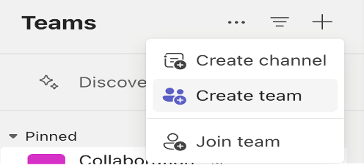
Choose the type of team: Private, Public, or Org-wide
Name your team and add a description
Add member
1.3. Creating Channels Within a Team
Channels are subcategories within a team, used to organize conversations, files, and tools around specific topics.
To create a new channel:
Navigate to the team you wish to create channel for and click on “… “(More Options) and Add channel
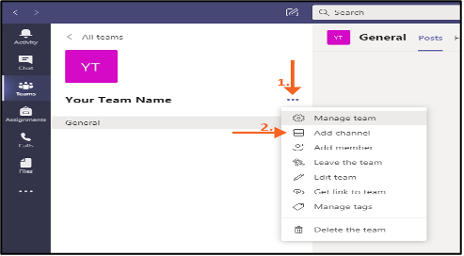
Name the channel and add a description
Choose privacy settings (Standard or Private) [prefer selecting private channel if it’s not for entire organization
Best Practices: -
- Use clear, descriptive names
- Avoid creating too many channels
- Consider using private channels for sensitive discussions
1.4. Creating Shared Channels Within a Team
Detailed Guide on Creating Shared Channels in Microsoft Teams for other tenants of Piramal Foundation entities
Shared Channels in Microsoft Teams are a feature designed to simplify collaboration between organizations by allowing users from external organizations to access a specific channel without needing to be part of the whole team. This is especially useful for projects, collaborations, or partnerships where shared resources between Piramal Foundation entities are necessary
This guide explains the steps to set up and manage shared channels for guest collaboration.
Overview of Shared Channels
Shared channels are a way to collaborate with users inside and outside of your organization without needing to add them as a member of the entire team. Unlike guest access that requires external members to join the entire team, shared channels allow external users to collaborate specifically on relevant channel content.
Key Features:
- External collaborators (guests) can access specific channels.
- Shared channels live within a team, but guests only see the shared channel.
- No need to switch tenants to collaborate with external users.
- Shared channels support chat, file sharing, meetings, and app integrations like any other channel.
Create a New Shared Channel
Set Up Channel Content
- After creating the channel, you can add tabs, files, and apps just like in a standard channel.
- Use the shared channel for specific project-based conversations, file sharing, and collaboration with external partners.
Guest Invitation Acceptance
- External users will receive an invitation via email. They can accept the invitation and access the shared channel using their existing Teams account without switching tenants.
Managing Permissions and Access Control
Managing permissions in shared channels is crucial to ensure that users only access what they need. You can adjust permissions for both internal and external users as follows:
Managing Permissions:
- Navigate to the “shared channel” in Teams.
- Click on the ellipsis (`...`) next to the channel name and select “Manage Channel”.
- Adjust roles and permissions as needed.
- Owners: Users who can manage the channel, including adding/removing members.
- Members: Users who can view and participate in channel activities, but do not have administrative rights.
Restricting Guest Access:
- Guests cannot create new channels, remove members, or access any files outside of the shared channel.
Key Differences Between Shared, Private, and Standard Channels
2. Communication
2.1. Features
The Chat feature in Teams allows for quick, direct communication with individuals or groups.
Basic Chat Functionality
- One-on-one chats
- Group chats (up to 250 people)
- Persistent chat history
- Read receipts
- Typing indicators
- Presence indicators (Available, Busy, Do Not Disturb, etc.)
- @mentions for individuals or groups
- Reply to specific messages
- Chat in channels within teams
Message Formatting and Content
- Rich text formatting (bold, italic, underline, etc.)
- Bulleted and numbered lists
- Code snippets with syntax highlighting
- Tables
- Hyperlinks
- Emojis and GIFs
- Stickers and memes
- Voice messages
- Screen captures and annotations
File Sharing and Collaboration
- Drag-and-drop file sharing
- Share files from OneDrive and SharePoint
- Co-edit shared Office documents in real-time
- View and edit files without leaving the chat
- Pin important files for easy access
Media and Communication
- Instant transition from chat to audio call
- Instant transition from chat to video call
- Screen sharing directly from chat
- In-line image and video previews
- YouTube video playback within chat
Integration and Productivity
- Schedule meetings directly from chat
- Create tasks and to-do items
- Integrate third-party apps and bots in chats
- Share code snippets from developer tools
- Polls and surveys within chats
- Praise feature for recognizing colleagues
Organization and Management
- Bookmark important messages
- Pin important chats to the top
- Filter chats by unread, mentions, or favorites
- Search functionality within chats
- Chat history retention and compliance features
- Pop out chats into separate windows
Advanced Features
- Priority notifications for urgent messages
- Read-only channels for announcements
- Private channels within teams
- Sensitivity labels for classified conversations
- AI-powered suggested replies
- Language translation of chat messages
- Immersive Reader for accessibility
Mobile-Specific Features
- Push notifications
- Offline message drafts
- Share location
- Swipe actions for quick responses
- Dark mode
Security and Compliance
- End-to-end encryption for sensitive chats
- Data Loss Prevention (DLP) in chats
- eDiscovery for chat content
- Retention policies for chat messages
- Multi-factor authentication for access
Analytics and Insights
- Personal productivity insights
- Team collaboration analytics
2.2. Chat
Click the “New chat” button at the top of the chat list, Type the name(s) of the person or people you want to chat with
Compose your message in the box at the bottom of the screen
Best Practices for Chat in Microsoft Teams: -
- Use Channels for Team Conversations: For structured team-wide communication, use channels instead of group chats.
- Keep Conversations Organized: Use threads in channels and reply to specific messages in group chats to maintain context.
- Leverage Integrations: Utilize apps and bots in chats to automate workflows, assign tasks, and improve collaboration.
- Stay On Topic: For quick, direct conversations, keep personal or non-work-related chats separate to maintain professionalism in the workspace.
3. Meetings
Microsoft Teams provides robust features for conducting virtual meetings, from quick check-ins to large presentations.
3.1. Scheduling a Meeting
To schedule a meeting:
Click the “Calendar” icon in the App Bar
Click “New meeting” in the top right corner
- Fill in the meeting details:
- Title
- Date and time
- Participants
- Location
- Description
Click “Send” to schedule and send invitations
3.2. Joining a Meeting
There are multiple ways to join a Teams meeting:
From a chat
From the calendar
3.3. In-Meeting Controls
During a meeting, you have access to various controls:
Camera on/off and Microphone mute/unmute
Share screen
Reaction
Raise your hand for any queries
More options (…)
Best Practices for Meetings: -
- Test your audio and video before joining
- Use background blur or virtual backgrounds in distracting environments
- Mute your microphone when not speaking
- Use the raise hand feature to indicate you want to speak
4. File Sharing and Collaboration
Teams integrate seamlessly with other Microsoft 365 apps, allowing for easy file sharing and real-time collaboration.
...
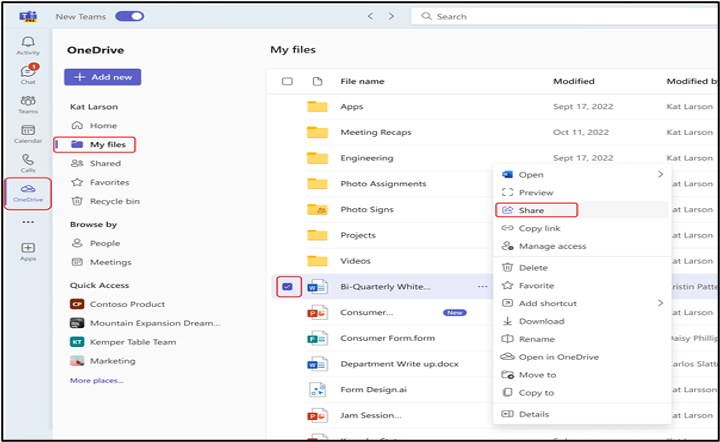
Sharing Files in a Chat or Channel
- Click the attachment icon (Attach File) in the compose box
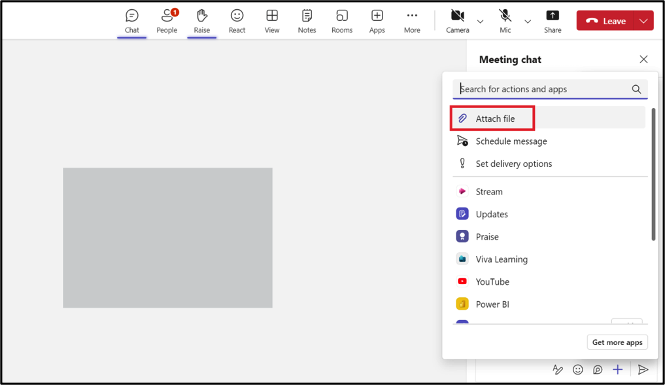
To share a file:
- Choose the file source (recent, OneDrive, or upload from your device), Select the file and click “Share” to share a file
...
Co-authoring Documents
Teams allow real-time co-authoring of Microsoft 365 documents.
To co-author:
- Share a document in a chat or channel:
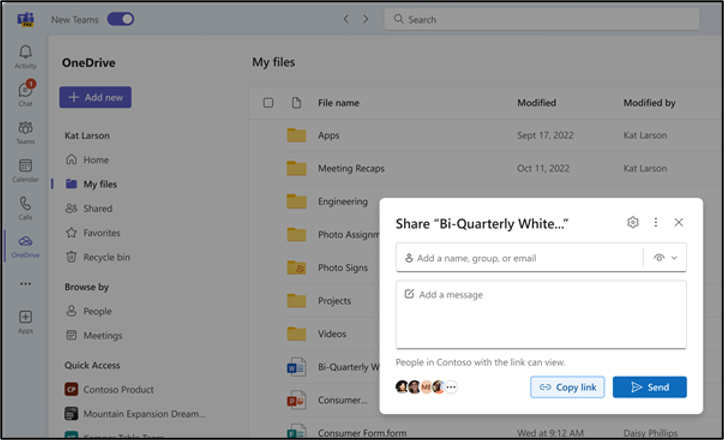
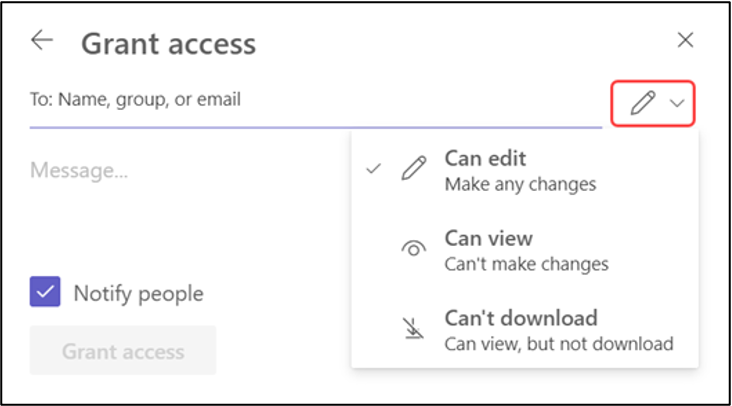
- Grant Edit Access
...
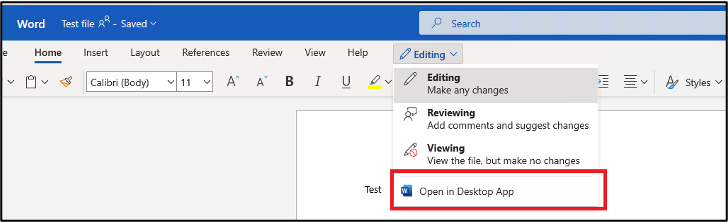
- Click on the document to open it, choose “Edit in Teams” for basic editing or “Open in App” for full functionality
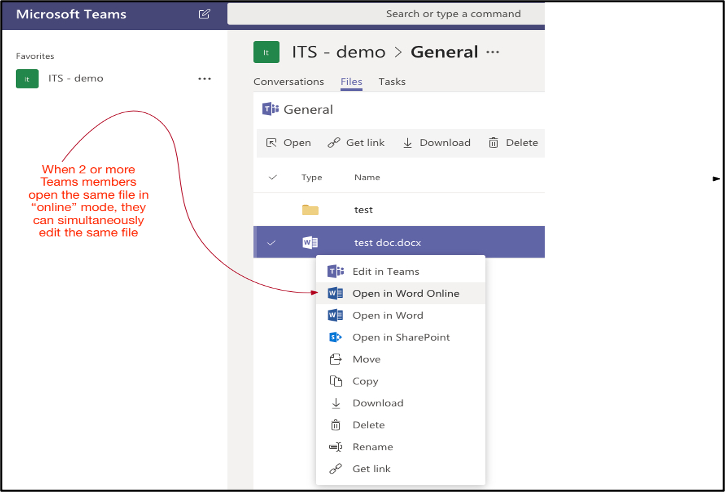
- Multiple team members can now edit simultaneously
Best Practices for File Collaboration: -
- Use descriptive file names
- Utilize version history for important documents
- Communicate with co-authors using comments or the chat feature
...
...
Advanced Features
...
Using Apps and Integrations
Teams can be customized with various apps and integrations to enhance productivity.
To add an app:
- Click the “Apps” icon in the App Bar
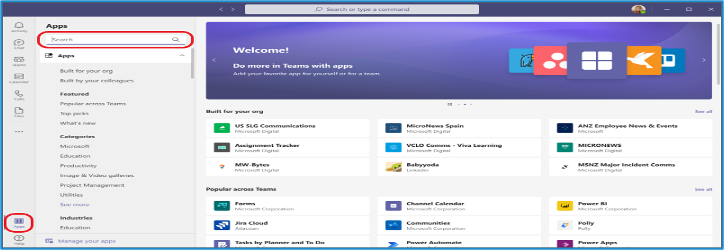
- Browse or search for the desired app
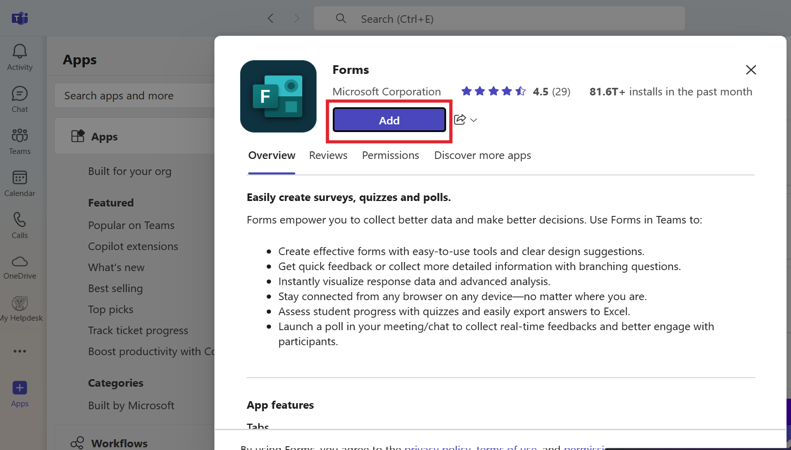
- Click on the app and then “Add” to install it
...
...
Using Apps in Chats and Channels
Many apps can be used directly within chats and channels.
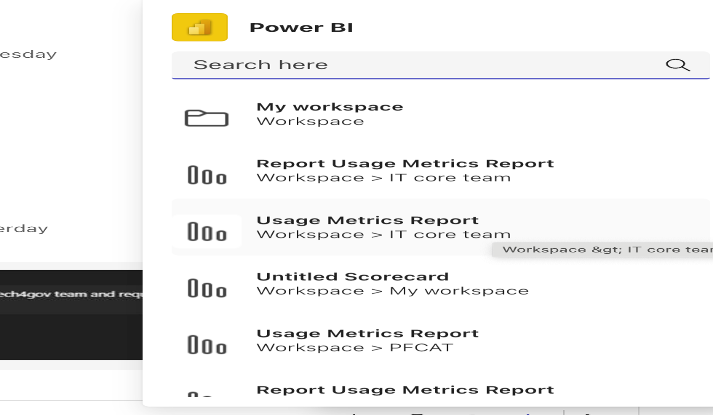
To use an app in a conversation:
- Click the “…” or ‘+’ beside the compose box
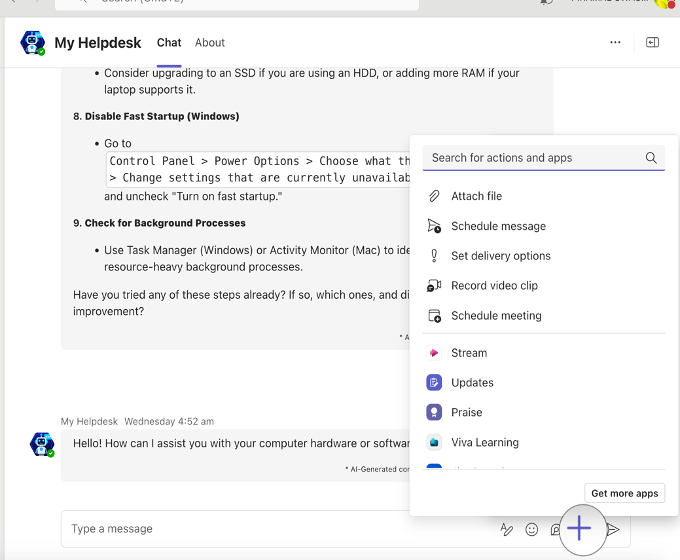
- Select the app you want to use
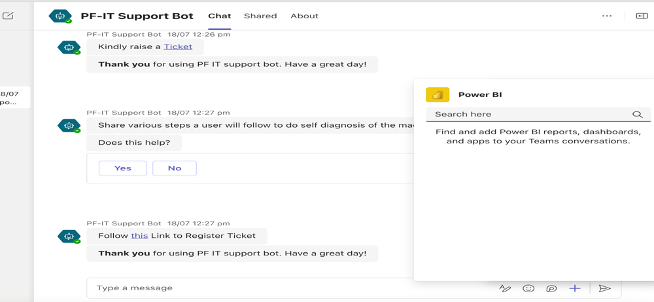
- Follow the app’s interface to create content or take actions
- The app’s output will appear in your conversation
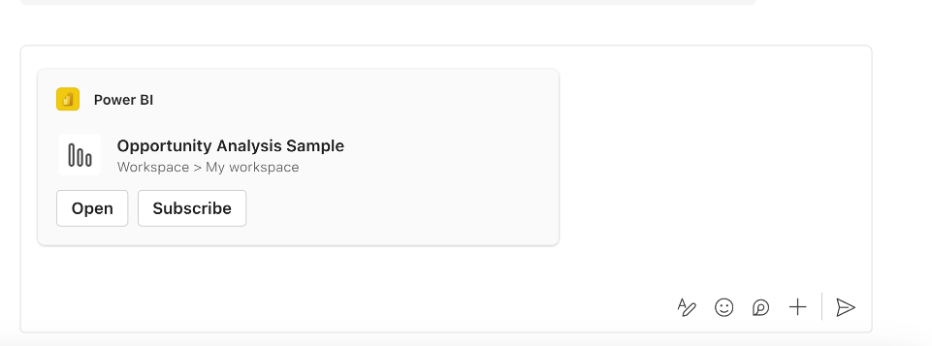
Popular Types of Teams Apps: - Project management tools - Polls and surveys - Workflow automation - External service integrations (e.g., CRM systems, Jira, Confluence, My Helpdesk)
...
...
FAQs
...
General Questions
Q1: What is Microsoft Teams?
...
A: Microsoft Teams has both free and paid versions. The free version offers core features, while paid versions (part of Microsoft 365 subscriptions Piramal Foundation entities have) provide additional features and integration with other Microsoft tools.
...
Account and Profile
Q4: How do I change my profile picture in Teams?
A: Click on your profile icon in the top right corner, select “Manage account,” then “Change photo.” You can upload a new image or take a photo using your device’s camera.
...
Teams and Channels
Q5: What’s the difference between a team and a channel in Microsoft Teams?
...
A: Teams show receipts in chats. You’ll see a small icon appear in the corner of your message once it’s been read. Note that read receipts can be turned off in settings.
...
File Sharing and Collaboration
Q11: Where are my files stored in Teams?
...
A: During a meeting, click the “Share content” button (it looks like a rectangle with an arrow pointing up). You can choose to share your entire screen, a specific window, or a PowerPoint file.
...
Apps and Integrations
Q14: Can I add other apps to Microsoft Teams?
...
A: The Tasks app in Teams combines personal tasks from To Do and team tasks from Planner. You can access it from the left sidebar. Here, you can create, assign, and track tasks for yourself and your team.
...
Troubleshooting
Q16: What should I do if I’m having audio/video issues in a Teams meeting?
...
After deleting the contents, restart Teams.
...
If you’re experiencing issues, Connect with IT Helpdesk of Piramal Foundation
Portal : https://support.piramalfoundation.org
Email : it.helpdesk@piramalfoundation.org