
1. Getting Started
1.1. Teams Vs WhatsApp
In today’s digital workplace, choosing the right communication platform is crucial for productivity and collaboration. This section compares Microsoft Teams and WhatsApp, focusing on their suitability for Piramal Foundation use.
Microsoft Teams
- Purpose: Designed for workplace collaboration and communication
- Target Users: Businesses and organizations of all sizes
- Purpose: Originally for personal messaging, with some business features added
- Target Users: Primarily individuals, with a separate WhatsApp Business app
Detailed Comparison
|
Key Advantages of Microsoft Teams
- Comprehensive Collaboration Tools
- Unified platform for chat, video calls, and document collaboration
- Seamless transition between communication methods
- Professional Environment
- Clear separation between work and personal communication
- Features designed specifically for business use
- Enhanced Productivity
- Deep integration with Microsoft 365 suite
- Ability to work on documents without leaving the app
- Superior Organization
- Channel-based structure for topic-specific discussions
- Easy file organization and retrieval
- Compliance and Control
- Robust administrative controls
- Compliance with industry regulations (GDPR, HIPAA, etc.)
- Scalability
- Supports large organizations with complex structures
- Facilitates external collaboration
- Advanced Security
- Enterprise-grade security features
- Multi-factor authentication and encryption
Limitations of WhatsApp
- Limited file sharing capabilities
- Lack of advanced organizational features
- Potential for mixing personal and professional communication
- Insufficient administrative controls for organizations resulting Data Privacy Issues
- Not designed for handling sensitive business data
Conclusion
Microsoft Teams offers a comprehensive, secure, and scalable solution specifically designed for business needs. Its integration capabilities, advanced features, and focus on professional collaboration make it the superior choice for organizations looking to enhance digital workplace communication.
1.2. Teams Interface Overview
Microsoft Teams offers a user-friendly interface designed for efficient communication and collaboration. Here’s a breakdown of the main elements:
- Left Sidebar: Contains the App Bar and the Teams Bar
- Central Pane: Displays the content of your selected tab
- Top Bar: Houses the search function, settings, and your profile
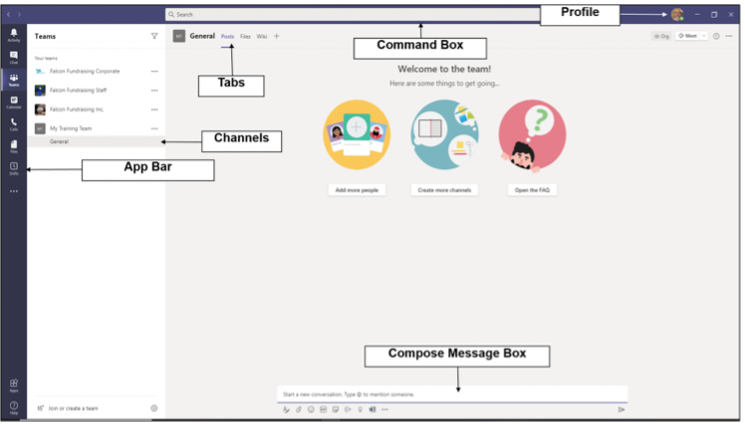
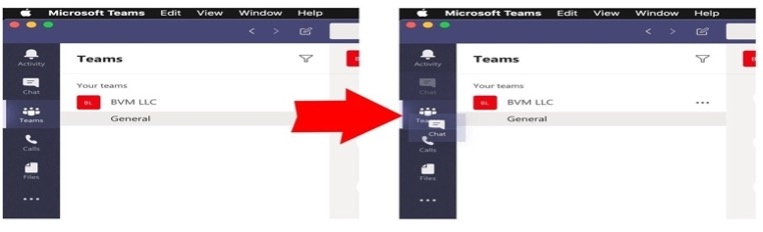
App Bar: Located on the far left Contains icons for Activity, Chat, Teams, Calendar, Calls, and Files
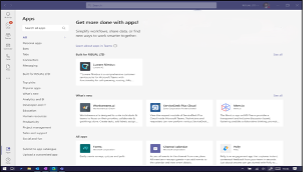
Teams Bar: Lists all your teams and channels, Allows quick navigation between different workspaces
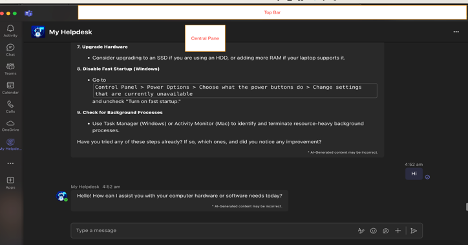
Central Pane: The main working area where conversations, files, and other content are displayed
Top Bar: Contains the search box, command box, and profile picture, quick access to settings and commands
1.3. Customizing Profile
Personalizing your profile helps teammates identify you and adds a personal touch to your interactions.
Click on your profile picture in the top right corner
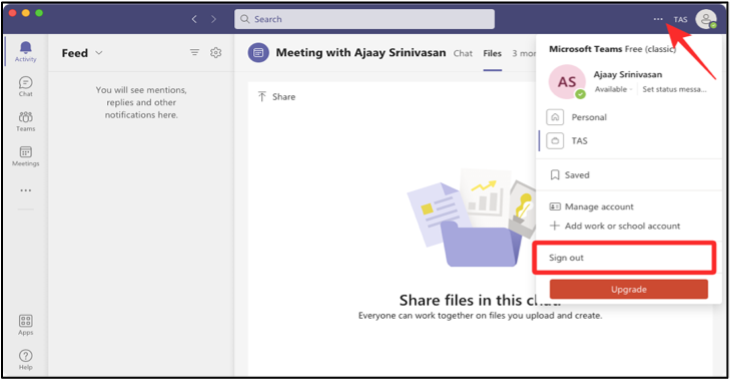
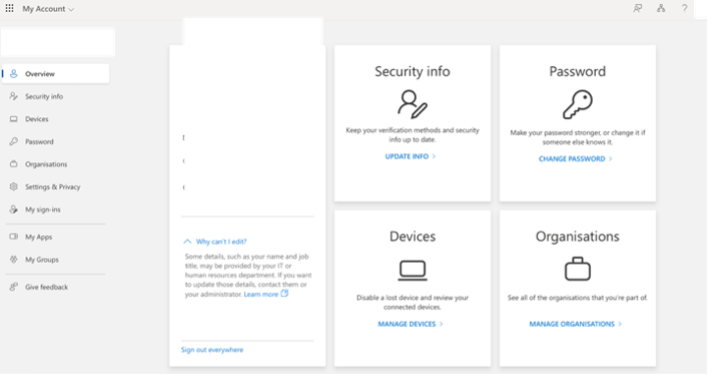
Click on “View account” which will take you to browser and you are able to modify Password and change security info. Please reach out to HR if you require changes in Location, Company, Job Title etc. in your profile.
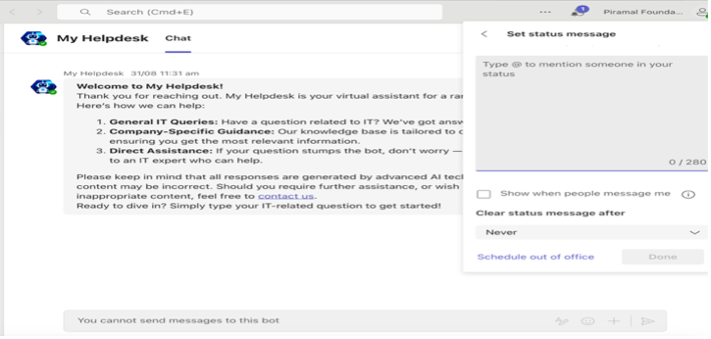
Set Status Message
Best Practices for profile: -
- Use a clear, professional profile picture
- Ensure your display name is easily recognizable
- Keep your job title and department up to date