The AMRIT Atlassian MCP Server enables AI assistants to securely access Jira and Confluence using your own credentials.
Once connected, the AI assistant can:
Search Jira issues
Review project status
Summarize tickets
Identify blockers
Search Confluence documentation
Generate meeting summaries
Draft status updates
Retrieve project information using natural language
Before connecting your AI assistant, ensure you have:
Access to Jira
Access to Confluence
Personal access tokens for Jira and Confluence
An MCP-compatible AI client (Claude Desktop/ Claude Code)
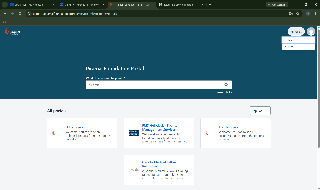
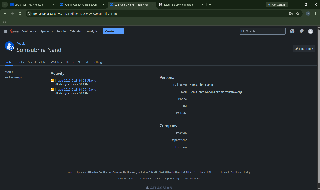
Log in to Jira.
Open your account settings.
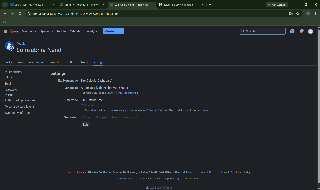
Navigate to API Tokens / Personal Access Tokens.
Create a new token.
Copy and securely store the token.
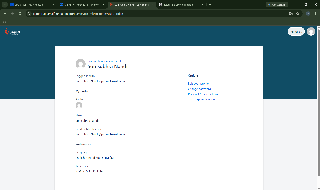
Log in to Confluence.
Open your account settings.
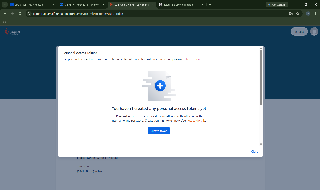
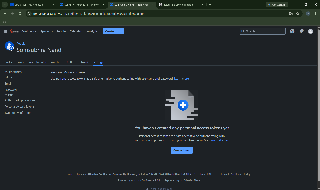
Navigate to Personal Access Tokens.
Create a new token.
Copy and securely store the token.
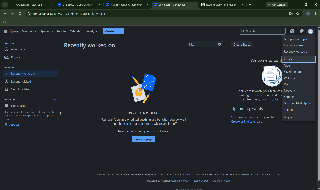
Important: Treat these tokens like passwords. Do not share them with anyone.
Use the following AMRIT Atlassian MCP endpoint:
https://amrittools.piramalswasthya.org/atlassian/mcp
To configure MCP servers, you need to edit the Claude Desktop configuration file.
Windows
Open File Explorer and navigate to:
%APPDATA%\Claude\claude_desktop_config.json (Win+R)
Or directly:
C:\Users\<YourUsername>\AppData\Roaming\Claude\claude_desktop_config.json
Open Finder and navigate to:
~/Library/Application Support/Claude/claude_desktop_config.json
Navigate to:
~/.config/Claude/claude_desktop_config.json
You can open the file using any text editor such as:
Notepad (Windows)
TextEdit (macOS)
VS Code
Sublime Text
Nano/Vim (Linux)
Add the following MCP configuration to your AI client.
{
  "mcpServers": {
    "mcp-atlassian": {
      "type": "http",
      "url": "https://amrittools.piramalswasthya.org/atlassian/mcp",
      "headers": {
        "X-Atlassian-Jira-Url": "https://support.piramalfoundation.org/jira",
        "X-Atlassian-Jira-Personal-Token": "<YOUR_JIRA_TOKEN>",
        "X-Atlassian-Confluence-Url": "https://pmp.piramalswasthya.org/confluence",
        "X-Atlassian-Confluence-Personal-Token": "<YOUR_CONFLUENCE_TOKEN>"
      }
    }
  }
}
Replace:
<YOUR_JIRA_TOKEN>
<YOUR_CONFLUENCE_TOKEN>
with your own credentials(which you just created from Jira and Confluence).
After updating the configuration, completely close(this is very important,close from task managers) and reopen Claude Desktop for the changes to take effect.
The Atlassian MCP Server provides access to Jira project data, issue tracking, agile boards, service management, reporting, and collaboration features through natural language interactions.
Used for managing Jira work items.
Capabilities include:
View issue details
Create issues
Update issues
Assign issues
Change issue status
Manage priorities
Manage labels and components
Manage epics, stories, tasks, and bugs
Track issue lifecycle
Search issues across projects
Typical use cases:
Reviewing assigned work
Updating ticket status
Creating defects and enhancement requests
Sprint execution tracking
Used for discovering and querying Jira metadata.
Capabilities include:
Search issues using Jira fields
View custom fields
Retrieve issue types
Retrieve priorities
Retrieve workflow statuses
Discover project-specific metadata
Filter issues based on business criteria
Typical use cases:
Reporting
Advanced issue searches
Data analysis
Project audits
Used for Agile project management.
Capabilities include:
Access Scrum boards
Access Kanban boards
View active sprints
View sprint backlog
Review sprint progress
Track sprint velocity
Monitor sprint completion
Typical use cases:
Sprint planning
Daily stand-ups
Sprint reviews
Release planning
Used for dependency and release management.
Capabilities include:
View linked issues
Track blockers and dependencies
View parent-child relationships
Manage releases
View version progress
Monitor release readiness
Track release scope
Typical use cases:
Dependency management
Release coordination
Impact analysis
Project planning
Used for collaboration and effort tracking.
Capabilities include:
View issue discussions
Add comments
Summarize discussions
View worklogs
Analyze effort spent
Generate work summaries
Track resource utilization
Typical use cases:
Team collaboration
Project reporting
Effort analysis
Stakeholder communication
Used for managing files associated with issues.
Capabilities include:
View attachments
Upload attachments
Access supporting documents
Review screenshots
Review design documents
Review implementation artifacts
Typical use cases:
Bug investigation
Documentation review
Design validation
Knowledge sharing
Used for support and service desk operations.
Capabilities include:
View service requests
Manage customer tickets
Track request status
Monitor SLAs
Review escalations
Analyze support workload
Typical use cases:
Helpdesk operations
Incident management
Customer support
SLA monitoring
Used for reporting and project analytics.
Capabilities include:
Generate project metrics
Calculate sprint velocity
Analyze cycle times
Analyze resolution times
Generate workload reports
Generate project health reports
Identify bottlenecks
Create executive summaries
Typical use cases:
Project governance
Leadership reporting
Performance monitoring
Delivery tracking
The Atlassian MCP Server provides access to Confluence knowledge bases, project documentation, attachments, comments, and enterprise search capabilities through natural language interactions.
Used for creating, reading, updating, and managing Confluence pages.
Capabilities include:
View page content
Create new pages
Update existing pages
Retrieve page metadata
View page hierarchy
Browse spaces
Access page history
Review page versions
Organize documentation structures
Typical use cases:
Reading project documentation
Creating meeting notes
Maintaining SOPs
Updating project status pages
Managing knowledge repositories
Used for discovering information across Confluence spaces.
Capabilities include:
Search pages by keyword
Search across spaces
Locate project documentation
Find technical documents
Find meeting notes
Discover related content
Search by title or content
Retrieve relevant documentation quickly
Typical use cases:
Finding implementation documents
Locating project specifications
Discovering onboarding materials
Retrieving historical decisions
Performing knowledge discovery
Used for managing files stored within Confluence pages.
Capabilities include:
View page attachments
Access uploaded documents
Retrieve supporting files
Review PDFs and spreadsheets
Download attachment metadata
Upload supporting documentation
Manage project artifacts
Typical use cases:
Reviewing design documents
Accessing requirement specifications
Downloading reports
Sharing project deliverables
Managing supporting documentation
Used for collaboration and discussion around documentation.
Capabilities include:
View page comments
Add comments
Review discussion history
Summarize conversations
Track feedback
Capture review discussions
Identify action items from comments
Typical use cases:
Document reviews
Stakeholder feedback collection
Requirement clarification
Project discussions
Knowledge-sharing conversations
Search requirement documents
Retrieve historical decisions
Review project specifications
Create documentation drafts
Analyze stakeholder feedback
Review project documentation
Track project updates
Summarize meeting notes
Prepare status reports
Monitor project knowledge repositories
Access sprint documentation
Review retrospective notes
Track process documentation
Share team knowledge
Review requirements
Analyze feature documentation
Gather stakeholder inputs
Maintain product knowledge bases
Access architecture documents
Review implementation guides
Retrieve deployment procedures
Search technical knowledge repositories
All Confluence operations are performed using the user's own credentials.
Users can only access:
Spaces they are authorized to view
Pages they have permission to access
Attachments available to their account
Comments visible within their permissions
The MCP server does not grant additional permissions beyond those already assigned within Confluence.
After connecting successfully, you can ask:
Never share personal access tokens.
Tokens should be stored only in your AI client configuration.
Access is limited to resources your account is already authorized to view.
The MCP server does not grant additional permissions.
Verify:
The Jira token is valid.
The Confluence token is valid.
Tokens have not expired.
Tokens were copied correctly.
Verify:
You have access to the requested project or space.
The requested resource exists.
Your account permissions are sufficient.
Verify:
The MCP endpoint URL is correct.
Your network connection is available.
Your AI client supports MCP connections.
For issues related to MCP connectivity or access, contact the AMRIT Agentic AI Framework team and provide:
AI client being used
Error message received
Jira project or Confluence space involved
Steps performed before the issue occurred