FIELD USER GUIDE- STOP TB Mobile Application
Household Registration • Head of Family • Family Members • Anthropometry
(Registrar Module)
FIELD USER GUIDE- STOP TB Mobile Application
Household Registration • Head of Family • Family Members • Anthropometry
(Registrar Module)
1. About This Guide3
2. Getting Started4
3. Workflow Overview6
4. Module 1- Household Registration 7
5. Module 2- Head of Family (HoF) Registration12
6. Module 3- Adding Family Members18
7. Module 4- Anthropometry Assessment22
8. Tips and Best Practices25
9. Troubleshooting and FAQs26
10. Quick Reference28
This guide explains how to use the Stop TB-UAT mobile application to register households and beneficiaries and to record basic physical measurements (anthropometry) during field visits. It covers four tasks:
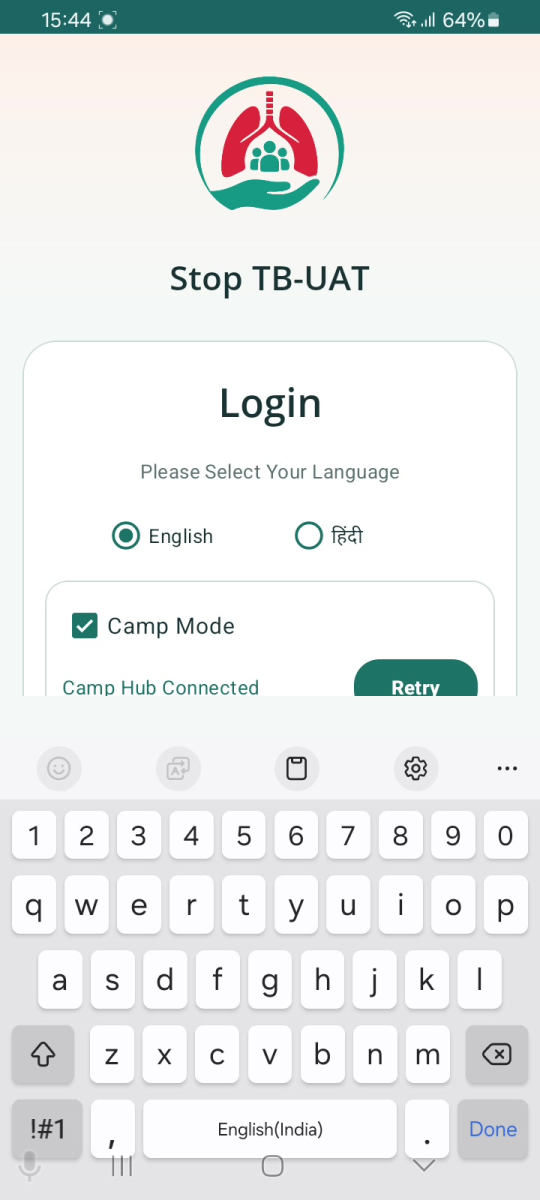
Before you can register anyone, you must sign in and select the village you are working in.
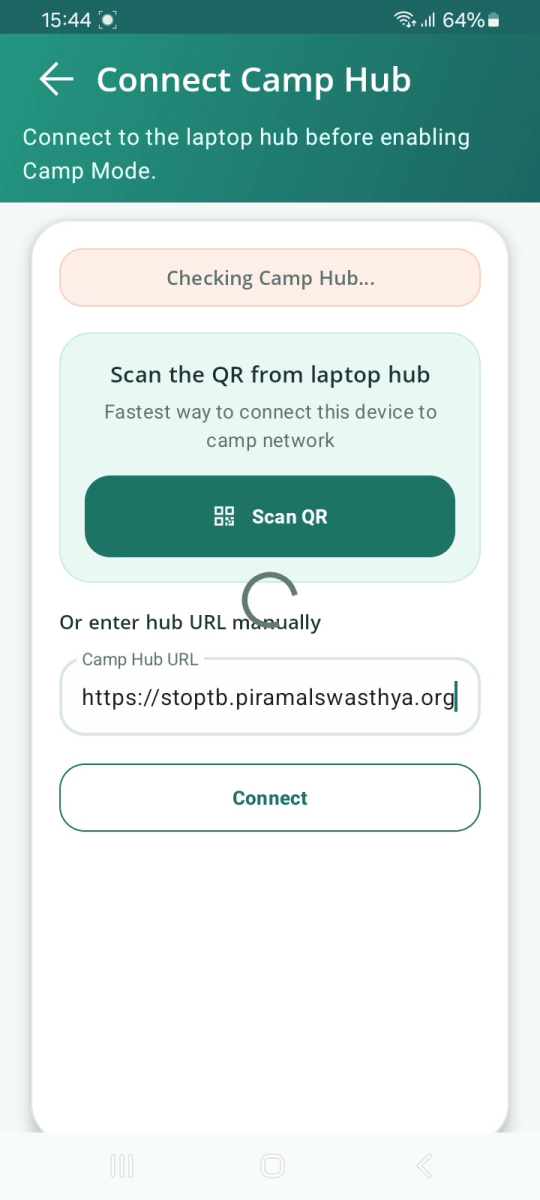
NOTE Camp Mode is optional. If you are not at a hub-connected camp, leave Camp Mode unticked and simply log in with your username and password. | |
|
|
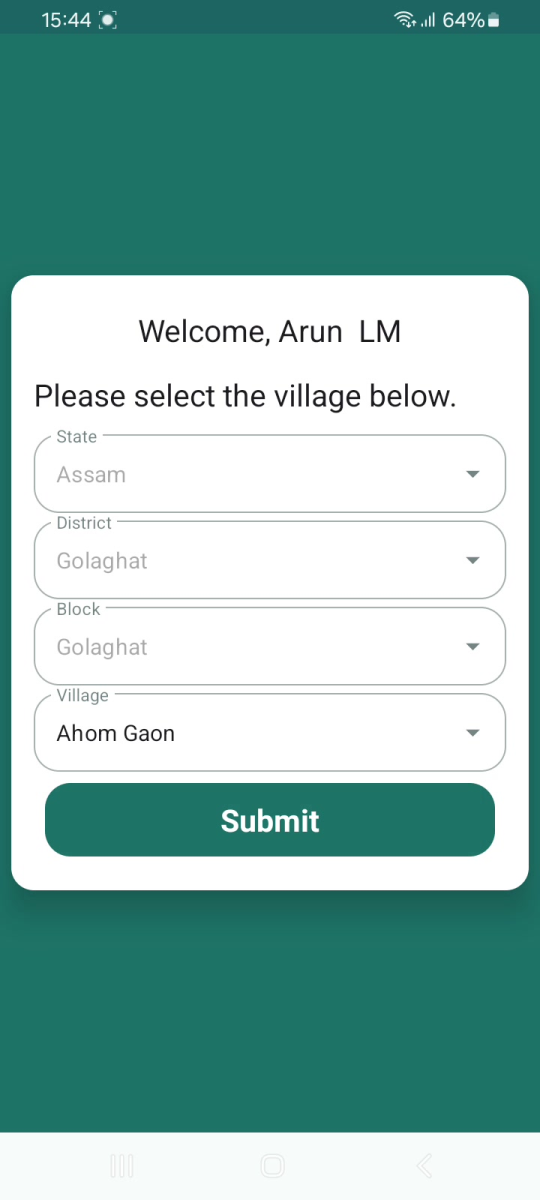
After you log in, the app greets you by name and asks you to choose your work location. Select each dropdown in order — the next one becomes available after the previous choice:
|
The diagram on the next page shows the complete journey from registering a household through to completing an anthropometry assessment. Each colour is one of the four modules described in Sections 4 to 7. Diamond shapes are decision points where the app asks you a question or where the screen changes depending on the situation.
Read it left to right: Household Registration → Head of Family Registration → Add Family Members → Anthropometry Assessment. You normally complete the modules in this order for each household. |
!worddavf3359f9dba306a56b6462d36a576af75.png|height=638,width=762!h1.4. Module 1 — Household Registration
Household Registration creates the master record for one family and the dwelling they live in. It captures who the head of the family is, how to contact them, the family's socio-economic category, and details about the house and its basic amenities.
Complete this module first for every new family you encounter. It is performed by the field team conducting the household visit or operating the screening camp. Each household is saved with its own Household ID generated by the app.
Two headings, one form: The screen scrolls. "Family Details" is at the top; keep scrolling to reach "Household Details" and then "Household Amenities". All three belong to the same registration form and are saved together by one Submit. |
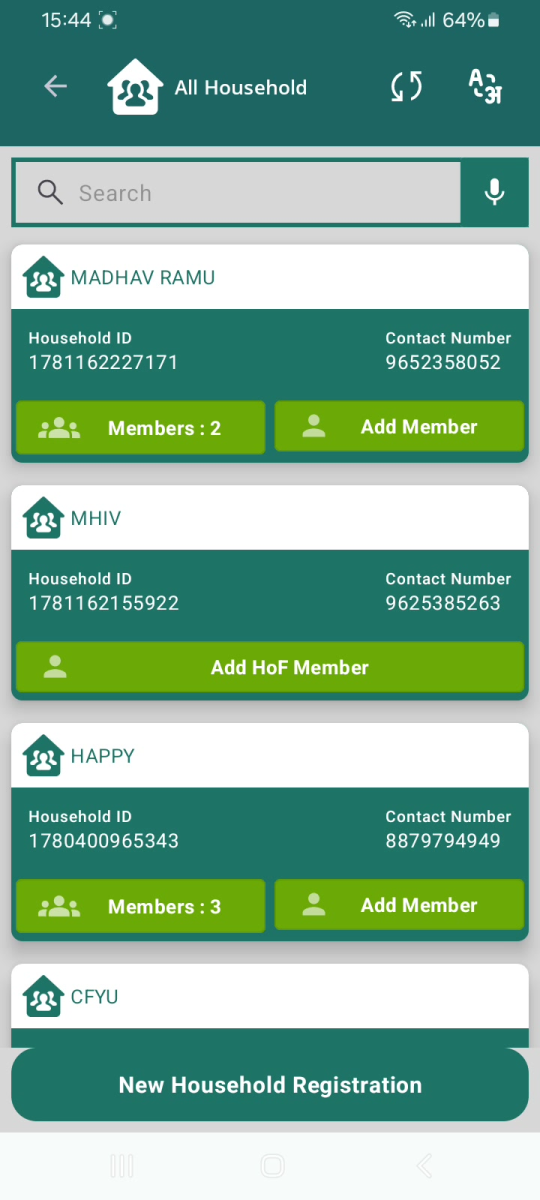
The All Household list. Each card shows a household; the "New Household Registration" button is at the bottom. 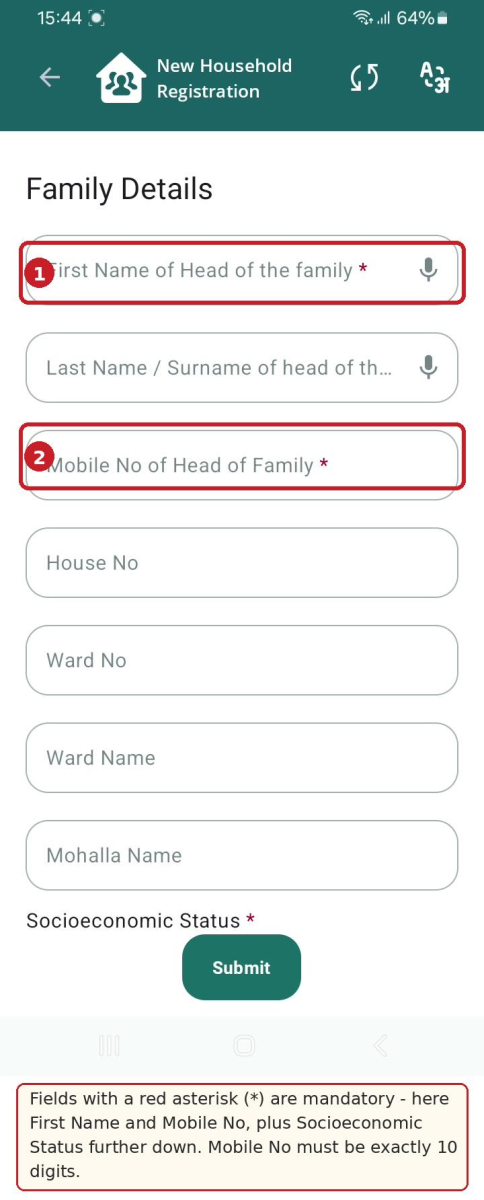
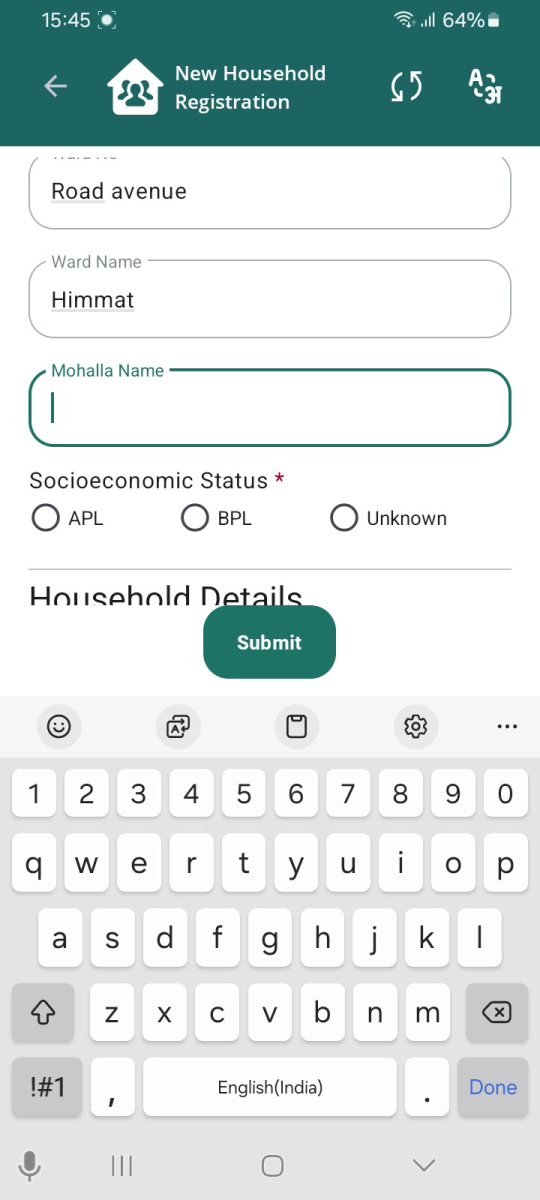
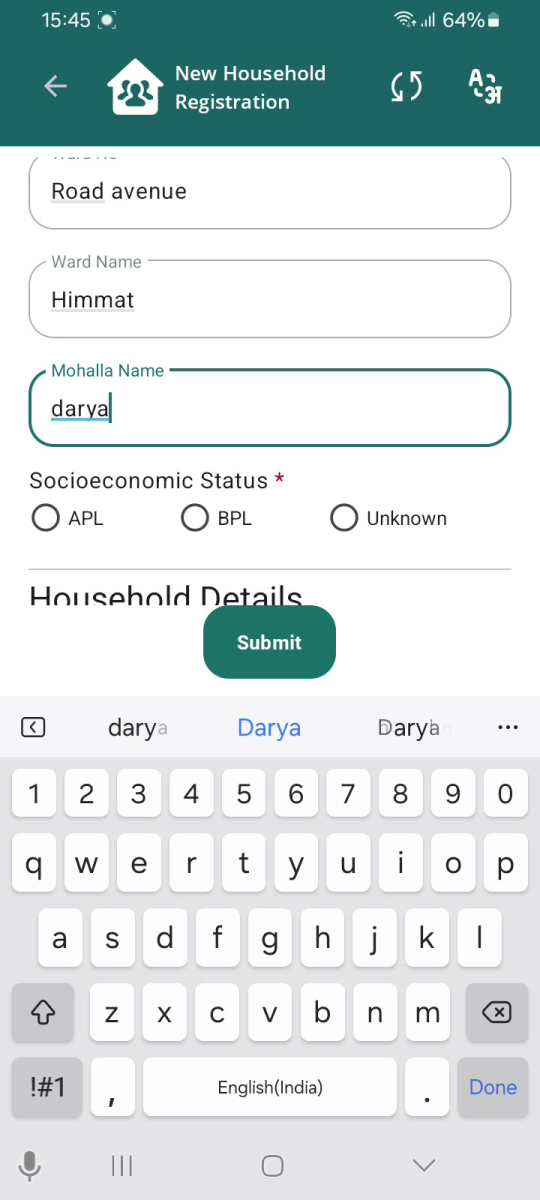
Family Details. Fields with a red asterisk  must be filled.
Field | Required? | What to enter / allowed values |
|---|---|---|
First Name of Head of the family | Yes * | The head of the family's first name (text). |
Last Name / Surname of head of the family | Yes | The head of the family's surname (text). |
Mobile No of Head of Family | Yes * | A valid 10-digit mobile number (digits only). |
House No | Optional | House number, e.g., 635 E. |
Ward No | Optional | Ward number / identifier. |
Ward Name | Optional | Name of the ward. |
Mohalla Name | Optional | Name of the mohalla / locality. |
Socioeconomic Status | Yes * | Select one: APL, BPL or Unknown. |
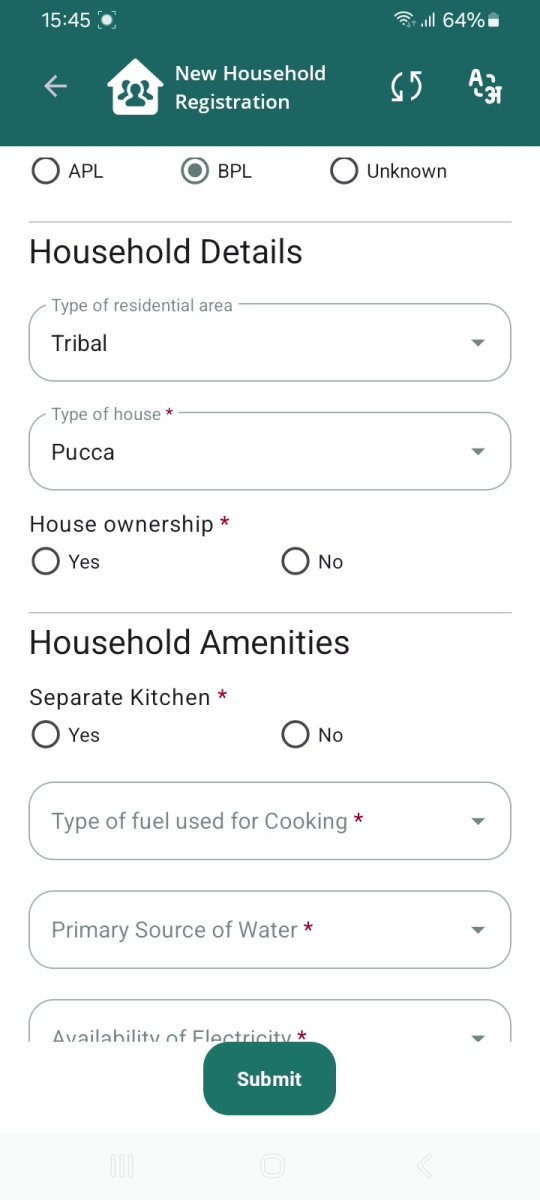
Field | Required? | Allowed values (choose from the dropdown / option) |
|---|---|---|
Type of residential area | Yes | Rural, Urban, Tribal, Tea Garden, Other. |
Type of house | Yes * | None, Kuchha, Pucca, Other. |
House ownership | Yes * | Yes or No. |
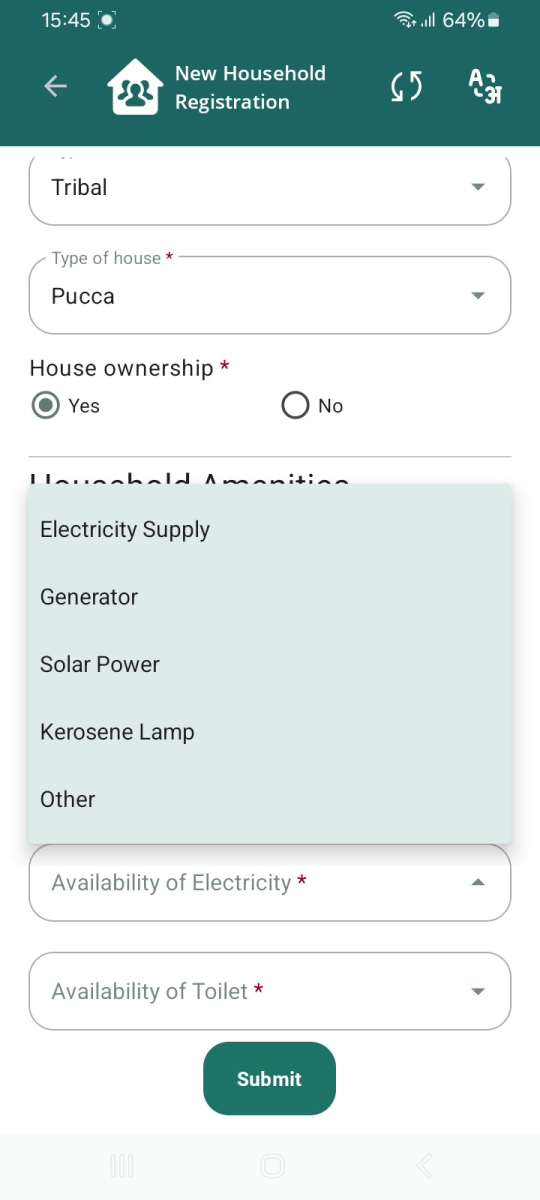
Field | Required? | Allowed values |
|---|---|---|
Separate Kitchen | Yes * | Yes or No. |
Type of fuel used for Cooking | Yes * | Firewood, Crop Residue, Cow dung cake, Coal, Kerosene, LPG, Induction, Other. |
Primary Source of Water | Yes * | Select the source from the list (e.g., "Hand pump inside house"). |
Availability of Electricity | Yes * | Electricity Supply, Generator, Solar Power, Kerosene Lamp, Other. |
Availability of Toilet | Yes * | Flush toilet with running water; Flush toilet without water; Pit toilet with running water supply; Pit toilet without water supply; Other; None. |
|
|
|
|
Mobile number must be 10 digits. If the mobile number is not exactly 10 digits, the field turns red and shows "Invalid Mobile Number !" with a red (!) icon. You cannot save the household until a valid number is entered. |
Mandatory fields: Fields marked with a red asterisk |
Confirmation: A grey "Save Successful" message appears briefly when the household is stored. Immediately afterwards the app shows the "ADD Head Of Family" prompt — this leads straight into Module 2. |
5. Module 2 — Head of Family (HoF) Registration
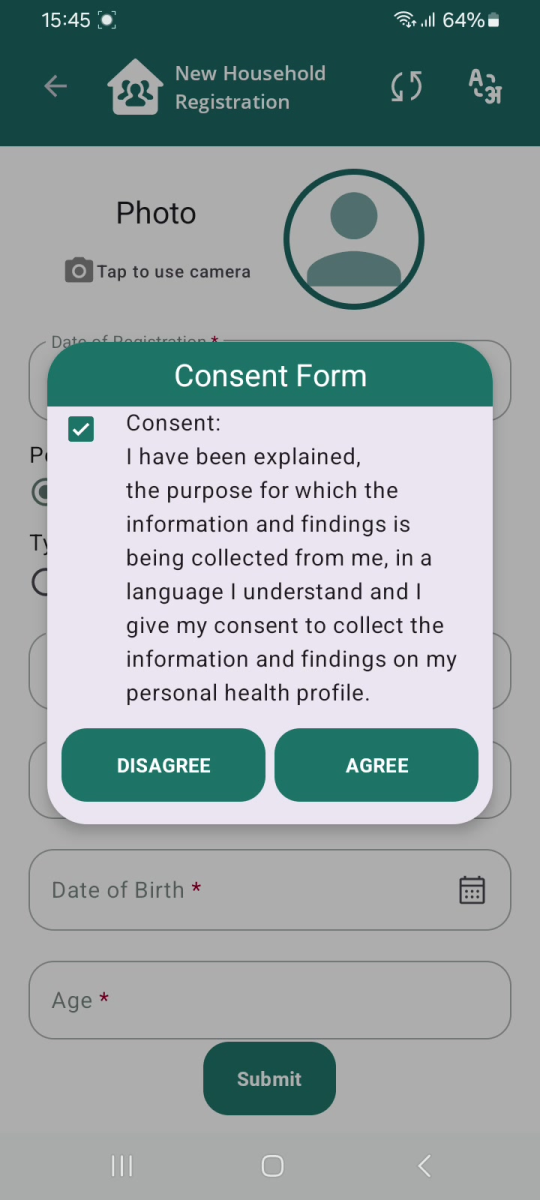
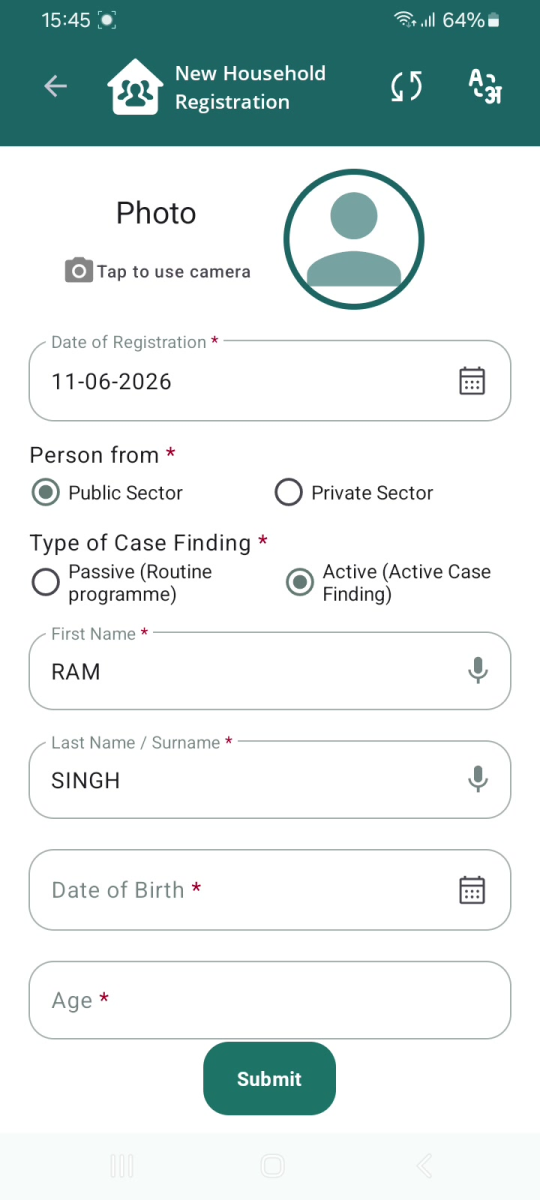
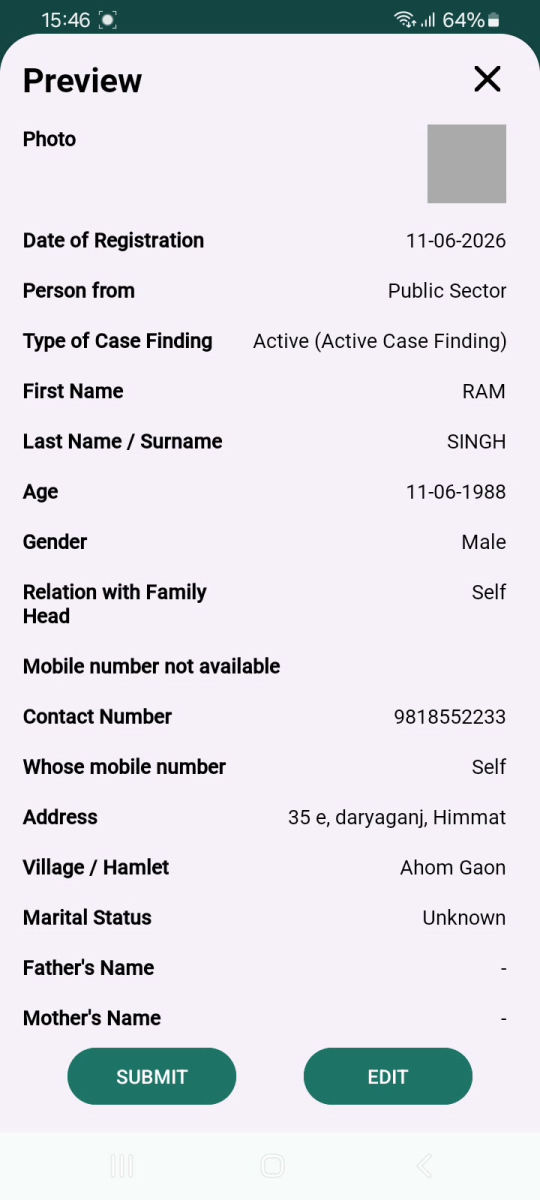
Right after a household is saved, the app offers to register the Head of the Family as the first beneficiary. A beneficiary is a person whose health details are recorded and who can later be examined (Module 4). The HoF must be registered before other members can be added.
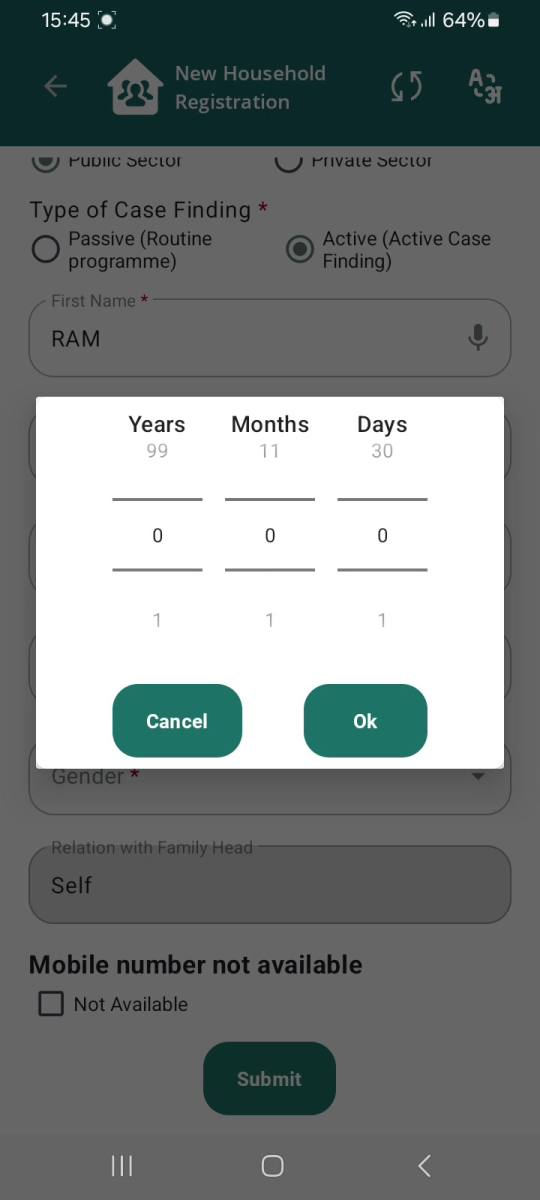
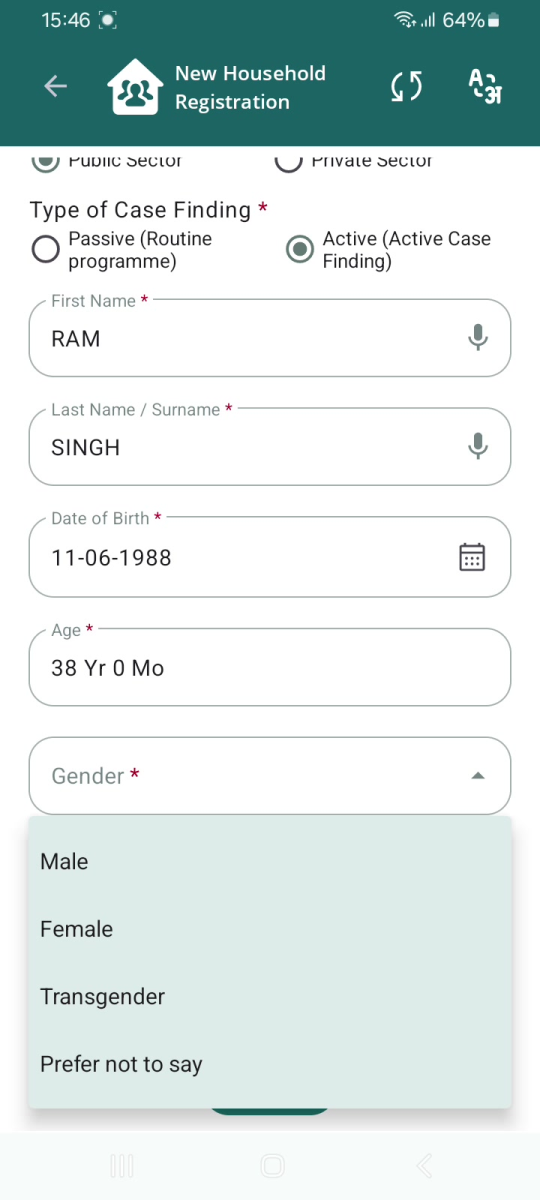
Entering Age fills the Date of Birth: You do not have to know the exact birth date. Enter the age in years (and months/days if known); the app calculates and fills the Date of Birth for you. In the example, entering 38 years produced a Date of Birth of 11-06-1988. |
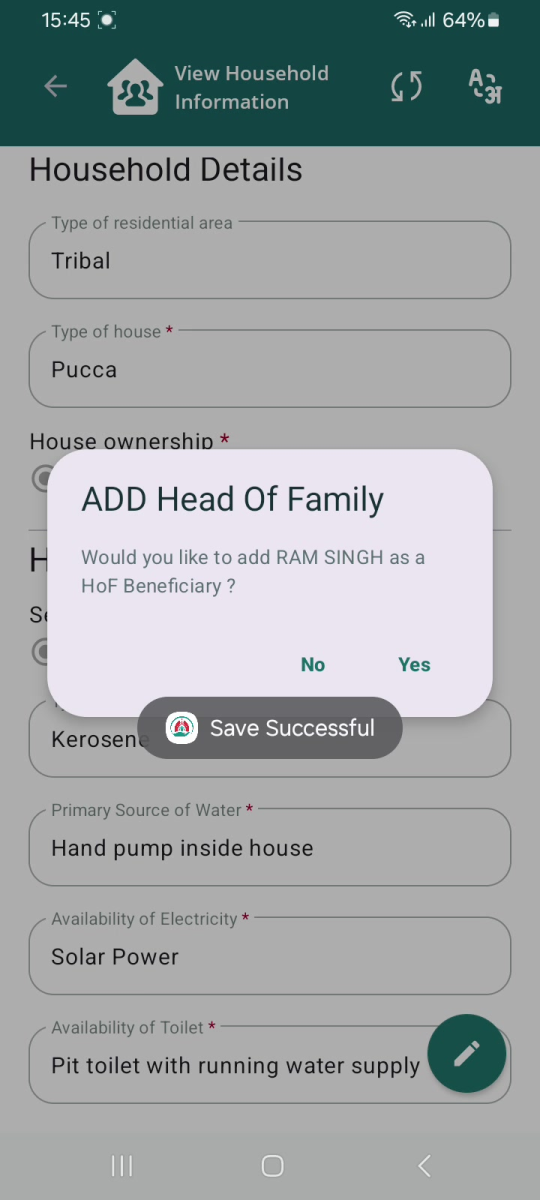
"Save Successful", then the prompt to add the Head of Family.
|
|
|
|
|
|
Field | Required? | What to enter / allowed values |
|---|---|---|
Date of Registration | Yes * | Date of registration (today is pre-filled). Tap the calendar to change. |
Person from | Yes * | Public Sector or Private Sector. |
Type of Case Finding | Yes * | Passive (Routine programme) or Active (Active Case Finding). |
First Name / Last Name | Yes * | Pre-filled from the household for the HoF. |
Date of Birth | Yes * | Filled automatically from Age; can be set with the calendar. |
Age | Yes * | Years / Months / Days picker. Shown as e.g. "38 Yr 0 Mo". |
Gender | Yes * | Select from the list (e.g., Male, Female, Transgender). |
Relation with Family Head | Auto | "Self" for the Head of Family — locked, cannot be changed. |
Not Available (mobile) | Optional | Tick if the person has no contact number. |
Contact Number | Yes * | Phone number (digits). |
Whose mobile number | Yes * | Self, Husband, Mother, Father, Family Head, Other. |
Address | Yes * | Full address of the beneficiary. |
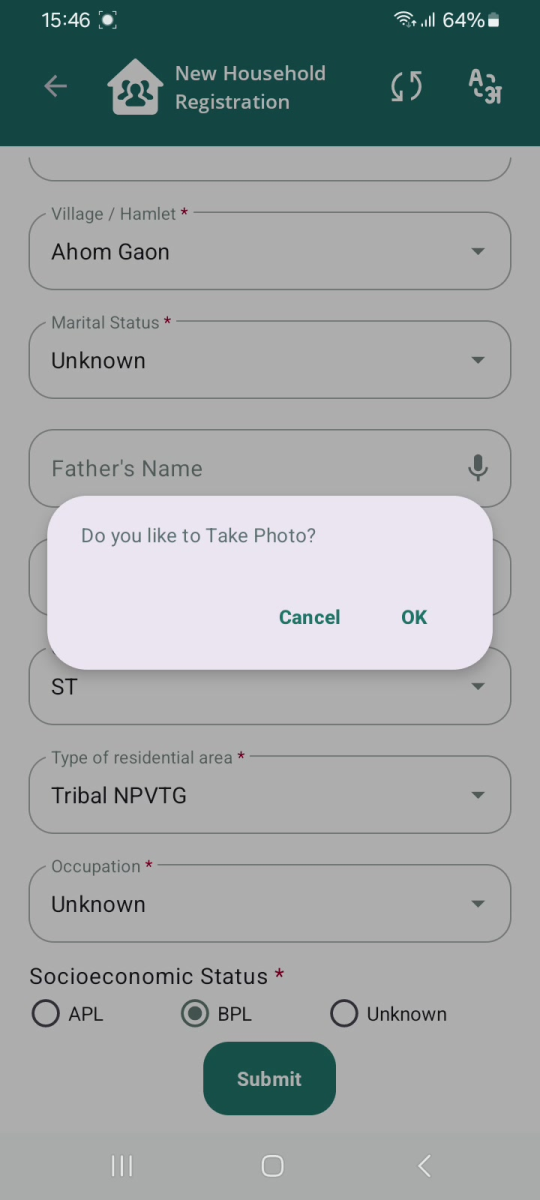
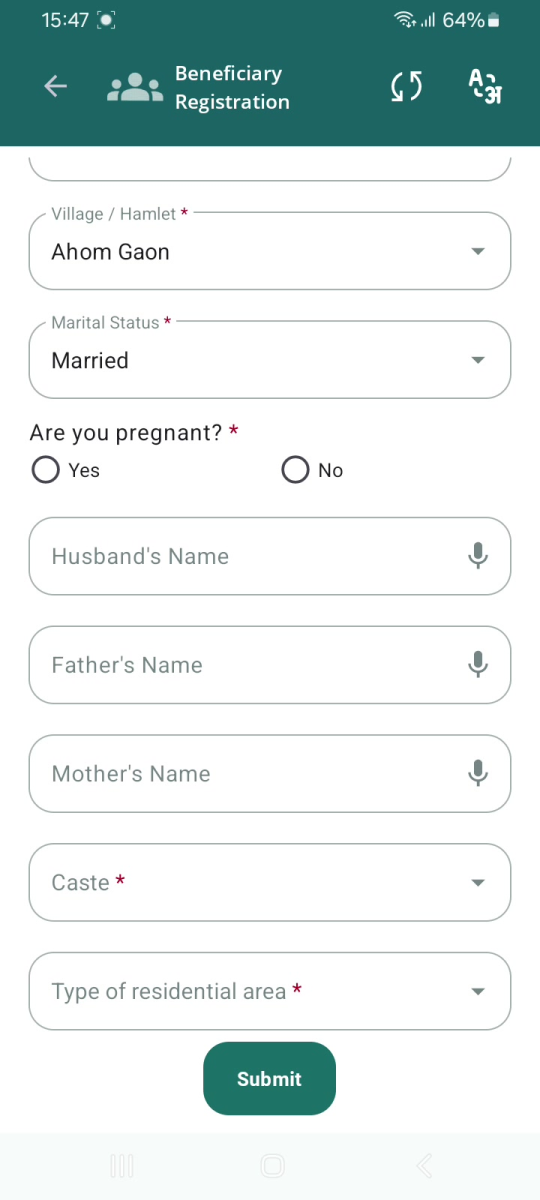
Village / Hamlet | Yes * | Select the village / hamlet. |
Marital Status | Yes * | Single, Married, Unknown. |
Father's Name / Mother's Name | Optional | Text. |
Caste | Yes * | SC, ST, Other. |
Type of residential area | Yes * | Tribal NPVTG, Tribal-PVTG, Rural, Urban, Urban Slum, Unknown. |
Occupation | Yes * | Select the occupation (e.g., Unknown). |
Socioeconomic Status | Yes * | APL, BPL, Unknown. |
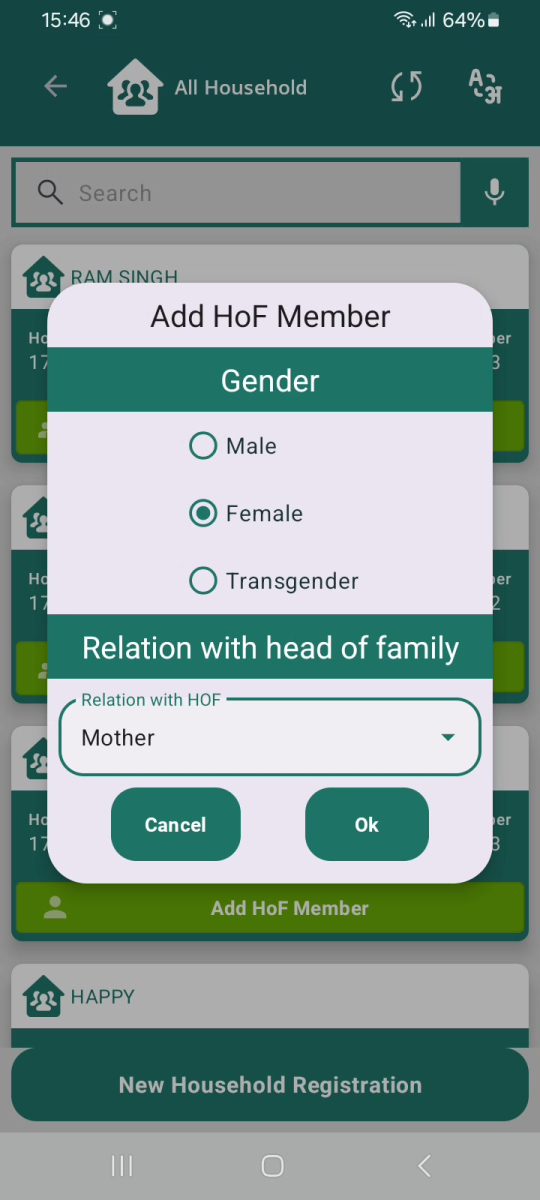
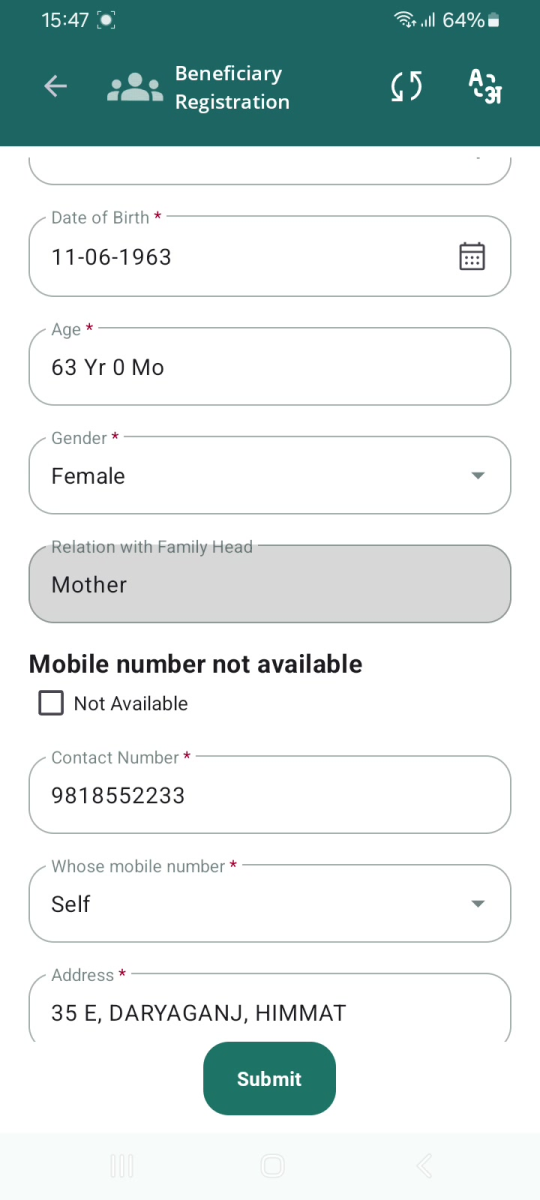
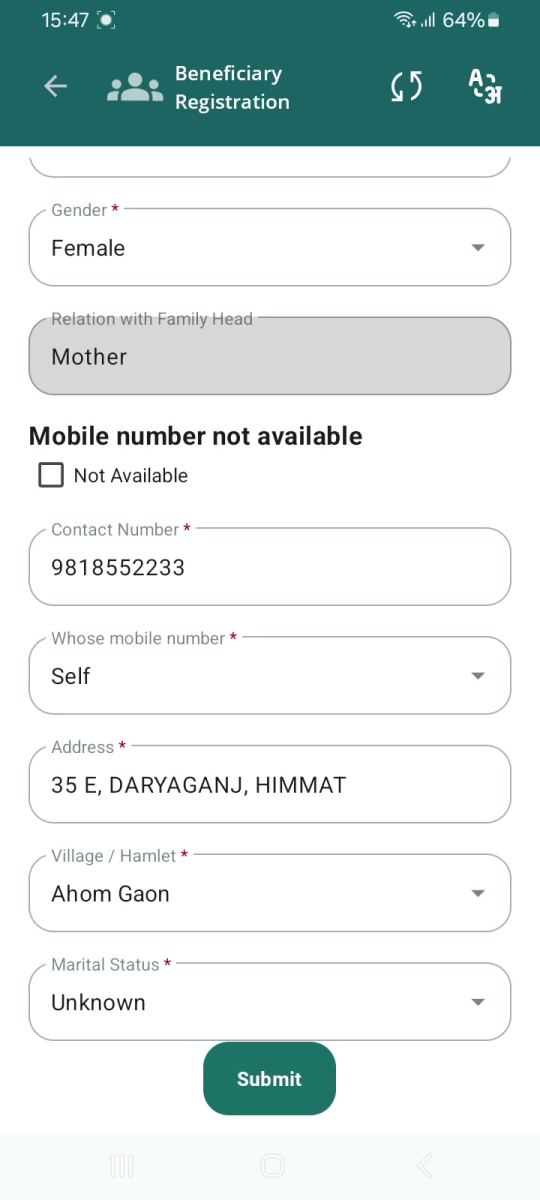
Once the Head of Family exists, add the rest of the household's members. Each member is registered as a beneficiary using almost the same form as the HoF — the difference is that you first choose the member's gender and relationship to the head, and a few fields appear or pre-fill based on those choices.
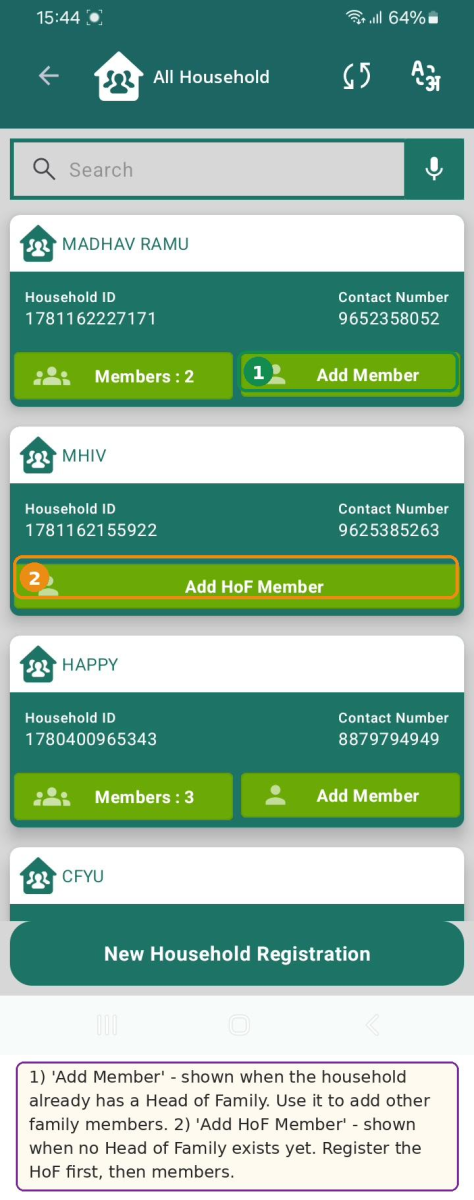
"Add Member" vs "Add HoF Member" on a household card.
|
|
|
|
Everything else matches Module 2: All other fields (Date of Registration, Person from, Type of Case Finding, Caste, Type of residential area, Occupation, Socioeconomic Status, etc.) behave exactly as described for the Head of Family in Section 5.3. |
7. Module 4 — Anthropometry Assessment
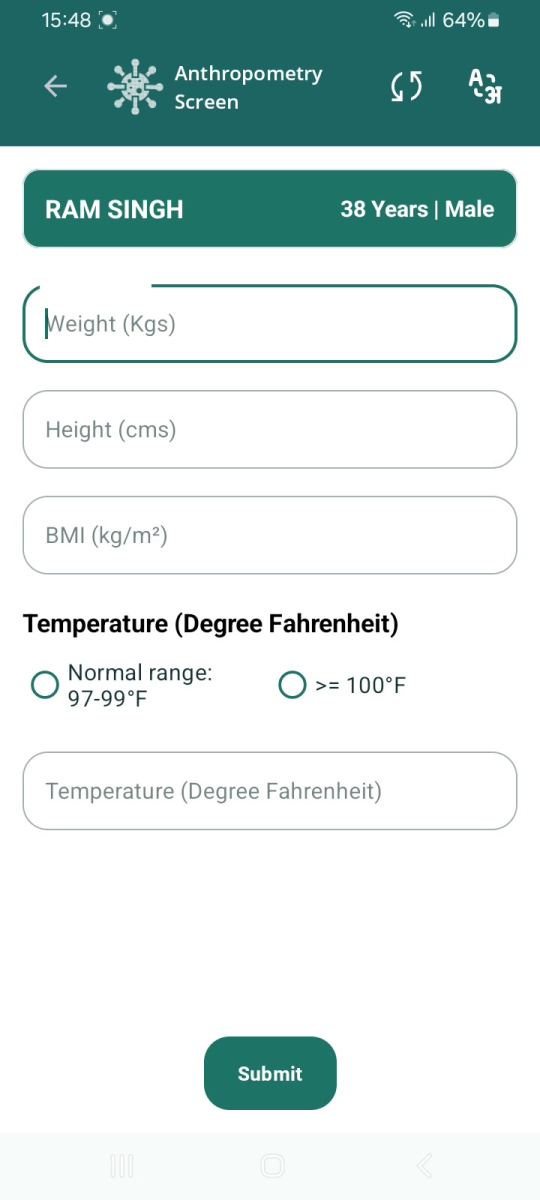
Anthropometry means taking simple body measurements. For each registered beneficiary you record Weight and Height; the app calculates the BMI automatically. You also record the person's Temperature. This is done from the All Beneficiaries list, at the screening camp.
BMI is automatic. The BMI box is calculated from the Weight and Height you enter and is read-only. In the example, 89 kg with 175 cm gave a BMI of 29.1; 65 kg with 155 cm gave 27.1. | ||
|
|
|
Field | Required? | What to enter / behaviour |
|---|---|---|
Weight (Kgs) | Optional | The beneficiary's weight in kilograms (numbers). |
Height (cms) | Optional | The beneficiary's height in centimetres (numbers). |
BMI (kg/m²) | Auto | Calculated automatically from Weight and Height. Read-only — do not type. |
Temperature range | Optional | Choose "Normal range: 97-99°F" or "≥ 100°F". |
Temperature (Degree Fahrenheit) | Optional | Type the temperature reading in °F (e.g., 98.0). |
The banner confirms who you are examining. A green banner at the top of the Anthropometry Screen shows the beneficiary's name, age and gender (e.g., "RAM SINGH | 38 Years | Male"). Check it before you enter measurements so the readings go to the right person. |
Confirm before you move on: After each Submit, wait for the "Save Successful" message. If you do not see it, the record may not have saved — check the list before starting the next person. |
Problem | What it means / what to do |
|---|---|
"Invalid Mobile Number !" (red field) | The mobile number is not 10 digits. Re-type a full 10-digit number. If there is no phone, tick "Not Available". |
Submit does not respond | A mandatory field (red asterisk) is empty. Scroll up and down and fill every starred field, then Submit again. |
"Camp Hub Not Connected" | Camp Mode is on but the hub is not linked. Tap Scan QR or enter the hub URL and Connect, or tap Retry. If you are not at a camp, untick Camp Mode. |
Card shows "Add HoF Member", not "Add Member" | The household has no Head of Family yet. Register the HoF first; the button then changes to "Add Member". |
BMI box will not let me type | BMI is calculated automatically from Weight and Height — that is expected. Just enter Weight and Height. |
Gender / Relation cannot be edited on the form | They are set from the popup and locked. Restart the member with the correct gender and relation. |
Counts on the Dashboard look wrong | Tap "Refresh" to update the All Household and All Beneficiaries figures. |
Still missing? If a record you definitely saved cannot be found after refreshing, note the person's name and the time, finish your other work, and report it to your supervisor / the app support team. Do not register the same person twice unless you are sure the first attempt failed. |
Camp Mode (the hub connection) is optional. Use it only when your camp setup requires it; otherwise log in normally with your username and password.
Enter the Age in the Years / Months / Days picker. The app fills the Date of Birth automatically.
Tick "Not Available" under "Mobile number not available" instead of entering a number.
Because the head of the family is the reference person; the app sets and locks the relation to "Self" for the HoF.
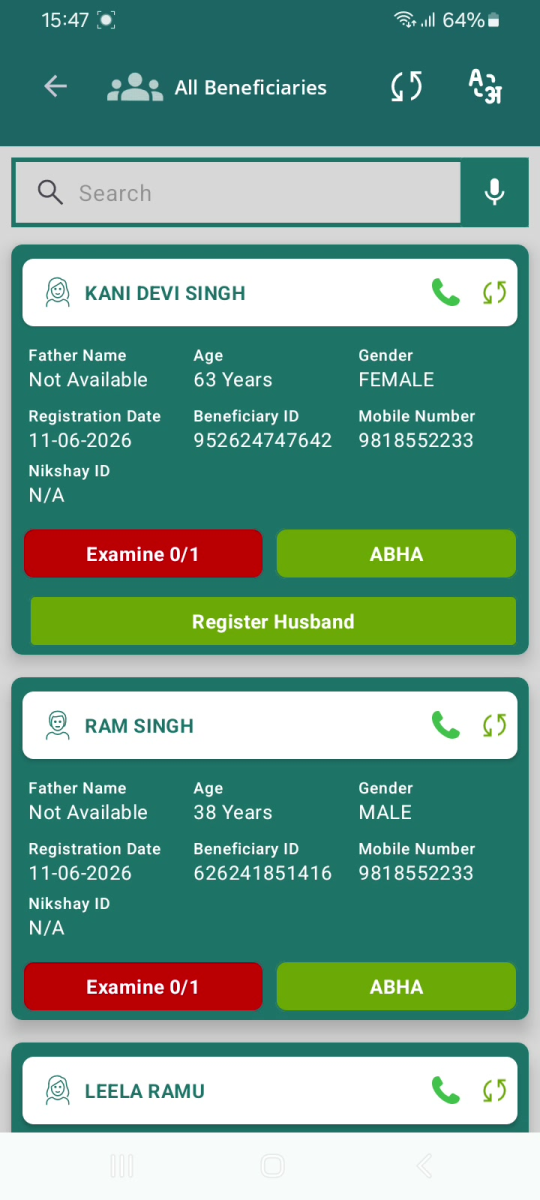
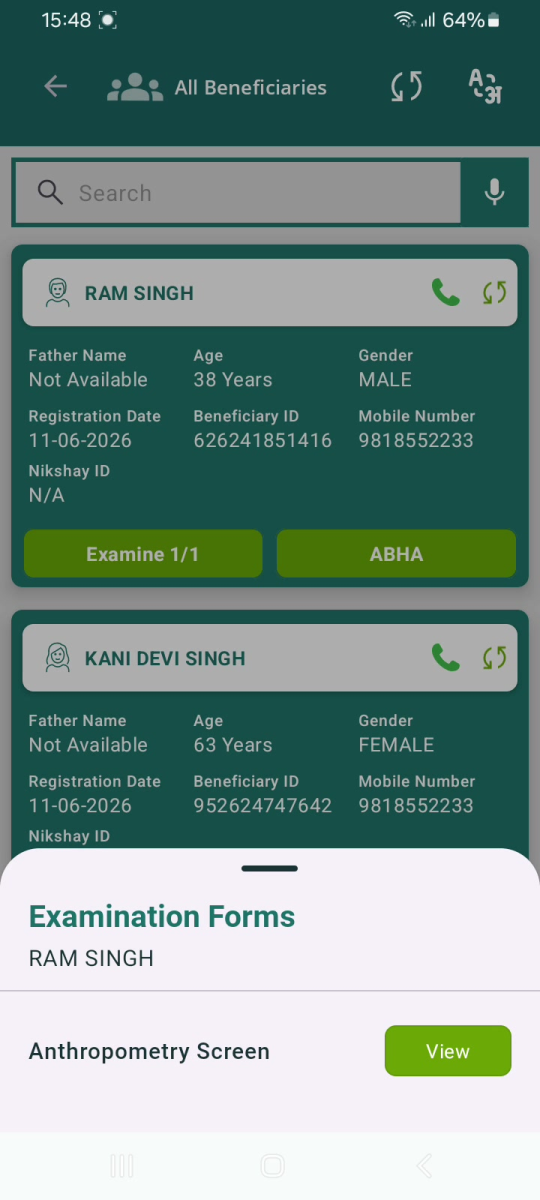
The beneficiary's card changes from a red "Examine 0/1" to a green "Examine 1/1", and the form button changes from "Fill" to "View".
Button / label | Meaning |
|---|---|
New Household Registration | Start registering a new family (bottom of the All Household list). |
Add Member | Add another beneficiary to a household that already has a Head of Family. |
Add HoF Member | Register the Head of Family for a household that has none yet. |
Examine 0/1 (red) | No anthropometry done yet for this beneficiary — tap to begin. |
Examine 1/1 (green) | The anthropometry assessment is complete. |
Fill / View | "Fill" opens an empty examination form; "View" shows a completed one. |
Register Husband | Shown for a married female whose husband is not yet registered. |
Refresh | Update the figures and lists on the Dashboard. |
Field | Options |
|---|---|
Socioeconomic Status | APL, BPL, Unknown. |
Type of residential area (household) | Rural, Urban, Tribal, Tea Garden, Other. |
Type of house | None, Kuchha, Pucca, Other. |
Type of fuel for cooking | Firewood, Crop Residue, Cow dung cake, Coal, Kerosene, LPG, Induction, Other. |
Availability of Electricity | Electricity Supply, Generator, Solar Power, Kerosene Lamp, Other. |
Availability of Toilet | Flush toilet with running water; Flush toilet without water; Pit toilet with running water supply; Pit toilet without water supply; Other; None. |
Person from | Public Sector, Private Sector. |
Type of Case Finding | Passive (Routine programme), Active (Active Case Finding). |
Whose mobile number | Self, Husband, Mother, Father, Family Head, Other. |
Marital Status | Single, Married, Unknown. |
Caste | SC, ST, Other. |
Type of residential area (beneficiary) | Tribal NPVTG, Tribal-PVTG, Rural, Urban, Urban Slum, Unknown. |
Gender (member popup) | Male, Female, Transgender. |
Temperature range | Normal range: 97-99°F; ≥ 100°F. |