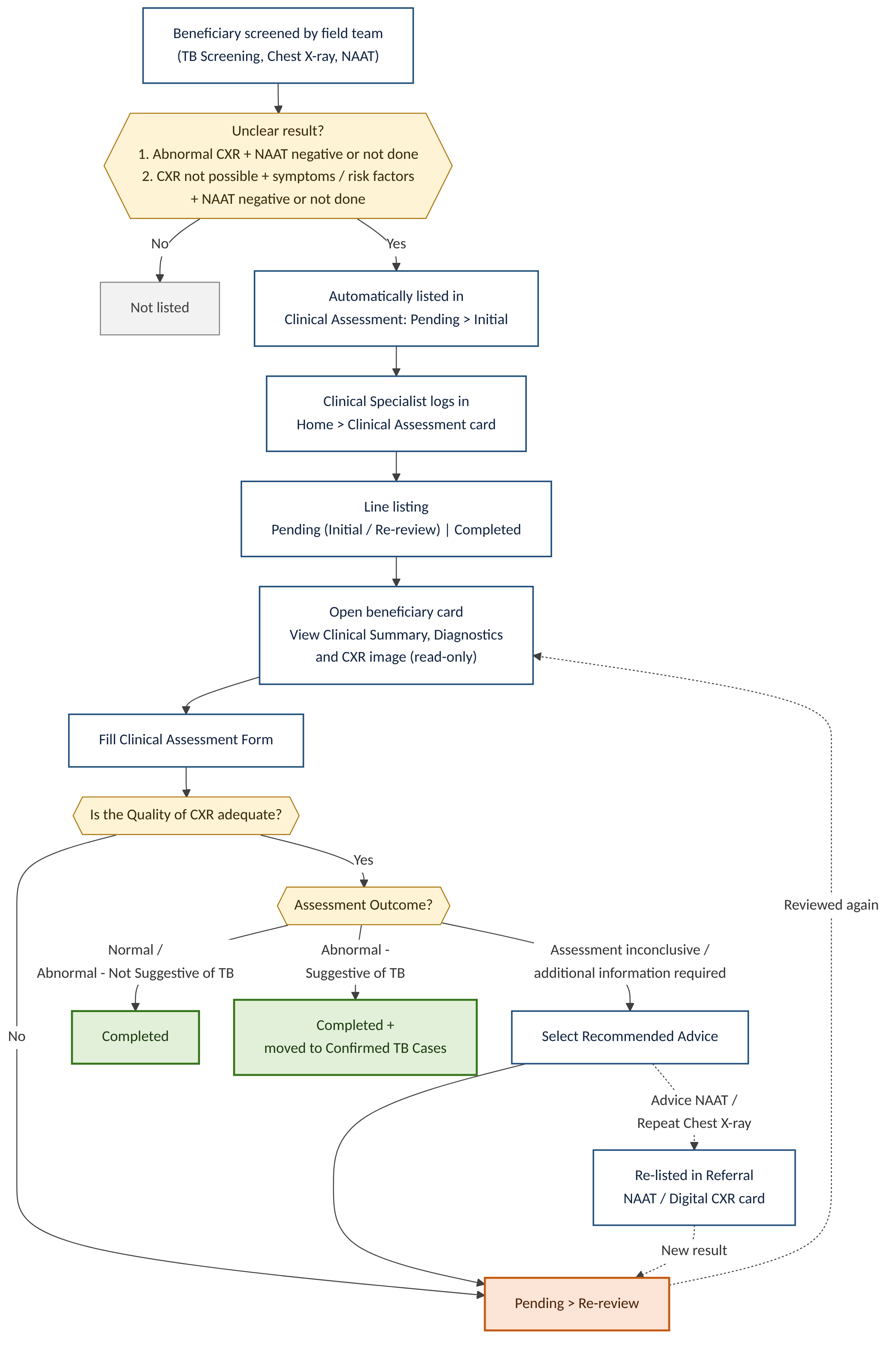
ACTOR: Clinical Specialist | ENTRY POINT: Clinical Specialist login > Home > Clinical Assessment and Diagnosis card | QUEUE: Beneficiaries listed in Clinical Assessment & Diagnosis (Referral section) for the user's (Clinical Specialist) mapped location.
The Clinical Specialist is a new user role in the TBMJA application. It provides clinical assessment for beneficiaries whose screening and diagnostic results do not give a clear outcome: abnormal digital chest X-ray (CXR) with a negative or not-conducted NAAT (Truenat), and symptomatic or high-risk beneficiaries who could not undergo chest X-ray (CXR). The Clinical Specialist reviews the beneficiary's existing record, records the clinical interpretation and outcome, and recommends next steps.
The role may be held by an authorized Medical Officer (MO) and above, chest physician, radiologist or other designated specialist.
Diagnostic data vs clinical decision. Test results (Digital Chest X-ray, NAAT, Liquid Culture) are read-only for the Clinical Specialist. The Clinical Specialist enters only clinical observations, outcomes and recommendations. These are stored as a separate Clinical Assessment record and never overwrite a test result.
Core objectives of this role:
If a User is assigned with a role "Clinical Specialist", then should be able to access following Modules and Privileges:
Beneficiaries are listed automatically. There is no manual referral to this list. Both the categories should be line listed in this module.
For Clinical Specialist login, Home shows the Clinical Assessment card and the Dashboard tab only. Clicking the card opens the Clinical Assessment line listing.
Flow: Home > Clinical Assessment card > Line listing (tab: Pending and Completed) > Beneficiary card > Beneficiary Clinical Summary > Start Assessment.
End to End Workflow
Name of Data Field | Field type | Value/ Options | Validation/ Logic/ Condition |
Clinical Assessment | Card (button) | Title + count badge | Visible only for Clinical Specialist role. Badge shows total count of beneficiaries i.e Clinical Assessment = No. of Pending + No. of Completed. On click open line listing. Give a sorting filter- Date listed (oldest first); Date listed (newest first); Name (A-Z). Default should be oldest date first. Here give two tabs- Pending and Completed. If clicked on “Pending” open the line listing of cases which have not yet been reviewed by the Clinical Specialist or even if reviewed by this role has not been assigned an outcome. If clicked on “Completed” open the line listing of cases which have been reviewed by the Clinical Specialist and an outcome has been assigned and closed. |
Pending | Tab | Title + count badge | In the clinical assessment card, give two tabs. First tab should indicate “Pending” where all the cases are line listed which have not yet been reviewed by the Clinical Specialist or even if reviewed by this role has not been assigned an outcome. Give a sorting filter- Date listed (oldest first); Date listed (newest first); Name (A-Z). Default should be oldest date first. In the “Pending” tab, give a further bifurcation of “Type” = “Initial” and “Re-review”. In “Initial” show the line listing of all the new cases which are yet to be assessed by a clinical specialist. In “Re-review” show the line listing of all the cases with an “Assessment Outcome” = “Assessment inconclusive/ additional information required” as an outcome has not been assigned yet and needs further review. |
Completed | Tab | Title + count badge | In the clinical assessment card, give two tabs. Second tab should indicate “Completed” where all the cases are line listed which have been reviewed by the Clinical Specialist and an outcome has been assigned and closed. Give a sorting filter- Date listed (oldest first); Date listed (newest first); Name (A-Z). Default should be newest date first. |
Following details should be visible on the beneficiaries card to the user. Also put Result status on the card for “TB Symptoms”, “CXR”, “NAAT” with icons (as being followed already).
Name of Data Field | Field type | Value/ Options | Validation/ Logic/ Condition |
Full Name | Label (auto, read-only) | First Name + Last Name | Source: Beneficiary Registration. |
Age / Gender | Label (auto, read-only) | Age in years / Gender | Source: Beneficiary Registration. |
Beneficiary ID (AMRIT ID) | Label (auto, read-only) | Existing AMRIT ID | Source: Beneficiary Registration. Not editable. |
Nikshay ID | Label (auto, read-only) | Existing Nikshay ID | Shown only if available. |
HoF / Father / Husband name | Label (auto, read-only) | Name | Source: Beneficiary Registration. |
Phone number | Label (auto, read-only) | 10-digit number | Hidden if backend default 9999999999 is stored. Source: Beneficiary Registration |
Address/ Area | Label (auto, read-only) | Village name/ Options(any one selected during HH registration)-
| Source: Beneficiary Registration. |
On clicking the individual beneficiary card | Action | - | Opens Collapsible Sections-
|
Opens on clicking a beneficiary card in the line listing. All fields on this screen are read-only and auto-populated from existing modules. The Clinical Specialist cannot edit any of them.
Following Sections are collapsible-
Name of Data Field | Field type | Value/ Options | Validation/ Logic/ Condition |
Date | Label (auto, read-only) | Date/ Month/ Year | Auto populated when the case moves into the “Clinical Assessment and Diagnosis” module. |
Beneficiary Name | Label (auto, read-only) | First Name + Last Name | Source: Beneficiary Registration. |
Weight (Kgs) / Height (cms) / BMI | Label (auto, read-only) | Numeric | Auto populated |
Temperature (Degree Fahrenheit) | Label (auto, read-only) | Numeric + label (hypothermia / Normal / Fever) | Auto populated |
Pulse Rate | Label (auto, read-only) | Numeric with unit | Auto populated |
Systolic BP / Diastolic BP | Label (auto, read-only) | Numeric with unit | Auto populated |
Random Blood Sugar | Label (auto, read-only) | Numeric with unit | Auto populated |
Chief Complaint / Medication | Label (auto, read-only) | If nothing is available or not recorded in the TBMJA application then show "Nothing Relevant Reported" against the label. Showcase chief complaint >> Medication advised >> Frequency >> Duration >> Remarks (if any) Showcase in a structured manner. | |
TB Symptoms | Label list (auto, read-only) | Showcase reported symptoms here including other symptoms if reported. Auto populated | Showcase all the symptoms which were reported as “Yes” during TB screening/ Symptom screening including “History of TB”, “Are you currently taking Anti-TB drugs”, “Anyone in Family Currently Suffering from TB”. Do not show symptoms which were reported as “No” during TB screening Show “Asymptomatic” if all Symptoms are reported as “No”. |
Clinical Signs | Label (auto, read-only) | Symptoms of- Pallor / Icterus / Cyanosis / Clubbing / Lymphadenopathy / Oedema | Shown only if recorded as “Present”. No need to show Symptoms which were recorded as “Absent” If none of the symptom is selected as "Present" then show "Nothing Relevant Reported" against the label. |
Key Population / Risk Factors | Label list (auto, read-only) | Options selected during TB Screening | Showcase all the reported risk factors here. |
HIV Status | Label (auto, read-only) | Positive / Reactive / Negative / Unknown | -Showcase the reported result |
Field Notes | Label (read-only) | Text, author, role, date | Notes added by Nurse, Counselling Officer or Lab Technician on the Clinical Assessment & Diagnosis card. |
Data Field | Field type | Value/ Options | Validation/ Logic/ Condition |
CXR Result | Label (auto, read-only) | Should be auto populated from Digital Chest X-ray (CXR) results. | Source: Referral > Digital Chest X-ray (CXR). Auto-populated by device sync or manual entry. If CXR results are available, then showcase the result and date. If CXR is not conducted then directly show the field “Reason for not conducting CXR” If not conducted due to Pregnancy, then showcase "Not referred: Pregnant". |
CXR Image | Image | Should be fetched from the central server. Should be visible if CXR result is updated in the above field. DICOM Viewer should be available to see CXR images with all its features. | |
CXR AI Report | PDF attachment | The AI generated report for each patient should be visible here as a PDF attachment. Should be fetched from the central server. Should be visible if CXR result is updated in the above field. | |
Reason for not conducting CXR | Label (auto, read-only) | Auto updated from the options chosen in the TBMJA app | Source: Referral > Digital Chest X-ray (CXR) Enable only if “CXR Result” is not updated If CXR is not conducted then directly show the field “Reason for not conducting CXR” Showcase the reason logged. |
NAAT MTB test result | Label (auto, read-only) | Source: Referral > NAAT | |
Reasons for not conducting the NAAT test | Label (auto, read-only) | Auto updated from the options chosen in the TBMJA app | Showcase the reason logged. Do not show if NAAT results are available. |
Cy-TB results | Label (auto, read-only) | Positive Negative | This field should be shown only if results are available in the TBMJA application. Hide if not relevant to the individual beneficiary or no results available. |
Liquid Culture result | Label (auto, read-only) | Growth detected No Growth detected | This field should be shown only if results are available in the TBMJA application. Hide if not relevant to the individual beneficiary or no results available. |
Opens on clicking Start Assessment, Continue Draft or Review New Evidence in the Beneficiary Clinical Summary. All text fields allow Speech to Text input.
Name of Data Field | Field type | Value/ Options | Validation/ Logic/ Condition |
Assessment Date | Calendar / Date picker | Date | Mandatory. Default: Today's date. Not greater than Today's date. Not before the latest of TB Screening date, CXR date and NAAT test date. Not editable once submitted. |
Clinical Specialist Name | Label (auto, read-only) | Logged-in user's full name | Source: user profile. |
Specialist Type | Label (auto, read-only) | · Medical Officer (MO) · Chest Physician · Radiologist · Other | Source: user configuration on login |
Name of Data Field | Field type | Value/ Options | Validation/ Logic/ Condition |
| Is the Quality of CXR adequate | radio button | Yes No | Single selection Default "Yes". If selected "No" then enable only "Remarks", "Cancel", "Submit". Such cases should be visible in a separate list titled "Re-Review". If selected "No" and after submission then automatically move this case to "Pending" >> "Re- review" with the Remarks being auto updated If "Is the Quality of CXR adequate" = "No" then this section should be auto updated in the Remarks section- "Quality of CXR is inadequate and needs to get CXR done again". |
Clinical interpretation of CXR | Dropdown options Multi-line textbox for free text in addition to dropdown options | Dropdown option- | Enabled and mandatory if CXR image reviewed = Yes. Character limit 500 for free text. Records the specialist's interpretation; does not change Digital Chest X-Ray (CXR) Test Result. Implement AI based auto complete feature- Need knowledge base from clinical domain team. CDSS Knowledge base required. If new interpretations is given by the specialist which is unavailable in the knowledge base, then include it. Should populate/ show with "Clinical interpretation of CXR" knowledge base only. |
Clinical Assessment Notes | Multi-line textbox | Free text | To be enabled if “CXR image reviewed” = “Yes” Mandatory if enabled Minimum 10, maximum 1000 characters. Implement AI based auto complete feature- Need knowledge base from clinical domain team. CDSS Knowledge base required. If new interpretations is given by the specialist which is unavailable in the knowledge base, then include it. Should populate/ show with "Clinical Assessment terms" knowledge base only. |
Assessment Outcome/ Prognosis | Dropdown |
| Mandatory. Single selection. If “Assessment Outcome” = “Abnormal - Suggestive of TB” then move the card to the Confirmed Case line listing for counselling, contact tracing etc. If “Assessment Outcome” = “Abnormal - Suggestive of TB” , “Normal”, "Abnormal - Not Suggestive of TB" then the case moves to Tab “Completed” as an outcome has been assigned. If “Assessment Outcome” = “Assessment inconclusive/ additional information required” then the case moves to Tab “Pending” as an outcome has not been assigned yet. Also move the case to "Re-Review" tab in the Pending tab. |
Recommended Advice | Checkbox (multi-select) |
| Enabled if “Assessment Outcome” = “Assessment inconclusive / additional information required” Mandatory if enabled. Multiple selection allowed If “Recommended Next Steps” = “Advice NAAT” then re-list the beneficiary in the NAAT card of the referral section and move the case in Pending >> Re-Review. If “Recommended Next Steps” = “Repeat Chest X-ray” then re-list the beneficiary in the Digital Chest X-Ray card of the referral section and move the case in Pending >> Re-Review. If “Recommended Next Steps” = “Advice other investigations” enable the field “Advice other Investigation details” and move the case in Pending >> Re-Review. If "Referred to a specialist or a higher centre for further clinical evaluation" move the case to the completed tab as an outcome has been assigned in this scenario. |
Advice other Investigation details | Textbox | Free text | Enabled and mandatory if “Recommended Next Steps” = “Other investigations”. Character limit 200. |
Remarks/ Notes | Textbox | Free text | Optional Character limit 200. Alpha- Numeric If "Is the Quality of CXR adequate" = "No" then this section should be auto updated with a remark- "Quality of CXR is inadequate and needs to get CXR done again". |
Results of Previous Visits Interpretations | Visit 1 Visit 2 Visit n | Showcase all results which has values of previous visits- Clinical interpretation of CXR, Clinical Assessment Notes, Recommended next steps. Do not show blank values, only filled values/ information. | read only |
Cancel | Button | Yes / No | Popup "Are you Sure?" with Yes / No. If Yes: returns to Beneficiary Clinical Summary without saving changes since the last draft. No: form stays open. |
Submit | Button |
All counts follow the Time Period and Village filters. For Clinical Specialist login, counts are limited to the mapped location.
The breakdowns mean:
Indicator | How it’s calculated | Breakdowns | |
| 1 | Referred for clinical assessment | Count of total beneficiaries listed in the module with bifurcations/ breakdowns | Sex, age, pregnant |
| 2 | Assessed by Clinical Specialist (n, %) | Total Assessments completed out of Total referred for clinical assessment | Sex, age, pregnant |
| 3 | Pending: Initial | Not yet assessed | Sex, age |
| 4 | Pending: Re-review | Waiting for re-review | Sex, age |
| 6 | Clinical Outcome | % of each of the following-
| Sex, age, pregnant |
| 7 | CXR image reviewed (%) | Image reviewed out of the total CXR images available | Village, Time |
| 8 | Recommended Advice (n, %) | At least one of the following next steps recommended out of Total referred for clinical assessment-
| Sex, age |