In today’s digital workplace, choosing the right communication platform is crucial for productivity and collaboration. This section compares Microsoft Teams and WhatsApp, focusing on their suitability for Piramal Foundation use.
Microsoft Teams
Detailed Comparison
|
Key Advantages of Microsoft Teams
Limitations of WhatsApp
Conclusion
Microsoft Teams offers a comprehensive, secure, and scalable solution specifically designed for business needs. Its integration capabilities, advanced features, and focus on professional collaboration make it the superior choice for organizations looking to enhance digital workplace communication.
Microsoft Teams offers a user-friendly interface designed for efficient communication and collaboration. Here’s a breakdown of the main elements:
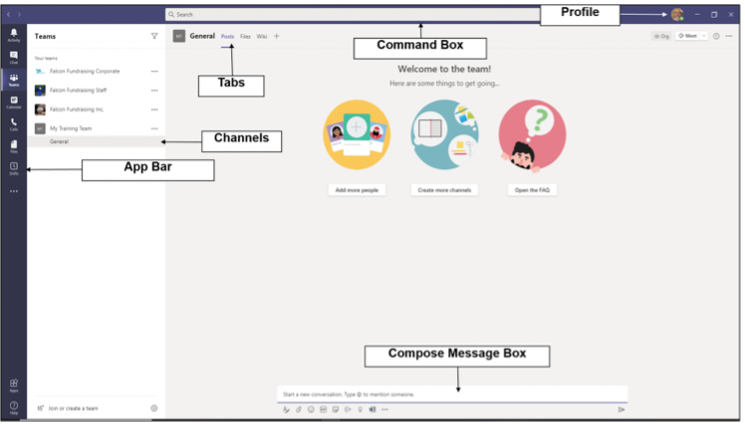
App Bar: Located on the far left Contains icons for Activity, Chat, Teams, Calendar, Calls, and Files
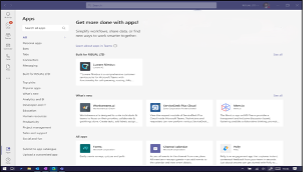
Teams Bar: Lists all your teams and channels, Allows quick navigation between different workspaces
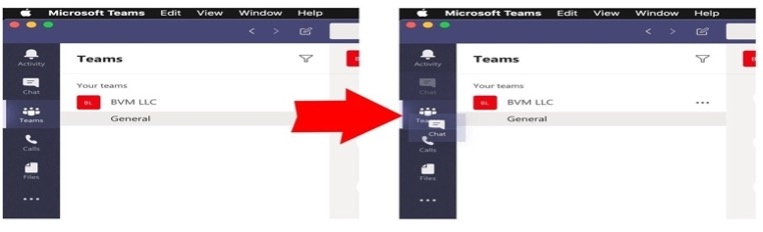
Central Pane: The main working area where conversations, files, and other content are displayed
Top Bar: Contains the search box, command box, and profile picture, quick access to settings and commands
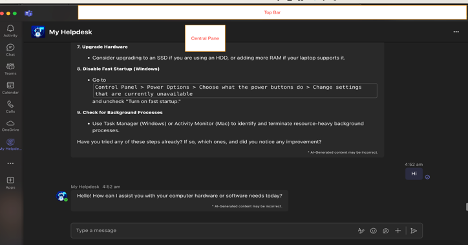
Personalizing your profile helps teammates identify you and adds a personal touch to your interactions.
Click on your profile picture in the top right corner
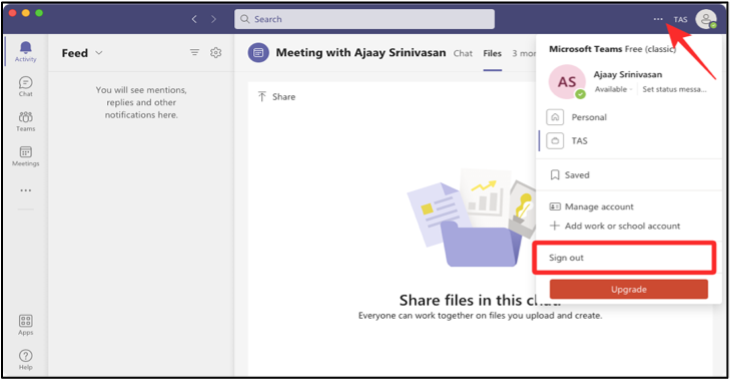
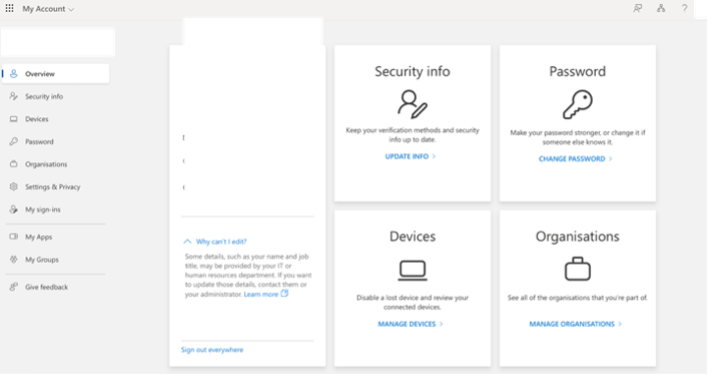
Click on “View account” which will take you to browser and you are able to modify Password and change security info. Please reach out to HR if you require changes in Location, Company, Job Title etc. in your profile.
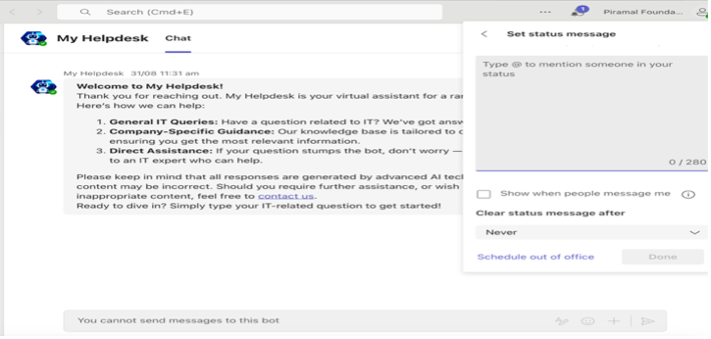
Set Status Message
Best Practices for profile: -
Channels in Microsoft Teams are dedicated sections within a team that organize conversations, files, and tools by specific topics, departments, or projects. Channels provide structure to team communication and allow members to focus on areas of interest, workstreams, or responsibilities.
The primary purpose of channels is to enable organized collaboration within a team by providing:
Each team can have multiple channels, and members can subscribe to the ones that are most relevant to their roles or work. Conversations in channels are persistent, meaning they remain accessible for reference even after they've taken place.
Types of Channels in Teams
Benefits of Using Channels
Using Channels Effectively
- You can follow a channel by selecting the "More options" (three dots) next to the channel name and clicking Channel notifications. This allows you to be notified of all new activity or only certain types of posts.
Key Features of Channels
Files Tab: Automatically includes a tab for all files shared in the channel, making document sharing and access seamless.
Posts Tab: Where conversations happen. Every channel has a “Posts” tab, which holds all the discussions and messages.
Add Tabs: You can add tabs for apps, files, or tools directly in a channel. For example, you could add a Power BI report to view team analytics.
Meetings: You can schedule or start meetings directly from a channel, and meeting chats and notes will be visible to the team.
Planner Integration: Use Microsoft Planner as a tab in the channel for task management and tracking, especially useful for project-related channels.
Best Practices for Channels
Don’t over-create channels: Too many channels can lead to clutter. Only create a new channel when there’s a clear need to separate discussions.
Use private channels wisely: Only use private channels for sensitive discussions or work that doesn't need to involve the whole team.
Leverage apps: Maximize the productivity of your channels by integrating project management tools, file-sharing systems, and other business applications into your channel tabs.
Be mindful of tagging: Use @mentions in channels to notify team members or specific individuals when something requires their attention, but don’t overuse them.
In summary, channels in Microsoft Teams are the foundation for collaboration, organization, and communication within a team. They help keep discussions focused, make resources easily accessible, and integrate various tools and apps to enhance team productivity.
Teams are the foundation of collaboration in Microsoft Teams. Here’s how to create one:
Click the “Teams” icon in the App Bar and click “+”
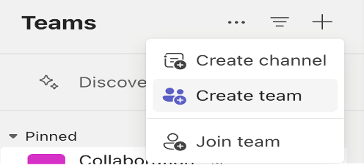
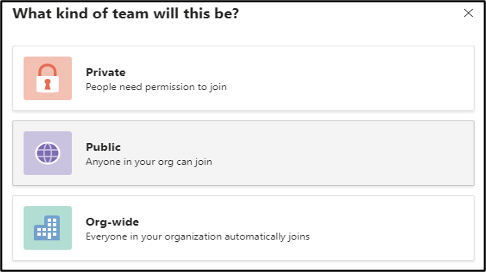
Choose the type of team: Private, Public, or Org-wide
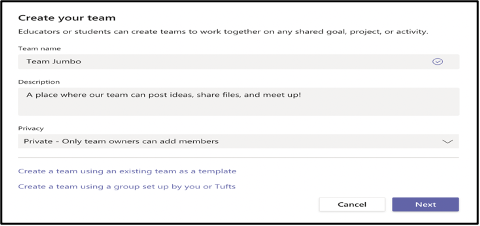
Name your team and add a description
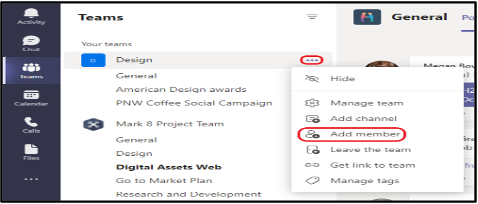
Add member
Channels are subcategories within a team, used to organize conversations, files, and tools around specific topics.
To create a new channel:
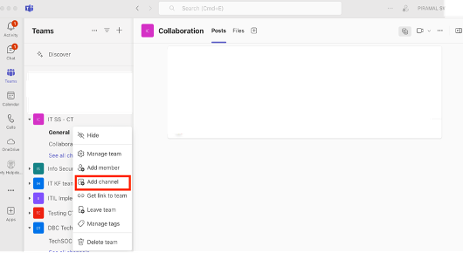
Navigate to the team you wish to create channel for and click on “… “(More Options) and Add channel
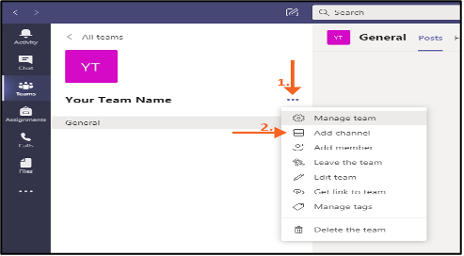
Name the channel and add a description
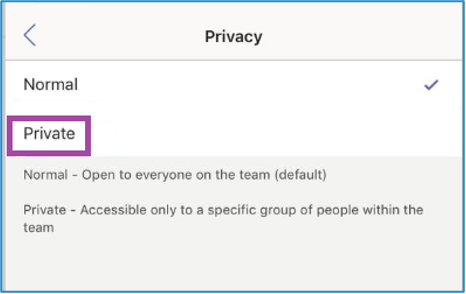
Choose privacy settings (Standard or Private) [prefer selecting private channel if it’s not for entire organization
Best Practices: -
Detailed Guide on Creating Shared Channels in Microsoft Teams for other tenants of Piramal Foundation entities
Shared Channels in Microsoft Teams are a feature designed to simplify collaboration between organizations by allowing users from external organizations to access a specific channel without needing to be part of the whole team. This is especially useful for projects, collaborations, or partnerships where shared resources between Piramal Foundation entities are necessary
This guide explains the steps to set up and manage shared channels for guest collaboration.
Overview of Shared Channels
Shared channels are a way to collaborate with users inside and outside of your organization without needing to add them as a member of the entire team. Unlike guest access that requires external members to join the entire team, shared channels allow external users to collaborate specifically on relevant channel content.
Key Features:
- External collaborators (guests) can access specific channels.
- Shared channels live within a team, but guests only see the shared channel.
- No need to switch tenants to collaborate with external users.
- Shared channels support chat, file sharing, meetings, and app integrations like any other channel.
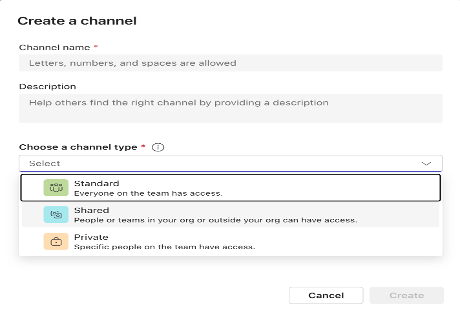
Create a New Shared Channel
Set Up Channel Content
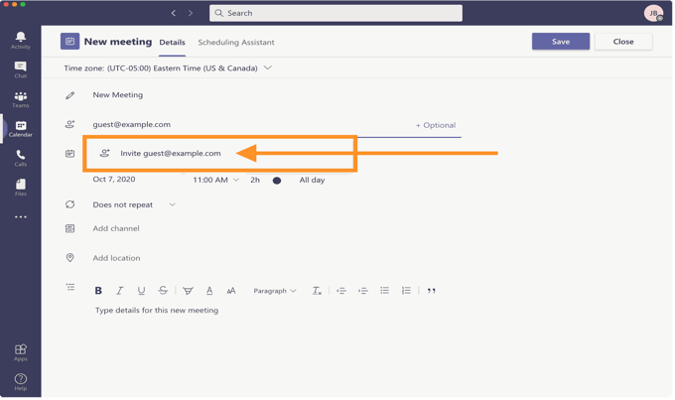
Guest Invitation Acceptance
- External users will receive an invitation via email. They can accept the invitation and access the shared channel using their existing Teams account without switching tenants.
Managing Permissions and Access Control
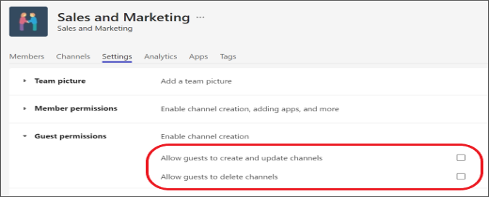
Managing permissions in shared channels is crucial to ensure that users only access what they need. You can adjust permissions for both internal and external users as follows:
Managing Permissions:
- Owners: Users who can manage the channel, including adding/removing members.
- Members: Users who can view and participate in channel activities, but do not have administrative rights.
Restricting Guest Access:
- Guests cannot create new channels, remove members, or access any files outside of the shared channel.
Key Differences Between Shared, Private, and Standard Channels
The Chat feature in Teams allows for quick, direct communication with individuals or groups.
Basic Chat Functionality
Message Formatting and Content
File Sharing and Collaboration
Media and Communication
Integration and Productivity
Organization and Management
Advanced Features
Mobile-Specific Features
Security and Compliance
Analytics and Insights
Click the “New chat” button at the top of the chat list, Type the name(s) of the person or people you want to chat with
Compose your message in the box at the bottom of the screen
Best Practices for Chat in Microsoft Teams: -
Microsoft Teams provides robust features for conducting virtual meetings, from quick check-ins to large presentations.
To schedule a meeting:
Click the “Calendar” icon in the App Bar
Click “New meeting” in the top right corner
Click “Send” to schedule and send invitations
There are multiple ways to join a Teams meeting:
From a chat
From the calendar
During a meeting, you have access to various controls:
Camera on/off and Microphone mute/unmute
Share screen
Reaction
Raise your hand for any queries
More options (…)
Best Practices for Meetings: -
Teams integrate seamlessly with other Microsoft 365 apps, allowing for easy file sharing and real-time collaboration.
Click the attachment icon in the compose box
To share a file:
Choose the file source (recent, OneDrive, or upload from your device), Select the file and click “Share”
Teams allow real-time co-authoring of Microsoft 365 documents.
To co-author:
Share a document in a chat or channel:
Grant Edit Access
Click on the document to open it, choose “Edit in Teams” for basic editing or “Open in App” for full functionality
Multiple team members can now edit simultaneously
Best Practices for File Collaboration: -
Teams can be customized with various apps and integrations to enhance productivity.
To add an app:
Click the “Apps” icon in the App Bar
Browse or search for the desired app
Click on the app and then “Add” to install it
Many apps can be used directly within chats and channels.
To use an app in a conversation:
Click the “…” or ‘+’ beside the compose box
Select the app you want to use
Follow the app’s interface to create content or take actions
The app’s output will appear in your conversation
Popular Types of Teams Apps: - Project management tools - Polls and surveys - Workflow automation - External service integrations (e.g., CRM systems)
Q1: What is Microsoft Teams?
A: Microsoft Teams is a collaboration platform that combines chat, video meetings, file storage, and application integration. It’s designed to facilitate teamwork and communication within organizations.
Q2: How do I access Microsoft Teams?
A: You can access Teams through a desktop application, web browser, or mobile app. Download the desktop app from the Microsoft website, access it via teams.microsoft.com, or download the mobile app from your device’s app store.
Q3: Is Microsoft Teams free?
A: Microsoft Teams has both free and paid versions. The free version offers core features, while paid versions (part of Microsoft 365 subscriptions Piramal Foundation entities have) provide additional features and integration with other Microsoft tools.
Q4: How do I change my profile picture in Teams?
A: Click on your profile icon in the top right corner, select “Manage account,” then “Change photo.” You can upload a new image or take a photo using your device’s camera.
Q5: What’s the difference between a team and a channel in Microsoft Teams?
A: A team is a collection of people, content, and tools surrounding different projects and outcomes within an organization. Channels are dedicated sections within a team to keep conversations organized by specific topics, projects, or disciplines.
Q6: How many channels can I create in a team?
A: You can create up to 200 standard channels and 30 private channels per team. However, it’s recommended to keep the number of channels manageable to avoid confusion.
Q7: Can I be part of multiple teams?
A: Yes, you can be a member of multiple teams. There’s no set limit to the number of teams you can join.
Communication
Q8: How do I start a video call in Teams?
A: You can start a video call by clicking the video icon in a chat, or by scheduling a meeting in your Teams calendar and then joining with video.
Q9: Can I chat with someone outside my organization?
A: Yes, you can chat with external users if your organization allows it. You’ll need to add their full email address to start a chat. Note that some features may be limited when chatting with external users.
Q10: How do I know if someone has read my message?
A: Teams show receipts in chats. You’ll see a small icon appear in the corner of your message once it’s been read. Note that read receipts can be turned off in settings.
Q11: Where are my files stored in Teams?
A: Files shared in Teams are stored in SharePoint. Each team has a SharePoint site, and each channel has a folder within that site’s document library.
Q12: Can I edit Office documents directly in Teams?
A: Yes, you can view and edit Word, Excel, and PowerPoint documents directly within Teams. You can also choose to open these in the desktop applications for more advanced editing.
Q13: How do I share my screen during a meeting?
A: During a meeting, click the “Share content” button (it looks like a rectangle with an arrow pointing up). You can choose to share your entire screen, a specific window, or a PowerPoint file.
Q14: Can I add other apps to Microsoft Teams?
A: Yes, Teams support a wide range of app integrations. Click the “Apps” icon in the left sidebar to browse available apps. You can add apps to enhance productivity, automate workflows, or integrate other tools you use.
Q15: How do I use the Tasks app in Teams?
A: The Tasks app in Teams combines personal tasks from To Do and team tasks from Planner. You can access it from the left sidebar. Here, you can create, assign, and track tasks for yourself and your team.
Q16: What should I do if I’m having audio/video issues in a Teams meeting?
A: First, check your device settings in Teams to ensure the correct microphone and camera are selected. If issues persist, try leaving and rejoining the meeting, or restart the Teams application. Also, ensure your internet connection is stable.
Q17: How can I reduce background noise in my Teams calls?
A: Teams have built-in noise suppression features. You can adjust this in your device settings by clicking the three dots (…) next to your profile picture, selecting “Settings” > “Devices,” and adjusting the “Noise suppression” option.
Q18: What do I do if Teams is running slowly?
A: Try clearing the Teams cache. Close the Teams app, then delete the contents of the following folder: -
On Windows: %appdata% -
On Mac: ~/Library/Application Support/Microsoft/Teams
After deleting the contents, restart Teams.
If you’re experiencing issues, Connect with IT Helpdesk