
AMRIT Inventory – Final BRD: Service Line, Admins, Assets, Stock Movement & Reports
Oct 15, 2026 · @Ganesh Shirpure
Inventory gets its own AMRIT service line at National level: an Inventory Super Admin manages admins down to Block, National enters stock against invoices and transfers it to any level, each level records physical stock against the transfer receipt, lower levels raise indents and buy locally, assets are recorded unit by unit, and every level sees opening/closing, consumption and forecasting reports, with price hidden below National.
1. Introduction
Field | Detail |
|---|---|
Project | AMRIT - Inventory Management Module ; TBMJA |
Prepared By | Ganesh Shirpure |
Date | 16th October 2026 |
Version | 1.0 |
Status | Final draft – for team review |
Parent BRD |
Version history
Version | Date | Changed By | Summary of Changes |
|---|---|---|---|
1.0 | 16th October 2026 | Ganesh Shirpure | Final BRD. Updated problem statement and major agenda. Inventory Super Admin manages admins at all levels. Asset master (asset types, Asset Category Master, Asset Entry with per-unit details). Manufacturer and supplier lists. Invoice-based stock entry at National. National transfers to any level. Physical stock entry against receipts. Indent for consumables, medicines and assets. Forecasting, consumption and opening/closing reports. Process flows and expected screens. |
0.4 | 16th October 2026 | Ganesh Shirpure | Problem statement, item classes, National Admin with multiple states, District and Block admins, TU at Block level, issue to camps, local purchase, monthly opening/closing, threshold and consumption reports, price hidden below National. |
0.3 | 15th October 2026 | Ganesh Shirpure | Aligned with existing AMRIT admin flow after team walkthrough. Inventory service line (2.2.K). Existing location master, Employee Master and Work Location Mapping reused. Stock transfer (3). |
0.2 | 14th October 2026 | Ganesh Shirpure | Hierarchy, user management, role & privilege matrix (2.2.F–I), one-time bulk item upload (2.2.J), reports & audit, acceptance criteria. |
0.1 | 16th September 2026 | Pranoti Monde | Initial draft. Item Master changes for Non-Medical items (2.2.A). Device masters (2.2.B–E). |
Problem statement
- The current inventory application works only at state level within the specified service line.
- There is no national view and no drill-down from National to Block.
- There is no indent (request) option, and opening and closing stock are not available at any level.
- There is no provision to manage stock and stock distribution at National, State and District level.
- There is no provision to create and manage admin users from State down to Block level.
- There is no hierarchy management from National down to Block level.
Major agenda
- Inventory Super Admin manages inventory admins at all levels (2.2.H, 2.2.I)
- Stock transfer: National → State → District → Block / TU, or from National directly to any level (3.4)
- After Stock receipts: Physical stock entry will happen against receipts. (need to add)
- Physical stock entry against each stock receipt (3.5)
- Stock indenting from bottom level to top level (3.3)
- Stock transfer from top level to bottom level (3.4)
- Manufacturer and Distributor / Supplier lists (2.2.M)
- Assets: IT, Medical, General and Electrical asset types (2.2.N, 2.2.O)
1.1 Purpose
This document captures the business requirements for the Inventory Management module spanning the Admin Portal and camp-level local servers (camp laptops), the synchronization between them, and the backend APIs supporting the StopTB drug master and local stock management. It covers a new Inventory service line at National level, admin management from National to Block, manufacturer and supplier lists, an asset master, invoice-based stock entry, stock transfer, receipt and physical stock entry, indenting, local purchase, issue to camps, and reports at every level, with item price hidden below National.
1.2 Scope
In scope
- Inventory access to National level, mapped to StopTB and states
- Option to create and manage Admins for all level
- Item classes: Medicines, Consumables and Assets (IT, General, Medical, Electrical)
- Manufacturer and Distributor / Supplier lists used in every entry screen
- Asset Category Master and Asset Entry with per-unit serial number, warranty and box contents
- Invoice-based stock entry at National for Consumables and Medicines
- Stock transfer from National to State, District or Block / TU, and level by level below, with a printable transfer receipt
- Physical stock entry against each receipt, with actual quantity and damage remarks
- Indent from bottom to top for Consumables, Medicines and Assets
- Local purchase at District and Block / TU level, approved by the level above
- Block / TU issue of items to camps
- Forecasting, consumption, threshold and monthly opening/closing reports at every level
- Roles and privileges; price hidden at State level and below
- One-time bulk upload of items
Reused without change
- Super Admin creation of state admins and project/state access
- State / District / Block location master
- Employee Master (single and bulk user creation)
- Work Location Mapping screen (new service line and roles added as data only)
Out of scope
- Micro-planning
- Dispensing to individual beneficiaries (patient-level records)
- National procurement process and purchase order approval (only the invoice and receipt are recorded)
- AMC tracking for assets (separate screen in a later phase)
2.0 Alignment with existing AMRIT
The team walkthrough confirmed AMRIT already handles state admins, user creation and location mapping, so the earlier plan for a new hierarchy master and user form is dropped.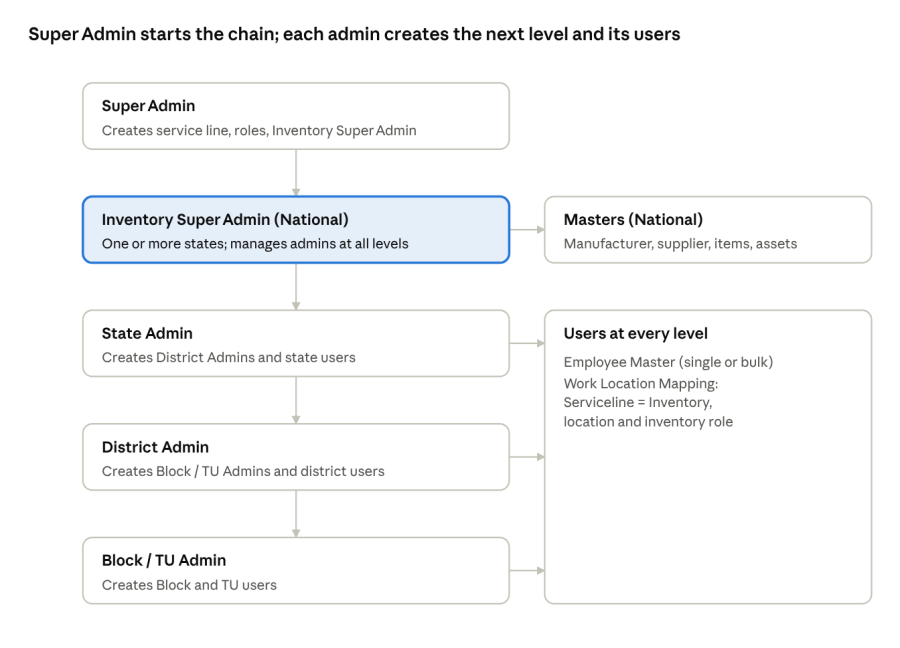
admin and user setup flow · 5 admin levels
Area | Existing in AMRIT (reused) | New for inventory | Section |
|---|---|---|---|
Service line | TM, MMU, HWC and others (state level) | Inventory service line at National level | 2.2.K |
Hierarchy | State / District / Block location master | National store; Block and TU at the same level | 2.2.F, 2.2.G |
Admins | Super Admin, state admins | Inventory Super Admin; admins at State, District and Block / TU | 2.2.H |
Users | Employee Master, single and bulk | None | 2.2.H |
Roles | Work Location Mapping, role configuration | Inventory roles and privileges | 2.2.I |
Masters | Manufacturer, Supplier, Item Master | Item classes, Asset Category Master, Asset Entry | 2.2.L–O |
Stock | Physical Stock Entry, Stock Transfer (state level) | Invoice stock entry, transfer to any level, physical entry against receipt, indent, issue to camp | 3 |
Reports | State-level stock reports | Opening/closing, consumption and forecasting at every level | 4 |
2.2.K New Service Line: Inventory (NEW, prerequisite)
Super Admin creates "Inventory" as a separate service line, like TM, and maps it to StopTB and the 10 states; every other inventory setup in this document sits under it. Add it at the top of the 2.1 list.
Name of Data Field | Field Type | Value/Options | Validation/Logic/Condition |
|---|---|---|---|
Service Line Name | Text | Inventory | Mandatory. Must be unique. |
Service Line Code | Text | e.g. INV (confirm with tech team) | Mandatory. Must be unique. |
Project / Provider | Dropdown | StopTB (TBMJA) | Mandatory. |
States | Dropdown (multi-select) | 10 StopTB programme states | Mandatory. |
Status | Dropdown | Active, Inactive | Mandatory. Default Active. |
Configuration steps (Super Admin)
- Create the Inventory service line.
- Map it to the StopTB project and the 10 states.
- Create the inventory roles under it (2.2.I).
- Map inventory screens to each role as per the privilege matrix (2.2.I).
- State admins map users in Work Location Mapping with Service line = Inventory (2.2.H).
Impact on existing screens
Screen | Change |
|---|---|
Item Master | "Inventory" appears in the Serviceline dropdown; inventory items are created under it, with an "All States" option in the State dropdown. |
Main Store / Substore, Item to Store Mapping | Created under Serviceline = Inventory. |
Work Location Mapping | "Inventory" and its roles appear in the dropdowns. |
Bulk Item Upload (2.2.J) | Service line fixed as Inventory; State column added. |
Decision: state selection in Item Master (Option A agreed)
Item Master asks for one state per item today. For the 10 states, the team chose Option A:
- Option A (agreed): add an "All States" option to the State dropdown when Serviceline = Inventory. One entry covers all 10 states. Needs a development change.
Rules
- Existing service lines (TM, MMU, HWC and others) are not affected.
- Inventory data stays separate under the Inventory service line. The service line works at National level, so a National Admin sees and drills down through all assigned states.
- A user can work in both StopTB and Inventory through two Work Location Mapping rows.
2.2.L Item Classes (changed)
Every item is a Medicine, a Consumable or an Asset: Medicines and Consumables are stocked by quantity and batch and move through transfer, indent and issue, while Assets are recorded unit by unit with serial number and warranty.
Class | Examples | Where configured | Tracked by |
|---|---|---|---|
Medicines | Anti-TB drugs from the StopTB drug master | Item Master, existing fields (Item Type = Medical, Strength, UOM, Item Form, Composition, Route of Admin, Drug Type) | Batch, expiry, quantity |
Consumables | Cotton, masks, gloves, sputum containers, Truenat chips, glucometer strips | Item Master, Item Category = Consumables | Quantity; batch and expiry where printed |
Assets | IT: laptop, tab, software, power bank, dongle, router. General: chair, table. Medical: X-ray, NAAT, glucometer. Electrical: extension box, table fan | Asset Category Master (2.2.N) and Asset Entry (2.2.O) | Serial number, model, warranty |
Rules
- Item Category Master gets Medicines and Consumables; Assets are not created in Item Master.
- Asset types are IT Assets, General Assets, Medical Assets and Electrical Assets; Inventory Super Admin can add more types.
- This replaces the earlier Device Master and Device Inventory design (parent BRD 2.2.B–C); AMC moves to a later phase.
- Stock transfer from National covers Medicines and Consumables; how assets move between levels is open (Q23).
Current screens (reference)
Item Category Master today: under Serviceline = Inventory, Medicines and Consumables are added here as categories. The new Asset Category Master (2.2.N) follows the same pattern, with Type of Asset in place of Serviceline / State.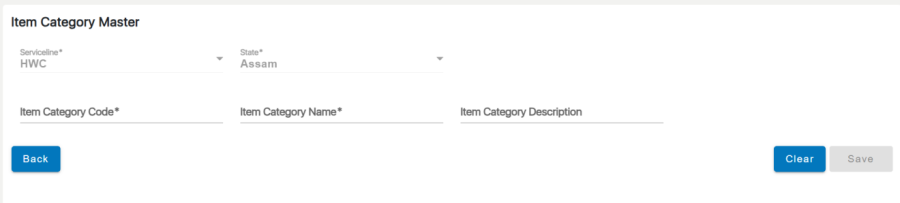
Item Master today: these existing fields are used for Medicines. For Consumables (Non-Medical), the medical-only fields such as Strength, Item Form, Composition and Route of Admin are not mandatory.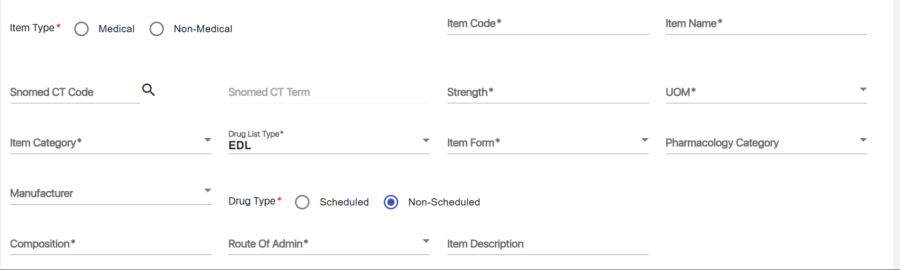
2.2.M Manufacturer and Distributor / Supplier Lists (existing masters)
The existing Manufacturer Master and Supplier Master are reused under Serviceline = Inventory; every stock entry, asset entry and local purchase picks both, because the maker and the seller are usually different (e.g. a glucometer made by one company and sold by a local distributor).
List | Fields | Used in |
|---|---|---|
Manufacturer | Manufacturer Code, Name, Contact, Address, Status (existing) | Item Master, Asset Entry, Stock Entry, Local Purchase |
Distributor / Supplier | Supplier Code, Name, Contact Person, Phone, Address, GSTIN, Status (existing; confirm GSTIN) | Asset Entry, Stock Entry, Local Purchase |
- Both lists are maintained by the Inventory Super Admin at National level.
- District and Block / TU users can add a local supplier while entering a local purchase; it is visible only in their state (confirm, Q24).
2.2.N Asset Category Master (NEW – screen 1)
Inventory Super Admin defines which assets exist: each asset name (e.g. Laptop) sits under one type of asset (e.g. IT Assets).
Name of Data Field | Field Type | Value/Options | Validation/Logic/Condition |
|---|---|---|---|
Type of Asset | Dropdown | IT Assets, General Assets, Medical Assets, Electrical Assets, Others | Mandatory. |
Asset Code | Text | e.g. IT-LAP | Mandatory. Unique. |
Asset Name | Text | e.g. Laptop | Mandatory. Unique within the type. |
Asset Description | Text (multi-line) | Free text | Optional. |
Status | Dropdown | Active, Inactive | Mandatory. Default Active. |
Starter list
Type of Asset | Asset names |
|---|---|
IT Assets | Laptop, Tab, Software, Power bank, Dongle, Router |
General Assets | Chair, Table |
Medical Assets | X-ray, NAAT, Glucometer |
Electrical Assets | Extension box, Table fan |
Dummy screen: Asset Category Master.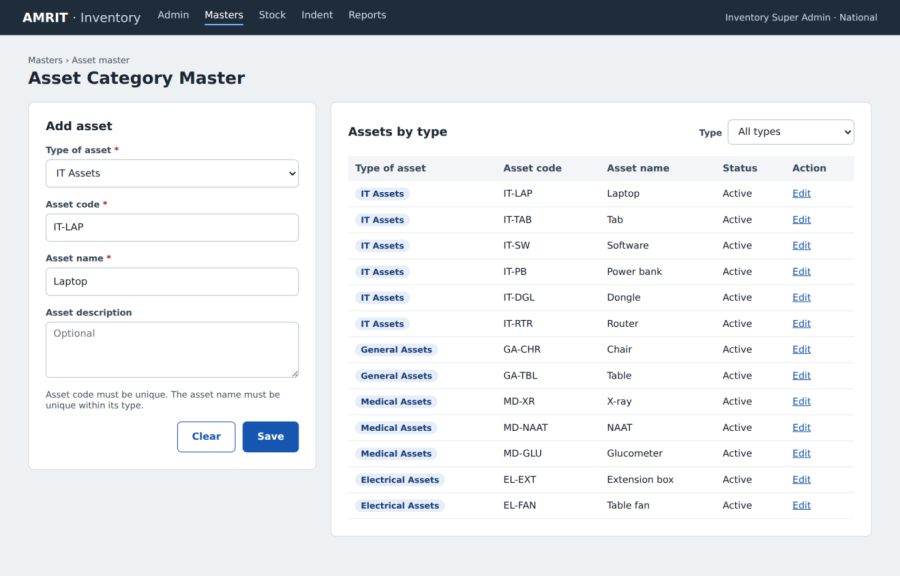
2.2.O Asset Entry (NEW – screen 2)
Assets are recorded as they are bought: one header per invoice and model, then one row per unit with its serial number and warranty, so a quantity of 10 creates 10 unit rows.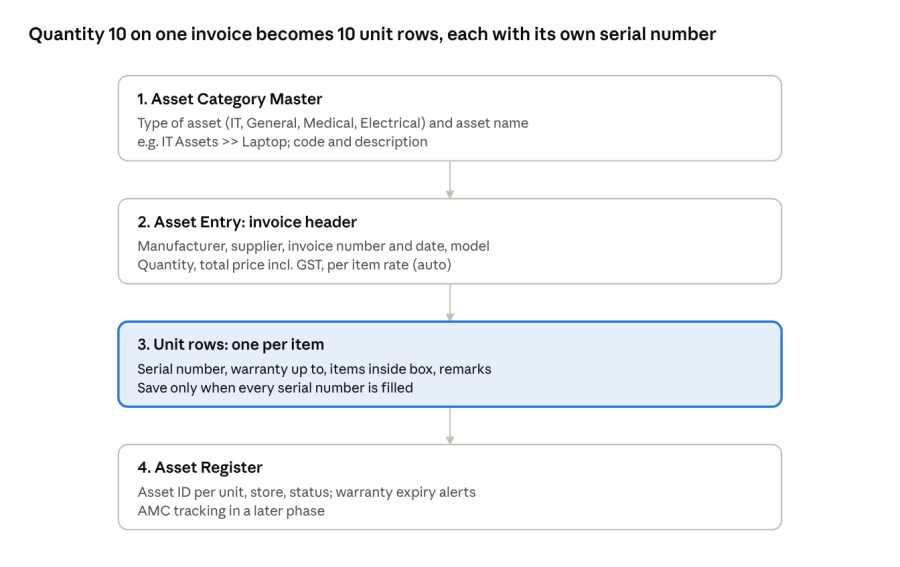
asset master flow · 4 steps
Header
Name of Data Field | Field Type | Value/Options | Validation/Logic/Condition |
|---|---|---|---|
Type of Asset | Dropdown | Asset Category Master, shown as type >> name (e.g. IT Assets >> Laptop) | Mandatory. |
Manufacturer | Dropdown | Manufacturer Master | Mandatory. |
Distributor / Supplier | Dropdown | Supplier Master | Mandatory. |
Invoice Number | Text | Free text | Mandatory. |
Invoice Date | Date picker | Date | Mandatory. Not a future date. |
Purchase Order No. | Text | Free text | Optional (confirm, Q25). |
Model | Text | Free text | Mandatory. |
Number of Items (Quantity) | Numeric | ≥ 1 | Mandatory. Creates that many unit rows. |
Total Price incl. GST | Numeric | Currency | Mandatory. |
Per Item Rate | Auto | Total Price ÷ Quantity | Read-only. |
Store | Auto | User's store | Read-only. |
Remarks | Text | Free text | Optional. |
Unit details (one row per item)
Name of Data Field | Field Type | Value/Options | Validation/Logic/Condition |
|---|---|---|---|
Serial Number | Text | Free text | Mandatory. Unique for the asset name. |
Warranty Up To | Date picker | Date | Optional. Alert 30 days before it ends. |
Items Inside Box | Text (multi-line) | e.g. charger, mouse, bag | Optional. |
Remarks | Text | Free text | Optional. |
- Save is allowed only when the unit rows equal the quantity and every serial number is filled.
- Unit rows can be filled from an Excel sheet for large quantities.
- Each unit gets an Asset ID and status Active; status changes (Under repair, Condemned) and AMC come in a later phase.
- Asset price is visible only to National roles.
Dummy screen: Asset Entry. Quantity 10 on the invoice opens 10 unit rows for serial number, warranty, items inside box and remarks.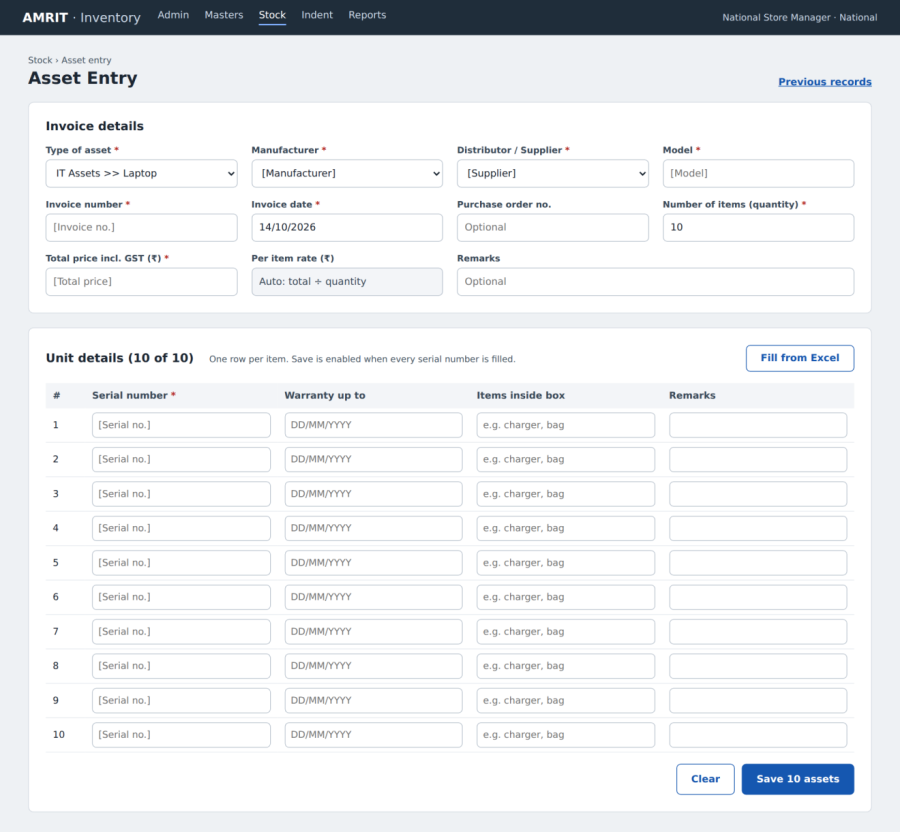
2.2.F Location Hierarchy (reuse existing – replaces new Hierarchy Node Master)
No new hierarchy form is built: State, District, Block and TU come from the existing AMRIT location master (which already goes down to facility and village), the National level is the national store run by the National Admin, Block and TU sit at the same level under the district, and camps are not stores: the Block or TU issues items to them.
Level | Source in AMRIT | Example |
|---|---|---|
National | National store under Serviceline = Inventory (2.2.G) | StopTB National Store |
State | Existing location master | Assam |
District | Existing location master | Kamrup |
Block / TU (same level) | Existing location master | Blocks and TUs under each district |
Camp (not a store) | Camp / facility in existing master | Receives items issued by the Block or TU (3.6) |
In the Confluence BRD, replace the 2.2.F Hierarchy Node Master table with this section.
2.2.G Store Mapping (reuse existing Main Store / Substore)
AMRIT already maps stores as Main store and Substore, so no new store form is built; inventory stores are created in the existing mapping under Serviceline = Inventory, one per location level.
Level | Store type | Location from existing master |
|---|---|---|
National | Main store | National (no state) |
State | Main store | State |
District | Substore of the State store | District |
Block / TU | Substore of the District store | Block or TU |
Rules
- No new form: use the existing Main Store / Substore mapping (confirmed in team feedback).
- Each location level has one active store under Serviceline = Inventory.
- The store tree sets the transfer path: a store sends only to its own substores (forward) or to its parent store (return).
- A Substore can have its own Substore, so the State → District → Block store chain is supported (confirmed by the team).
- A store holding stock or stock in transit cannot be inactivated.
2.2.H Users: Employee Master + Work Location Mapping (existing screens – replaces new user form)
Admins and users are created in the existing screens: Super Admin creates the Inventory Super Admin, who creates and manages admins at every level; an inventory user is a Work Location Mapping row with Service line = Inventory, a location and an inventory role.
- Super Admin creates the Inventory Super Admin (National Admin) and assigns one or more StopTB states.
- Inventory Super Admin creates and manages State Admins, District Admins and Block / TU Admins for the assigned states.
- State Admin can also create District Admins, and District Admin can create Block / TU Admins, within their own area.
- Each admin registers users for their level and below in Employee Master (single or bulk upload).
- Each admin maps users in Work Location Mapping → Create new mapping, with the fields below.
Dummy screen: Admin Management. Inventory Super Admin creates an admin by level and location; the list shows admins in their states and who created each one.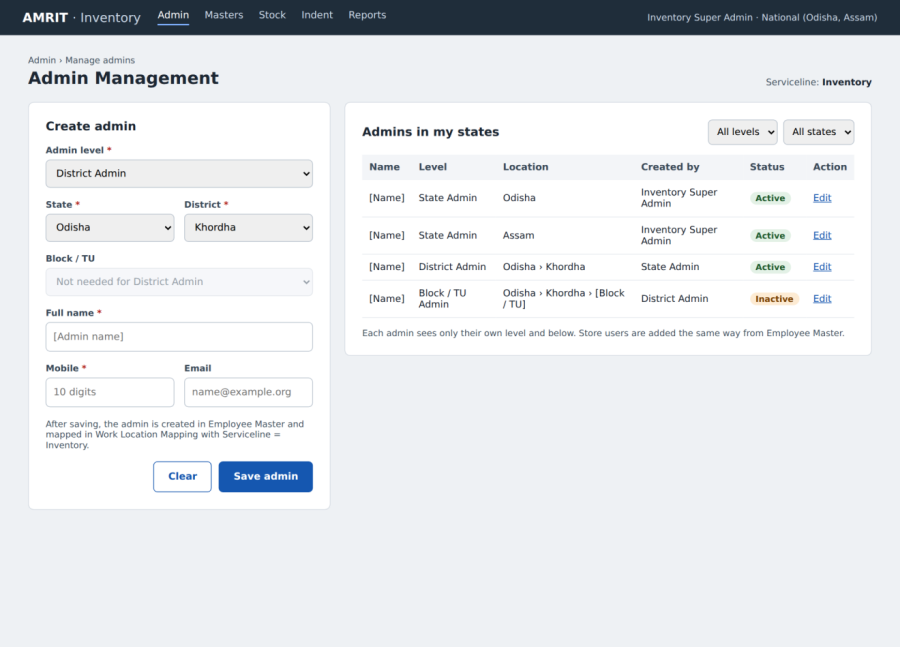
Name of Data Field | Field Type | Value/Options | Validation/Logic/Condition |
|---|---|---|---|
Serviceline | Dropdown | Inventory | Mandatory. |
Role | Dropdown | Inventory roles (2.2.I) | Mandatory. The role decides which location fields are needed. |
State | Dropdown | States the admin has access to | Mandatory for State level and below. National roles get all assigned states, so no single state is chosen. |
District | Dropdown | Districts of selected state | Mandatory for District level and below. |
Block / TU | Dropdown | Blocks and TUs of selected district | Mandatory for Block and TU roles. |
Store | Auto-filled | Store of the selected location (2.2.G) | Read-only. Mapping is blocked if the location has no active store. |
Rules
- An admin creates admins only one level below, and users at their own level and below, within their own states.
- Admins are not ground-level users and do no stock transactions; store users raise indents, transfer, receive and record local purchases.
- A user sees data only for their mapped location and the levels below, enforced in backend APIs.
- On staff transfer, the admin inactivates the old mapping and creates a new one; history is kept.
- District and Block Admin creation needs the existing admin setup to allow admins below State level (confirm, Q15).
2.2.I Inventory Roles & Privilege Matrix (changed)
Super Admin creates the inventory roles under the Inventory service line and maps screens to them through the existing role configuration; admin roles manage setup and users, store roles handle stock.
Role | Level | Type | Main responsibility |
|---|---|---|---|
Super Admin | Platform | Admin | Service line, roles, role-screen mapping; creates the Inventory Super Admin |
Inventory Super Admin (National Admin) | National (one or more states) | Admin | Creates and manages admins at all levels; item and asset masters; manufacturer and supplier lists; bulk upload; store mapping; sees all assigned states |
State Admin | State | Admin | District Admins, state users |
District Admin | District | Admin | Block / TU Admins, district users |
Block / TU Admin | Block / TU | Admin | Block and TU users |
National Store Manager | National | Store | Stock entry against invoice, asset entry, transfer to any level, approve state indents; access to all states |
State Store Manager | State | Store | Physical stock entry against receipt, indent to National, transfer to districts, approve district indents |
District Store Manager | District | Store | Physical stock entry, indent to State, local purchase, transfer to Block / TU, approve Block / TU indents and local purchases |
Block / TU Store User | Block / TU | Store | Physical stock entry, indent to District, local purchase, issue items to camps |
Inventory Viewer | Any level | Read-only | Stock and reports for own level and below |
In this document "National Admin" means the Inventory Super Admin.
Y = all, Sub = own location and below, Own = own location only, – = not allowed.
Admin privileges
Privilege | Super Admin | Inventory Super Admin | State Admin | District Admin | Block / TU Admin |
|---|---|---|---|---|---|
Service line, roles, role-screen mapping | Y | – | – | – | – |
Create Inventory Super Admin, assign states | Y | – | – | – | – |
Create / manage State Admins | Y | Sub | – | – | – |
Create / manage District Admins | Y | Sub | Sub | – | – |
Create / manage Block / TU Admins | Y | Sub | Sub | Sub | – |
Employee Master, Work Location Mapping | Y | Sub | Sub | Sub | Sub |
Store mapping | Y | Sub | Sub | Sub | – |
Item Master, Asset Category Master, Bulk Upload | Y | Y | – | – | – |
Manufacturer and Supplier lists | Y | Y | – | – | – |
View stock and reports | Y | Sub | Sub | Sub | Sub |
View item and asset price | Y | Y | – | – | – |
View audit log | Y | Sub | Sub | – | – |
Store privileges
Privilege | National Store Mgr | State Store Mgr | District Store Mgr | Block / TU Store User | Viewer |
|---|---|---|---|---|---|
Stock entry against invoice (Consumables, Medicines) | Own | – | – | – | – |
Asset entry | Own | – | – | – | – |
Transfer to State, District or Block / TU | Own | – | – | – | – |
Transfer to next level down | – | Own | Own | – | – |
Physical stock entry against receipt | – | Own | Own | Own | – |
Return to level above | – | Own | Own | Own | – |
Raise indent to level above | – | Own | Own | Own | – |
Approve / reject indent from level below | Own | Own | Own | – | – |
Local purchase entry | – | – | Own | Own | – |
Approve local purchase | – | Sub | Sub | – | – |
Issue items to camp | – | – | – | Own | – |
Stock adjustment (damage, expiry, loss) | Own | Own | Own | Own | – |
View stock and reports | Y | Sub | Sub | Own | Sub |
View item and asset price | Y | – | – | – | – |
Item price and cost are shown only to Super Admin, National Admin and National Store Manager; price columns are hidden on receipts, stock screens and reports at State level and below.
2.2.J Bulk Item Upload (NEW, one-time activity)
Super Admin or National Admin loads the full StopTB item list into Item Master under Serviceline = Inventory in one Excel upload; columns follow Item Master (2.2.A), and Medical-only columns may be blank for Non-Medical items.
Name of Data Field | Field Type (Excel) | Value/Options | Validation/Logic/Condition |
|---|---|---|---|
Serviceline | Fixed | Inventory | Pre-filled, not editable. |
State | Dropdown list | StopTB state name, or ALL | Mandatory. ALL = one item for all 10 states, saved with the "All States" option (2.2.K). |
Item Type | Dropdown list | Medical, Non-Medical | Mandatory. |
Item Category | Dropdown list | Item Category Master | Mandatory. |
Item Code | Text | Free text | Mandatory. Unique within file and against Item Master. |
Item Name | Text | Free text | Mandatory. |
SNOMED CT Code / Term | Text | Free text | Optional for Medical. Blank for Non-Medical. |
Strength | Text | e.g. 500 | Mandatory for Medical. Blank for Non-Medical. |
UOM | Dropdown list | Unit of Measure Master | Mandatory for all. |
Drug List Type, Item Form, Pharmacology Category, Drug Type, Route of Admin | Dropdown list | Existing masters | Optional for Medical. Blank for Non-Medical. |
Manufacturer | Dropdown list | Manufacturer Master | Mandatory for all. |
Composition | Text | Free text | Mandatory for Medical. Blank for Non-Medical. |
Item Description | Text | Free text | Optional. |
Upload process
- Download the template (headers, mandatory columns marked *, dropdown lists, one Medical and one Non-Medical sample row).
- Fill and upload (.xlsx, max 5,000 rows, 10 MB).
- System validates every row and shows valid, error and duplicate counts.
- Download the error file (original rows + "Error Reason"), fix and re-upload.
- Confirm. Nothing saves if any row fails (all-or-nothing).
- System saves, shows the summary, and records the upload and file in the audit log.
Rules
- Only Super Admin and National Admin can bulk upload items.
- Headers and column order must match the template.
- Dropdown values must match existing masters (case-insensitive); add missing masters before upload.
- Existing Item Codes are rejected as duplicates; this upload adds new items only.
- Uploaded items can be edited later through the normal Item Master form.
3. Stock Movement: Stock Entry, Indent, Transfer, Receipt, Local Purchase, Issue to Camp
National enters stock against invoices and transfers it to any level; each receiving level records physical stock against the transfer receipt, lower levels request stock through indents and buy locally when needed, and Block / TU issue items to camps.
3.1 Steps
- Stock entry at National. National Store Manager enters Consumables and Medicines against the invoice: manufacturer, supplier, invoice, quantity and cost incl. GST.
- Indent (bottom-up). Block / TU → District → State → National raise indents for Consumables, Medicines or Assets; the level above approves.
- Transfer (top-down). National transfers to a state, or directly to a district or Block / TU, with or without an indent. State and District transfer to the next level down. A transfer receipt is printed.
- Physical stock entry against receipt. When items arrive, the receiver opens the receipt, enters the actual quantity and any damage with remarks. Only the actual quantity enters stock.
- Local purchase. District and Block / TU enter local purchases against the invoice; the level above approves.
- Issue to camp. Block / TU issue items for each camp; issued quantity counts as consumption.
- Month close and reports. Opening/closing, consumption and forecasting reports are produced for every level.
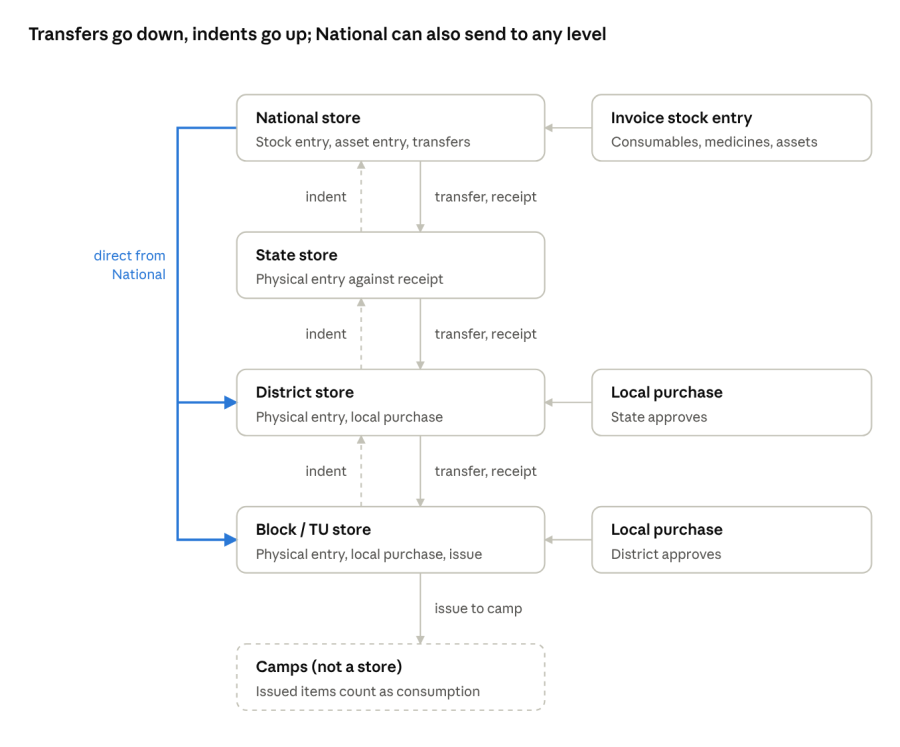
stock movement flow · National to camps
Solid arrows are transfers (each ending in a physical stock entry at the receiver), dashed arrows are indents, and the coloured path is National sending directly to a district or Block / TU.
3.2 Stock Entry against Invoice (National)
One entry per invoice: header fields once, then one line per item; Medicines use the existing Physical Stock Entry line fields, Consumables a lighter line.
Header
Name of Data Field | Field Type | Value/Options | Validation/Logic/Condition |
|---|---|---|---|
Item Class | Radio | Consumables, Medicines | Mandatory. Decides the line fields. |
Reference Number | Text | Free text | Mandatory (existing field). |
Entry Date | Date picker | Default today | Mandatory. Not a future date. |
Manufacturer | Dropdown | Manufacturer Master | Mandatory. |
Distributor / Supplier | Dropdown | Supplier Master | Mandatory. |
Invoice Number | Text | Free text | Mandatory. Unique per supplier. |
Invoice Date | Date picker | Date | Mandatory. Not a future date. |
Purchase Order No. | Text | Free text | Optional (confirm, Q25). |
Invoice Cost incl. GST | Numeric | Currency | Mandatory. Warn if it differs from the sum of line amounts. |
Item lines
Field | Consumables | Medicines | Validation |
|---|---|---|---|
Item | Item Master, Category = Consumables (e.g. Cotton, Mask) | Item Master, Item Type = Medical | Mandatory. |
Quantity | Quantity | Qty (in lowest unit) | Mandatory. > 0. |
Per Item Cost | Auto (line amount ÷ quantity) or entered | Unit Cost Price | Mandatory. |
Batch No. | Optional | Mandatory | – |
Expiry Date | Optional | Mandatory | Future date. |
Stock is added to the national store on save; medicine details (Strength, UOM, Item Form, Composition, Route of Admin, Drug Type) come from Item Master, and price is visible only to National roles.
Dummy screen: Stock Entry against Invoice.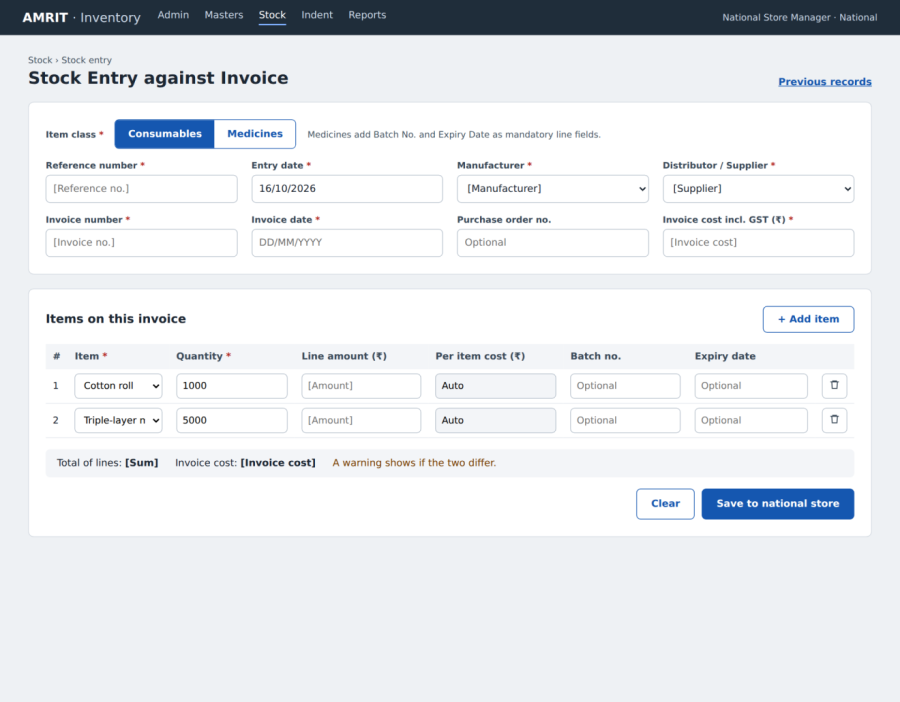
3.3 Indent form (bottom-up)
Name of Data Field | Field Type | Value/Options | Validation/Logic/Condition |
|---|---|---|---|
Indent No. | Auto | e.g. IND/OD/2026/000045 | System-generated, unique. |
Indent Date | Auto | Today | Read-only. |
From Store (requesting) | Auto | Logged-in user's store | Read-only. |
To Store (supplying) | Auto | Store one level above | Read-only. |
Indent Type | Radio | Consumables / Medicines, Assets | Mandatory. Decides the filters below. |
Item | Dropdown with filters | Item class, category, item name (same filters as stock entry) | Mandatory when Indent Type = Consumables / Medicines. |
Asset | Dropdown with filters | Type of asset >> asset name, model (Asset Category Master) | Mandatory when Indent Type = Assets. |
Current Stock | Auto | Requesting store's stock | Read-only. |
Threshold (Min) Level | Auto | From Item to Store Mapping | Read-only. Consumables and Medicines only; items below threshold highlighted. |
Requested Qty | Numeric | > 0 | Mandatory. |
Required By Date | Date picker | Future date | Optional. |
Remarks | Text | Free text | Optional. |
Approved Qty | Numeric | 0 to Requested Qty | Filled by the level above. Rejection reason mandatory when 0. |
Status | Auto | Draft, Submitted, Approved, Partially Approved, Rejected, Fulfilled | System-managed. |
An indent goes to the level directly above, can be fulfilled by one or more transfers, and is Fulfilled when total transferred equals approved quantity; transfers can also be pushed without an indent, and an indent pending beyond 3 days (configurable) alerts the level above.
Dummy screen: Indent. A Block raises the indent (items below threshold are highlighted); the lower panel shows the District approving part of it.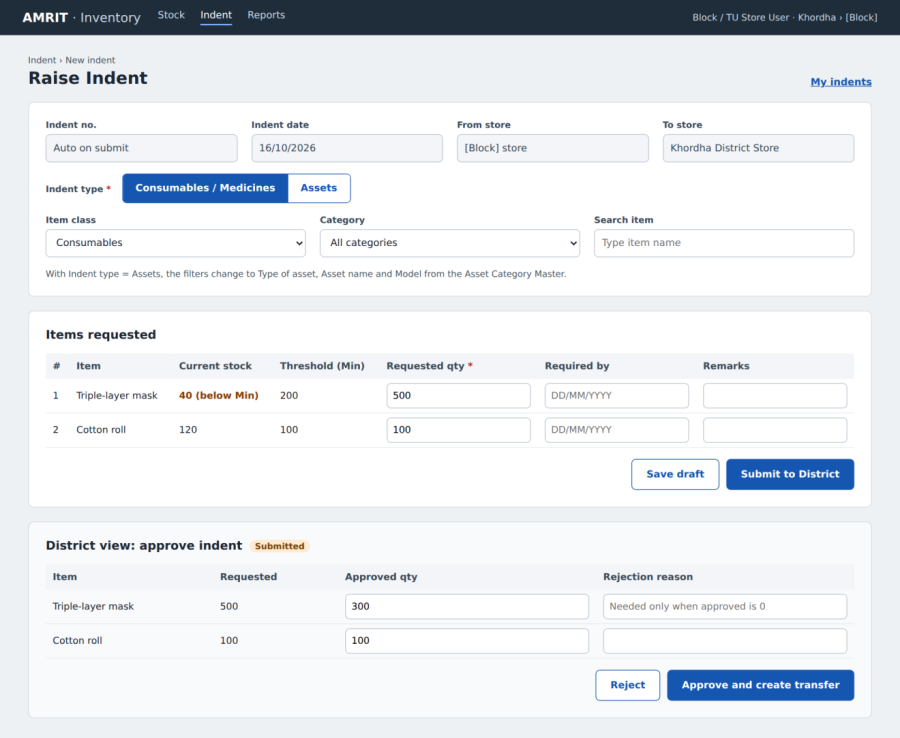
3.4 Stock Transfer form (top-down)
Current Stock Transfer screen: it has only Date, Reference Number and Transfer To. The new form keeps these and adds State, District and Block / TU selection, item type, gross quantity, batch and a printable receipt.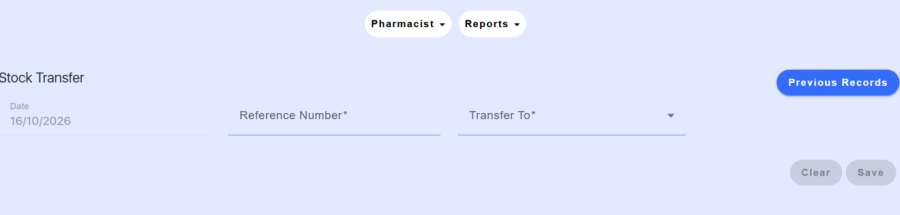
Name of Data Field | Field Type | Value/Options | Validation/Logic/Condition |
|---|---|---|---|
Transfer No. | Auto | e.g. TRF/NAT/2026/000123 | System-generated, unique. |
Date | Auto | Today | Read-only (existing). |
Reference Number | Text | Free text | Mandatory (existing). |
From Store | Auto | Logged-in user's store | Read-only. |
Transfer To: State | Dropdown | Assigned StopTB states, e.g. Odisha | Mandatory for National transfers. |
District | Dropdown | Districts of the state | Optional. Fill to transfer directly to a district (National only). |
Block / TU | Dropdown | Blocks and TUs of the district | Optional. Fill to transfer directly to a Block / TU (National only). |
Item Type | Radio | Consumables, Medicines | Mandatory. |
Item | Dropdown (search) | Items of that type in stock, e.g. Cotton | Mandatory. Multiple lines per transfer. |
Gross Quantity (available) | Auto | e.g. 1000 | Read-only. |
Batch No. | Dropdown | Batches of the item | Mandatory. Default order per Item Issue Method config (FEFO/FIFO). |
Expiry Date | Auto | From batch | Read-only. Warn if within expiry alert days. |
Transfer Quantity | Numeric | e.g. 100 | Mandatory. Not more than the batch's available quantity. |
Unit Price | Auto | From stock entry | Shown only to National roles. |
Against Indent No. | Dropdown | Approved indents of the receiving store | Optional. Blank = push transfer. |
Vehicle / Challan No. | Text | Free text | Optional. |
Remarks | Text | Free text | Optional. |
Status | Auto | Draft, In Transit, Partially Received, Received, Cancelled | System-managed. |
After saving, a Print Receipt button produces the Transfer Receipt: transfer no., date, from store, to store (state, district or Block / TU), items, batches, expiry and quantities, with signature lines for sender and receiver; price prints only on the National copy. State and District see only their direct child stores in Transfer To.
Dummy screen: Stock Transfer (National). State is mandatory; filling District sends stock directly to the district store.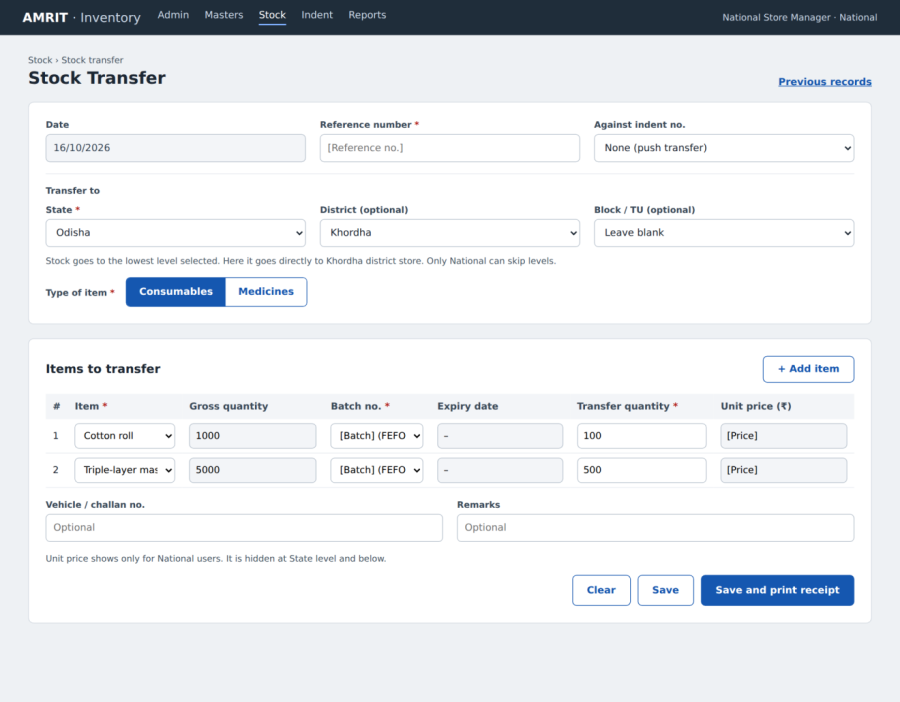
Dummy screen: Transfer Receipt (print).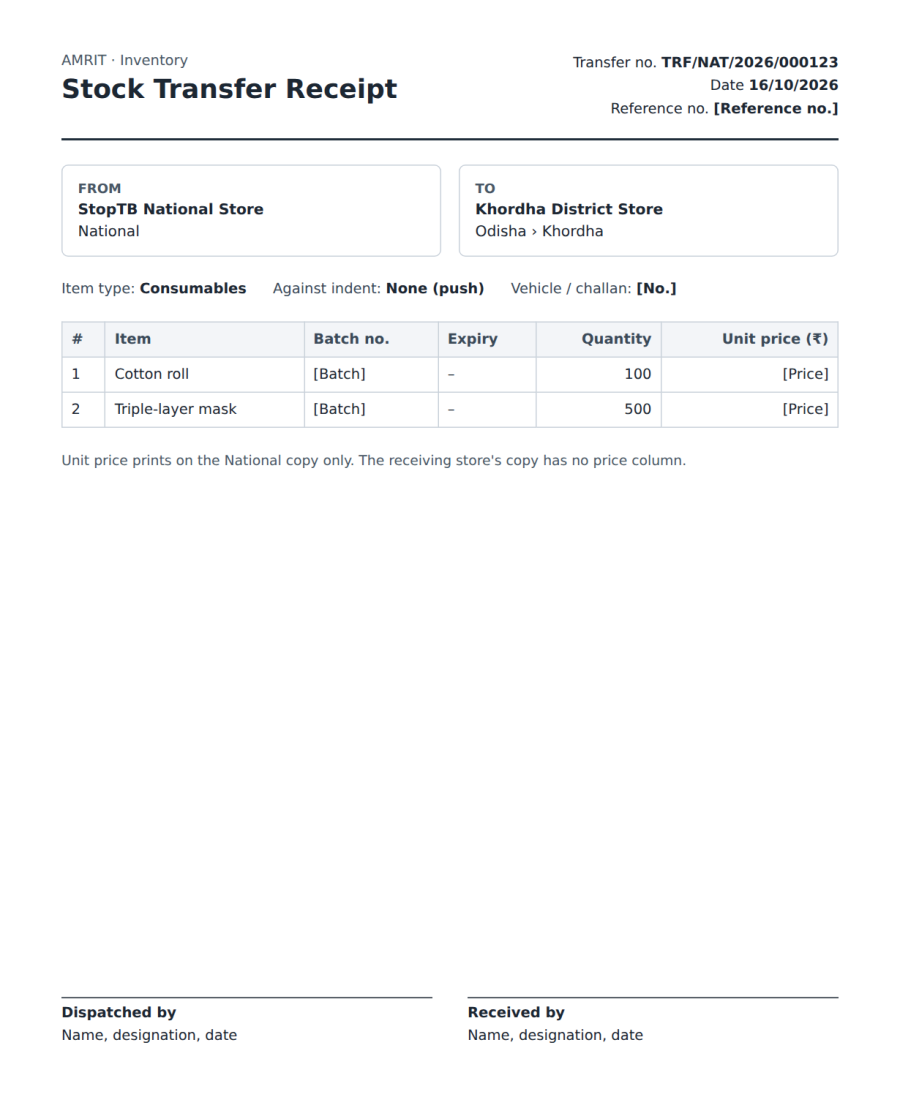
3.5 Stock Receipt and Physical Stock Entry (against receipt)
Built on the existing Physical Stock Entry screen: choosing the transfer fills the item lines, and the receiver corrects quantities to what physically arrived.
Current Physical Stock Entry screen: today the user types every line by hand. In the new flow, choosing the transfer number fills Item Name, Batch No. and Expiry Date; the user enters the actual quantity and any damage; and Unit Cost Price is hidden at State level and below.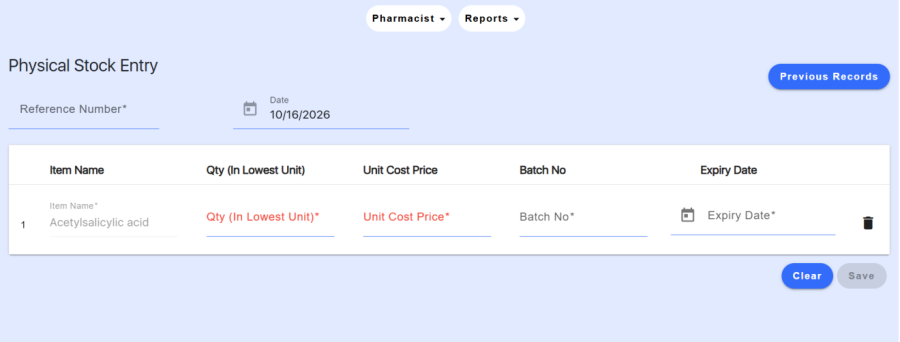
Name of Data Field | Field Type | Value/Options | Validation/Logic/Condition |
|---|---|---|---|
Reference Number (Transfer No.) | Dropdown | In Transit transfers to the user's store | Mandatory. Pulls the item lines. |
Date | Date picker | Default today | Mandatory. Not before the transfer date. |
Item Name / Batch No. / Expiry Date | Auto | From transfer | Read-only. |
Transferred Qty | Auto | From transfer | Read-only. |
Actual Qty Received (in lowest unit) | Numeric | 0 to Transferred Qty | Mandatory. Pre-filled; edit to the actual quantity. |
Damaged Qty | Numeric | ≥ 0 | Optional. Actual + Damaged ≤ Transferred. |
Damage / Short Reason | Dropdown | Short received, Damaged in transit, Expired, Wrong item, Other | Mandatory when Actual ≠ Transferred. |
Damage Remarks | Text (multi-line) | Free text | Mandatory when Damaged Qty > 0. |
Unit Cost Price | Hidden | Existing column | Hidden at State level and below. |
Received By | Auto | Logged-in user | Read-only. |
Dummy screen: Physical Stock Entry against Receipt. Item 2 arrived with 5 damaged, so only 95 enter stock and a discrepancy goes back to National.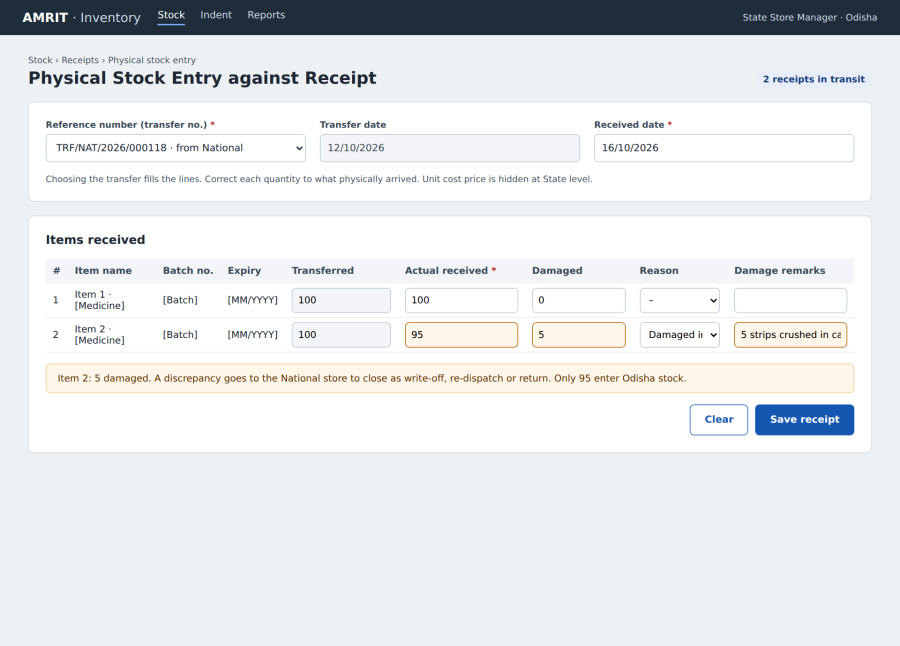
3.6 Local Purchase form (District, Block / TU)
Name of Data Field | Field Type | Value/Options | Validation/Logic/Condition |
|---|---|---|---|
Purchasing Store | Auto | User's District or Block / TU store | Read-only. |
Item Class | Radio | Consumables, Medicines | Mandatory. |
Item | Dropdown (search) | Items of that class | Mandatory. |
Manufacturer | Dropdown | Manufacturer Master | Mandatory. |
Distributor / Supplier | Dropdown | Supplier Master, or add a local supplier | Mandatory. |
Invoice Number and Date | Text / Date picker | Free text / date | Mandatory. |
Invoice Cost incl. GST | Numeric | Currency | Mandatory. Who can see it is open (Q17). |
Quantity | Numeric | > 0 | Mandatory. |
Per Item Cost | Auto | Invoice cost ÷ quantity | Read-only. |
Batch No. / Expiry Date | Text / Date picker | Free text / future date | Mandatory for Medicines. |
Invoice Copy | File upload | PDF / image, ≤ 5 MB | Mandatory. |
Approval Status | Auto | Pending, Approved, Rejected | Stock is added only after approval: District approves Block / TU; State approves District. |
3.7 Issue to Camp form (Block / TU)
Name of Data Field | Field Type | Value/Options | Validation/Logic/Condition |
|---|---|---|---|
Issuing Store | Auto | User's Block or TU store | Read-only. |
Camp | Dropdown | Camps under the Block or TU | Mandatory. |
Issue Date | Date picker | Default today | Mandatory. Not a future date. |
Item / Batch | Dropdown | Items and batches in block stock | Mandatory. Multiple lines per issue. |
Quantity Issued | Numeric | > 0 | Mandatory. Not more than block stock. |
Returned Qty (unused) | Numeric | ≥ 0 | Optional. Entered when the camp brings back unused items; adds back to block stock. |
Persons Screened / Tests Done | Numeric | ≥ 0 | Optional. Used for usage per person in reports. |
Remarks | Text | Free text | Optional. |
Camps hold no stock in the system: items issued to a camp leave block stock and are counted as consumption, net of any returned quantity.
3.8 Rules
- National can transfer to a state, or directly to a district or Block / TU; State and District transfer only to their direct child level.
- Transfers can be pushed without an indent, or made against an approved indent.
- Every transfer prints a Transfer Receipt; price prints only on the National copy.
- Stock enters a store only through physical stock entry against the receipt; damaged quantity does not enter stock and needs remarks.
- Short or damaged quantity creates a discrepancy that the sender closes as Write-off, Re-dispatch or Return.
- A transfer not received within 7 days (configurable) alerts the sender, the receiver and the receiving level's admin.
- Local purchase follows the same approval at every level: the level above approves.
- Price columns are hidden at State level and below on every screen, receipt and export.
- Opening balance at go-live is entered once per store and approved by the level above.
- All movements update the stock ledger used for opening/closing, consumption and forecasting.
4. Reports & Audit
Every level gets monthly reports for its own stores and everything below; reports export to Excel and PDF, run under Serviceline = Inventory, and show price columns only to National roles.
Report | Content | Filters | Primary users |
|---|---|---|---|
Opening & Closing Balance (monthly) | Per item per store: opening, received, local purchase, transferred out, issued to camps, damaged/expired, closing. Opening = previous month's closing. | Month, level, store, item class | Every level |
Consumption Report | Items issued to camps, by state, district, Block / TU, camp, item and month; usage per person screened | Period, state, district, Block / TU, item | Every level |
Forecasting Report | Per item per store: average monthly consumption (last 3 months), current stock, stock in transit, months of stock left, suggested quantity for the next N months | Level, store, item, months ahead | Every level |
Threshold Report | Items at or below threshold (Min) level, with current stock and suggested quantity | Level, store, item class | Store roles, admins |
Indent Register | Indents raised, approved, rejected, fulfilled, with ageing | From/To store, indent type, status, date | Store roles, admins |
Transfer Register | Transfers and receipts with status and ageing; reprint receipt | From/To store, status, date | Store roles, admins |
Pending Receipts | Transfers In Transit beyond 7 days | Store, days pending | Receivers, admins |
Discrepancy / Damage Report | Short and damaged quantity at receipt, remarks, closure | Store, reason, date | Senders, admins |
Local Purchase Report | Local purchases by store, supplier, item, approval status | Level, store, date | District, State, National |
Near-Expiry / Expired Stock | Batches within alert days | Level, store, days to expiry | All |
Stock Ledger | Every movement per item per store | Store, item, period | All |
Asset Register | Assets by store, type, asset name, model, serial number, warranty, status | Type of asset, store | National, admins |
Warranty Expiry Report | Assets whose warranty ends within 30/60/90 days | Type of asset, days | National |
Inventory User List | Work Location Mappings with Serviceline = Inventory | State, level, role, status | Admins |
Bulk Upload Log | Uploads with rows added and rejected, uploader | Date, user | Inventory Super Admin |
Forecast quantity = average monthly consumption × months ahead + threshold (Min) − current stock − stock in transit; threshold levels come from Item to Store Mapping (Min Qty). The forecast is a report that guides indents; micro-planning stays out of scope.
Dummy screen: Reports. Report tabs with filters; shown here is the monthly opening and closing balance, with the forecasting columns below.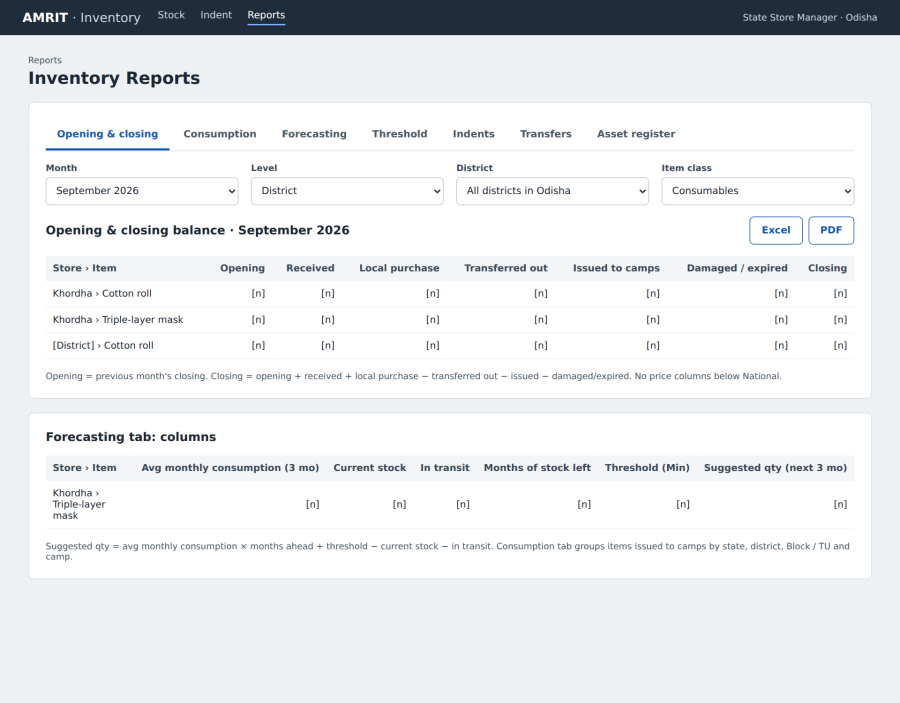
Stock Ledger output should match the existing Stock Register Format.
Audit trail
- Logged: service line and role changes, store mapping changes, Work Location Mapping changes, bulk uploads (with file), Item Master edits, and every stock transaction, with user, date-time, old value and new value.
- Stock transactions are never deleted; corrections are reversal entries.
- Audit log is read-only and kept at least 5 years (to be confirmed).
5. Acceptance Criteria & Open Questions
5.1 Acceptance criteria
- ☐ Super Admin creates the Inventory service line and an Inventory Super Admin with two states; the Inventory Super Admin sees both states.
- ☐ Inventory Super Admin creates State, District and Block / TU Admins; a State Admin can create only District Admins in own state.
- ☐ Inventory Super Admin adds "Laptop" under IT Assets in Asset Category Master.
- ☐ National Store Manager enters 10 laptops against one invoice; the screen asks for 10 serial numbers and saves only when all are filled.
- ☐ National Store Manager enters cotton and a medicine against an invoice; stock appears in the national store.
- ☐ National transfers Cotton – 100 (gross 1000) directly to a district in Odisha; a transfer receipt prints.
- ☐ The district records 95 received and 5 damaged with remarks; district stock rises by 95 and a discrepancy is raised.
- ☐ A Block raises an indent for masks and one for a laptop; District approves the mask indent in part.
- ☐ A Block local purchase is added to stock only after District approval.
- ☐ Block issues items to a camp; the issue appears in the Consumption Report.
- ☐ Opening & Closing Balance shows opening = previous month's closing for every store.
- ☐ Forecasting Report shows suggested quantity per item for every level.
- ☐ State and lower users never see price on any screen, receipt, report or export.
- ☐ A District user cannot see another district's data in any screen, report or API.
- ☐ All actions above appear in the audit log.
6. Prototype Link
https://claude.ai/artifact/87bZh5UYorduReooSc9uha?sk=5cR-trTrmMhg9t0bXI5q7g
1 Comment
Shivani Garg
Oct 19, 2026Inventory process flow@1x.png