
Connecting AI Assistants to OpenProject
Overview
The AMRIT OpenProject MCP Server enables AI assistants to securely access OpenProject using your own credentials.
Once connected, the AI assistant can:
Search projects
View work packages
Track project progress
Review assigned work
Monitor project status
Analyze schedules and timelines
Generate project summaries
Create and update work packages
Retrieve project information using natural language
Prerequisites
Before connecting your AI assistant, ensure you have:
Access to OpenProject
An OpenProject API Token
An MCP-compatible AI client (Claude Desktop, Claude Code, Cursor, etc.)
- Node.js (LTS version recommended) https://nodejs.org/en/download
Generate Your OpenProject API Token
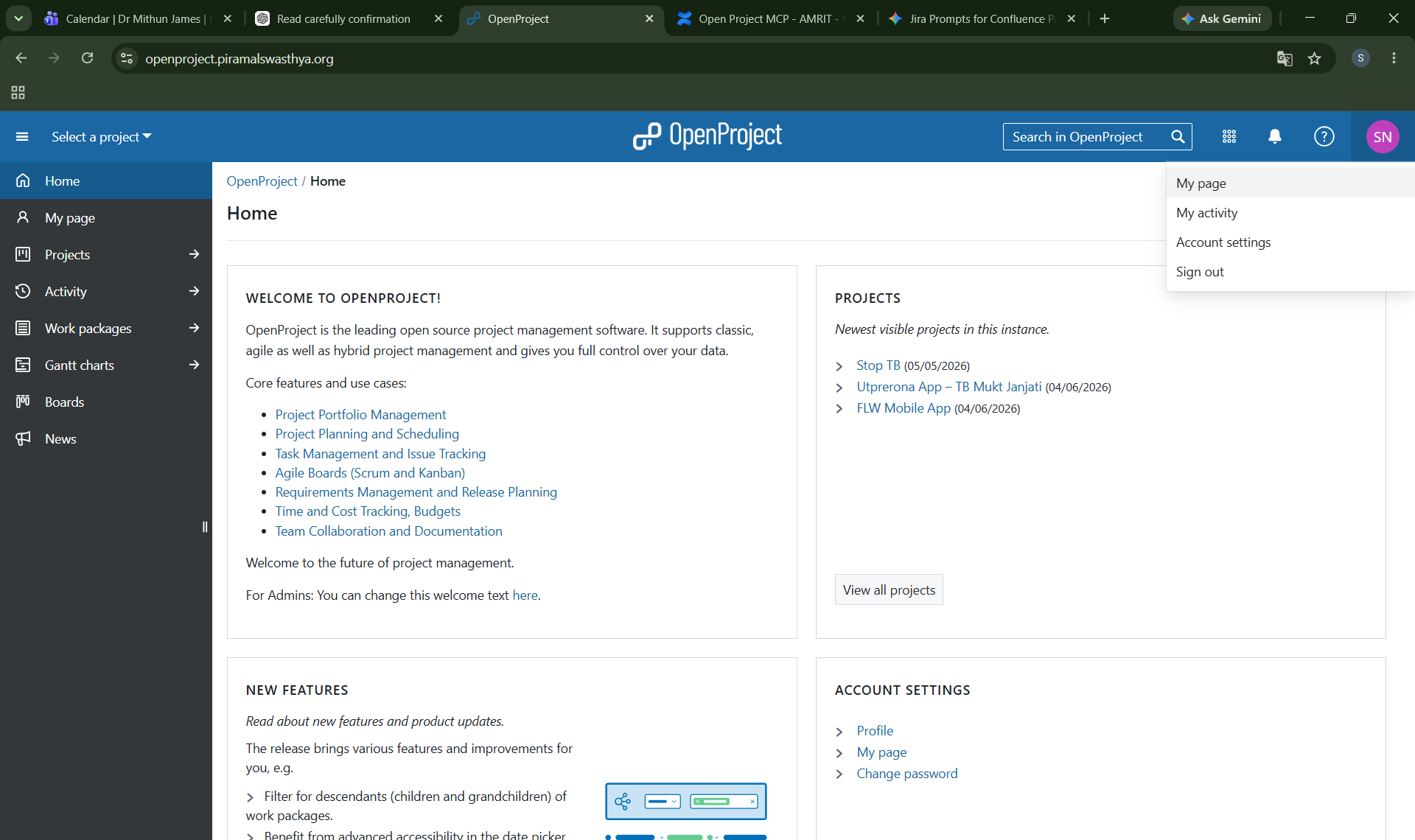
Log in to OpenProject.
Click your profile avatar in the upper-right corner.
Open My Account.
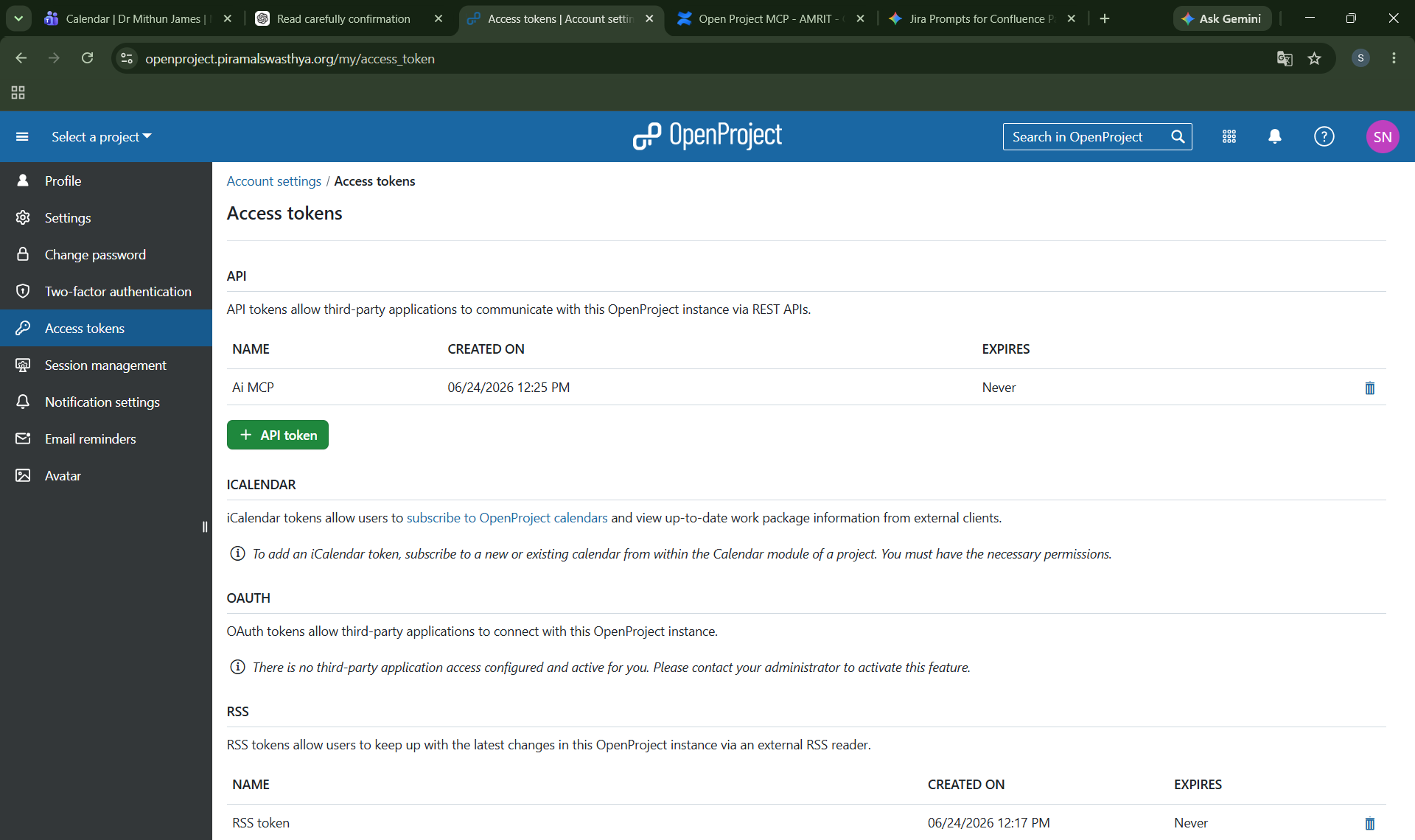
Navigate to Access Tokens or API Tokens.
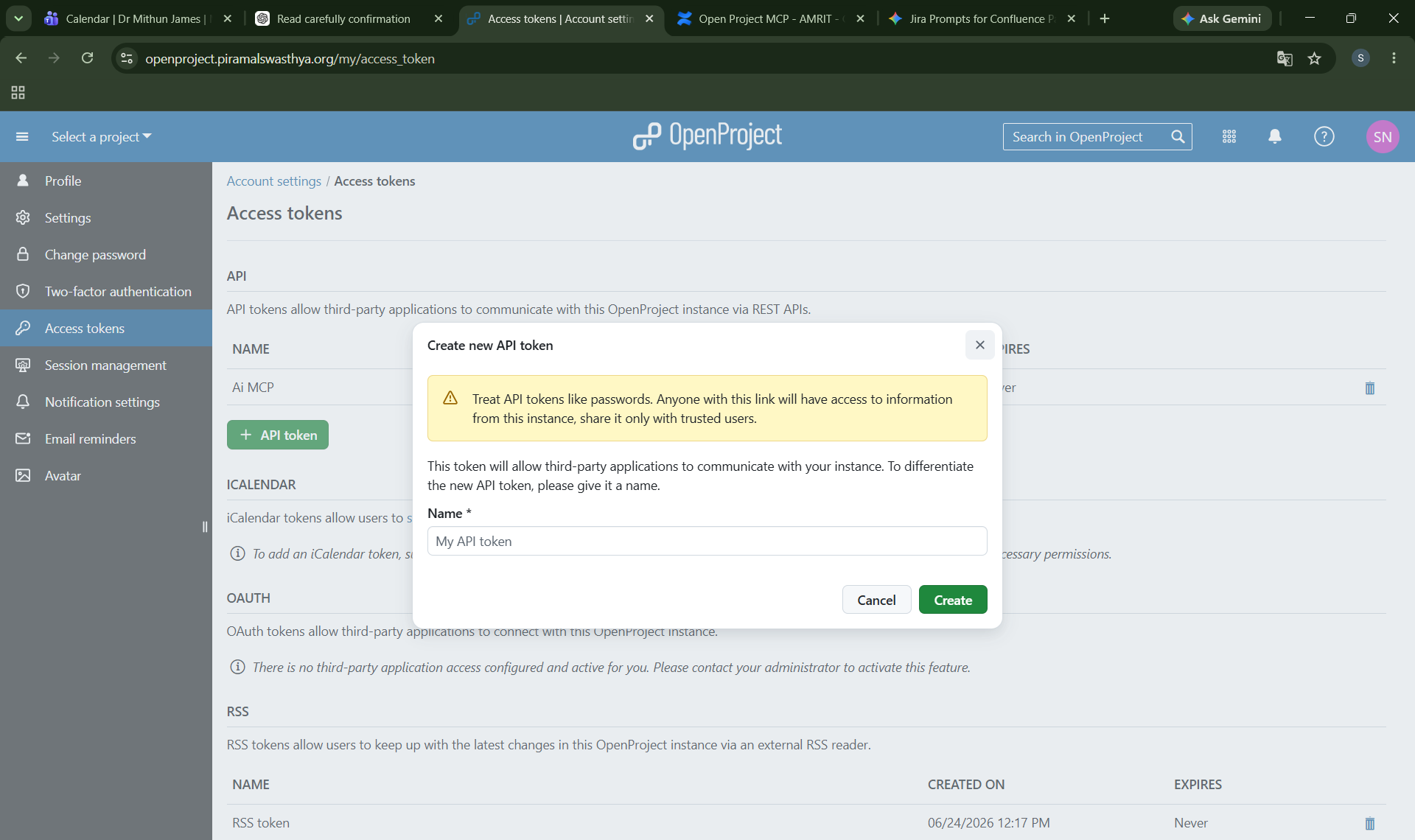
Generate a new API token.
Copy and securely store the token.
Important: Treat this token like a password. Do not share it with anyone.
MCP Endpoint
Use the following AMRIT OpenProject MCP endpoint:
https://amrittools.piramalswasthya.org/openproject/mcp
Configuration
Finding the Claude Desktop Configuration File
To configure MCP servers, you need to edit the Claude Desktop configuration file.
Windows
Open File Explorer and navigate to:
%APPDATA%\Claude\claude_desktop_config.json
Or directly:
C:\Users\<YourUsername>\AppData\Roaming\Claude\claude_desktop_config.json
macOS
Navigate to:
~/Library/Application Support/Claude/claude_desktop_config.json
Linux
Navigate to:
~/.config/Claude/claude_desktop_config.json
OpenProject MCP Configuration
Claude Code MCP Configuration
Add the following MCP configuration to your AI client:
{
  "mcpServers": {
    "openproject-mcp": {
      "type": "http",
      "url": "https://amrittools.piramalswasthya.org/openproject/mcp",
      "headers": {
        "Authorization": "Bearer <YOUR_OPENPROJECT_API_TOKEN>"
      }
    }
  }
}
Claude Desktop MCP Configuration
If you are using Claude Desktop, use the configuration below.
Open the Claude Desktop configuration file and add the following configuration inside the existing mcpServers section:
{
"mcpServers": {
"mcp-openproject": {
"command": "npx.cmd",
"args": [
"-y",
"mcp-remote",
"https://amrittools.piramalswasthya.org/openproject/mcp",
"--header",
"Authorization: Bearer <YOUR_OPENPROJECT_API_TOKEN>"
]
}
}
}
Replace:
<YOUR_OPENPROJECT_API_TOKEN>
with the API token generated from OpenProject.(Bearer must be present)
Restart Your AI Client
After updating the configuration:
Completely close Claude Desktop.
Ensure Claude Desktop is not running in the system tray or Task Manager.
Reopen Claude Desktop.
Verify the Connection
After restarting your AI client, try asking:
Show all OpenProject projects available to me.
or
List my assigned OpenProject work packages.
If project information is returned successfully, the connection has been configured correctly.
OpenProject Capabilities Available Through the MCP Server
The OpenProject MCP Server allows AI assistants to interact directly with OpenProject projects, work packages, schedules, time tracking, project memberships, dependencies, and reporting information.
Users can query project data, manage work items, monitor delivery progress, and generate project insights using natural language.
Project Management
The MCP Server can help users manage projects throughout their lifecycle.
Available Capabilities
View project details
List active projects
Create new projects
Update project information
Archive or remove projects
Review project metadata
Track project status
Typical Use Cases
Project Managers
Review all active projects
Monitor project health
Create new project workspaces
Track delivery progress
Delivery Managers
Review project portfolios
Identify projects at risk
Analyze project timelines
Work Package Management
Work Packages are the core planning and execution units within OpenProject.
Available Capabilities
View work package details
Search work packages
Create new work packages
Update existing work packages
Delete work packages
Assign work packages
Change status
Update completion percentage
Manage priorities
Typical Use Cases
Business Analysts
Review assigned requirements
Track implementation progress
Create new analysis tasks
Project Managers
Monitor project execution
Reassign work when required
Review task completion status
Developers and Team Leads
Update task progress
Manage implementation activities
Track work completion
Advanced Task Discovery
The MCP Server provides advanced filtering capabilities for finding work packages.
Available Capabilities
Find overdue tasks
Find high-priority tasks
Find unassigned tasks
Find tasks due soon
Find recently created tasks
Find nearly completed tasks
Filter by assignee
Filter by project
Filter by status
Filter by priority
Filter by completion percentage
Typical Use Cases
Scrum Masters
Identify sprint risks
Review overdue work
Monitor pending assignments
Project Managers
Track upcoming deadlines
Review critical issues
Identify bottlenecks
Delivery Managers
Review project health
Monitor execution risk
Resource and Team Management
The MCP Server can provide visibility into project teams and memberships.
Available Capabilities
View project members
View user assignments
View project memberships
View user roles
Assign users to projects
Update project memberships
Remove project memberships
Typical Use Cases
Project Managers
Review team composition
Validate resource allocation
Onboard project members
Delivery Managers
Analyze team distribution
Review project ownership
Time Tracking
The MCP Server supports OpenProject time tracking functionality.
Available Capabilities
View logged time
Create time entries
Update time entries
Delete time entries
Review effort spent
View activity categories
Typical Use Cases
Team Members
Log work effort
Update work records
Project Managers
Review effort consumption
Compare planned vs actual effort
Delivery Managers
Analyze project utilization
Review resource consumption
Milestones and Release Planning
The MCP Server provides access to project versions and milestones.
Available Capabilities
View project milestones
Create milestones
Update milestone schedules
Review release timelines
Monitor milestone progress
Typical Use Cases
Product Owners
Review roadmap progress
Track planned releases
Project Managers
Monitor milestone completion
Manage release schedules
Dependencies and Work Package Relationships
The MCP Server can manage dependencies between work packages.
Available Capabilities
Create parent-child relationships
View child work packages
Remove hierarchy relationships
Create task dependencies
View dependency chains
Update dependency relationships
Remove dependency relationships
Supported Dependency Types
Blocks
Follows
Precedes
Relates To
Duplicates
Includes
Requires
Part Of
Typical Use Cases
Project Managers
Identify blockers
Manage dependency chains
Analyze delivery risks
Scrum Masters
Remove execution bottlenecks
Track blocked work
Delivery Managers
Monitor cross-team dependencies
Assess project impact
Reporting and Project Insights
The MCP Server can help generate project insights from OpenProject data.
Available Capabilities
Identify overdue work
Track completion trends
Review project workload
Analyze team assignments
Review milestone progress
Generate project summaries
Identify delivery risks
Typical Use Cases
Leadership Teams
Portfolio reviews
Delivery monitoring
Risk assessment
Project Managers
Weekly status reporting
Progress reviews
Sprint planning
Business Analysts
Requirement tracking
Feature delivery monitoring
Security Model
All OpenProject operations are performed using the user's own API token.
Users can only access:
Projects they are authorized to view
Work packages they have permission to access
Team information available to their role
Time entries available within their permissions
The MCP server does not grant any additional permissions beyond those already assigned within OpenProject.
Troubleshooting
Authentication Errors
Verify:
The OpenProject API token is valid.
The token has not expired.
The token was copied correctly.
The Authorization header includes the
Bearerprefix.
Unable to Access Projects or Work Packages
Verify:
You have permission to access the project.
The work package exists.
Your account permissions are sufficient.
Connection Issues
Verify:
The MCP endpoint URL is correct.
Your network connection is available.
Your AI client supports MCP connections.
Supported Platforms
The OpenProject MCP Server can be used from:
Claude Desktop
Claude Code
Cursor
Other MCP-compatible AI clients
Support
For issues related to MCP connectivity or access, contact the AMRIT Agentic AI Framework team and provide:
AI client being used
Error message received
Project involved
Steps performed before the issue occurred