
Revision Summary (Please click here for clickable prototype: ASHA Supervisor module prototype)
# | Area / Screen | Original baseline | Revised behaviour | BRD § ref |
1 | Supervisor Dashboard — Month selector | Default = previous month | Default = current month | §9.1 |
2 | Supervisor Dashboard — Sub-centre filter | Not present | New Sub-centre dropdown beside the Month selector, with an "All" default. Tile counts re-aggregate across the selection. | §9.1 |
3 | Supervisor Dashboard — Total ASHAs tile | Not clickable | Clickable; opens the new ASHA Monthly Detail drill-down screen, grouped by sub-centre. | §9.1, §9.1.1 |
4 | Supervisor Dashboard — Status tiles | 4 tiles (Verified / Pending / Overdue / Rejected); white background | 5 tiles total. Row 1 (primary, Supervisor's direct responsibility): Verified · Pending · Overdue. Row 2 (secondary): Rejected · ASHA Unclaimed. Status-appropriate filled colours. | §9.1 |
5 | Supervisor Dashboard — Sub-Center Under You | List of sub-centres, non-interactive | Each sub-centre row is clickable; opens the drill-down scoped to that sub-centre. | §9.1, §9.1.1 |
6 | Monthly ASHA Status (derived) | 4 derived states | New "Unclaimed" state added — ASHA has not submitted any claim for the selected month. | §10.2, §11 |
7 | ASHA Monthly Detail — Activity display | Flat list of expandable activity cards; category name repeated as a subtitle on every row | Activities grouped under the nine Assam master-sheet program categories (Child Health, Immunization, Maternal Health, JSY, Family Planning, Adolescent Health, Umbrella Programmes, NCD, Other Incentives) as collapsible accordions in master-sheet S.No order. | §9.2, §9.3 |
8 | ASHA Monthly Detail — Default state | n/a | All non-empty categories load expanded by default. Category counts and totals (claims · ₹) remain visible in both expanded and collapsed states. | §9.3 |
9 | ASHA Monthly Detail — Empty categories | n/a | Every one of the 9 categories is always rendered; empty ones display a "No claims this month" label. | §9.3 |
10 | ASHA Monthly Detail — Activity row layout | Per-activity expandable card with status chip and Verify / Reject buttons | Activity row shows four columns: S.No · Activity Name · No. of Claims (aggregated) · Amount Claimed (₹). No per-row status chip, no per-row Verify/Reject affordance. | §9.3 |
11 | Beneficiary-Level Detail sub-screen | Not present | New read-only sub-screen. Opens on activity-row tap. Sticky yellow band with activity description; each row shows S.No · Beneficiary block (Ben ID, Name, RCH ID, ABHA Number) · Amount. | §9.3.2 |
12 | Verification mode | Per-activity Verify / Reject | ASHA-month aggregate level. A single global pair of Verify / Reject actions covers all claimed activities for that ASHA-month in one transaction. | §9.2, §11 |
13 | Document-verification confirmation | Per-activity checkbox | Single mandatory footer checkbox, once per ASHA-month. Gates both Verify and Reject — both remain disabled until ticked. | §9.2, §11 |
14 | Rejection reasons | Per-activity 8-reason multi-select; Other → mandatory remarks | Same 8 reasons and the Other → mandatory remarks validation, now applied to the entire ASHA-month on rejection. | §9.2, §11 |
15 | Audit log | One entry per activity action | One entry per Supervisor action per ASHA-month. Activity ID is null at Supervisor level (populated downstream only if CHO/ANM adopt activity-level granularity). | §12 |
16 | Cut-off dates & Overdue derivation | Cut-off mentioned generically; Overdue = claims pending > 2 days at Supervisor | Configurable per state variant. Utprerona (Assam): ASHA submit 1st–12th, verify by 12th. Mitanin (CG): submit 1st–3rd, verify by 5th. Overdue is flagged once the configured cut-off elapses while the claim is still Pending. | §7, §11 |
— | Hamburger / Navigation Drawer | Not previously specified | Newly defined: header (Avatar · Name · Username · User ID), grouped menu items (Home / Profile · Sync Records / Create ABHA / Help & Support · Request to delete my account / Logout), APK version footer. Documents existing, agreed-with-engineering behaviour — hence not highlighted in the document body. | §9.4 |
- Document Overview
Utprerona is a unified application used by multiple health system actors such as ASHA Supervisors, CHOs, and ANMs, with access governed through role-based user authentication. Based on the logged-in user’s role and mapped geography, the application provides access to relevant ASHAs, their performance indicators, and incentive claim data. This document defines the requirements for a mobile-first ASHA Supervisor Incentive Verification module within the Utprerona application, aimed at digitising the monthly incentive verification process that is currently carried out through paper-based workflows.
Item | Description |
Target Users | ASHA Supervisors, CHOs, ANMs, Block Coordinators |
Primary Audience | Product Managers, Engineering & Backend Teams, UI/UX Designers, Program & Government Stakeholders |
Phase | Phase 1 |
Platform | Android Mobile Application |
Approval Level | ASHA Supervisor and CHO or ANM can verify the activities using their respective login on the app. ‘Verified by’ is flagged and then at next level process at the SSD portal. Supervisor can also validate the supporting documents on ASHA’s device. |
Future Platform Scope | Reading artificats uploaded by ASHAs, Web portal and adding Suepervisor’s incentive activities |
- Background & Context
Utprerona is used by ASHAs to digitally capture health care activities and generate monthly incentive claims, with incentive amounts auto calculated based on predefined NHM logic.
Currently, ASHA Supervisors:
- Manage multiple sub-centres (often 3–5+)
- Verify ASHA incentive using paper registers (Master claim form)
This manual process is time-consuming, error-prone, and lacks transparency and auditability.
- Problem Statement
- No digital interface for supervisors to review incentive claims
- Heavy dependency on paper records
- Delays in verifications and payments
- No system-level audit trail
- Product Vision & Goals
Vision
Provide ASHA Supervisors with a simple, mobile-first digital interface to review and verify ASHA incentive claims efficiently and transparently.
Category | Goal / Metric | Description |
Process Digitisation | Digitise incentive verification workflow | Replace paper-based incentive verification with a fully digital process for ASHA Supervisors. |
Operational Efficiency | Reduce verification turnaround time | Minimise time spent by supervisors on monthly incentive verification. |
Accuracy & Compliance | Improve verification accuracy | Reduce manual errors in verification and verification through system-driven calculations and structured review. |
Transparency & Audit | Enable audit-ready verifications | Ensure every verification action is traceable with supervisor identity, timestamp, and remarks. |
Adoption Metric | % incentives verification digitally | Measure proportion of total incentives verifies through the supervisor app vs paper process. |
Efficiency Metric | Average verification time per ASHA | Track time taken from ASHA submission to supervisor verification at ASHA-month level. |
Usage Metric | Supervisor adoption rate | Percentage of mapped supervisors actively using the module each month. |
- User Persona
Primary User: ASHA Supervisor
- Oversees multiple ASHAs mapped across sub-centres
- Responsible for monthly incentive validations further is validated by CHO/ANM
- Uses smartphone as primary device
- High workload, limited time
- In-Scope / Out-of-Scope
In-Scope (Phase 1)
- Role based login for Supervisor/ CHO/ ANM using FLW App
- Supervisor Dashboard
- ASHA Monthly incentive summary
- Activity-level review
- Single Verify action
- Audit logging
Out-of-Scope
- Block/District approvals
- Incentive recalculation or edits
- Payment disbursement
- Web portal
- State Specific Configuration
Certain configurations must be applied differently for the Mitanin and Utprerona application build variants based on Statespecific requirements. The following functional behaviors distinguish the two builds:
- Supporting Document Verification
- Not applicable in the Mitanin app.
- Applicable in the Utprerona app.
- Incentive Amount Calculation
- Not applicable in the Mitanin app.
- Applicable in the Utprerona app.
- Verification Workflow
- In the Mitanin app, only ASHA Supervisor verification is required.
- Additional verification layers (CHO or ANM) apply only to the Utprerona app.
- Cutoff Dates
- Cutoff dates are different for each State-specific build, and the configuration must be maintained separately for the Mitanin and Utprerona app variants.
- Cutoff dates are configurable per app variant by the program admin team and are applied uniformly across all Supervisors mapped to that variant. Two cut-off windows are maintained: (a) the ASHA submission and re-submission window, and (b) the verification deadline for ASHA Supervisor, CHO and ANM. The defaults below apply at first rollout and can be overridden by the program team without a code change.
- Utprerona (Assam) defaults:
- ASHA submission and re-submission of monthly incentive claims: 1st to 12th of every month.
- Verification of submitted claims by ASHA Supervisor, CHO and ANM: by the 12th of every month.
- Mitanin (Chhattisgarh) defaults:
- ASHA submission and re-submission of monthly incentive claims: 1st to 3rd of every month.
- Verification of submitted claims by ASHA Supervisor, CHO and ANM: by the 5th of every month.
- Overdue derivation: an ASHA-month claim is flagged Overdue once the configured verification cut-off date for the active state has elapsed and the claim is still Pending with the verifying actor (Supervisor, CHO or ANM). The Overdue state therefore depends on the dates configured above and on the system clock; it is not based on any fixed day-count threshold.
- Verification Model
Verification Granularity
Every month all ASHAs incentive claimed activities are verified by respective ASHA supervisor; and if required, followed by other actors like CHO or ANM, further post verification claims are processed to the SSD portal for approval actions. Hence the two roles of ASHA supervisor broadly are
- Validate individual incentive-linked activities of ASHAs
- Verify all pending claimed activities of ASHA for that particular month
Incentive amounts are read-only and system-calculated.
- User Journey (High-Level)
- Functional Requirements
9.1 Supervisor Dashboard (KPIs will be shared separately later)
Features
- Login Screen for Supervisor- Role based access- mapped with facility
- The dashboard header shall display the logged-in Supervisor’s name and Supervisor ID
- Dashboard should display overall status of how many ASHAs verification is pending vs completed so that supervisor can approach them for completion
- Month selector (default: current month)
- Smart search:
- ASHA name
- Sub-centre name (shows all ASHAs under it)
- Sub-centre filter dropdown beside the Month selector. The list includes all sub-centres mapped to the logged-in Supervisor plus an “All” option (default: All sub-centres). When “All” is selected, all tile counts aggregate across every sub-centre mapped to the Supervisor.
- Option to Verify or Reject each ASHA claims globally- Each ASHA’s verification will be done only ONCE unless it is rejected, if rejected then post resubmission of ASHA, it can be verified again
- Notification Alerts to Supervisor after submission by ASHAs
- Supervisor profile
- Report generation of Incentives PDF
Dashboard Tiles (Incentive Dashboard)
- Total ASHAs tile: displays the count of ASHAs mapped to the logged-in Supervisor (across all selected sub-centres). The tile is clickable and navigates to the ASHA Monthly Detail drill-down screen described in §9.1.1, where ASHAs are listed under their respective sub-centres with their individual claim status.
- Primary status tiles: Verified, Pending, Overdue. These three tiles represent activities for which the ASHA Supervisor is directly responsible. Counts are derived from the active Month and Sub-centre filter selection. Overdue follows the rule in §11, which depends on the configured verification cut-off date for the active state (see §7).
- Secondary status tiles: Rejected and ASHA Unclaimed. Rejected reflects claims sent back to the ASHA awaiting correction. ASHA Unclaimed reflects ASHAs mapped to this Supervisor who have not yet submitted their monthly claim for the selected month.
- Tile visual treatment: Primary status tiles in the first row and secondary in the next. Each status tile shall use a status-appropriate filled colour per the design system (replacing the current white-background treatment), so the five statuses are visually distinct at a glance. Exact colour tokens are owned by UI/UX and will be applied consistently across the Supervisor, CHO, and ANM dashboards.
Sub-Center Under You (Sub-Centre List)
- The dashboard shall list all sub-centres mapped to the logged-in Supervisor, along with the count of ASHAs in each sub-centre.
- Each sub-centre row is clickable. On tap, the Supervisor is navigated to the ASHA Monthly Detail drill-down screen (§9.1.1), scoped to that single sub-centre. The sub-centre name appears as the section header and the ASHAs mapped to that sub-centre are listed with their respective claim status.
9.1.1 ASHA Monthly Detail (Drill-down Screen)
The ASHA Monthly Detail drill-down is a list-style screen that classifies ASHAs by sub-centre and shows the claim status of each ASHA for the selected month. It is reached from two entry points on the Supervisor Incentive Dashboard.
Entry Points
- Tap on the Total ASHAs tile: the screen lists every ASHA mapped to the Supervisor, grouped by their respective sub-centre (sub-centre name appears as a section header above each group).
- Tap on any row in the “Sub-Center Under You” list: the screen is scoped to that single sub-centre. Only the sub-centre name and the ASHAs mapped to it are shown.
Screen Elements
- Screen title: “Incentive Verification”. Search bar at the top with placeholder “Search ASHA…”.
- Sub-centre group header (e.g., “Sub-centre: XYZ”) followed by an ordered list of ASHAs mapped to that sub-centre. The header repeats for each sub-centre when entered from the Total ASHAs tile.
- Each ASHA row shows: ASHA Full Name and a Claim Status chip showing one of: Verified, Pending, Rejected, Overdue, or Unclaimed, using the same colour vocabulary as the dashboard tiles.
- Tapping an ASHA row navigates to the existing single-ASHA Monthly Detail screen (§9.2) for activity-level review and verification.
- The screen respects the Month and Sub-centre selections active on the Supervisor Dashboard at the time of navigation.
ASHA Card Fields
- ASHA’s Full Name
- ASHA Emp ID
- Sub-centre Name
- Total incentive amount
- Activity count
- Verification Status: verified by / Pending
9.2 ASHA Monthly Detail Screen
Header
- ASHA Name, Emp ID
- Sub-centre Name
- Month & Year
- Overall status
Summary Card
- Total activities
- Total incentive (read-only)
- Approved amount
- Pending amount
Primary Action
- Global Verify / Reject for the ASHA-month: the Supervisor performs verification once for the entire ASHA-month claim package, not per individual activity. The screen footer pins a single mandatory document-verification checkbox (“I have verified supporting documents on ASHA’s device”) followed by two actions: Verify and Reject. Both actions are disabled until the checkbox is ticked. Verify transitions every claimed activity for that ASHA-month to “Verified by Supervisor” in one transaction; Reject opens the eight-reason multi-select (Other → mandatory remarks) and applies the rejection to the whole ASHA-month, returning all activities to the ASHA as Pending for correction.
- No per-activity Verify/Reject buttons are shown on this screen. Status chips per activity row are not shown either; the ASHA-month claim package is implicitly a verification queue, and aggregate status is reflected only on the upstream ASHA-listing drill-down (§9.1.1).
- Each ASHA’s verification is performed only ONCE per month unless the ASHA-month claim is rejected; on rejection-and-resubmission by the ASHA, the Supervisor can verify again. (Reaffirms the “done once unless rejected” rule already stated in §9.1.)
9.3 Activity Display & Grouping (Category Accordion)
All incentive-linked activities claimed by the ASHA for the selected month are grouped under nine program categories aligned to the Assam Incentive Claims master sheet. Categories are always rendered in master-sheet S.No order so the layout matches the paper claim form and is predictable across ASHAs.
The nine program categories (master-sheet order)
- Child Health
- Immunization
- Maternal Health
- ASHA Incentive under JSY
- Family Planning
- Adolescent Health
- Umbrella Programmes (TB, leprosy, NPCB / cataract, etc.)
- NCD (Non-Communicable Diseases)
- Other Incentives (ABHA, mobile-bill reimbursement, state additional incentive, etc.)
Default state & safeguards against missed review
Because every incentive claim raised by the ASHA for the month must be verified by the Supervisor (all claimed activities are mandatory and the single Verify action commits the entire ASHA-month), the following safeguards apply to prevent any claim from being silently missed during review:
- Default open: on first load of an ASHA Monthly Detail screen, all non-empty categories are rendered in their expanded state so every claimed activity row is immediately visible without further taps. The Supervisor may collapse a category once they have reviewed it; collapsing serves as an informal “reviewed” affordance.
- Counts always visible: the No. of Claims and Total Amount Claimed on each category header strip are visible in both expanded and collapsed states. Collapsing a category never hides the fact that claims exist under it.
- Empty categories shown: every one of the nine categories is rendered even when the ASHA has zero claims under it (labelled “No claims this month”). This proves to the Supervisor that no category has been silently filtered out.
- Scope reminder banner: a one-line informational banner immediately above the first category strip shall read “Verify will commit all claims listed below in one action.” This sets correct expectations before the Supervisor reaches the footer Verify / Reject buttons.
Category accordion header (collapsed state)
Each category is presented as a collapsible accordion section. The collapsed header strip shall display, left to right: (a) the category name; (b) the aggregate number of activity claims raised by the ASHA under that category for the selected month; (c) the total claimed amount in INR aggregated across all activities of that category; (d) an expand/collapse chevron. Tapping anywhere on the strip toggles the expanded state. Empty categories — where the ASHA has not claimed any activity under that category for the selected month — are always rendered (so the layout is consistent across ASHAs) but display the label “No claims this month” in place of counts/amount, and are not expandable.
Category accordion (expanded state)
Expanded, the section reveals one row per claimed activity within the category, listed strictly in Assam master-sheet S.No order. Each activity row shall present the following four columns:
- S.No : the Assam master-sheet serial number for that activity (1–84), preserved across categories so it matches the paper claim form.
- Activity Name : the full activity description from the master sheet (e.g., “ASHA incentive for ANC registration within 1st Trimester”). The category name (e.g., “MATERNAL HEALTH”) is NOT repeated as a subtitle on each row; it is implicit from the parent accordion. This is the core space-saving change introduced in this revision.
- No. of Claims : aggregated count of individual beneficiary-level claims rolled up to this activity for the selected month (e.g., “2” if the ASHA registered 2 ANC cases).
- Amount Claimed (₹) : aggregated amount system-calculated using the master-sheet rate × No. of Claims (e.g., ₹50 × 2 = ₹100). Read-only.
The activity row contains no status chip and no Verify/Reject affordances; verification is performed once at the screen level (§9.2). Tapping anywhere on an activity row opens the read-only Beneficiary-Level Detail sub-screen described in §9.3.2.
9.3.2 Beneficiary-Level Detail (Read-only sub-screen)
Reached by tapping an activity row in the category accordion. This screen lists the individual beneficiary-level / case-level claims rolled up under that activity for the selected month. It is strictly view-only, with no actions available here. The Supervisor returns to the ASHA Monthly Detail screen via the standard back affordance to perform verification at the ASHA-month level (§9.2).
Column layout: the screen renders a sticky yellow header band at the top showing three column captions: S.No (left), the full Activity description carried over from the parent activity row (centre, so the Supervisor sees the same long-form text from the master sheet, e.g., “ASHA incentive Rs.50 per case for ANC registration within 1st Trimester.”), and Amount claimed (Rs.) (right). Below the header, each beneficiary appears as one row containing: S.No (left); a beneficiary metadata block stacked vertically — Ben ID, Name, RCH ID, ABHA Number (centre, with N/A shown for any field the ASHA app has not populated); and Amount Claimed in ₹ (right, aligned). Rows are separated by a thin divider. The screen is strictly read-only — no buttons, checkboxes, or status chips on this view. Back navigation returns the Supervisor to the parent ASHA Monthly Detail screen with the same accordion state preserved.
9.3.1 Activity Colour Coding
Activity cards in the Supervisor application shall follow the same colour coding used in the Utprerona ASHA application to maintain visual consistency and improve verification efficiency.
Colour Categories
Category | Colour | Description | Examples |
Fixed / Monthly Incentives | Orange | Fixed monthly claim amounts not linked to beneficiaries | ASHA Monthly Remuneration, Additional Incentives, Mobile Bill related activities |
Meeting / Event Incentives | Yellow | Meeting, training, campaign participation | MAA Meeting, AHD, NDD, PHC Meeting related activities |
Beneficiary Based Incentives | White | Incentives linked to individual beneficiaries | ANC, PNC, Immunization, Family Planning related activities |
Implementation Notes
- Colour must be driven from backend activity metadata.
- Supervisor app must not hardcode colour mapping.
- Colour should be applied to activity card background/header.
9.4 Hamburger / Navigation Drawer
A side navigation drawer is invoked by tapping the hamburger (☰) icon in the application header on the Home / Supervisor Dashboard. The drawer slides in from the left, covers approximately 75% of the screen width, and dims the underlying content with a translucent scrim. Tapping outside the drawer or the system back gesture dismisses it.
Drawer header (top, fixed)
- Profile avatar (circular, system-default illustration when no custom photo is set), aligned left.
- “Name : <Full Name> <Role>” — for example, “Name : Preeti ANM”. The role suffix (ASHA Supervisor / CHO / ANM) is appended to the name and is determined by the logged-in user’s role mapping.
- “Username : <10-digit mobile number>” — the registered FLW mobile number used at login.
- “User ID : <numeric system ID>” — the internal Utprerona / FLW user identifier (e.g., 4206).
Menu items (grouped, in order, separated by a thin divider between groups)
Group 1 — Primary navigation
- Home — dismisses the drawer and navigates to the Supervisor Dashboard (Incentive Dashboard tab).
- Profile — opens the read-only Supervisor profile screen (Name, Role, Employee ID, Mobile, Mapped sub-centres, ASHA count under this Supervisor).
Group 2 — Utilities
- Sync Records — triggers a manual sync of locally-cached incentive verification data with the server (used when the device has been offline). Shows a progress indicator and a success / failure toast on completion.
- Create ABHA Number — deep link into the existing ABHA creation flow of the FLW application (out of scope for this module; entry point preserved here for parity with the wider FLW app menu).
- Help & Support — opens a static help / FAQ screen with the support helpline number and email; content is owned by the program team.
Group 3 — Account
- Request to delete my account — opens a confirmation flow that submits an account-deletion request to the program admin team in compliance with DPDP / data-rights requirements. Deletion is not immediate; the request is routed for administrative action and the Supervisor is shown a tracking acknowledgement.
- Logout — clears the session and returns the user to the FLW App login screen. Any unsynced local actions trigger a confirmation dialog before logout to prevent data loss.
Footer: the bottom of the drawer shall display the current APK build version (e.g., “APK Version 2.9.17”) centred, in a muted style. The version string is read from the build manifest and is used for triage during support calls.
- Status Lifecycle
10.1 Activity-Level Status (Role-based)
Each incentive-linked activity shall move through the following role-based verification statuses, which are visible to ASHA users:
Stage | Status Displayed to ASHA | Meaning |
1 | Pending with Supervisor | Activity submitted by ASHA and awaiting verification by ASHA Supervisor |
2 | Verified by Supervisor | Activity verified by ASHA Supervisor and forwarded for next-level verification |
3 | Pending with CHO | Activity awaiting verification by CHO |
4 | Verified by CHO | Activity verified by CHO |
5 | Pending with ANM | Activity awaiting verification by ANM (only if CHO is unavailable) |
6 | Verified by ANM | Activity verified by ANM |
7 | Eligible for SSD Processing | Activity verification completed and ready to Process at SSD system |
Note: Either CHO or ANM verification is required / applicable.
10.2 Monthly ASHA Status (Derived)
The monthly status for an ASHA shall be system-derived based on the verification state of all activities submitted for the selected month.
Condition | Monthly Status |
All activities pending at Supervisor level | Pending with Supervisor |
Mix of verified and pending activities | Partially Verified |
All activities verified by Supervisor | Verified by Supervisor |
Activities pending at CHO / ANM level | Pending with CHO / ANM |
All activities verified by CHO / ANM | Verification Completed |
ASHA has not submitted any incentive claim for the selected month | Unclaimed |
Note: Monthly status is read-only and updated automatically by the system.
- Business & SystemLogic
Area | Rule / Logic Description |
Incentive Calculation | Incentive amounts are calculated only in the backend using existing Utprerona / NHM logic. Supervisor app consumes calculated values in read-only mode. |
Edit Permissions | ASHA Supervisors cannot edit or override incentive amounts, activity data, or incentive logic. |
Activity Eligibility | Only activities submitted by ASHAs and marked as Pending with Supervisor are eligible for verification. |
Verification Mode | Verification is performed at the ASHA-month aggregate level. The Supervisor verifies (or rejects) the entire monthly claim package for one ASHA in a single action covering every claimed activity across all categories. Per-activity Verify/Reject is not exposed on the Supervisor screen. (Activity-level state transitions defined in §10.1 still happen system-side, but they are driven by the single ASHA-month decision.) |
Document Verification Confirmation | Supervisor must confirm verification of supporting documents on the ASHA’s device via an explicit checkbox before taking any action. The checkbox is rendered once, pinned at the footer of the ASHA Monthly Detail screen immediately above the Verify and Reject actions. Both Verify and Reject remain disabled until the checkbox is ticked. The confirmation is captured at ASHA-month level (one entry per Supervisor action) and is logged for audit. |
Activity Verification | Supervisor taps the footer Verify action on the ASHA Monthly Detail screen. In one transaction the system transitions every claimed activity for that ASHA-month to Verified by Supervisor and forwards the package to the CHO / ANM verification stage. Once verified, the ASHA-month decision is final at Supervisor level (per the “done once unless rejected” rule). |
Activity Rejection | Supervisor taps the footer Reject action. The eight-reason multi-select sheet (multi-select; if Other is selected, remarks are mandatory) applies to the entire ASHA-month. On submission, every claimed activity for that ASHA-month is marked Rejected and the full package is returned to the ASHA as Pending for correction; the ASHA is notified in-app with the chosen reasons and remarks. After ASHA resubmits, the ASHA-month re-enters the Supervisor’s queue. |
Rejection Reasons | • Incomplete documentation• Incorrect data (system error)• Beneficiary data mismatch• Calculation error• Duplicate claim• Ineligible activity• Outside service period• Other (mandatory remarks) |
ASHA Notification on Rejection | When rejected, ASHA receives an in-app notification with rejection remarks. Activity returns to ASHA app as Pending for correction and resubmission. The detailed notification related Jira tickets have been mentioned below. |
Resubmission Flow | After correction, ASHA resubmits the activity and it re-enters workflow as Pending with Supervisor. |
CHO / ANM Dashboard Reflection | CHO/ANM dashboards will display tiles similar to Supervisor dashboard showing Pending, Verified, and Rejected counts. |
Monthly Status Derivation | Monthly ASHA status is system-derived:• Pending – Activities awaiting Supervisor verification.• Verified – All activities verified by Supervisor.• Rejected – One or more activities rejected and awaiting correction.• Pending with CHO/ANM – Supervisor verification completed and awaiting next-level verification.• Overdue – Claims that remain Pending with the verifying actor (Supervisor, CHO or ANM) after the configured verification cut-off date for the active state has elapsed (see §7).• Unclaimed – ASHA has not submitted any incentive claim for the selected month. Counted at ASHA-month level for the Supervisor’s mapped ASHAs. |
Status Visibility to ASHA | ASHA app shows stage-wise status:• Pending with Supervisor• Verified by Supervisor• Pending with CHO/ANM• Verified by CHO/ANM |
Incentive Freeze Rule | Once any activity is verified by Supervisor, incentive amounts for that ASHA-month become immutable (no recalculation). |
Concurrency Handling | If activity status changes due to another action, the system prompts Supervisor to refresh before proceeding. |
Finality of Supervisor Action | Verified activities cannot be modified or reverted by Supervisor and move to CHO/ANM verification. |
Verification Hierarchy | Incentive verification order: ASHA Supervisor → CHO (or ANM if CHO unavailable) → SSD Portal In times of Supervisor’s delay beyond the configured verification cut-off date for the active state (see §7), the claims will directly show on CHO/ANM dashboard |
Verifier Metadata Sharing | Along with incentive claim data, verifier metadata (Supervisor, CHO, ANM identifiers) is transmitted during SSD API integration for auditability and downstream processing. |
Final Push to SSD Portal | Incentive claim data is pushed to SSD portal only after successful verification by Supervisor and CHO/ANM. |
Reminder Notification | If activities remain Pending with Supervisor immediately after the ASHAs submit their claim through Utpreorna, reminder notification is sent to Supervisor mobile app. |
Escalation (x Days) | If activities remain pending for x days, WhatsApp and Email notification is sent to the mapped Medical Officer. |
Escalation Frequency | Escalation occurs once per month per Supervisor via email and WhatsApp. |
Notification Logging | All reminders, escalations, verification and rejection notifications are logged for audit and monitoring. |
Configurable Notifications | Notification templates and frequency may be configurable by the program team. |
- Data & Audit Requirements
Audit Logging (Next phase/update can include the
Audit Attribute | Description |
Supervisor ID | Unique identifier of the supervisor performing the action |
ASHA ID | Unique identifier of the ASHA whose incentive is being reviewed |
Activity ID | Identifier of the incentive-linked activity (null at Supervisor level, since verification is always performed at ASHA-month aggregate; populated downstream if CHO / ANM verification adopts activity-level granularity) |
Action Type | Type of action performed (at Supervisor level: “Verify ASHA-Month” or “Reject ASHA-Month”. One audit entry per Supervisor action on an ASHA-month.) |
Timestamp | Date and time when the action was performed |
Remarks | Supervisor remarks (optional) |
- Security & Access Control
- Supervisor can view only mapped ASHAs and sub-centres
- Role & geography enforced at API level
- Along with incentive claim data, the system shall transmit verifier metadata, including ASHA Supervisor, CHO, and ANM identifiers, as part of the API integration with the SSD portal to support auditability and downstream processing.
- Access to the module (Important):
- Role-Based Access to Applications
- Users with roles CHO, Medical Officer (MO/Doctor), Nurse, Pharmacist, Lab Technician, Registrar, or any combination of these roles, should have access to the HWC application.
- Users with the CHO role must be able to log in to both FLW and HWC applications.
- FLW App Access Control
- Users with roles ASHA, ASHA Supervisor, or ANM should have access only to the FLW application.
- In the FLW app:
- Users with roles CHO, ASHA Supervisor, or ANM should have access only to Supervisor modules, and must not access ASHA comprehensive modules.
- Users with the ASHA role should have access to all ASHA comprehensive modules, but not to Supervisor modules.
- Escalation & Reminder Mechanism (Please refer to User Journey on Page 3 for reference)
To ensure timely completion of incentive verification and prevent delays in downstream processing, the system shall implement an automated reminder and escalation mechanism.
Please note: In Utprerona for ASHAs they should get reminder to fill out the claim information in accordance with the monthly set date set up by the Supervisor
14.1 Supervisor Reminder Notifications
Trigger | Notification Type | Channel | Description |
Immediately after ASHA submission | Reminder | In-app notification | Supervisor receives reminder highlighting number of ASHAs and activities pending verification for the selected month. |
Until verification is completed | Recurring reminders | In-app notification | Periodic reminders may continue until pending verifications are completed. |
Notification content (indicative):
“X ASHAs have pending incentive verifications for Month YYYY. Please complete verification to avoid delays in payment processing.”
14.2 Escalation to Medical Officer/Reporting Manager
Trigger | Escalation Target | Channel | Description |
X days after submission if verification still pending | Medical Officer mapped to Supervisor | Email and WhatsApp message (via official integration) | Escalation alert indicating delayed verification. |
Escalation message (indicative):
“Incentive verification for X ASHAs under Supervisor [Name] is pending for Month YYYY beyond the defined timeline. Kindly review and follow up.”
Appendix A — End-to-End App Workflow (Revised)
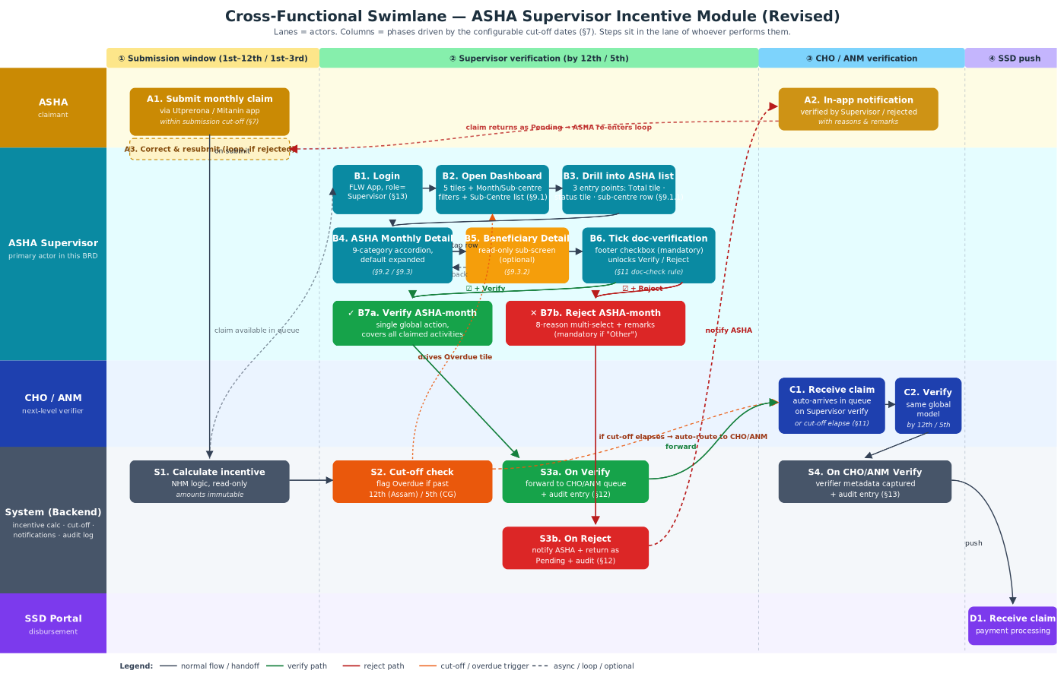
The diagram below shows the full Supervisor flow as specified in this revision of the BRD. It supersedes any earlier high-level user journey image in the document. Authentication and downstream CHO/ANM stages are shown for context; this BRD scopes only the Supervisor screens.
Notifications Framework
Phased Delivery Plan · ASHA Supervisor Incentive Verification Module
Purpose: Five work-unit-sized tickets, grouped by what a small dev and QA crew would naturally pick up together in a sprint. Three phases sequence the rollout. Phase 1 delivers the foundation and the two highest-value triggers as one deliverable. Phase 2 adds deeplinks and the remaining recipient triggers. Phase 3 hardens for production with external channels, configurability, and effectiveness measurement.
Phase | Focus | Tickets | Scope |
Phase 1 | Foundation + MVP triggers | 1 ticket | Bell icon, notification panel, dispatch engine, basic logging, ASHA rejection, Supervisor 2-day reminder with basic recurring cadence. |
Phase 2 | Deeplinks + remaining triggers | 2 tickets | Tap-to-deeplink across the panel. ASHA submission reminder, ASHA stage-change updates, Supervisor auto-routing alert, CHO and ANM verification reminders. |
Phase 3 | Production hardening | 2 tickets | Email and WhatsApp channels for MO escalation, template and cadence configurability. Notification-to-action attribution and reporting endpoint. |
Phase 1 · Foundation and MVP triggers
Phase 1 ships the notifications surface and the two highest-value triggers as one work unit. Copy and cadence are hardcoded. Deeplinking, external channels, configurability, and effectiveness measurement arrive in later phases.
User story · Persona: All app users (ASHA, ASHA Supervisor, CHO, ANM). All app users need a single place to see notifications they have received, plus the two most urgent triggers wired up (ASHA rejection feedback and the 2-day Supervisor verification reminder), so that the foundation can be validated end-to-end while the highest-priority operational gaps close on day one.
Ship the full Phase 1 work unit. Build the bell icon and panel, the dispatch engine, and the dispatch log, and wire two triggers (ASHA rejection and Supervisor 2-day reminder) end-to-end so the foundation is provable in production. Hardcoded copy and cadence; no deeplinks; in-app only.
- Foundation UI (bell and panel): Bell icon in the app header, top-right, beside the existing language toggle. Unread-count badge updates on read, dismiss, or clear. Tapping the bell opens the Notification panel listing every notification for the logged-in user in reverse-chronological order, with title, short message, timestamp, and read or unread state per row. Empty state ("No notifications yet") when there are none.
- Foundation interactions: Tap to mark-as-read (persists across sessions). Swipe-to-dismiss removes the row from the panel. "Clear notifications" button pinned at the bottom of the panel; on confirm, soft-clears every notification for the logged-in user. The dispatch log records are not deleted.
- Foundation dispatch engine and logging: Single dispatch service that recipient-specific triggers call. Service takes recipient ID, recipient role, event type, title, and body. Notifications are scoped to the logged-in user (a Supervisor must never see another Supervisor's notifications, and similarly for ASHA, CHO, and ANM). Persist every dispatch (event type, recipient ID and role, channel = in-app, timestamp, delivery status) and every user interaction (viewed, dismissed, cleared) in the notification log. No attribution linkage yet.
- Trigger A · ASHA rejection notification: Fires once per ASHA-month rejection event, the moment any ASHA Supervisor, CHO, or ANM submits a Reject action. Title: "Your monthly claim was rejected". Body: month-year plus selected rejection reasons; full remarks included (or truncated with full text shown on open). Payload carries the chosen reasons (one or more from the 8-reason set) and remarks (mandatory when reason is Other). In-app only. Event type: "ASHA Claim Rejected". No deeplink in Phase 1; resubmission still happens via existing ASHA app navigation.
- Trigger B · Supervisor 2-day verification reminder: For each ASHA-month claim submitted by an ASHA, schedule a reminder for the mapped Supervisor 2 days after the ASHA's submission timestamp. If the Supervisor verifies or rejects before the 2 days elapse, cancel the scheduled reminder. After the initial reminder fires, if the ASHA-month is still Pending with Supervisor, repeat every 2 days until the Supervisor verifies or rejects, or the configured Supervisor verification cut-off elapses (auto-routing then takes over). Title: "Pending verifications for <Month YYYY>". Body: consolidated count of ASHAs and activities pending verification (one consolidated reminder per cycle, not one per ASHA). In-app only. Event type: "Supervisor Verification Reminder". No deeplink in Phase 1.
- Affected modules: FLW Android app (header bell icon, notification panel). Notification service (dispatch engine, scheduler, two event handlers). Notification log datastore. ASHA-month Reject API (calls dispatch on success).
Phase 2 · Deeplinks and remaining recipient triggers
Phase 2 extends the panel with tap-to-deeplink and rolls out the remaining recipient triggers across ASHA, Supervisor, CHO, and ANM. Two tickets, sized so a single squad can pick each one up as one sprint of work.
User story · Persona: All app users. Users need tapping a notification to take them to the relevant screen, so that the action can be completed without hunting through the app.
Ticket P2.1 Add deeplink routing to the notification panel for every existing and future event type.
Extend the Phase 1 notification panel so tapping a row marks it as read and navigates the user to the right screen. Define the target-mapping contract so every new trigger added in P2.2 (and beyond) plugs in cleanly.
- Event-payload contract: Every notification event payload carries the navigation target (screen identifier plus parameters such as ASHA ID and month). The panel resolves the deeplink at tap time, so the dispatch service does not need to know app navigation internals.
- Initial target mapping: ASHA Claim Rejected goes to ASHA claim screen in resubmission mode. Supervisor Verification Reminder goes to Supervisor Dashboard with the month pre-selected. Supervisor Auto-routing Alert goes to Supervisor Dashboard. CHO and ANM Verification Reminders go to the CHO or ANM Dashboard with the month pre-selected. ASHA Stage-Change goes to the ASHA claim screen showing current stage. ASHA Submission Reminder goes to the ASHA claim entry screen for the current month.
- Fallback handling: If the target requires data that is no longer valid (for example, a deleted ASHA-month), fall back to the relevant dashboard home screen and show a toast explaining the fallback.
- Affected modules: Notification service (event payload schema update). FLW Android app (panel tap-to-deeplink logic, navigation handlers per target screen).
User story · Persona: ASHA, ASHA Supervisor, CHO, ANM. Every recipient role needs full notification coverage for the events that affect their work, so that the framework is operationally complete and not lopsided towards a few personas.
Implement the rest of the in-app triggers as one work unit. They all share the same scheduler-and-template plumbing, so building them together avoids repeated rework. Copy and cadence remain hardcoded; configurability arrives in Phase 3.
- ASHA · Submission reminder: For every ASHA who has not yet submitted for the current month, fire at the start of the submission window (read from the state-variant cut-off config). Repeat every 2 days (hardcoded default) until the ASHA submits or the window closes. Title: "Submit your monthly incentive claim". Body: month-year and last date of the window. Event type: "ASHA Submission Reminder".
- ASHA · Stage-change notifications: Fire when the ASHA-month transitions to Verified by Supervisor, Verified by CHO, Verified by ANM, or Eligible for SSD Processing. Title: "Your claim is now <stage label>". Body: short message confirming stage and next expected step. Event type: "ASHA Stage Change" with the new stage in the payload.
- Supervisor · Auto-routing alert: Fires once per Supervisor per cut-off cycle, the moment the configured Supervisor verification cut-off elapses while one or more ASHA-months are still Pending. Title: "Pending claims have been routed to CHO or ANM". Body: count of ASHA-months routed forward; note that the Supervisor's review of those is no longer required. Event type: "Supervisor Auto-routing Alert".
- CHO · Verification reminder with cadence: Fires the moment an ASHA-month arrives at the CHO stage (via Supervisor verification or auto-routing). If still Pending with CHO, repeat every 2 days until the CHO verifies or rejects, or the configured CHO cut-off elapses. Title: "Pending CHO verifications for <Month YYYY>". Body: consolidated count of ASHAs and activities pending CHO verification. Event type: "CHO Verification Reminder".
- ANM · Verification reminder with cadence: Fires the moment an ASHA-month arrives at the ANM stage (alternate path when CHO is unavailable, or via auto-routing). If still Pending with ANM, repeat every 2 days until the ANM verifies or rejects, or the configured ANM cut-off elapses. Title: "Pending ANM verifications for <Month YYYY>". Body: consolidated count of ASHAs and activities pending ANM verification. Event type: "ANM Verification Reminder".
- Affected modules: Notification service (five new event handlers, scheduler extensions). FLW Android app (notification panel surfaces in ASHA, Supervisor, CHO, ANM logins). Activity workflow service (emits stage-change and auto-routing events the notification service subscribes to).
Phase 3 · External channels, configurability, and effectiveness
Phase 3 hardens the framework for production. Two tickets, owned by integration and analytics teams respectively, so each can move on its own timeline.
User story · Persona: Medical Officer and Program team. Medical Officers need Email and WhatsApp escalation when verification stays pending past the cut-off, and the program team needs to change notification copy, schedules, and cadences without a code release, so that operational adjustments can happen at the speed of programme decisions.
These two pieces ship together because they are tightly coupled: the MO escalation is the first non-in-app trigger and validates the configurability plumbing end-to-end.
- MO escalation trigger and cap: If a verification stage stays pending beyond the configured cut-off for the active state variant, escalate to the Medical Officer mapped to the Supervisor. Capped at once per Supervisor per month (repeated breaches do not produce repeated escalations within the month). Subject or title: "Pending incentive verifications for Supervisor <Name>". Body: count of ASHAs under the Supervisor whose verification is pending beyond the cut-off, the month-year, and a call to follow up.
- Channels: Email via the existing Email gateway. WhatsApp via the official WhatsApp Business API integration. Track delivery status (sent, delivered, failed) per channel and write to the notification log. On delivery failure, log and surface to the operations dashboard; no automatic retry beyond standard channel-level retries.
- Configurable values per event type and channel: Title and body copy with placeholder variables (<Month YYYY>, <Count>, <ASHA Name>). Initial trigger offset (for example, the Supervisor 2-day grace). Recurring cadence interval. Maximum recurring attempts (cap to avoid spam). Channel selection per event type: in-app, email, WhatsApp.
- Admin surface and versioning: Admin UI (or admin tooling entry) lists every event type, shows current values per channel, and allows edits without a code release. Changes take effect for dispatches scheduled after save; in-flight dispatches use the values active when they were scheduled. Maintain a version history of template and cadence changes for audit.
- Affected modules: Notification service (escalation handler, monthly cap enforcement, multi-channel dispatch, template and cadence resolution at dispatch time). Email gateway integration. WhatsApp Business API integration. Configuration service (template and cadence storage with versioning). Admin tooling (configuration UI). Notification log datastore.
User story · Persona: Program team. The program team needs visibility into how often notifications actually drive the desired action, so that reminder strategy effectiveness can be measured and tuned over time.
Link every relevant downstream action with any notification that preceded it within a configurable window, and expose an endpoint that turns that link into measurable effectiveness numbers.
- Attribution linkage: When a downstream action occurs (ASHA claim submission, ASHA resubmission, Verify ASHA-Month at Supervisor, CHO, or ANM stage, Reject ASHA-Month at Supervisor, CHO, or ANM stage), the audit log entry for that action must record whether a relevant notification was dispatched to the same actor within a configurable attribution window before the action. Recommended default: 7 days. Event-type to action mapping defines "relevant" (ASHA Submission Reminder to ASHA claim submission; Supervisor Verification Reminder to Supervisor Verify or Reject; CHO and ANM Verification Reminders to CHO or ANM Verify or Reject; ASHA Claim Rejected to ASHA resubmission). Attribution window configurable per event type via the configuration surface from Ticket P3.1.
- Reporting endpoint: Backend query or report endpoint returning, for a given date range, notifications dispatched, viewed, tapped, dismissed, and cleared; number followed by the expected action within the attribution window; effectiveness ratio per event type and recipient role. Output as JSON for an analytics backend or CSV for spreadsheet review.
- Affected modules: Notification service (attribution writer). Notification log datastore (attribution fields). Audit log datastore (linkage to notification log). Reporting backend (new endpoint).
1 Comment
Dr Mithun James
Jun 30, 2026Thanks Ritam Dubey . The notifications framework is quite well documented. Have added some inline comments.