
Table of Contents outline true type flat
| outline | true |
|---|---|
| type | flat |
1. Getting Started
1.1. Teams Vs WhatsApp
...
- Purpose: Originally for personal messaging, with some business features added
- Target Users: Primarily individuals, with a separate WhatsApp Business app
Detailed Comparison
|
Key Advantages of Microsoft Teams
...
- Left Sidebar: Contains the App Bar and the Teams Bar
- Central Pane: Displays the content of your selected tab
- Top Bar: Houses the search function, settings, and your profile
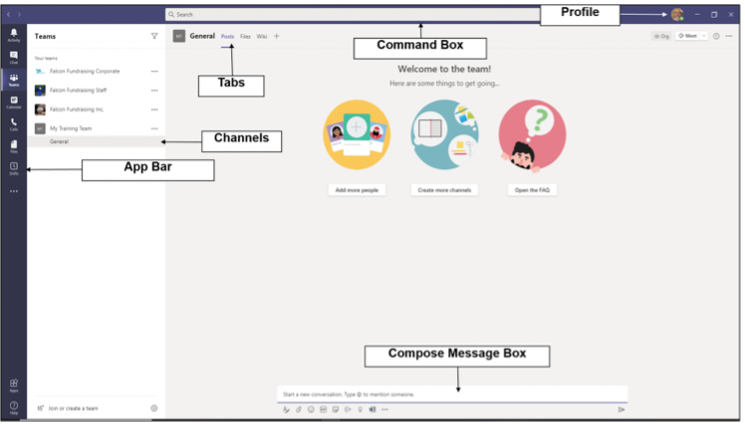
App Bar: Located on the far left Contains icons for Activity, Chat, Teams, Calendar, Calls, and Files
...
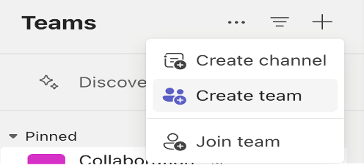
Click the “Teams” icon in the App Bar and click “+”
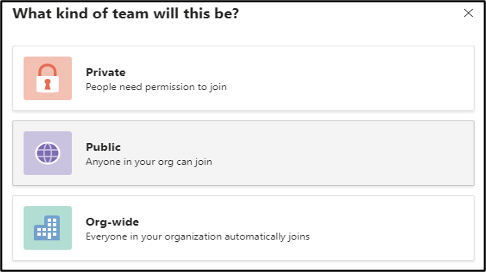
Choose the type of team: Private, Public, or Org-wide
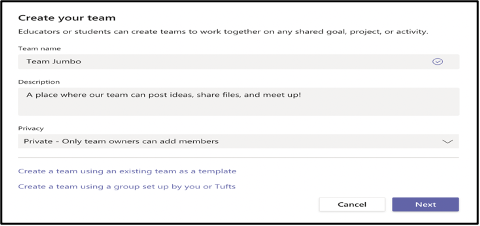
Name your team and add a description
Add member
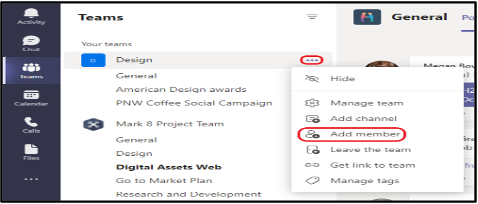
1.3. Creating Channels Within a Team
...
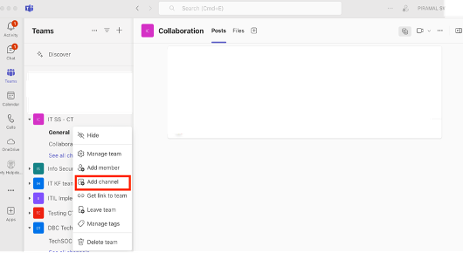
Navigate to the team you wish to create channel for and click on “… “(More Options) and Add channel
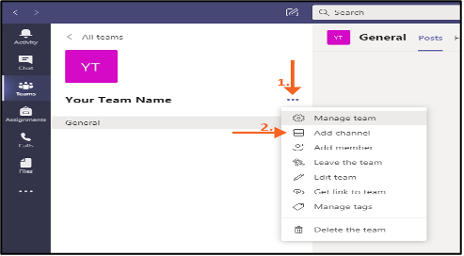
Name the channel and add a description
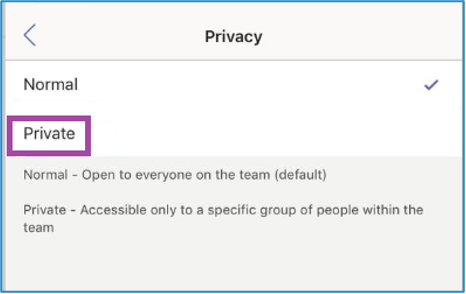
Choose privacy settings (Standard or Private) [prefer selecting private channel if it’s not for entire organization
Best Practices: -
- Use clear, descriptive names
- Avoid creating too many channels
- Consider using private channels for sensitive discussions
...
Create a New Shared Channel
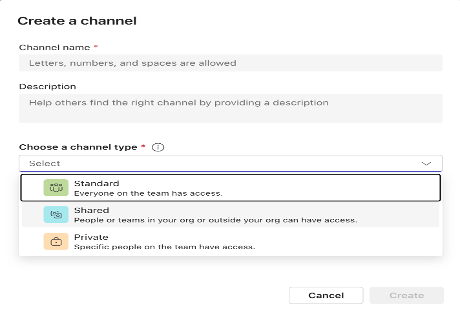
Set Up Channel Content
...
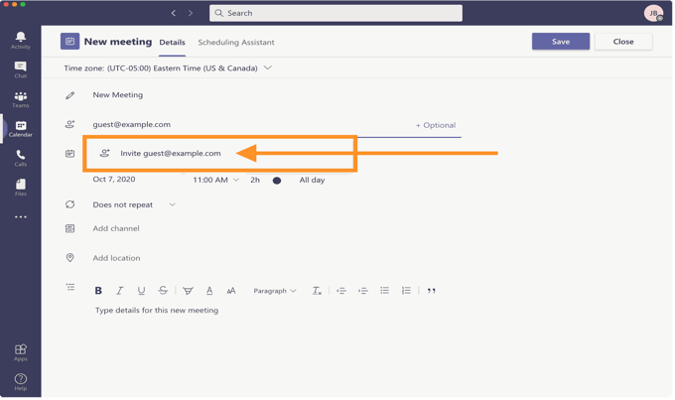
- External users will receive an invitation via email. They can accept the invitation and access the shared channel using their existing Teams account without switching tenants.
Managing Permissions and Access Control
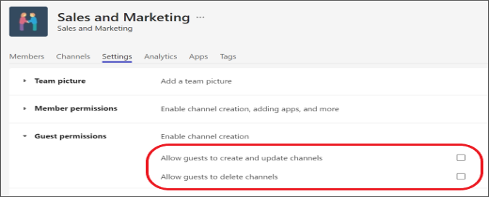
Managing permissions in shared channels is crucial to ensure that users only access what they need. You can adjust permissions for both internal and external users as follows:
...