
PRD for STOP TB Community Screening
Document Overview
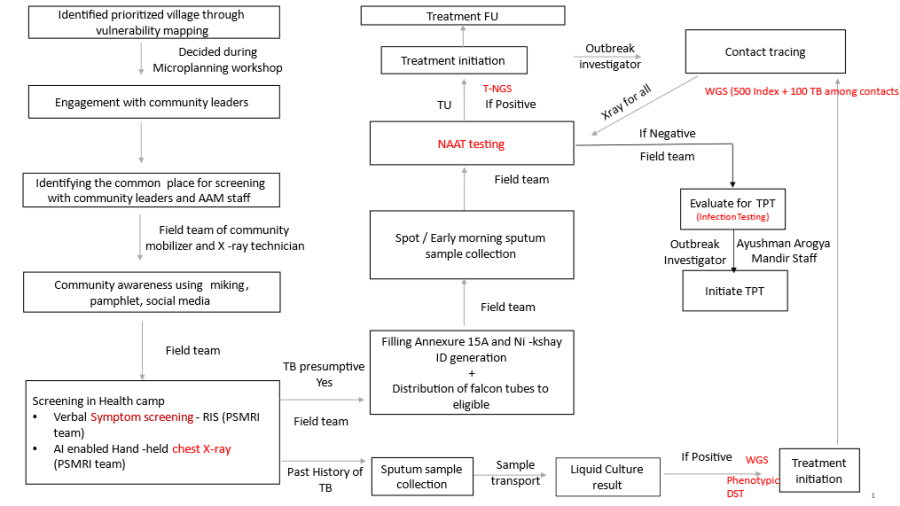
This document defines the functional requirements for the TB Screening mobile application developed under the TB Mukt Janjati Abhiyan: A community-driven TB elimination initiative targeting tribal populations across India. The application is purpose-built for field use by community volunteers in tribal areas where connectivity, literacy, and device familiarity may be limited.
The application should be simple to use, comprehensive and must work in low/no-connectivity environments.
Purpose
This application is developed to screen and maximize TB case detection in all age groups through active case finding, contact investigation, and community mobilization. This application helps in patient tracking throughout treatment cascade at community and facility level via Community Influencers and Nikshay Mitras. Ensure prompt referral and linkage of diagnosed individuals from community to health facilities for timely treatment initiation is the purpose of this application.
Users of the system
1. Volunteers- Community mobilization, screenings, camps etc.
2. Admin / Supervisory- Backend/Dashboard Access
In Scope Functional Modules
Non-Communicable Diseases (NCD) screening
Tuberculosis (TB) screening
Workflow
Login Page :
- Login Page Name should be "STOP TB".
- It must be followed by "STOP TB" Logo.
- It must have both Online and Offline capabilities. ("Offline capabilities feature to exchange data between Mobile devices in a closed environment in real-time without internet")
- It must have Multilingual Feature with English, Hindi and other Indian languages enabled, and must be configurable to accommodate all the Indian languages as and when required in future.
- Followed by "Next" button
- Page must end with "Powered by Piramal Foundation"
UI Field Name
Field Type
Options
Validations
STOP TB Logo
<Placeholder>
Please Select your Language
Radio Button
- English
- Hindi
- The fields and labels must populate in the language selected by the user
Username
Textbox
Password
Textbox
Remember Me
Checkbox
- When 'Remember Me' checkbox is selected, next time directly allow user to login just by authenticating with fingerprint
Next
Button
- On Clicking Next , user must be navigated to "STOP TB landing" page
Powered by Piramal Foundation
Text
- This must be displayed below the "Next" Button in the center.
After logging in credentials are entered by the Volunteer, the landing page should open.
The landing page should have: - This page must have a hamburger icon (side drawer), "Stop TB" text, refresh button, sync button, and "Language Translation" button on the Top row.
- There should be a hamburger icon on the left side, which on clicking should have following details-
- Name (Volunteer)
- Username
- User ID
- Sync Records
- Create ABHA ID
- Support
- Request to delete account
- Log out
- "Home" and "Dashboard" flip feature in the 2nd row.
- In the 3rd row, give Search icon which can retrieve the data with "Name", "Beneficiary id" ,"Phone Number"
- In the 4th row show the Beneficiary cards with newest on Top alignment, that has "Name", "Beneficiary Id","Phone Number", "Village name"," Visit date", "Age" , "Gender", "ABHA "Button, "eSanjeevani" Button , "Sync" Button in the 4th row
- Give floating "Registration" button in the right corner of the 5th row.
Home Page- Home
- Flip feature between "Home" and "Dashboard".
- Should contain three modules/ Cards- All Beneficiaries, TB, NCD written on these cards.
- On clicking "All Beneficiaries" card- open the "Beneficiary module" form documented below for registering the beneficiary by giving the floating "Registration" button in the right corner. Fill the form for registering the beneficiary.
- On clicking "TB" card- the next screen should have 3 cards titled "TB Screening", "Suspected TB cases" and ""Confirmed TB cases". Please refer to the TB module from BRD for FLW App in confluence. Include TB screening and Suspected TB case forms.
- On clicking "NCD" card- the next screen should have 4 cards titled "NCD eligible list", "NCD priority list", "NCD non-priority list", "NCD referred list". Please refer to the Community Based Assessment Checklist (CBAC) Form from NCD module (disease control) from BRD for FLW App in confluence.
Home Page- Dashboard
- Flip feature between "Home" and "Dashboard".
- Put a field for filter with 2 selection options-
- Time Period- based on "today and previous months" This filter should show all the data cards in the dashboard pertaining to the time period selected. (eg: today, Jan, Feb etc)
- Village Name- Dropdown options to be populated with names of village/ hamlets
- Module cards should be placed below the filter selection option.
Field Name | Field Type | Options | Validation |
Filter/ Selection option | Dropdown | The Dropdown Values are
| If this filter is selected, then show all the values of the dashboard indicators pertaining to the time period selected. |
Filter/ Selection option | Dropdown | Village/ Hamlet names to be put here | If this filter is selected, then show all the values of the dashboard indicators pertaining to the particular village selected. |
Total TB screenings | Card must be yellow in colour | It must auto populate based on the filter selected. | |
Total TB suspected cases | Card must be yellow in colour | It must auto populate based on the filter selected. | |
Total TB confirmed cases | Card must be yellow in colour | It must auto populate based on the filter selected. | |
NIKSHAY IDs | Card must be yellow in colour | Total number of NIKSHAY IDs made in the selected time period or Village | |
ABHA IDs | Card must be yellow in colour | Total number of ABHA IDs made in the selected time period or Village |
Module 1- Beneficiary Registration
On clicking Registration button the user will be navigated to Beneficiary Registration Page
This page has Beneficiary Registration Text displayed on top with "Home" Icon on the right corner to Navigate to Home page in the 1st row
The Page will end with "Cancel" and "Submit" button at the bottom
Give Edit option with Pencil icon on "Beneficiary Status", "Marital Status".
The card below should be visible after the registration of beneficiary.
If the beneficiary does not have ABHA ID, give one clickable button on the ABHA ID area of the card to initiate ABHA ID generation
Photo of the beneficiary | Name | Beneficiary ID |
Age (Years) | Village Name- | |
Phone Number | ABHA ID (ABHA registration)- Clickable |
Field Name | Field Type | Value/ Options | Validation/ Logic |
Date of registration | Should be auto selected and updated when the volunteer logs in the application to do the screening. | ||
Photo | Camera | Optional | Should have face detection/ Facial recognition |
Beneficiary Status | Alive | ||
First Name | Text | Mandatory | |
Last Name | Optional | ||
Age | Number (Years) | Mandatory | |
Date of Birth | Date Picker | Populate Age automatically if entered | |
Gender | Dropdown |
| Mandatory |
Mobile Number | Number | Optional | |
Village/ Hamlet | dropdown | ||
Marital Status | Spinner |
|
|
Husband's/ Wife's Name | Textbox | Is Conditionally Mandatory |
|
Father's Name | Textbox |
| |
Mother's Name | Textbox |
| |
Community | Spinner |
|
|
Religion | Spinner |
|
|
Economic Status | Spinner | Is Mandatory Choose:
| |
Type of Residential area | Spinner | Choose:
| |
Other Type of Residential area | Textbox |
| |
Occupation |
| ||
Cancel | Button | If cancel is selected, a pop up message "Are you Sure?" with options "Yes" and "No" will come. | |
Submit | On clicking this, it must display the Pop up msg "Patient Registered successfully" |
Lists Sections
Different types of lists are created based on the beneficiary registrations. These are defined in the following data fields: "Age" and "CBAC Score".
- All Beneficiaries List
- NCD Eligible List: All Beneficiary both Male and Female whose age > = 30 years and excluding Pregnant Women; with CBAC Form access
- NCD Priority List: Beneficiary age > = 30 years and CBAC assessment score is greater than 4
- NCD Non-Eligible List: Beneficiary age > = 30 years and CBAC assessment score is less or equals to 4
Module 2- TB Screening- Please refer to the TB module from BRD for FLW App in confluence. Include TB screening and Suspected TB case forms.
Module 3- NCD Screening- Please refer to the Community Based Assessment Checklist (CBAC) Form from NCD module (disease control) from BRD for FLW App in confluence.
Note: The common questions in CBAC Part B1 and TB screening form, if either of the form is filled and submitted first, then responses in the other form should be automatically selected.