
STOP TB
Health Screening Camp Application Product Requirements Document
Document Revision History
Date | Version Number | Author | Approved By | Document change reference |
Dr Vanshika | Madhav | Initial draft | ||
23.4.2026 | Dr Vanshika | Madhav | Beneficiary Registration, TB screening, Vitals after feedback and several updates done | |
24.4.2026 | Dr Vanshika | Madhav | Mock ups and flow diagram | |
Dr Vanshika | Madhav | TPT screening module in progress | ||
01.05.2026 | Dr Vanshika | Madhav | Offline/ Online functionality with cross device communication. | |
05.05.2026 | Dr Vanshika | Madhav | General Examination, General OPD, Counsellor Modules, Role Based Access Control, Glossary, Architecture Overview and Sync model | |
01.06.2026 | Dr Vanshika | Madhav | Non House hold list, Unscreened list, Door locked cases management, Role Configuration and user management, Other application restrictions, Mobile device management, Smart Search, DIGIPIN, | |
Dr Vanshika | Madhav | Contact tracing questionnaire |
1. Executive Summary & Core Objectives
STOP TB is a field-deployable, multi-role digital health application designed to manage end-to-end tuberculosis screening camp operations for India's National TB Elimination Programme (NTEP). The application supports offline-first operation with cross-device synchronization, and integrates with national platforms including Nikshay, ABDM and AMRIT.
This application is developed to screen and maximize TB case detection in all age groups through active case finding, contact investigation, and community mobilization. This application helps in patient tracking throughout treatment cascade at community and facility level via Community Influencers and STOP TBs. Ensure prompt referral and linkage of diagnosed individuals from community to health facilities for timely treatment initiation is the purpose of this application.
1.1 Core Objectives/
- Enable end-to-end beneficiary flow management — from registration through treatment follow-up
- Support role-based data entry and access with clearly separated module privileges
- Capture clinical, anthropometric, diagnostic, and screening data.
- Implement conditional workflows based on test outcomes (X-ray, NAAT, Liquid Culture)
- Generate actionable outputs: referral lists, line lists, dashboard indicators, and reports
- Integrate with Nikshay, AMRIT, ABDM, portable digital X-ray device, and NAAT device
- Operate fully offline with cross-device synchronization via a local server, and auto-sync when online
1.2 Users of the System
# | Role | Primary Responsibilities |
1 | Registration Officer | Register beneficiaries; capture anthropometric measurements (Height, Weight, BMI) and Temperature |
2 | Nurse | General Examination; TB Verbal Screening; General OPD ailments; over-the-counter medicine dispensation; Diagnostics screen management |
3 | Counselling Officer | Counsel beneficiaries diagnosed with TB; initiate treatment at nearest health centre; notify TB Units; follow-up (15 days) on beneficiaries |
4 | Admin / NTEP / STOP TB | Backend and dashboard access; programme monitoring and reporting |
5 | Lab Technician (LT) | Will view "All Beneficiaries" line listing and have edit access to Referral section: Digital Chest X-ray, NAAT, Liquid Culture, and Health and Wellness Centre |
1.3 In-Scope Functional Modules
Module | Scope Status |
Offline functionality with cross-device communication + online sync to central server (AMRIT) | Mandatory |
Role-based user access (with actions and privileges) | Mandatory |
House Hold registration Module | Enlisted in this PRD |
Non House Hold registration Module | Enlisted in this PRD |
Beneficiary Registration Module | Enlisted in this PRD |
Unscreened Beneficiary Registration Module | Enlisted in this PRD |
TB Screening, tracking, confirmation, treatment follow-up and TPT modules | Enlisted in this PRD |
General Examination and General OPD modules | Enlisted in this PRD |
User Dashboard indicators | Enlisted in this PRD |
Integration of Nikshay application | External technical dependency |
Integration of portable digital chest X-ray device (AI enabled) | External technical dependency |
Integration of lab testing device (sputum testing and others) | External technical dependency |
Integration of AMRIT inventory management module | To be Included |
ABDM M2 flow (care context) | |
Pre-Camp Work Plan Preparation Module | Subject to requirement |
1.4 Glossary
Term | Definition |
ABHA | Ayushman Bharat Health Account — unique digital health ID under ABDM |
ABDM | Ayushman Bharat Digital Mission — national digital health initiative |
ACF | Active Case Finding — proactive screening of high-risk populations for TB |
AMRIT | Application for Managing and Recording Information in Telehealth — central platform |
BPaL | Is a TB Treatment regimen: |
CHC | Community Health Centre |
DMC | Designated Microscopy Centre |
DOTS | Directly Observed Treatment Short-course — standard TB treatment strategy |
DH | District Hospital |
DPDP | Digital Personal Data Protection Act, 2023 — India's data privacy legislation |
DS-TB | Drug-Sensitive Tuberculosis |
HWC | Health and Wellness Centre |
INH Mono | Isoniazid Monotherapy TB prevention regimen |
LFU | Lost to Follow-up |
NAAT | Nucleic Acid Amplification Test |
Nikshay | National TB Information System — India's web-based TB patient management portal |
NPVTG | Non-Particularly Vulnerable Tribal Group |
NPY | Nikshay Poshan Yojana — DBT scheme of Rs. 500/month for TB patients |
NTEP | National TB Elimination Programme — India's programme to eliminate TB by 2025 |
PHC | Primary Health Centre |
PHI | Primary Health Institution (HWC, PHCs) |
PVTG | Particularly Vulnerable Tribal Groups |
SC | Sub-Centre |
TPT | TB Preventive Treatment — given to close contacts of DS-TB cases at risk of active TB |
NAAT | Portable PCR-based molecular diagnostic device for TB |
TU | Tuberculosis Unit — administrative health unit in NTEP structure |
2. Architecture Overview and Sync Model
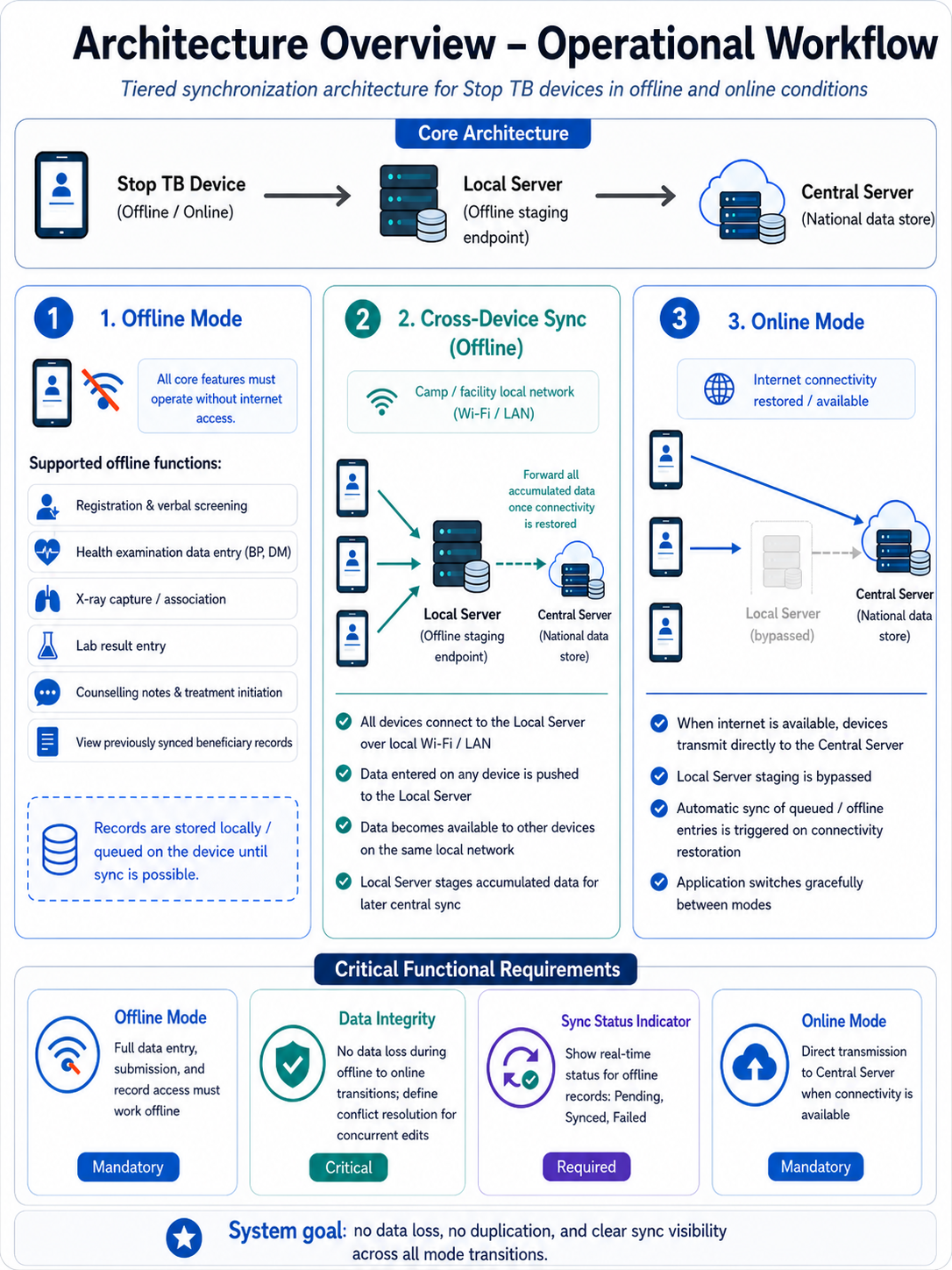
2.1 Sync Architecture
S. No. | Component | Role |
1. | STOP TB Mobile / Tablet Application (Offline/Online) | Primary data entry device for all roles; operates in full offline mode or direct online mode |
2. | Local Server (Offline Staging Endpoint) | Receives data from all devices on the same local Wi-Fi/LAN when no internet is available; forwards accumulated data to central server on connectivity restore. When this server comes online, it pushes the data to central server. |
3. | Central Server — AMRIT (National Data Store) | Authoritative data store; receives data directly from devices when online, or batched from local server when offline connectivity is restored |
Role Configuration and User Management: Admin can add/remove users and assign/modify roles from the local server (laptop) interface; role changes propagate to all devices on sync; role assignment is device-agnostic (handled at login, not device level).
Role based user access to be provided and single user can have multiple roles. This has to be managed by Admin role in the central server as well as the local server. Based upon the role access permission only the application should have specific role privileges. Roles will be Registration Officer, nurse, counsellor.
This should be handled using a bottom navigation bar with User assigned Role(s)
As a User, if I am assigned to more than one role then I should be able to switch between the activities of one role to another role activities.
Example:
If a User is assigned with two roles "Registration Officer" and "Nurse", then User should have two Role icons "Registration Officer" and "Nurse" on the bottom navigation bar to switch between the role based activities.
Acceptance Criteria:
1. If a User is assigned with a role "Registration Officer", then should be able to access following Modules and Privileges:
- All Household section (Privileges: View, Add, Edit and update access)
- All Beneficiaries section (Privileges: View, Add, Edit and update access)
- Non-Household section (Privileges: View, Add, Edit and update access)
- Anthropometry form (Privileges: View, Add, Edit and update access)
- TB Symptoms screening form (Privileges: View, Add, Edit and update access)
- Dashboard
2. If a User is assigned with a role "Nurse", then should be able to access following Modules and Privileges:
- All Household section (Privileges: View access)
- All Beneficiaries section (Privileges: View access)
- Non-Household section (Privileges: View access)
- Anthropometry form (Privileges: View, Add, Edit and update access)
- TB Symptoms screening form (Privileges: View, Add, Edit and update access)
- General Examination form (Privileges: View, Add, Edit and update access)
- General OPD form (Privileges: View, Add, Edit and update access)
- Referral section (Privileges: View, Add, Edit and update access)
- Tuberculosis section (Privileges: View access)
- Dashboard
3. If a User is assigned with a role "Counsellor", then should be able to access following Modules and Privileges:
- All Household section (Privileges: View access)
- All Beneficiaries section (Privileges: View access)
- Non-Household section (Privileges: View access)
- Anthropometry form (Privileges: View access)
- TB Symptoms screening form (Privileges: View access)
- Referral section (Privileges: View, Add, Edit and update access)
- Tuberculosis section (Privileges: View access)
- Counselling Module (View Add, Edit and update access)
- Contact Tracing Module (View Add, Edit and update access)
- Dashboard
4. If a User is assigned with a role "Lab Technician", then should be able to access following Modules and Privileges:
- All Beneficiaries section (Privileges: View access)
- Referral section (Privileges: View, Add, Edit and update access)
- Tuberculosis section (Privileges: View access)
- Dashboard
Example:
1. If a User is assigned with two roles "Registration Officer" and "Nurse", then should be able to access following Modules and Privileges:
- All Household section (Privileges: View, Add, Edit and update access)
- All Beneficiaries section (Privileges: View, Add, Edit and update access)
- Non-Household section (Privileges: View, Add, Edit and update access)
- Anthropometry form (Privileges: View, Add, Edit and update access)
- TB Symptoms screening form (Privileges: View, Add, Edit and update access)
- General Examination form (Privileges: View, Add, Edit and update access)
- General OPD form (Privileges: View, Add, Edit and update access)
- Referral section (Privileges: View, Add, Edit and update access)
- Tuberculosis section (Privileges: View access)
- Dashboard
2. If a User is assigned with two roles "Registration Officer" and "Counsellor", then should be able to access following Modules and Privileges:
- All Household section (Privileges: View, Add, Edit and update access)
- All Beneficiaries section (Privileges: View, Add, Edit and update access)
- Non-Household section (Privileges: View, Add, Edit and update access)
- Anthropometry form (Privileges: View, Add, Edit and update access)
- TB Symptoms screening form (Privileges: View, Add, Edit and update access)
- Referral section (Privileges: View, Add, Edit and update access)
- Tuberculosis section (Privileges: View access)
- Counselling Module (View Add, Edit and update access)
- Contact Tracing Module (View Add, Edit and update access)
- Dashboard
Note:
User Role management is done by Admin from provider Admin panel in 'Work location mapping' section.
2.2 Operational Mode Requirements
Mode | Description | Priority |
Offline Mode | · Application must function fully without internet connectivity. · All data entry, form submission, and record access must be operational offline. · Covers: Registration and verbal screening; Health examination data entry (BP, DM); X-ray capture/association; Lab result entry; Counselling notes and treatment initiation; Viewing of previously synced beneficiary records. | Mandatory |
Cross-Device Sync (Offline) | · When operating offline within a camp or facility: All devices connect to the Local Server over a local network (Wi-Fi/LAN). · Data entered on any device is pushed to the local server and becomes available to other devices on the same network. · The Local Server forwards all accumulated data to the Central Server once connectivity is restored. | Mandatory |
Online Mode | · When internet is available: All devices bypass the local server and transmit data directly to the Central Server. · Automatic sync of any locally queued/offline entries is triggered upon connectivity restoration. · The application must switch between modes gracefully without data loss or duplication. | Mandatory |
Data Integrity | · No data loss during mode transitions (offline → online). · Conflict resolution logic must be defined for concurrent edits across devices. | Critical |
Sync Status Indicator | · Users must be able to see real-time sync status (Pending / Synced / Failed) for records entered offline. | Required |
The Health Screening App will provide a “Download for Nikshay ID Generation” option for authorized users to export camp screening beneficiary data in a predefined format. This file can be uploaded to the Nikshay integration module, where users authenticate with valid credentials.
The system will process the data, generate Nikshay IDs for valid records, and append them to the dataset. The processed file, along with error reports for failed records, will be available for download by the Camp Coordinator or Block Manager.
The finalized dataset will then be uploaded or integrated into the AMRIT system to ensure backend- (Discussion with the tech provider is in progress and is subjected to change)
Device Binding: Each user account must be bound to one or more specific devices identified by MAC address or IMEI. Login from an unregistered device must be blocked with an error: 'This device is not authorized for your account. Contact your Admin.' Device binding is managed by Admin from the local server interface."
Application Restriction- "Organization-provided devices must be configured with an MDM (Mobile Device Management) solution to restrict access to non-program applications. This is an infrastructure/deployment requirement outside the scope of the STOP TB application but must be addressed in the deployment checklist."
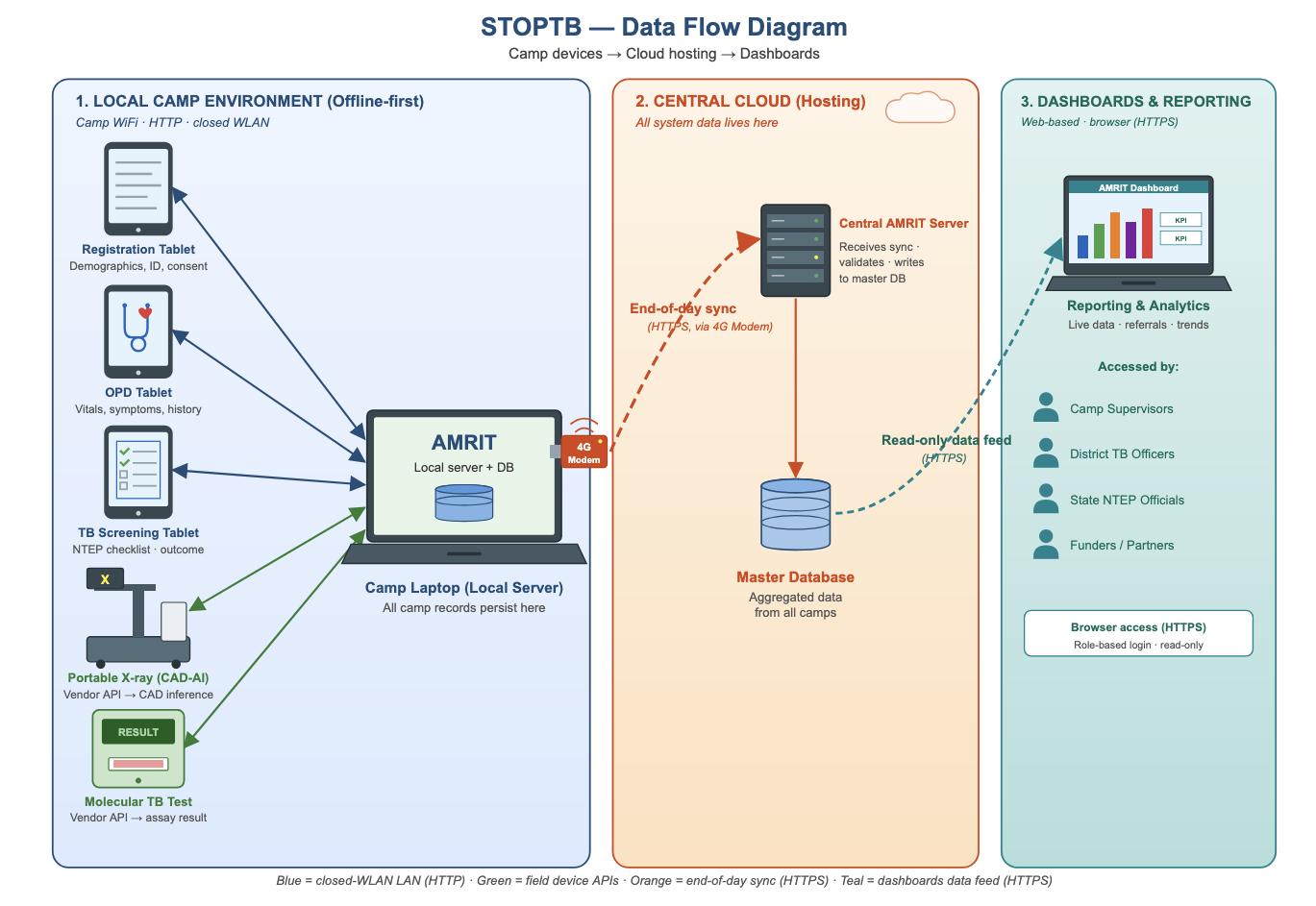
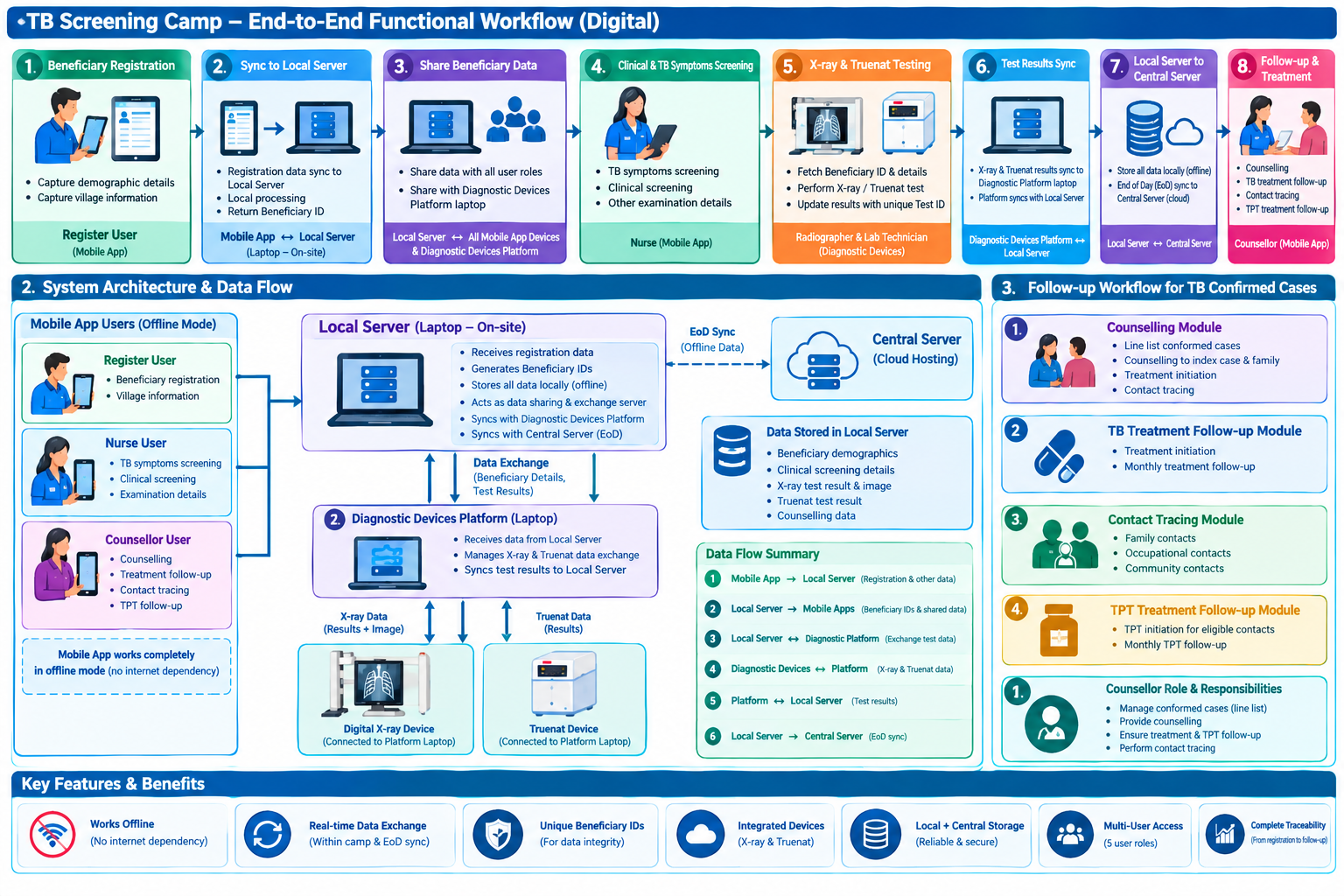
Architecture overview and operational workflow
STOP TB- Data Flow Diagram
Complete end-to-end beneficiary workflow
3. Login Page & Landing Page
3.1 Login Page
- Application name displayed: "STOP TB"
- Must display the STOP TB logo
- Online authentication: Mobile number OTP-based with 5-minute expiry
- Offline authentication: 4-digit PIN set during first login
- Multilingual: English and Hindi enabled by default; configurable to support all Indian languages as required in future.
UI Field Name | Field Type | Options | Validations / Logic |
STOP TB Application Logo | Placeholder / Image | Displayed prominently at top of login screen | |
Please Select your Language | Radio Button | English | Hindi | Fields and labels populate in the language selected by the user |
Username | Textbox | Free text | |
4-digit PIN | Textbox | Numeric, 4 digits | Used for offline login; set during first login |
Remember Me | Checkbox | When selected: next login authenticates directly via fingerprint biometric | |
Powered by Piramal Foundation | Static text label | Displayed at the center bottom of the screen |
Location
- It must capture the State, District, Block and Village (s)
- Only selection of the village is needed at the frontend. State/ District/Block/ TU/ Health facility can be automatically pre selected at the backend.
UI Field Name | Field Type | Options | Validations |
State | Drop Down | · Auto-Populate | · This must be configurable and must allow to add different states in Future · (One Time Activity)- User must be registered with the State that he selected while enrolling himself for the first time under "Settings" |
District | Drop Down | · Auto-Populate | · This must be configurable and must allow to add different District/Town/City in Future · (One Time Activity)- User must be registered with the district that he selected while enrolling himself for the first time under "Settings" |
Block | Drop Down | · Auto-Populate | · (This must be configurable and must allow to add different Taluk/Tehsil in Future) · (One Time Activity)- User must be registered with the block that he selected while enrolling himself for the first time under "Settings" |
TU | Drop Down | · Auto-Populate | · (This must be configurable and must allow to add different TUs in Future) · (One Time Activity)- User must be registered with the block that he selected while enrolling himself for the first time under "Settings" |
Health Facility | Drop Down | · Auto-Populate | · (This must be configurable and must allow to add different health facilities in Future) · (One Time Activity)- User must be registered with the block that he selected while enrolling himself for the first time under "Settings" |
Village | Drop Down Give search bar | · Auto-Populate | · (This must be configurable and must allow to add different Taluk/Tehsil in Future) · (One Time Activity)- User must be registered with the Block
|
| PIN Code | Numeric | Mandatory field Allow only Numbers Allow only 6 digits to enter | |
Type of Residential Area | Dropdown |
| Mandatory Default Unknown. |
Submit | Button | On clicking Submit Button it must navigate to Home Page |
Acceptance Criteria — Login
AC-LOGIN-01: Given a volunteer opens the app offline, When they enter correct username and 4-digit PIN, Then they are authenticated and land on the Home tab without network connectivity.
AC-LOGIN-02: Given a volunteer enters an incorrect PIN 5 times, When the 5th attempt fails, Then the account locks for 30 minutes and a message 'Account locked. Try again in 30 minutes' is displayed.
AC-LOGIN-03: Given 'Remember Me' is checked and biometric is enrolled, When the app is re-opened, Then a fingerprint prompt appears and successful scan logs the user in without PIN entry.
3.2 Landing Page Structure
- Top row contains: Hamburger icon (left), 'STOP TB' text (centre), Sync button, Language Translation button
- Hamburger icon (side drawer) contains: Full Name (User), Username, Sync Records, Create ABHA ID, Support, Request to delete account, Log out
- Landing page has 2 tabs: Home and Dashboard
3.2.1 Home Tab
Total Households | Total Population | Unscreened Population: show these counts based on selected Village in Home Tab.
The Home tab must render role-conditionally.
Registration Officer: Has access to "Household", "All Beneficiaries", "Non Household" sections (with Registration button) and Anthropometry screen.
Nurse: Has access to 'All Beneficiaries' (queue view, no Registration button), General Examination, General OPD ,Diagnostics screen and 'Referrals' card.
Counselling Officer: Has access to queue of only Confirmed TB Cases and TPT cards only. On clicking on these cases counselling module will further open.
Admin: sees all cards.
Sections | On Click — Opens | Sub-Cards |
For Registration Officer Login | ||
Household list | ||
All Beneficiaries list | Includes HH and Non HH members irrespectively | On every beneficiary card the following details should be available in the following sequence-
If HoF and Father name is same then shown only HoF details In the HoF registration and family members registration give edit option in the last name field. By default auto populate it from HH registration form. |
Non House Hold list | To address the cases for people without households (Homeless, migrants, wanderers etc) a separate list is to be maintained with the ability to link them to a HH at later stage if and when it happens. For such cases register as an individual beneficiary without HH linkage. Give a flag on the ben card “No HH” by a cross on the home icon. The system must allow linking this ben to an HH at a later date from the Beneficiary Card edit screen." Give Same beneficiary registration form in this section. Once the beneficiary is registered in this list, then this ben will also be shown in the list of all beneficiaries irrespective of HH or no HH. To manage if non HH gets converted to HH >> a HH button can be given on this non HH card and this card will then move to HH list. On the Non HH ben card, give a button with two options to link to an existing HH or create a new HH. Flow- Home>> Non HH section>> Add Beneficiary button >> Before the Beneficiary registration form opens and capture all the details, first ask this question "Place of current living" or this question can be put on top of the beneficiary registration form as first question with following dropdown options-
If other is selected, show “Other places” textbox, with free textbox allowing 200 characters. If any of the following is selected, then enable one more field "Name of the institution"-
Once this is completed, then the beneficiary registration form opens and captures all the individual details. | |
For Nurse Login | ||
TB (Tuberculosis) | Tuberculosis module; next screen shows 3 cards | TB Screening | Presumptive TB Cases | Confirmed TB Cases |
Referrals | Referrals module; next screen shows 4 cards | Digital Chest X-ray | NAAT | Liquid Culture | Health and Wellness Centre | Clinical Assessment & Diagnosis section |
For Counsellor Login | ||
Confirmed TB cases | ||
Counselling modules | ||
Contact Tracing and TPT module |
Referral Card routing rules:
Beneficiaries with a Positive digital chest X-ray but a Negative NAAT result (MTB not detected) → shown in Clinical Assessment & Diagnosis in referral section, so the abnormality detected on the X-ray can be further investigated at the PHI.
Workflow of Digital Chest X-ray and NAAT
- All presumptive cases of TB except Pregnant Women should show in the “Referral” section under “Digital Chest x-ray” section and response to ‘Referred for Digital Chest X-Ray’ should be selected “Yes”
- All presumptive cases of TB should show in the “Referral” section under “NAAT” section and response to ‘Referred for NAAT test’ should be selected “Yes”
- All non-presumptive cases of TB except Pregnant Women should show in the “Referral” section under “Digital Chest x-ray” section and response to ‘Referred for Digital Chest X-Ray’ should be selected “Yes”
- All presumptive and non-presumptive cases of Pregnant Women should show in the “Referral” section under “NAAT” section and response to ‘Referred for NAAT test’ should be selected “Yes”
Based on the response to ‘Referred to NAAT’ and ‘Referred to Chest x-ray’ is “Yes” respective test order id should be created and records (beneficiaries list) should be sent to relevant testing device Digital Chest x-ray and NAAT respectively.
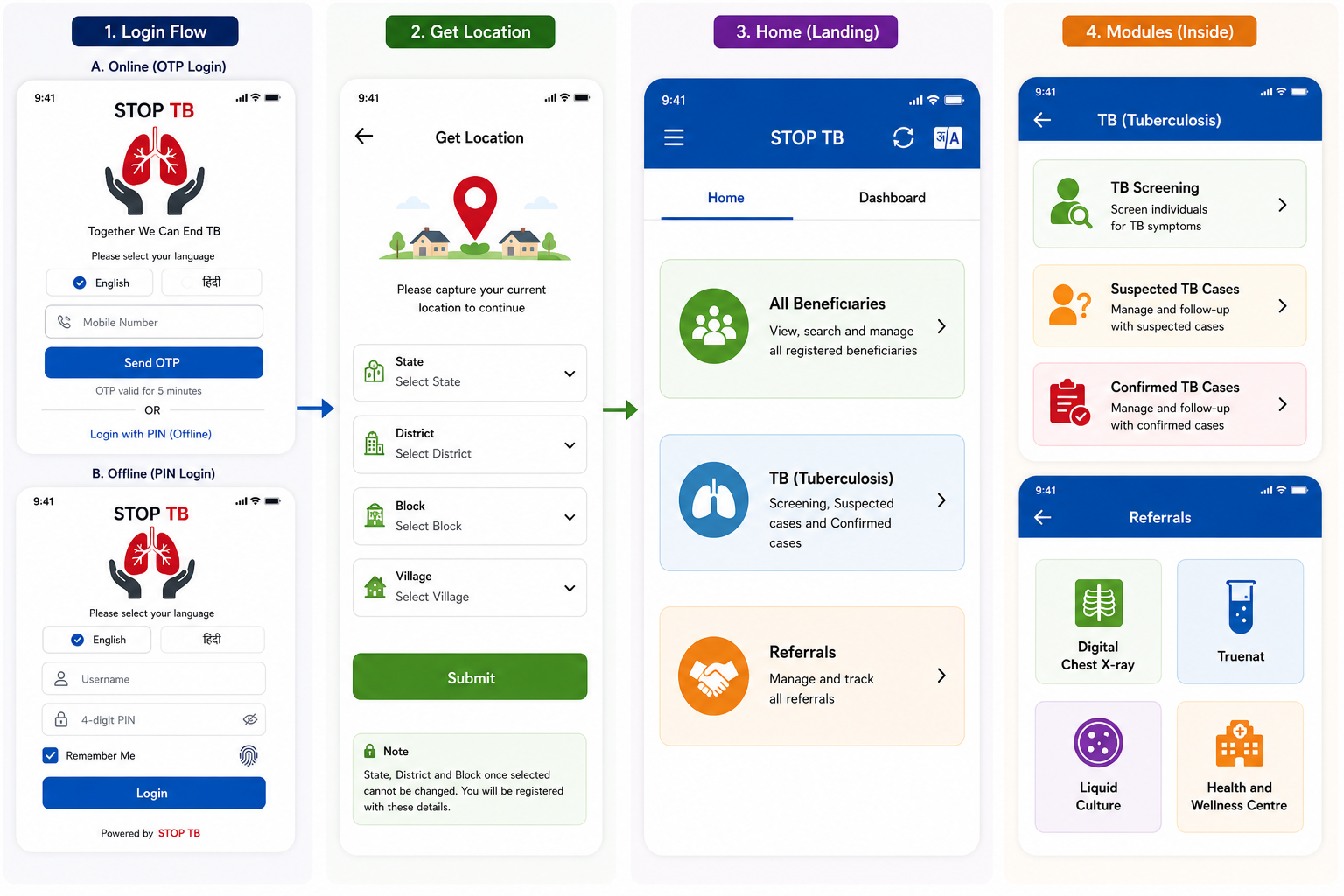
Disclaimer: Application screen needs to resemble with the mock ups in all the sections of the PRD to highlight the flow and content required in the application.
New Household Registration
Consent Pop Up: "I have been explained, the purpose for which the information and findings is being collected from me, in a language I understand and I give my consent to collect the information and measurement findings on my personal health profile." show "Disagree" and "Agree" buttons, if "Agree" proceed with Registration, if "Disagree" don't proceed and return to list.
All text fields where typing is to be done, should have mike icon for speech to text option
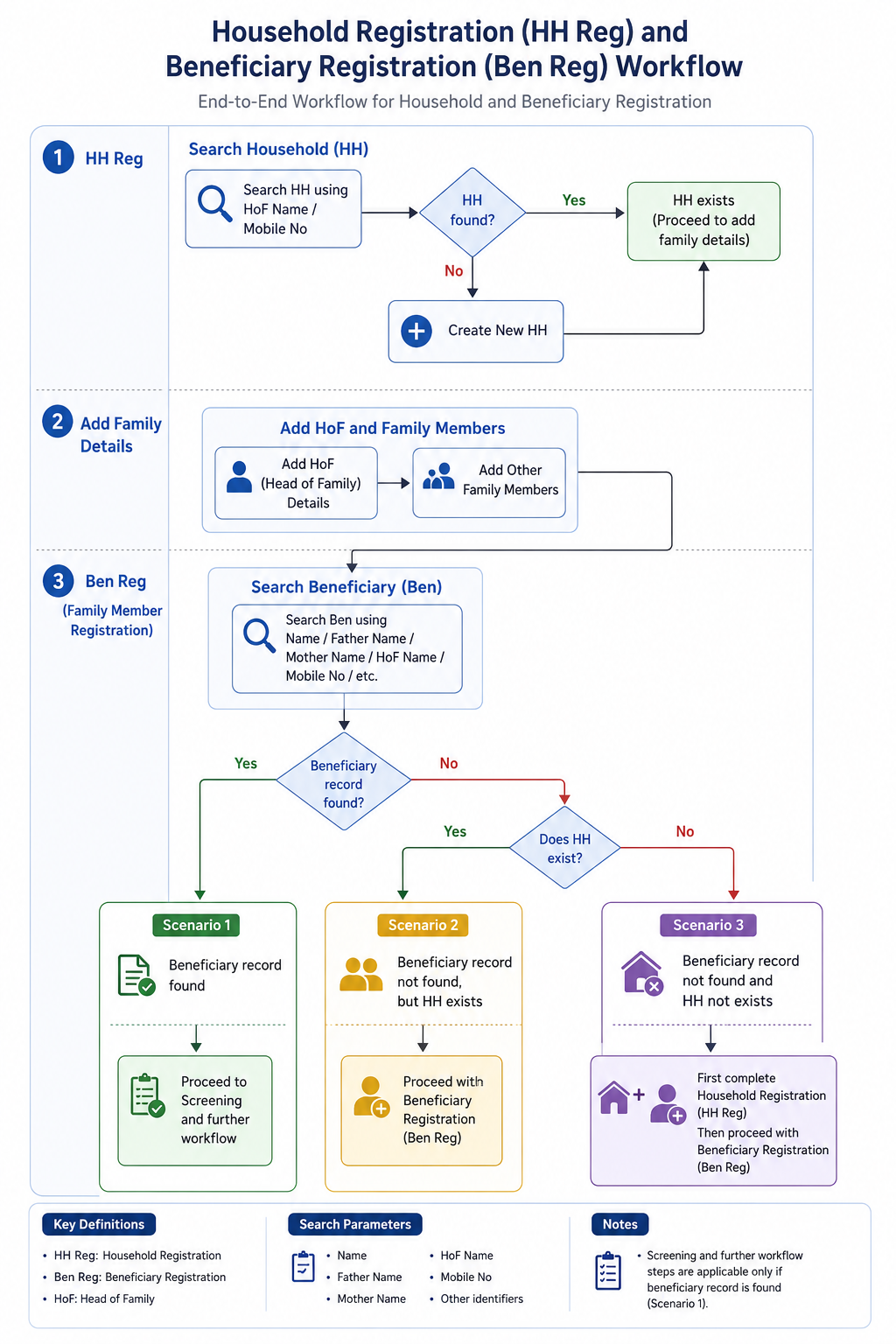
- Household Registration (HH Reg)
- Search for Household using:
- HoF (Head of Family) Name
- Mobile Number: Mobile number fields should be auto populated with checkbox disabled if documented once in HH registration. and when further members are being added, auto populate the mob. no. registered in the HH registration.
- Father Name
- If Household does not exist, create a new Household (HH).
- In the HoF registration and family members registration give edit option in the last name field. By default auto populate it from HH registration form.
- Search for Household using:
- Add Family Details
- Add HoF details. Age Validation for HoF to be kept 15 years and above.
- Add other family members to the Household. Kindly add "Guest" as an additional option in the Add family member section i.e. Relation with HoF is Guest.
- Beneficiary Registration (Ben Reg / Family Member Registration)
- Search Beneficiary using:
- Beneficiary and Household search should default to Village level first, then escalate to Block level (camp host village). The search validation stating "Search is scoped to the currently selected Village by default. If no result is found within the Village, the system then offers an option to expand search to Block level." After login, the search scope should start from the selected village.
- Name
- Father’s Name
- Mother’s Name
- HoF Name
- Mobile Number
- Other available identifiers
- When search returns multiple records with identical names, the system must display a card showing Name + Age + Gender + Village + HoF (Head of Family) /Father's+ Mother's Name side-by-side, allowing the Registration Officer to confirm the correct match before proceeding." If HoF (Head of Family) detail is present then show this on the card instead of Parents name, if HoF is not present, then show Father's/Mother's name side-by-side.
- Search Beneficiary using:
- In All Beneficiaries section when individual beneficiary card opens, give "Add Member" button.
- Scenarios
- Scenario 1: If Beneficiary record is found → Proceed to Screening and further workflow.
- Scenario 2: If Beneficiary record is not found, but Household exists → Proceed with Beneficiary Registration (Ben Reg).
- Scenario 3: If neither Beneficiary record nor Household exists → First complete Household Registration (HH Reg), then proceed with Beneficiary Registration (Ben Reg).
- Scenario 4: If while doing HH registration, the house is door locked, a badge/ icon of door lock should be given on such a HH with the date of visit and a separate line listing for door lock HHs so that the field team can revisit such houses and complete the record whenever the family is available. To manage this, give a checkbox on top of HH registration, which if clicked, gives the user to fill all the details whatever can be collected by the field team from neighbors and even if mandatory fields are not filled, in only these cases the application should allow to submit (even if mandatory fields are not filled) and this case will be enlisted in the "door lock" list. Such cases can be directly accessed from this list and all the details (especially mandatory) can be filled at a later time by the field team as per the availability of the family. Once such a "door lock" HH registration is completed when the family is available, move this case to HH card and also show all the members in the all beneficiaries list.
Family Details
S No | Name of Data Field | Field Type | Value/ Options | Validation/ Logic/ Condition |
| Total number of family members | Number picker | Only Whole numbers allowed. No decimals, fractions allowed. Done to address door lock cases The inline message for the field should be "Total no. of family members". Give number picker and keep default as zero but if "zero" is not changed then do not enable submit button. The user needs to always ask no. of family members during HH registration. Minimum value should be 1. On the HH card, no. of members registered are shown but since we are collecting total no. of family members at the beginning of the HH registration, then on the HH card, in the members section it should show count of (number of members registered)/ (total no. of family members) declared. | |
| Registered at the health camp (Registration done at Camp Site) |
| Yes No | Mandatory Default selected value is "No". If "No" is selected, i.e. considering registration is done at place other than camp site such as at home, door steps, street etc, then location details should be captured Mandatorily. If "Yes" is selected, considering registration is done at camp site then do not capture location details. |
First Name of Head of the family | Textbox | Is Mandatory | · Also allow Input method: Speech to Text feature · Accept alphabets only · Character limit 50 · All letter should be in caps | |
Last Name/ Surname | Textbox | · Also allow Input method: Speech to Text feature · Accept alphabets only · Character limit 50 · All letter should be in caps give edit option in the last name field. | ||
Mobile number not available | Checkbox |
| ||
Mobile No of Head of the family | Textbox | Is Mandatory | · Accept numbers only · Accept 10 digits only · Should not start form zero · Number should start and allow with digit 6, 7, 8 or 9 only
| |
Socioeconomic Status | Spinner | Choose: · APL · BPL · Don't know | Is Mandatory Default selected value is "Don't know". |
House Hold Details
S No | Name of Data Field | Field Type | Value/ Options | Validation/ Logic/ Condition |
Type of House | Spinner |
| Mandatory Single selection | |
Other Type of House Please specify | Textbox |
| Enabled if "Other" is selected above and Mandatory Accept alphabets only Character limit 50 Also allow Input method: Speech to Text feature | |
House ownership | Radio button | Rented Owned | Is Mandatory |
House Hold Amenities
S No | Name of Data Field | Field Type | Value/ Options | Validation/ Logic/ Condition |
1 | Is there a Separate Kitchen? | Radio button | Choose: · Yes · No | |
2 | Primary source of Fuel used for cooking | dropdown |
| Single selection option to be provided Mandatory |
3 | Other type of fuel used for cooking | Textbox | Enabled if "Other" is selected above and Mandatory Accept alphabets only Character limit 50 Also allow Input method: Speech to Text feature | |
4 | Primary Source of water | dropdown |
| Single select option to be provided Mandatory |
5 | Other Source of Water | Textbox | Enabled if "Other" is selected above and Mandatory Accept alphabets only Character limit 50 Also allow Input method: Speech to Text feature | |
6 | Primary source of lighting | Dropdown | Choose:
| Single select Mandatory
|
7 | Other Primary source of lighting | Textbox | Enabled if "Other" is selected above and Mandatory Accept alphabets only Character limit 50 Also allow Input method: Speech to Text feature | |
8 | Availability of Toilet | Spinner |
| Single selection Is Mandatory |
9 | Other Type of Toilet | Textbox | Enabled if "Other" is selected above and Mandatory Accept alphabets only Character limit 50 Also allow Input method: Speech to Text feature |
All the below fields should be handled in the backend and not visible to the user and the UI. Capturing Latitude & Longitude are mandatory, wait till location latitude & longitude and DIGIPIN are fetched till then show progress bar and enable Submit button once captured. Remove Latitude, Longitude, Timestamp from UI- manage from backend. Only Digipin to be shown on the UI and give a retry button/ refresh button if not captured automatically. Once Digipin is captured then only enable Submit button. If "Registered at the health camp?" is Yes, then no need to capture Lat, long, Digipin. If "Registered at the health camp?" is No, then need to capture Lat, long, Digipin and is Mandatory In edit of HH, Beneficiary forms location details can also be updated. | |||
Field Name | Field type | Values/ Options | Validations |
Latitude | Numeric (read-only) | Auto-populated | Decimal degrees format (e.g. 21.1458). Auto-populated from GPS capture. Non-editable after capture. Capture Latitude, longitude, Address based on DIGIPIN SDK/API. Do not show on UI, manage at backend. |
Longitude | Numeric (read-only) | Auto-populated | Decimal degrees format (e.g. 21.1458). Auto-populated from GPS capture. Non-editable after capture. Capture Latitude, longitude, Address based on DIGIPIN SDK/API. Do not show on UI, manage at backend. |
DIGIPIN | Alphanumeric (read-only) | 10-character code | Auto-generated from Lat/Long using DIGIPIN encoding algorithm (open-source, can run offline). Displayed as: ◉ XXXX-XXXX-XX (official DIGIPIN notation). Non-editable. Show on UI |
Address |
|
| Capture all the location details by DIGIPIN. |
Timestamp | Date and Time (read-only) | Auto | Non editable capture System current timestamp Do not show on UI, manage at backend. |
Progress bar |
| wait till location latitude & longitude and DIGIPIN are fetched till then show progress bar | |
Cancel | Button |
|
|
Submit | Button | After Household registration is completed, show below alert in pop: "Do you want to proceed with of Head of the family registration"; "Yes" or "No"; If "Yes", navigate to the HoF Registration. If "No", land back to Household list screen | |
4. Registration Officer Flow
The Registration Officer is the first actor in the beneficiary workflow. This role performs two sequential steps: (1) Beneficiary Registration and (2) Anthropometry. On completion, the beneficiary appears in the Nurse module queue.
ACTOR: Registration Officer | ENTRY POINT: Home → All Beneficiaries → Registration button | NEXT ACTOR: Nurse
4.1 Pre-Registration — Consent Form
Before the registration form opens, a consent pop up must be displayed:
"I have been explained, the purpose for which the information and findings is being collected from me, in a language I understand and I give my consent to collect the information and measurement findings on my personal health profile."
The form opens only after the beneficiary provides consent.
Biometric/ Audio Consent from the beneficiary to be captured- To be discussed and planned in Phase 2
4.2 Page Header & Beneficiary Card
- Page displays 'All Beneficiaries' text at top with a Home icon on the right to navigate back to Home
- In All Beneficiaries section when individual beneficiary card opens, give "Add Member" button so that directly we can add members if needed.
- After registration, a Beneficiary Card is shown with the following layout:
Photo of the beneficiary | Name | Beneficiary ID |
Age (Years) | Village Name- | |
Phone Number | ABHA ID (ABHA registration)- Clickable | |
NIKSHAY ID |
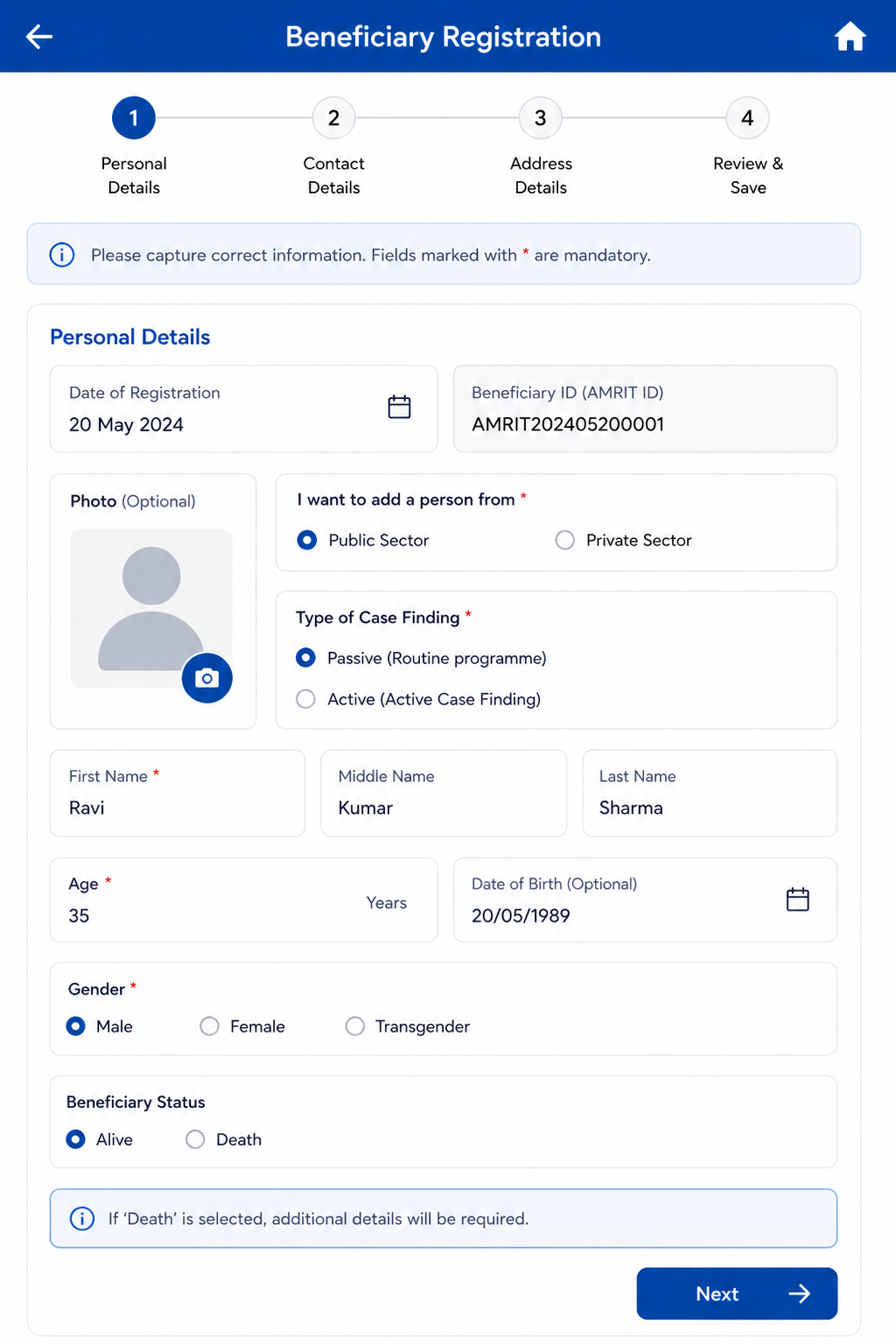
4.3 Beneficiary Registration — Field Specifications
- Editable on clicking "Edit" option.
Field Name | Input Type | Options / Values | Logic & Validations |
Date of Registration |
| ||
Beneficiary ID (AMRIT ID) |
| ||
Photo | Camera | Optional |
|
I want to add a person from* | Radio | · Public Sector
| This field is not visible in the form/ screen. Will be handled in the backend. Mandatory · Single select
|
Type of Case Finding* | Radio | · Passive (Routine programme)
| ·This field is not visible in the form/ screen. Will be handled in the backend. Mandatory · Single select
|
First Name* | Text Input | · Free text | · Mandatory · Only English letters
|
Middle & Last Name* | Text Input |
| · Mandatory Input method: Speech to Text feature · Only English letters
|
Beneficiary Status | Radio Button | · Alive · Death | · Enable only in the “Edit” Beneficiary screen · Auto-populate, if ‘Death’ is reported from any module · Default value is “Alive” · If “Death” is selected, enable below four fields and mark it mandatory- 1. Date of Death 2. Time of Death 3. Reason for Death
|
Date of Death | Date picker | · Enable if “Beneficiary status”= “Death” · Mandatory if enabled · By default, date is null · Not greater than Today’s Date · Accept ‘Date of Death’ after date of registration
| |
Time of Death | Time picker | · Show only if above value is “Death”
| |
Reason for Death (Type of Death) |
· Natural Death · Accident · Infectious Disease · Animal Bite Death · Suicide · Undetermined | · Enable if “Beneficiary status”= “Death” · Mandatory if enabled
| |
Place of Death |
| · Enable if “Beneficiary status”= “Death” · Mandatory if enabled
| |
Other Place of Death | Textbox |
| |
Age* | Number Input | 1–99 | · Required. · Numeric. Min 1 Max 99 in years
|
Date of Birth | Date Picker |
| |
Gender* | Radio | · Male · Female · Transgender | · Mandatory
|
Mobile number not available | Checkbox |
| |
Primary Phone* | Number |
| |
Whose mobile number | dropdown | · Self · Husband · Mother · Father · Family Head
|
|
Address* | Text |
|
|
PINCODE* | Numeric | Mandatory field. Allow only Numerical digits Allow only 6 digits to enter Should get auto populated when once entered by the user after location is captured. If some beneficiaries are coming in the camp from other villages then when Village name is changed from the dropdown while registration the already auto populated field of Pincode should reset and can be taken/ asked from the beneficiary at the time. | |
Village* | Dropdown |
|
|
Caste* | Radio | · SC · ST · Other | · Mandatory
|
Area* | Radio | · Tribal-NPVTG · Tribal-PVTG · Rural · Urban · Urban Slum · Unknown | · Mandatory Default Unknown. Should get auto populated when once entered by the user after location is captured. |
Marital Status* | Radio | · Single · Married · Unknown | · Mandatory · Should be made selectable (Blank) so that user can ask and fill this detail by asking beneficiary. |
Are you Pregnant* | radio button |
|
|
Husband's/ Wife's Name | Textbox | · Optional Input method: Speech to Text feature
All letter should be in caps | |
Father's Name | Textbox | · |
|
Mother's Name | Textbox | · |
|
Occupation* | Dropdown | · Unknown · Student · Unemployed · Homemaker · Farmer · Laborer / Daily Wage Worker · Self-employed / Business · Government Employee · Private Employee · Health Care Worker · Retired / Pensioner · Other | · Mandatory · No default selection is needed. Important for field team to ask and capture this. |
Socioeconomic Status* | Radio | · APL · BPL · Unknown | · Mandatory
|
Default: auto-inherit from linked Household GPS coordinates if HH registration is completed. If beneficiary has no linked HH (non-HH member, door-lock scenario) then again the following table will open and will capture camp latitude and longitude. Display generated DIGIPIN on Beneficiary Card.
Field Name | Field type | Values/ Options | Validations |
Latitude | Numeric (read-only) | Auto-populated | Decimal degrees format (e.g. 21.1458). Auto-populated from GPS capture. Non-editable after capture. Capture Latitude, longitude, Address based on DIGIPIN SDK/API. Show only DIGIPIN on UI, Remove Latitude, Longitude, Timestamp from UI and manage from backend |
Longitude | Numeric (read-only) | Auto-populated | Decimal degrees format (e.g. 21.1458). Auto-populated from GPS capture. Non-editable after capture. Capture Latitude, longitude, Address based on DIGIPIN SDK/API. Show only DIGIPIN on UI, Remove Latitude, Longitude, Timestamp from UI and manage from backend |
DIGIPIN | Alphanumeric (read-only) | 10-character code | Auto-generated from Lat/Long using DIGIPIN encoding algorithm (open-source, can run offline). Displayed as: ◉ XXXX-XXXX-XX (official DIGIPIN notation). Non-editable. Show only DIGIPIN on UI, Remove Latitude, Longitude, Timestamp from UI and manage from backend |
Timestamp | Date and Time (read-only) | Auto | Non editable System captures timestamp Show only DIGIPIN on UI, Remove Latitude, Longitude, Timestamp from UI and manage from backend |
Cancel | Button |
· No |
· If selected "no" then do not erase the patient health data and let the page remain open so it can be submitted by volunteer as sometime by mistake cancel button is clicked. |
Submit |
|
Acceptance Criteria — Registration
AC-REG-01: Given a Registration Officer completes all mandatory fields and clicks Submit, When the system processes the form, Then a unique AMRIT ID is generated, a toast message "Registration Successful" appears, and the Beneficiary Card is displayed with Name, Age, Phone, Village, AMRIT ID, and ABHA ID link.
AC-REG-02: Given Gender = Female, Marital Status = Married, and Are you Pregnant = Yes, when the beneficiary is registered, Then the beneficiary is referred for NAAT test and sputum collection. The X-ray referral field is hidden in TB Screening. For any presumptive cases (any positive response to any verbal questions), these will be shown in both digital chest x-ray and NAAT cards. Such cases will undergo NAAT testing irrespective of digital chest x-ray results.
AC-REG-03: Given 'Mobile number not available' is checked, When the form is submitted, Then the system stores 9999999999 as the primary phone number in the backend.
Mobile number fields should be auto populated with checkbox disabled if documented once in HH registration. and when further members are being added, auto populate the mob. no. registered in the HH registration.
4.4 Anthropometry Screen
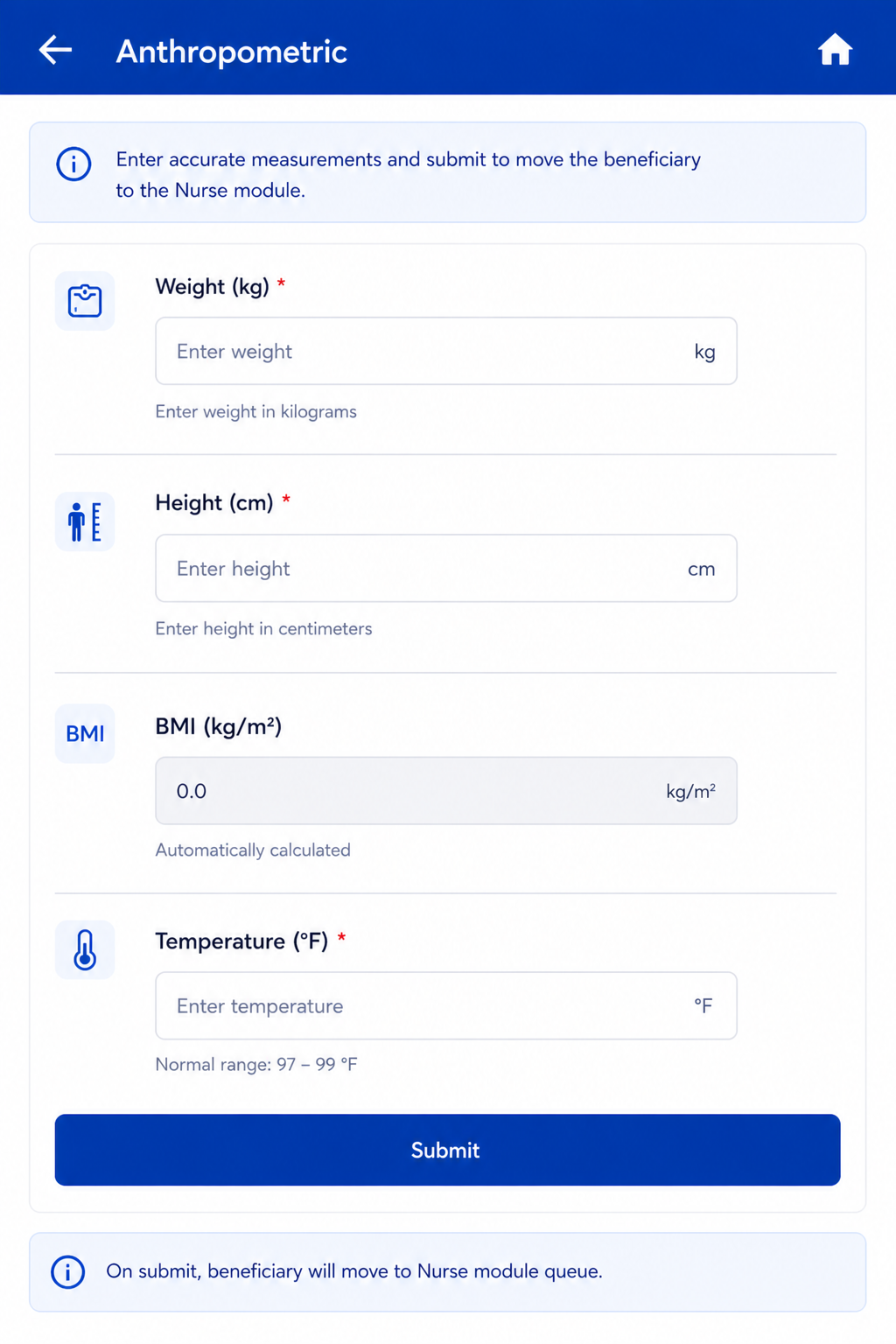
Follows immediately after Registration Submit. Same actor: Registration Officer. On Anthropometry Submit → Beneficiary moves to Nurse module queue.
Field Name | Input / Type | Options / Values | Logic & Validations |
Weight (Kgs) | Number input | Numeric | Numeric; 1 decimal place allowed. Validation- "Enter Weight between 1 and 250 kg". Show error message if outside the validation rules. |
Height (cms) | Number input | Numeric | Numeric; 1 decimal place allowed. Validation- "Enter Height between 30 and 250 cm". Show error message if outside the validation rules |
BMI = Weight / (Height/100)² | Auto-calculated (read-only) | Calculated value | Auto-calculated when both Height and Weight are entered. Formula: Weight ÷ (Height ÷ 100)². Display to 1 decimal place. Non-editable. |
Temperature (Degree Fahrenheit) | Radio + free textbox |
| |
Submit | Button | — | Beneficiary moves to Nurse module queue. |
5. Nurse Flow
Once a beneficiary is registered and anthropometry is completed, they appear in the Nurse module queue. The Nurse role covers four sequential screens: General Examination → TB Screening → Other Complaints and Management (optional/skippable) → Diagnostics Screen.
ACTOR: Nurse | ENTRY POINT: Nurse login → beneficiary queue | QUEUE: All registered beneficiaries irrespective of age or gender | NEXT ACTOR: Counselling Officer (for confirmed TB cases)
5.1 General Examination Module
On Submit → proceed to TB Screening screen.
Field Name | Input Type | Options / Values | Logic & Validations |
Pulse Rate (beats per minute) | Free textbox | Numeric (BPM) | · Free textbox for manual entry. Validation- PR must be between 40 and 220 beats per minute. Show error message if outside the validation rules. · If value < 60 or > 90 BPM → Show this beneficiary in Health and Wellness Centre card inside Referral card in Home. No alert is needed. Auto-sets 'Referral to HWC needed' = Yes. |
Systolic Blood Pressure (mmHg) | Free textbox | Numeric (mmHg) | · SBP and DBP fields placed side by side with their units. Systolic must be strictly greater than Diastolic · Free textbox for manual entry. Validation- "Enter Systolic BP between 40 and 320". Show error message if outside the validation rules. · If >= 140 mmHg (High) or < 90 mmHg (Low) → Show this beneficiary in Health and Wellness Centre card inside Referral card in Home. No alert is needed. Auto-sets 'Referral to HWC needed' = Yes. |
Diastolic Blood Pressure (mmHg) | Free textbox | Numeric (mmHg) | · SBP and DBP placed side by side. Systolic must be strictly greater than Diastolic · Free textbox for manual entry. Validation- "Enter Diastolic BP between 10 and 180". Show error message if outside the validation rules. · If >= 90 mmHg (High) or < 60 mmHg (Low) → Show this beneficiary in Health and Wellness Centre card inside Referral card in Home. No alert is needed. Auto-sets 'Referral to HWC needed' = Yes. |
Random Blood Sugar (mg/dl) | Free textbox | Numeric (mg/dl) | · Free textbox for manual entry. Validation- "Enter RBS between 20 and 600 mg/dl". Show error message if outside the validation rules. · If >= 100 mg/dl →Show this beneficiary in Health and Wellness Centre card inside Referral card in Home. No alert is needed. Auto-sets 'Referral to HWC needed' = Yes. |
Pallor | Radio Button | Present | Absent | · Optional. |
Icterus | Radio Button | Present | Absent | · Optional. |
Cyanosis | Radio Button | Present | Absent | · Optional. |
Clubbing | Radio Button | Present | Absent | · Optional. |
Lymphadenopathy | Radio Button | Present | Absent | · Optional. |
Oedema | Radio Button | Present | Absent | · Optional. |
Key Population / Risk Factors* | Checkbox (multi-select) | Pregnancy Lactating mother Anti-TNF treatment Bronchial Asthma Cancer Cardiovascular Disorder Contact of Known TB Patients COPD COVID recovered patients Diabetes Dialysis Health Care Worker Hypertensive Liver Impairment Migrant Miner Palliative Care Patient on immunosuppressants Prison Illegal Immigrant Renal Impairment Transplantation Urban Slum H/o Adult BCG Vaccination Undernourished / Malnourished (BMI <18.5 kg/m²) Elderly (age >60 years) Workplace settings (coal/sandblasting/brick kiln) Tea garden worker Construction site worker Congregate settings Attendees of de-addiction centers Person exposed to indoor air pollution Marginalized populations at risk of HIV LGBTQAI++ Substance abuse (alcoholic/intravenous drug users) Tobacco/smoker Silica exposure/silicosis Other Not Applicable | · Mandatory. · Multi-select.
· If 'Not Applicable' selected → all other options are disabled.
|
HIV Status* | Radio | Positive | Reactive | Negative | Unknown | · Mandatory. · Default: Unknown. |
Referral to HWC needed | Auto + manual | Yes | No | · Auto-set to 'Yes' if: Pulse < 60 or > 90 BPM; OR Systolic BP >= 140 or < 90 mmHg; OR Diastolic BP >= 90 or < 60 mmHg; OR Random Blood Sugar >= 100 mg/dl. · Show all such beneficiaries in the Referral → Health and Wellness Centre card on Home. · If all vitals fall in the normal range then 'Referral to HWC needed' remains No and the beneficiary does NOT appear in the HWC Referral card. If Pallor, Icterius, Cyanosis, Lymphadenopathy, Clubbing, Oedema= Present. Show this beneficiary in Health and Wellness Centre card inside Referral card in Home. No alert is needed. Auto-sets 'Referral to HWC needed' = Yes. |
Submit | Button | — | Proceed to TB Screening screen. |
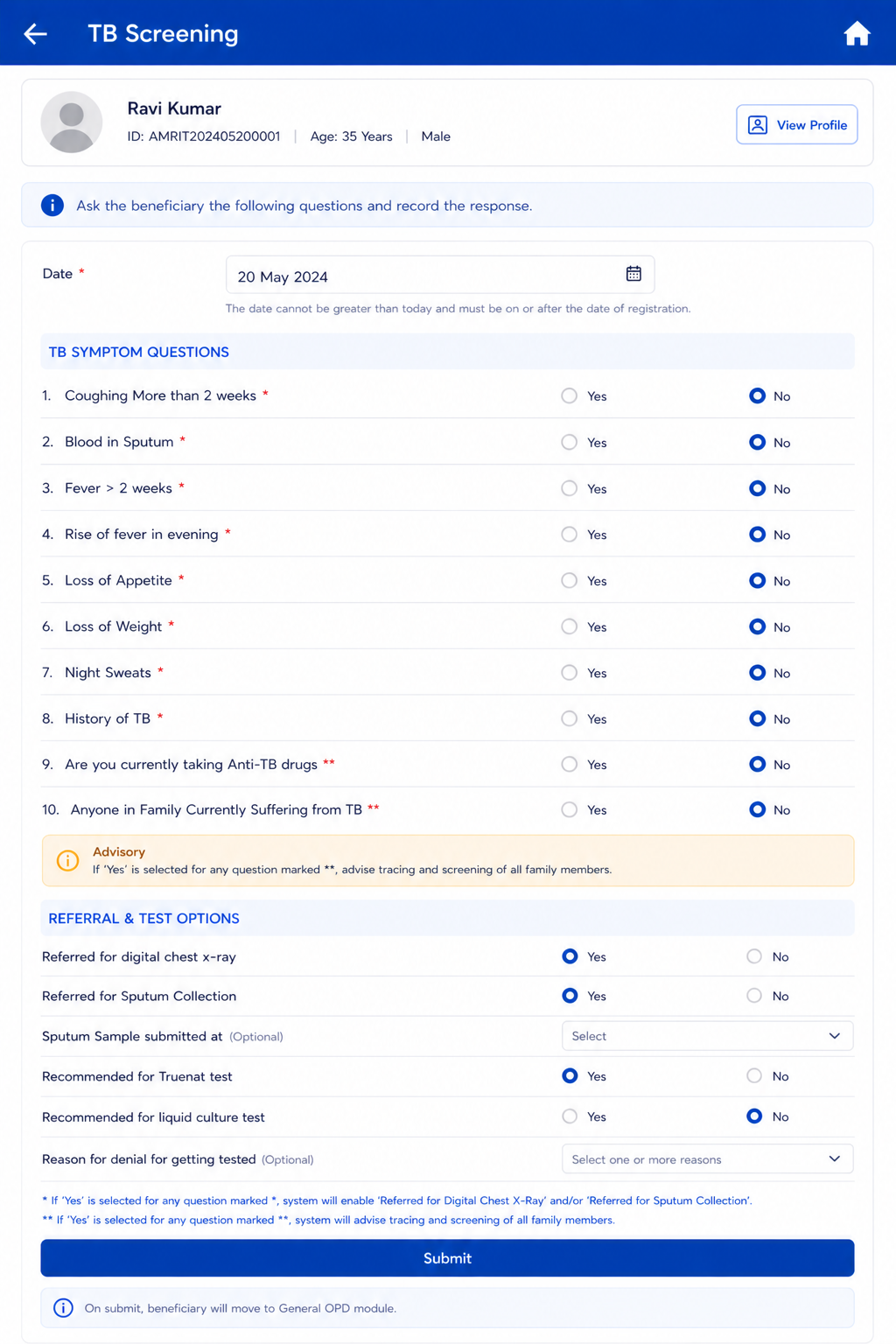
5.2 TB Screening Module
RULE (*): If 'Yes' is selected for ANY question marked *, the system must enable 'Referred for Digital Chest X-Ray' and/or 'Referred for Sputum Collection'.
RULE (**): If 'Yes' is selected for ANY question marked **, the system must generate advisory: 'Advise tracing and screening of all family members'.
Enforce completion of symptom screening before the beneficiary advances for General OPD counter. It is a must that beneficiary needs to complete this TB screening form before proceeding further.
In the bottom sheet the order should be- TB screening, Anthropometry, General Examination, General OPD forms should come.
Field Name | Input Type | Options / Values | Logic & Validations |
Date | Calendar / Date Picker | Date | Mandatory. Default: Today's Date. Not greater than Today's Date. Accept date >= Date of beneficiary registration. Not editable once submitted. |
Coughing More than 2 weeks * | Radio button | Yes | No | Mandatory. |
Blood in Sputum * | Radio button | Yes | No | Mandatory. |
Fever > 2 weeks * | Radio button | Yes | No | Mandatory. |
Rise of fever in evening * | Radio button | Yes | No | Mandatory. |
Loss of Appetite * | Radio button | Yes | No | Mandatory. |
Loss of Weight * | Radio button | Yes | No | Mandatory. |
Night Sweats * | Radio button | Yes | No | Mandatory. |
Chest pain* | Radio button | Yes | No | Mandatory. |
Shortness of breath* | Radio button | Yes | No | Mandatory. |
Fatigue* | Radio button | Yes | No | Mandatory. |
Failure to gain weight (in children)* | Radio button | Yes | No | Mandatory. Show this question for children upto 15 years only and do not show this for 15 years and above |
Decreased activity or playfulness (in children)* | Radio button | Yes | No | Mandatory. Show this question for children up to 15 years only and do not show this for 15 years and above |
Others | Radio button | Yes | No | Mandatory. |
Other Details | Sub title |
| New Section Title to be added and these three questions to be put under the new title- History of TB, Are you currently taking Anti-TB drugs, Anyone in Family Currently Suffering from TB |
History of TB * | Radio button | Yes | No | Mandatory. |
Are you currently taking Anti-TB drugs ** | Radio button | Yes | No | Mandatory. |
Anyone in Family Currently Suffering from TB ** | Radio button | Yes | No | Mandatory. |
"Beneficiary is Asymptomatic" | Show "Yes" or "No" | If any one of the symptomatic questions are "yes" then automatically "Beneficiary is Asymptomatic" is "No". If all of the symptomatic questions are "no" then automatically "Beneficiary is Asymptomatic" is "Yes". Highlight this label in bold if "Beneficiary is Asymptomatic" is "Yes" If "Beneficiary is Asymptomatic" = "No" all such cases known as "Presumptive cases" will be shown in Digital chest x-ray list and also for NAAT list. Sputum collection should be enabled for such cases. If "Is beneficiary asymptomatic" = "No", then Show below Alert: "A Presumptive TB case! Refers to X-ray and collect sputum for NAAT test" | |
Submit | For Questions with "*" if the response is "Yes" show the below alert to the user "Presumptive TB case refers to X-ray and collect sputum for NAAT test". For Questions with "**" if the response is "Yes" show the below alert to the user "Presumptive TB case refers to X-ray and collect sputum for NAAT test". and "Advise screening of all family members". |
Risk Factors |
|
| MANDATORY SECTION |
Key Population / Risk Factors* | Checkbox (multi-select) give search bar | Pregnancy Lactating mother Anti-TNF treatment Bronchial Asthma Cancer Cardiovascular Disorder Contact of Known TB Patients COPD COVID recovered patients Diabetes Dialysis Health Care Worker Hypertensive Liver Impairment Migrant Miner Palliative Care Patient on immunosuppressants Prison Illegal Immigrant Renal Impairment Transplantation Urban Slum H/o Adult BCG Vaccination Undernourished / Malnourished (BMI <18.5 kg/m²) Elderly (age >60 years) Workplace settings (coal/sandblasting/brick kiln) Tea garden worker Construction site worker Congregate settings Attendees of de-addiction centers Person exposed to indoor air pollution Marginalized populations at risk of HIV LGBTQAI++ Substance abuse (alcoholic/intravenous drug users) Tobacco/smoker Silica exposure/silicosis Other Not Applicable | · Mandatory. · Multi-select.
· If 'Not Applicable' selected → all other options are disabled.
|
HIV Status* | Radio | Positive | Reactive | Negative | Unknown | · Mandatory.
|
Acceptance Criteria — TB Screening
AC-TB-01: Given 'Coughing More than 2 weeks = Yes' is selected, When submitted, Then 'Referred for digital chest x-ray' is enabled with default selection Yes, and the beneficiary appears in the Digital Chest X-ray referral card.
AC-TB-02: Given beneficiary is pregnant (Pregnant = Yes from Registration), When TB Screening screen loads, Then the 'Referred for digital chest x-ray' field is hidden, 'Referred for Sputum Collection' is enabled with default Yes, and the beneficiary appears in the NAAT referral card.
For any presumptive cases (any positive response to any verbal questions), these will be shown in both digital chest x-ray and NAAT cards. Such cases will undergo NAAT testing irrespective of digital chest x-ray results.
AC-TB-03: Given 'Anyone in Family Currently Suffering from TB = Yes', When submitted, Then the system generates and displays an advisory: 'Advise tracing and screening of all family members'.
AC-TB-04: Given History of TB = Yes AND Anti-TB drugs = Yes AND Sputum = Yes, When submitted, Then 'Recommended for liquid culture test' is enabled and the beneficiary appears in the Liquid Culture referral card.
5.3 Other Complaints and Management
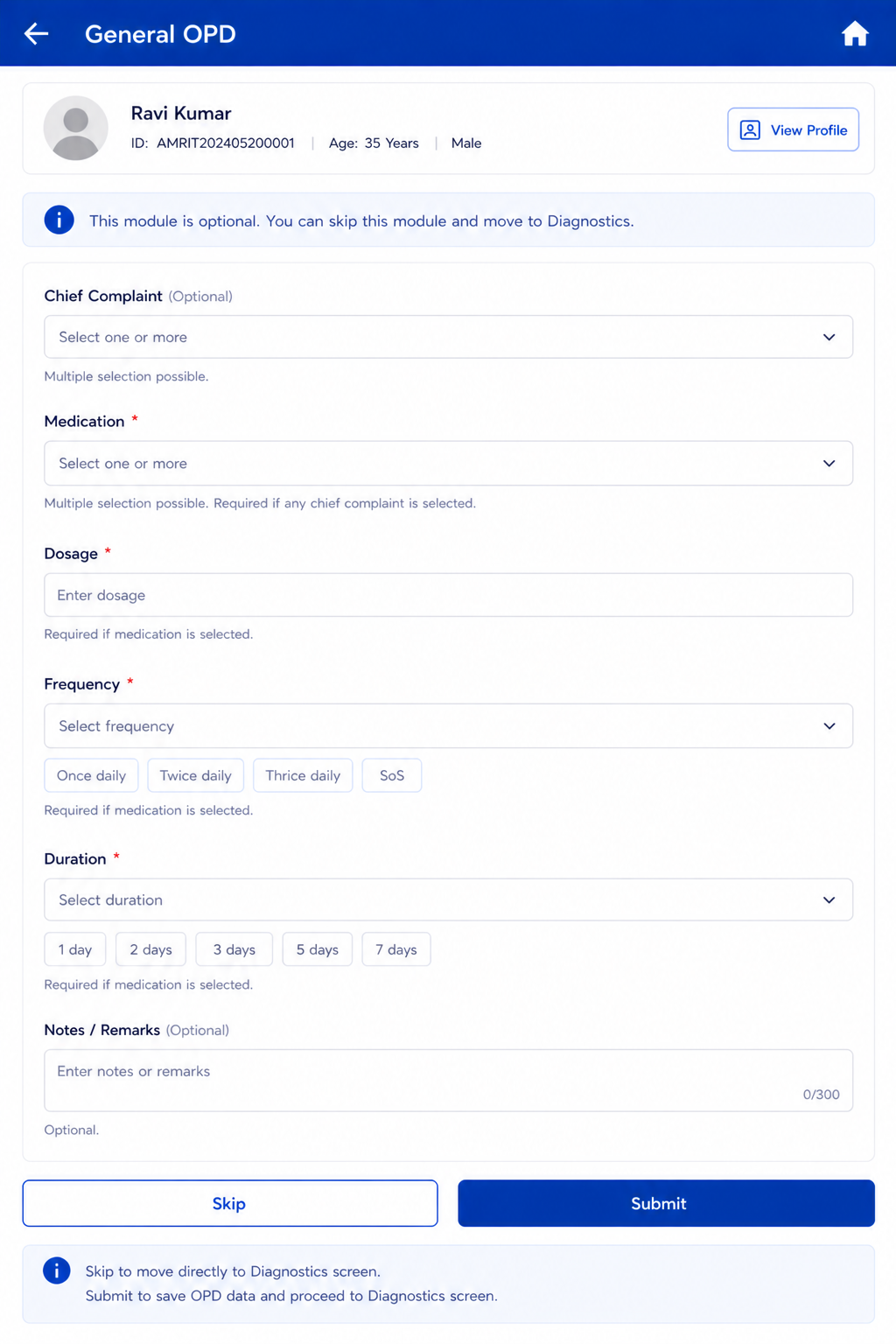
This module is Optional / Skippable. A 'Skip' button must be provided. Nurse can capture chief complaint and dispense OTC medication. Submit moves to Diagnostics screen.
Field Name | Input Type | Options / Values | Logic & Validations |
Chief Complaint | Dropdown (multi-select) |
| · Optional. · Multiple selection possible. |
Other | textbox |
| Enabled if "Chief Complaint"= "Others" |
Medication | Dropdown (multi-select) | · Tab Paracetamol (500 mg) · Tab Digene (Alluminium hydroxide+ magnesium aluminium silicate + magnesium oxide + simethicone) · Tab Cetrizine (10 mg) · Tab.Sporolac DS 120M (Lactic acid bacillus tablets) · ORS sachets · Tab Multivitamin · Syp Paracetamol 250mg (60ml) · Syp Cetrizine 60 ml · Syp Zinc 60 ml | · Mandatory if any chief complaint is selected. · Multiple selection is possible |
Frequency | Dropdown | Once daily | Twice daily | Thrice daily | SoS | Mandatory if Medication is selected. |
Duration | Dropdown | 1 day | 2 days | 3 days | 5 days | 7 days | Mandatory if Medication is selected. |
Notes / Remarks | Free text | — | Optional. |
Skip | Button | — | Skip OPD module and move directly to Diagnostics screen. |
Submit | Button | — | Save OPD data and move to Diagnostics screen. |
Acceptance Criteria — Other Complaints and Management
AC-OPD-01: Given a Chief Complaint is selected but no Medication is chosen, When the nurse clicks Submit, Then the form displays a validation error: 'Medication is required when a chief complaint is selected.'
AC-OPD-02: Given the nurse clicks Skip with no data entered, When navigated away, Then no OPD record is created and the beneficiary moves directly to the Diagnostics screen.
5.4 Diagnostics Screen
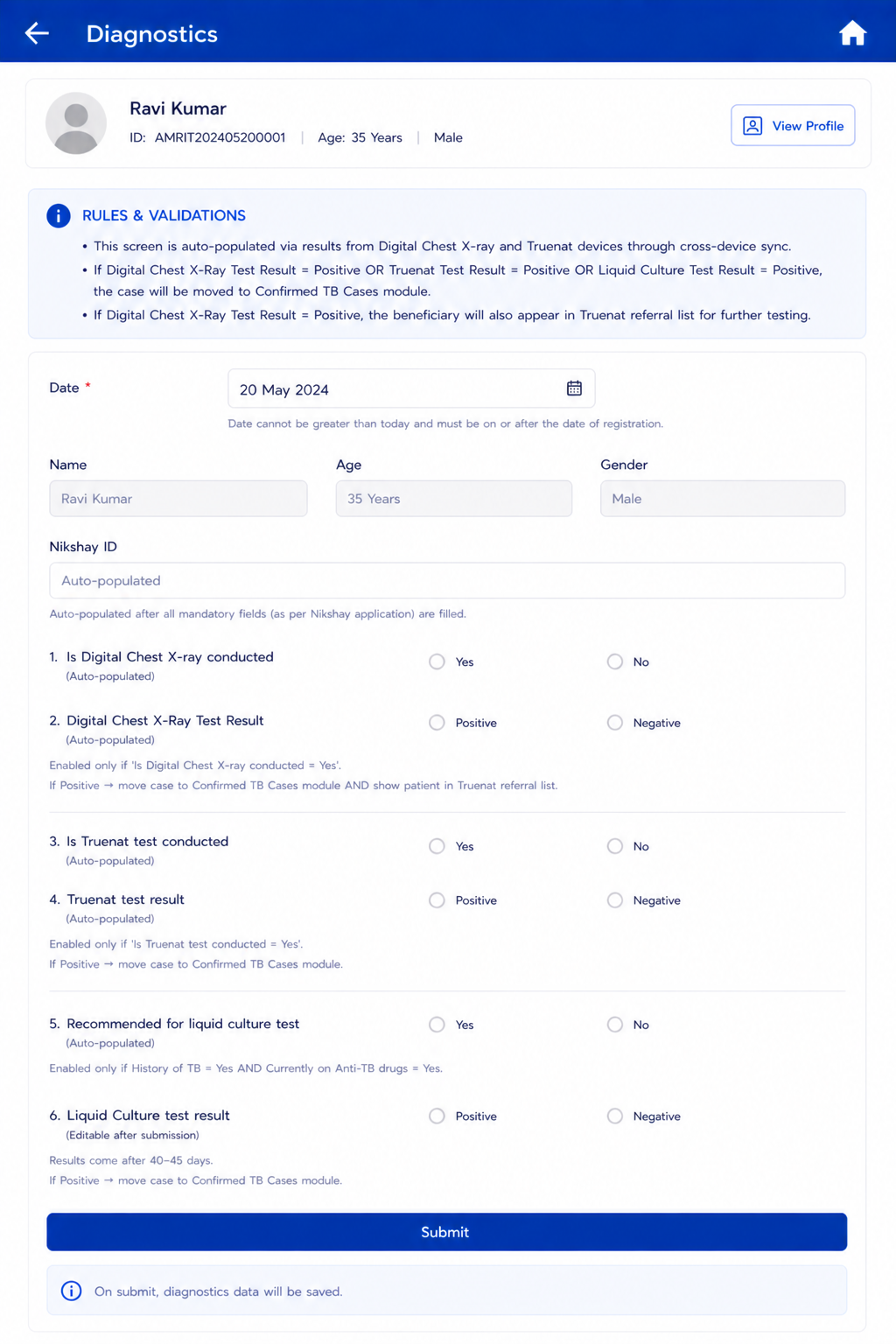
This screen will not be visible in the Nurse module and is auto-populated via results from the Digital Chest X-ray and NAAT devices through cross-device sync. All results display here automatically.
Diagnostics | This Screen will be dynamic and results should keep on auto populating after NAAT device and Digital Chest X-ray devices are integrated. Manual entries are also allowed. This screen will be removed from the bottom sheet of Nurse module. Diagnostic screen should be accessed from Referral section. Referral Section:
| ||
Referred for digital chest x-ray | Radio button | Yes | No | · This field is applicable for referral section- Digital chest x-ray.
· Do NOT show/ Hide for pregnant women. · Mandatory. · If yes, move beneficiary to Referral list titled 'Digital Chest X-ray'.
|
Is Digital Chest X-ray conducted | Radio / Auto | Yes | No | This field is applicable for referral section- Digital chest x-ray. Enabled for everyone EXCEPT 'Are you pregnant = Yes' and Key Population / Risk Factors = Pregnancy. Enabled if Referred for digital chest x-ray= "Yes" If “No” is selected, then enable ‘Reason for Chest X-Ray not conducted’ If “Yes” is selected, then enable ‘Digital Chest X-Ray Result’ Auto-populated by cross-device sync between STOP TB app and digital chest X-ray device. |
Reasons for not conducting the chest x-ray | dropdown |
| This field is applicable for referral section- Digital chest x-ray. Enabled if Is Digital Chest X-ray conducted= "No" Mandatory if enabled Single Selection |
Other | free text | This field is applicable for referral section- Digital chest x-ray. enabled if Reasons for not conducting the chest x-ray= Other Mandatory if enabled | |
Digital Chest X-Ray Test Result | dropdown |
| This field is applicable for referral section- Digital chest x-ray. Enabled only if 'Is Digital Chest X-ray conducted = Yes'. Auto-populated by cross-device sync. If "Normal" then directly go to submit button If "Abnormal but not TB Presumptive" move this card to the HWC referral card section If "TB Presumptive"→ Record should be available in NAAT referral list for further testing. If "AI Invalid Result"- no action needed on the application UI, needs to be handled at the radiographer level/laptop. For any presumptive cases (any positive response to any verbal questions), these cases will be shown in both digital chest x-ray and NAAT cards. Such cases will undergo NAAT testing irrespective of digital chest x-ray results. |
Referred for Sputum Collection | Radio button | Yes | No | This field is applicable for referral section- NAAT. Enabled in case of-
In the “Referral” section under “NAAT Test” section, following fields are expected to be present:
|
Reason for denial to get referred for sputum collection | dropdown |
| This field is applicable for referral section- NAAT. Enabled if Referred for sputum collection= "No" Mandatory if enabled Multi select option Default option- Patient refused |
Other | free text | This field is applicable for referral section- NAAT. Enabled if Reason for denial to get referred for sputum collection= Other Mandatory if enabled | |
Sputum Sample submitted at | Dropdown |
| This field is applicable for referral section- NAAT. Mandatory if Referred for Sputum Collection= "Yes" Default is TB Screening Camp |
Is NAAT test conducted | Radio / Auto | Yes | No | This field is applicable for referral section- NAAT. Enabled in case of-
|
Reasons for not conducting the NAAT test | dropdown |
| This field is applicable for referral section- NAAT. Enabled if Is NAAT test conducted= "No" Mandatory if enabled Single Selection |
Other | free text | This field is applicable for referral section- NAAT. enabled if Reasons for not conducting the NAAT test= Other Mandatory if enabled | |
NAAT MTB test result | Radio button / Auto |
| This field is applicable for referral section- NAAT. Enabled only if 'Is NAAT conducted = Yes'. Mandatory if enabled. Auto-populate test results by cross-device sync Auto fetch line listings of beneficiaries whose sputum is collected. "MTB Not Detected" is equivalent to result value "TB Negative" from NAAT device. "MTB Detected" is equivalent to result value "TB Positive" from NAAT device. "Invalid" is equivalent to result value "Error/ Invalid" from NAAT device. If result is "MTB detected" → move case to "Microbiologically Confirmed" TB cases module and enable next field "NAAT Rif test result" If result is "MTB not detected", directly go to submit button If result is "Invalid"= show a label against the result "The test results are invalid, repeat the test" Auto fetch "MTB detected" line listing of beneficiaries in the NAAT device for Rifampicin (Rif) testing. |
NAAT Rif test result |
| This field is applicable for referral section- NAAT. Enabled if NAAT MTB test result = MTB detected If Indeterminate= show a label against the result "The test results are indeterminate, repeat the test" | |
Recommended for liquid culture test | Radio | Yes | No | This field is applicable for referral section- Liquid Culture. Enabled only if History of TB = Yes AND Currently on Anti-TB drugs = Yes. |
Liquid Culture test result | Radio button | Positive | Negative | This field is applicable for referral section- Liquid Culture. If Positive → move case to Confirmed TB cases module. Option to edit/select after form submission as results come after 40-45 days. |
Submit | Button | — | Continue to General OPD module. If skipped → move directly to Diagnostics Results screen. |
Acceptance Criteria — Diagnostics
AC-DIAG-01: Given a digital X-ray device completes a test and syncs, When the Diagnostics screen is open for that beneficiary, Then 'Is Digital Chest X-ray conducted' is auto-set to Yes and the result is auto-populated without manual entry.
AC-DIAG-02: Given Digital Chest X-Ray Test Result = Positive is recorded, the beneficiary is referred for NAAT test and moves in the NAAT referral list. If "Is beneficiary asymptomatic" = "No" and digital chest xray result = negative, such cases will also reflect in NAAT list.
AC-DIAG-03: Given NAAT test result = Positive is recorded, When saved, Then the beneficiary record is moved to 'Confirmed TB Cases' module.
6. Tuberculosis Module — Three Screens
Accessible via Home → TB card. Opens three sub-screens: TB Screening (covered in Nurse flow), Presumptive TB Cases, and Confirmed TB Cases (covered in Counselling Officer flow).
Confirmed TB cases and TPT Module and line listing should be visible in Counselling officer Role.
6.1 Presumptive TB Cases
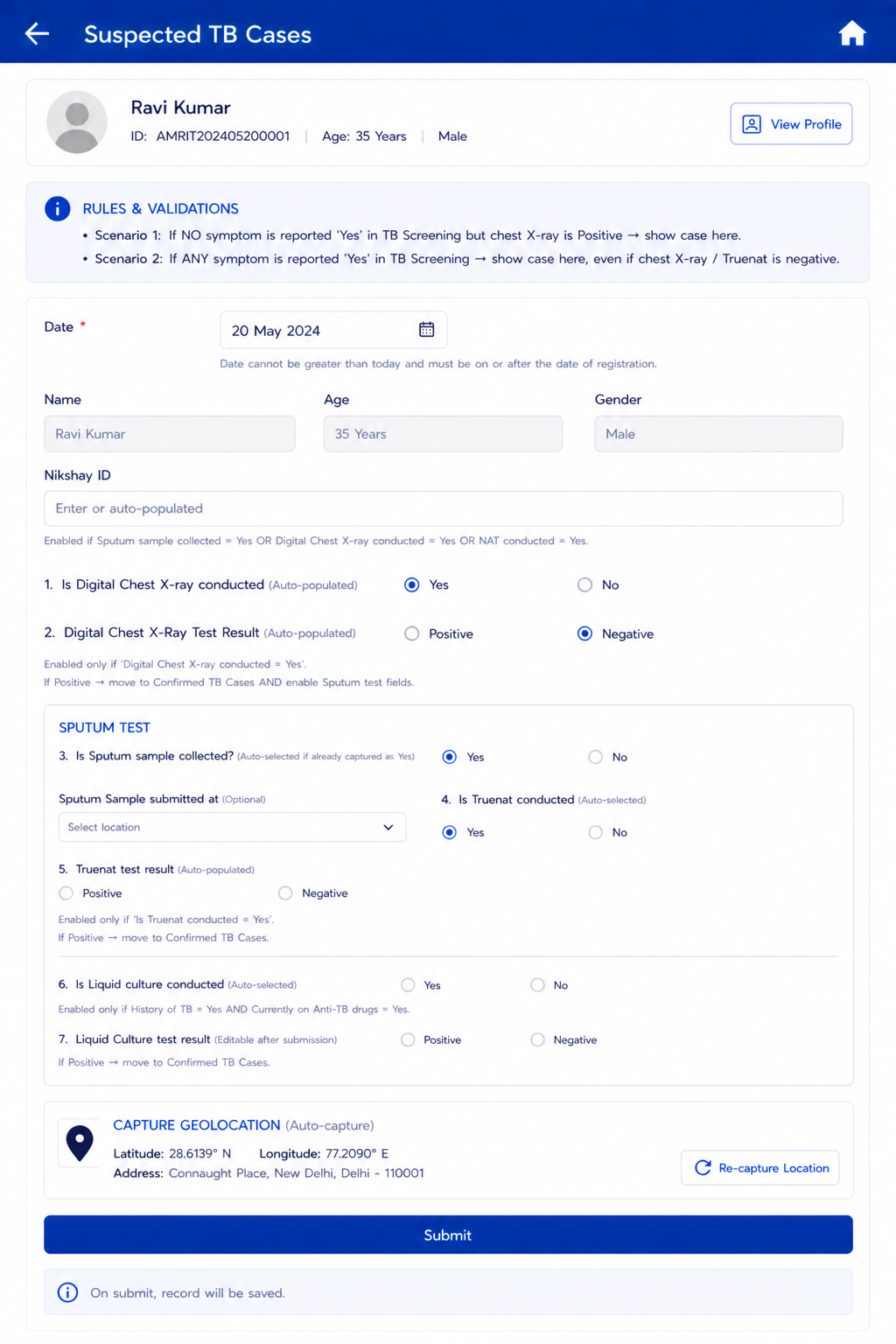
- Scenario 1: If NO symptom is reported 'Yes' in TB Screening but chest X-ray is Positive → show case here.
- Scenario 2: If ANY symptom is reported 'Yes' in TB Screening → show case here, even if chest X-ray / NAAT is negative.
In Tuberculosis section:
under “Presumptive TB cases” section on every record, under “View Result” button show complete test results of both tests “Digital Chest x-ray” and “NAAT Test”.
Note: This entire episode of workflow should be available in both ways that is as below:
- Manually: Both tests results can be entered manually in case of no devices are integrated with the App.
- Automated: Both tests results should be automatically fetching into the App in case of devices are integrated with the App.
7. Counselling Officer Flow
ACTOR: Counselling Officer | ENTRY: Confirmed TB Cases list → select beneficiary → Counselling tab | MANDATORY: Yes — for all confirmed TB cases | NEXT: Case closed; Nikshay record updated
7.1 Counselling Module — Screen Overview
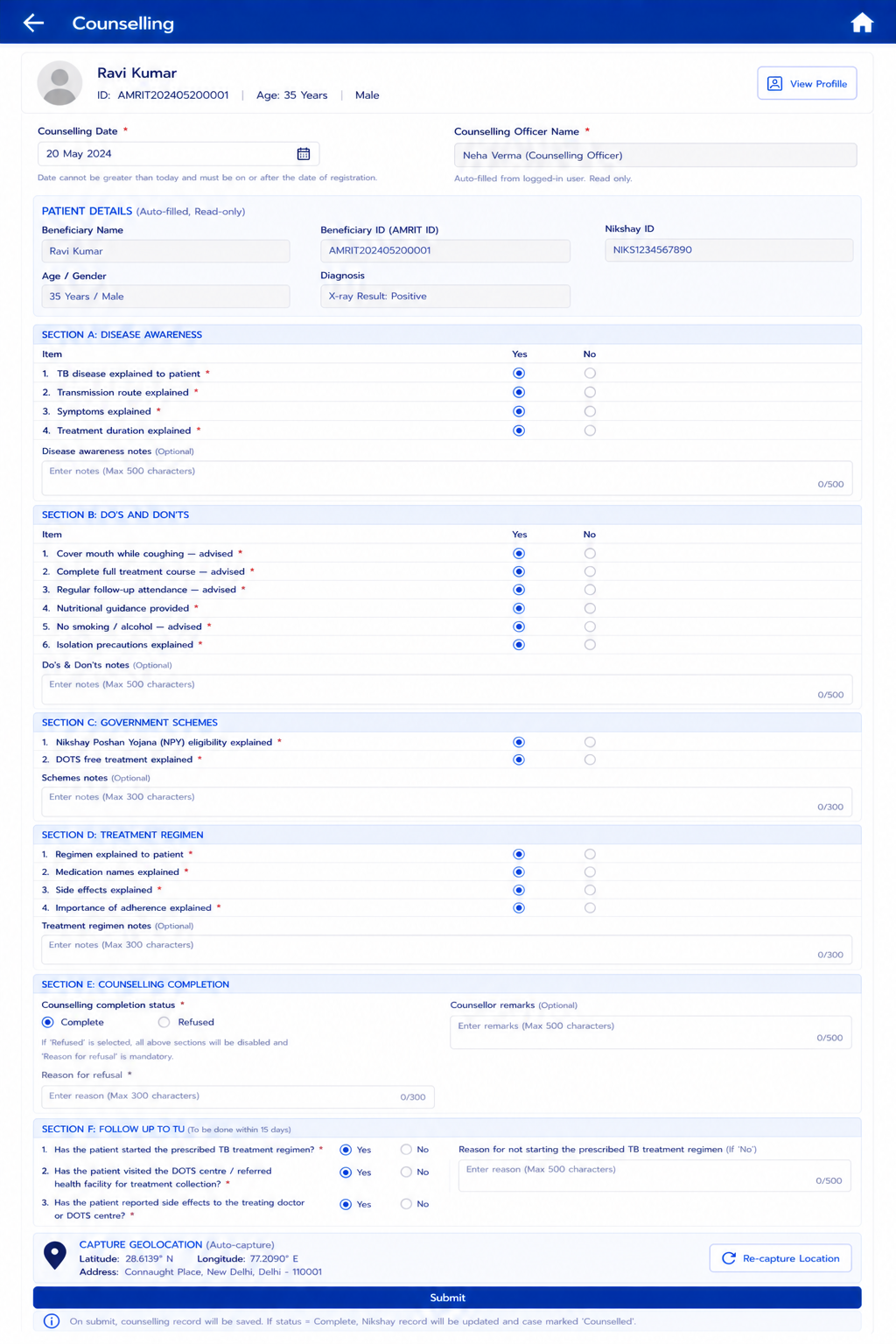
The Counselling module opens within the Confirmed TB Cases record. It is a structured interface for the Counselling Officer to record all counselling activities, scheme information, treatment explanation, referral, and completion status. It is accessible for editing on subsequent visits until marked Complete.
- Provide a button on the confirmed case card which should navigate to family member line listing i.e to view count of family members and to view their details of screening/ status. This will help in HH contact tracings as well as Home based counsellings.
- "Display the counselling status on the Confirmed TB card based on the current counselling form status: 'Start Counselling' (form not yet started or incomplete), 'Counselled' (form completed) and 'Refused' (consent = No)."
- Keep "Submit" and "Next" button for counselling module.
- Also how many sections of counselling have been completed out of all modules should be visible on the beneficiary card.
7.2 Counselling Module — Field Specifications
Field Name | Input Type | Options / Values | Logic & Validations |
Counselling Date | Date picker | Date | Mandatory. Default: Today. Not > Today. Must be >= Registration date. |
— PATIENT HEADER (AUTO-FILLED, READ-ONLY) — | |||
Beneficiary Name | Textbox (read-only) | Auto-filled | First Name + Last Name from beneficiary record. |
Beneficiary ID (AMRIT ID) | Textbox (read-only) | Auto-filled | From beneficiary record. |
Nikshay ID | Textbox (read-only) | Auto-filled | From Diagnostics screen. Read only. |
Age / Gender | Textbox (read-only) | Auto-filled | Age (years) and Gender from beneficiary record. |
Diagnosis | Textbox (read-only) | Auto-filled | X-ray Result | NAAT Result | Liquid Culture Result — populated from diagnostic records. Read only. |
Has the beneficiary agreed for counselling? | Yes No | Mandatory. Make all the below sections obsolete if chosen “No” If No → enable 'Reason for refusal' field. If a beneficiary initially declines counselling (consent = No) but later agrees, the consent can be changed to Yes, which re-enables the counselling form for completion. Once the counselling form is completed, neither the consent status nor any responses in Sections A-D can be modified (locked / read-only)." | |
Reason for refusal | Free text | Mandatory if Counselling status = Refused. Max 300 chars. | |
Submit | |||
Sections A to E will be enabled "Has the beneficiary agreed for counselling"= "Yes" |
| ||
SECTION A: DISEASE AWARENESS | Enabled if "Has the beneficiary agreed for counselling"= "Yes" One single "Select All" to be given against each section. | ||
TB disease explained to patient | Mandatory. Must be checked before proceeding. Confirms counsellor has explained TB to the patient. | ||
Transmission route explained | Mandatory. | ||
Symptoms explained | Mandatory. | ||
Treatment duration explained | Mandatory. | ||
Disease awareness notes | Free text | — | Optional. Max 500 chars. |
SECTION B: DO'S AND DON'TS | Enabled if "Has the beneficiary agreed for counselling"= "Yes" One single "Select All" to be given against each section. | ||
Cover mouth while coughing — advised | Mandatory. | ||
Complete full treatment course — advised | Mandatory. | ||
Regular follow-up attendance — advised | Mandatory. | ||
Nutritional guidance provided | Mandatory. | ||
No smoking / alcohol — advised | Mandatory. | ||
Isolation precautions explained | Mandatory. | ||
Do's & Don'ts notes | Free text | — | Optional. Max 500 chars. |
SECTION C: GOVERNMENT SCHEMES | Enabled if "Has the beneficiary agreed for counselling"= "Yes" One single "Select All" to be given against each section. | ||
Nikshay Poshan Yojana (NPY) eligibility explained-
| NPY: DBT of Rs. 1000/month for duration of treatment. Mandatory | ||
DOTS treatment
| Confirm patient understands treatment is free under NTEP. Mandatory | ||
Schemes notes | Free text | — | Optional. Max 300 chars. |
SECTION D: TREATMENT REGIMEN | Enabled if "Has the beneficiary agreed for counselling"= "Yes" One single "Select All" to be given against each section. | ||
Regimen explained to patient | Mandatory. | ||
Medication names explained | Mandatory. | ||
Side effects explained | Mandatory. | ||
Importance of adherence explained | Mandatory. | ||
Treatment regimen notes | Free text | — | Optional. Max 300 chars. |
SECTION E: Impact Assessment |
|
| Enabled if "Has the beneficiary agreed for counselling"= "Yes" |
How has TB disease impacted the life of this beneficiary (Economic and family impact post TB diagnosis) | Free text |
| Optional
|
Submit | Button | — | Save counselling record. If status = Complete → Nikshay record updated; case marked 'Counselled'. |
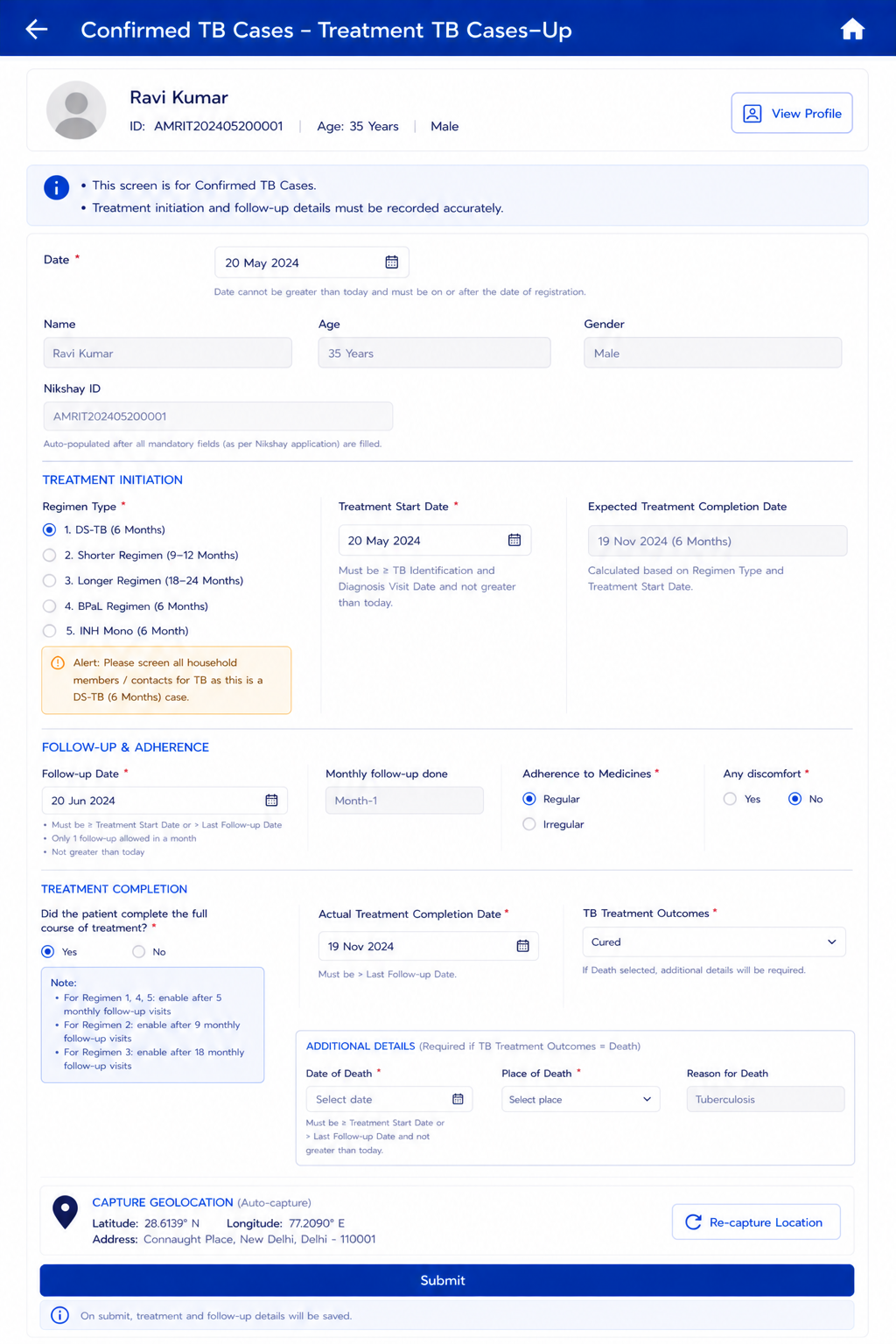
7.3 Confirmed TB Cases — Treatment & Follow-Up
This screen manages treatment initiation and ongoing follow-up for beneficiaries confirmed as TB positive via Digital Chest X-ray, NAAT, or Liquid Culture.
Set an alert for All diagnosed and confirmed TB cases must be mandatorily notified to:
- Health workers: ASHA, ANM, CHO, MO
- Health system units: PHC, TU, STS, STLC, STLS
Field Name | Field Type | Options / Values | Validation / Logic / Condition |
Type of Treatment | Radio button | DS TB PMDT | · Single selection allowed · If DS TB is selected enable "DS TB Regimen" field. If PMDT is selected enable "PMDT Regimen" field |
DS TB Regimen |
| 2 HRZE/4HRE | To be enabled if "Type of treatment" = "DS TB" |
PMDT Regimen | Dropdown |
| Single selection allowed |
Treatment Start Date | Date picker | Date | · Mandatory. Must be >= TB Identification and Diagnosis Visit Date. Not greater than Today's Date. |
Expected Treatment Completion Date | Label (read-only) | Auto-calculated | Auto calculate this date based on below condition form ‘Treatment Start Date’: 1. If ‘Regimen Type’ is "DS-TB" then add 6 months 2. If ‘Regimen Type’ is “PMDT”, then add
|
— FOLLOW-UP & ADHERENCE SECTION — | |||
Follow-up Date | Date picker | Date | · Greater than or equal to Treatment Start Date or greater than Last Follow up Date · Mandatory · Minimum date is Treatment Start Date · Accept date greater than Last Follow up Date · Allow 1 Follow up visit in a month (i.e. monthly 1 Follow up) · Not greater than Today's Date |
Adherence to Medicines | Radio button | Regular | Irregular | — |
Any discomfort | Radio button | Yes | No | If yes enable, "Adverse Drug Reaction" field |
Adverse Drug Reactions | Dropdowns Give search bar |
| Multi selection allowed mandatory if enabled |
— TREATMENT COMPLETION SECTION — | |||
Did the patient complete the full course of treatment? | Radio button | Yes | No | Enable these below filed based on below conditions: 1. If ‘Regimen Type’ is “1”, “4”, “5” then enable after 5 Monthly follow up visits 2. If ‘Regimen Type’ is “2”, then enable after 9 Monthly follow up visits 3. If ‘Regimen Type’ is “3”, then enable after 18 Monthly follow up visits |
Actual Treatment Completion Date | Date picker | Date | Enabled if 'Yes' selected above. Must be > Last Follow-up Date. |
TB Treatment Outcomes | Dropdown | Cured | Failed | Lost to Follow-up (LFU) | Death | If Death selected → update Beneficiary Status = Death in Beneficiary record; Enable Date of Death, Place of Death, and Reason for Death fields. |
Date of Death | Date picker | Date | Enable only if TB Treatment Outcomes = Death. Mandatory if enabled. Default: null. Not greater than Today's Date. >= Treatment Start Date or > Last Follow-up Date. |
Place of Death | Dropdown | Home | Subcenter | PHC | CHC | District Hospital | Medical College Hospital | Private Hospital | Other Place | Enable only if TB Treatment Outcomes = Death. |
Reason for Death | Label (read-only) | Tuberculosis | Enable only if TB Treatment Outcomes = Death. Pre-filled as 'Tuberculosis'. Read only. |
Reason for non-completion of treatment | Textbox | Free text | Enable if 'No' selected for 'Did the patient complete full treatment?' |
Capture Geolocation | Auto capture | — | Capture Latitude, longitude, Address based on DIGIPIN SDK/API. Show only DIGIPIN on UI, Remove Latitude, Longitude, Timestamp from UI and manage from backend |
Submit | Button | — | Save record. |
Follow-up visit history | Table (read-only) | — | Maintain and display complete follow-up visit history. |
7.4 Contact Tracing and TPT Module
Trigger: Opens for all confirmed TB cases. On the beneficiary card give a button to navigate to family members of confirmed cases for House hold contact tracing.
Key rule across all contact types: If a contact tests positive for active TB at any step → system immediately redirects the field team/ Outbreak responsive team to create a new TB confirmed record for that contact, bypassing the TPT flow and open new confirmed TB Case form pre-filled with contact's available details.
On every card the number of HH members should be available i.e. count of family members should be visible on the button.
Contact Tracing Type Selector
Field Name | Field Type | Options / Values | Validations / Logic / Condition |
Contact Tracing | Button |
| These two forms should have option to open from bottom sheet. Once submitted give option to view, edit and update On clicking "Community" enable following:
On clicking "Occupational" enable following:
|
Total No. of contacts
| label |
| Only Numerical values allowed Mandatory Applicable for both community and occupational contact tracing Auto calculated Read only |
Occupation | Dropdown |
| Mandatory Single selection No default selection is needed. Important for field team to ask and capture this. To be enabled if "Occupational" chosen in bottom sheet. |
Other occupation | Multi line textbox | Enabled if "other" is chosen for occupation of the index case Mandatory if enabled | |
Name and Address of Employment | Multi line textbox |
|
|
Name and Address of Institution | Multi line textbox |
|
|
Relationship with community contacts | Dropdown |
|
|
Other | textbox | mandatory if enabled | |
| Number of <Relation with contact> |
| ||
Type of Space |
| mandatory. Applicable for both community and occupational contact tracing Should open for each and every "Relationship with community contacts" category selected. | |
Approximate Area of Shared Space | Number picker | • Free numeric entry | • Enabled once “Type of Space” is selected. • Helper text: "Give estimated measurement of area"
• Accepted range: 50–5,000 sq. m. Inline error message if outside range: “Enter a value between 50 and 5000.”
• Applicable for both community and occupational contact tracing. |
Time spent with contact in hours | number picker | Mandatory. Time in “Hours” to be captured Should open for each and every "Relationship with community contacts" category selected. Applicable for both community and occupational contact tracing | |
Place of exposure | dropdown |
| Multi select option to be given To be enabled if Type of Contact tracing initiated= Community |
Other Place | Textbox | Free text | Enabled and mandatory if “Community setting of exposure” = “Other” Max 100 chars. |
Any other Significant Information/ Notes/ Remarks | Multi line textbox |
|
|
Submit |
|
| On submission. |
7.4.1 Household Contact (HHC) Tracing
Whenever clicked on Confirmed case card >>> click on "members" button >>> cards of HH members open up with their TB screening button >>> On every HH member card give a "follow- up" button. >>> On clicking follow up button >> TPT module and follow-up. This follow-up button will be enabled for Counsellor and Surveillance Officer role.
Contact Follow- Up
Scenario- In Confirmed Case line listing, on every card give a button titled “Examine”. On clicking this a bottom sheet should open with options- TB Screening and Contact Follow Up
On every Family Member’s card show status of ‘TB Screening’ like “Symptom Screened”, "X-Ray screened", "Truenat screened" (Green check mark symbol) or “Unscreened” (Red cross mark symbol) with an icon as per the below mockup.
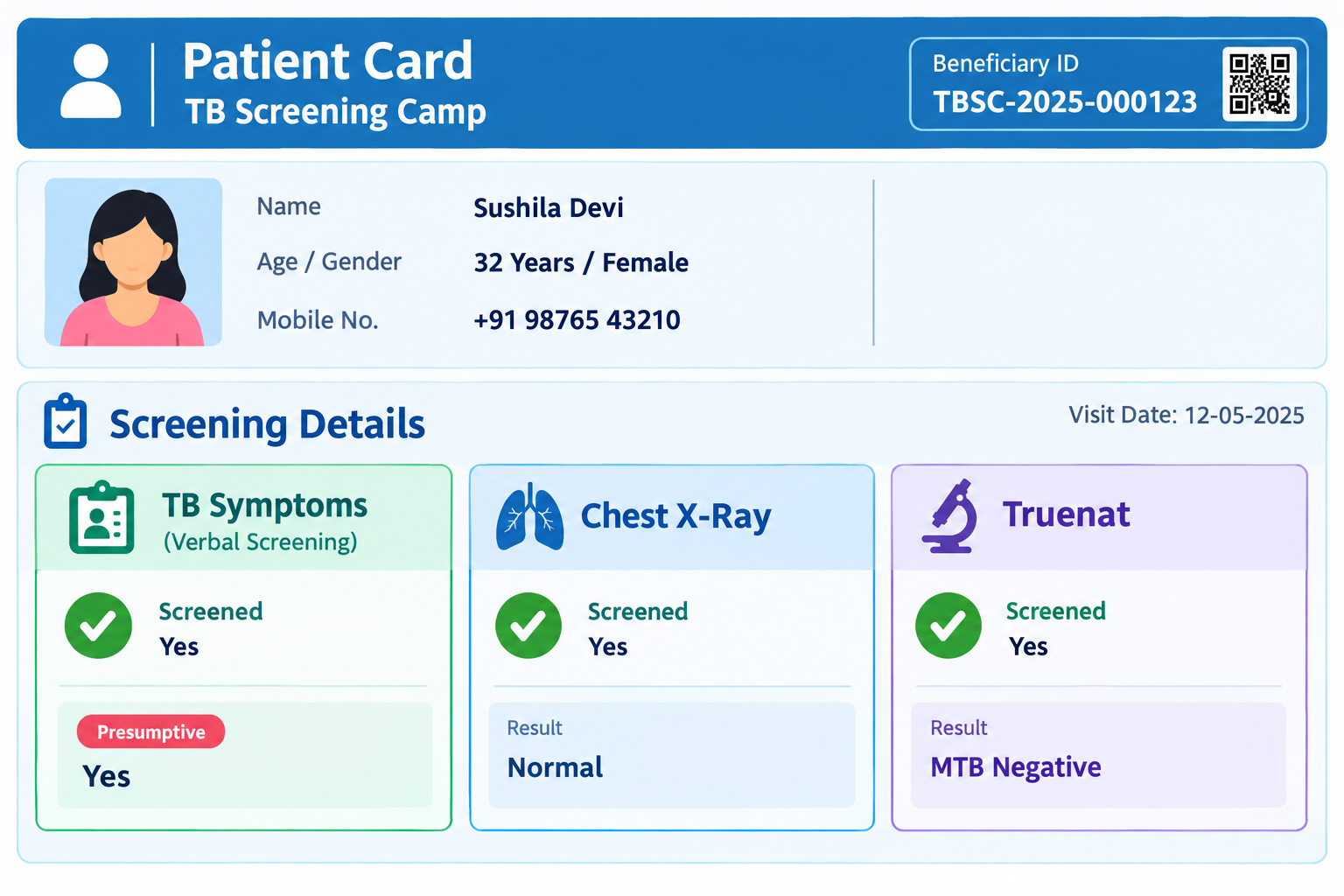
If status is unscreened enable "Start Screening" button (open TB Symptom screening form). If Symptom screening is done but x-ray or truenat screening is not done then do not enable TB Symptom screening form and that person should visit either the camp (if still present in the village) or a health facility to get x-ray or truenat.
If status is "Screened" then open the below form-
Field Name | Field Type | Options / Values | Validations / Logic / Condition |
Date | Date Picker |
| Auto selection |
Referred to |
|
| Mandatory Single Selection |
Submit |
|
| |
After Referral, show “Follow up” button on the Card and allow to edit with below details | |||
Follow up date | Date picker |
| |
Follow Up Status | Dropdown |
| Condition: 1. If “Recommend for TPT” is selected move this record to “TPT Follow up” section 2. If “Recommend for DOTS Treatment” is selected move this record to “Confirmed TB Cases” section 3. If "No TPT Required" is selected submit and close. |
Submit |
|
|
|
TPT Module and Follow- Up- This form opens if "Follow Up Status" = "Recommend for TPT ". On this card give "Start TPT" button and "TPT Follow Up"
Field Name | Field Type | Options / Values | Validations / Logic / Condition |
On clicking "Start TPT" button following fields should be shown. | |||
Date of Registration |
| Automatic current date to be captured Applicable for the first visit. Not applicable for follow up visits. | |
TPT Regimen advised |
|
| Single selection allowed enabled if TPT start date is entered. Mandatory if enabled Applicable for the first visit. Not applicable for follow up visits. |
TPT start date | Date picker | <= Today's date | Applicable for the first visit. Not applicable for follow up visits. Mandatory Cannot be future date. Cannot be before date of screening (contact screening). |
TPT expected completion date |
|
| Applicable for the first visit. Not applicable for follow up visits. Mandatory auto calculated based on the treatment regimen. Auto calculate this date based on below condition form ‘TPT Start Date’: based on below Regimen Type:
|
Submit |
| ||
In every follow up the above captured details should be visible on the beneficiary form. On clicking "TPT Follow-up" button following fields should be shown. |
| ||
Follow-up visit date | Date picker | <= Today's date | Mandatory if enabled. Cannot be future date. Cannot be before TPT start date. |
TPT outcome status | Radio / Dropdown |
| Mandatory.
If 'Completed' → enable Date of TPT outcome
If 'Developed active TB during TPT' → redirect volunteer to create new TB Presumptive Case record and close this TPT case.
If 'Died during TPT' → enable date of TPT outcome and Cause of death fields. |
Other | Free text | — | — |
Date of TPT outcome | Date picker | <= Today's date | Mandatory
Cannot be future date. |
Cause of death | Free text | — | Enabled if TPT outcome status = Died during TPT.
Mandatory if enabled. |
Any other significant Information |
|
|
|
Adherence to Medicines | Radio button | Regular | Irregular | — |
Any discomfort | Radio button | Yes | No | If yes enable, "Adverse Drug Reaction" field |
Adverse Drug Reactions | Dropdown Give search bar |
| Multi selection allowed mandatory if enabled |
Submit | Button |
| Save Record |
Acceptance Criteria — Confirmed TB Cases
AC-CONF-01: Given Regimen Type = DS-TB (6 Months) is selected, When saved, Then the TPT (Household Contact Line Listing) module opens automatically AND an alert is displayed: 'Screen all household members / contacts.'
AC-CONF-02: Given Treatment Start Date = 01-Jan-2025 and Regimen Type = DS-TB (6 Months), When saved, Then Expected Treatment Completion Date is auto-calculated and displayed as 01-Jul-2025 (read-only).
AC-CONF-03: Given TB Treatment Outcome = Death is selected, When saved, Then Beneficiary Status in the Registration module is automatically updated to 'Death', and Date of Death, Place of Death fields are enabled and mandatory.
AC-CONF-04: Given Regimen Type = DS-TB (6 Months) and only 3 monthly follow-up visits are completed, When the nurse attempts to enable 'Did patient complete full treatment?', Then the field remains disabled until 5 monthly visits are recorded.
Acceptance Criteria — Counselling
AC-COUN-01: Given a confirmed TB case is opened by a Counselling Officer, When the Counselling module loads, Then Beneficiary Name, AMRIT ID, Nikshay ID, Diagnosis, and Regimen Type are auto-filled from preceding modules and displayed read-only.
AC-COUN-02: Given all mandatory checkboxes in Sections A–F are checked and Referred Facility is selected, When Submit is clicked with status = Complete, Then the Nikshay record is updated, the case is marked 'Counselled', and the Counselling completion status displays as Complete on the Confirmed TB Cases list.
AC-COUN-03: Given Counselling completion status = Refused and no reason is entered, When Submit is clicked, Then the form shows a validation error: 'Reason for refusal is required when status is Refused.'
AC-COUN-04: Given status = Partial is saved, When the Counselling Officer opens the same beneficiary record in a subsequent session, Then all previously entered data is pre-populated and the session is editable.
8. Referrals Module
Accessible from Home → Referrals card. This module lists all cases referred to health facilities, organized under four sub-cards.
8.1 Common List Screen Elements (All Four Cards)
Element | Specification |
Screen header | Card name (e.g. 'Digital Chest X-ray') displayed as screen title with Back arrow to Referrals home |
Search bar | Search by beneficiary name or AMRIT ID. Real-time filtering. |
Sort options | Sort by: Date referred (default — newest first) | Name (A–Z) | Status |
Filter options | Filter by: Status (All / Pending / Completed / Referred elsewhere) | Date range |
Beneficiary count | Total count displayed: 'X beneficiaries' below the screen title |
Sync indicator | Global sync status bar visible at top of screen |
Refresh button | Manual refresh to pull latest cross-device sync data |
Referral Card | Population Listed | Routing Rule |
Digital Chest X-ray | All beneficiaries who are not pregnant will be shown in this card for X-ray from TB Screening All beneficiaries "Is beneficiary asymptomatic" = "No" will be shown in this card for X-ray from TB Screening | All non-pregnant beneficiaries (all genders, all ages) who have any * symptom = Yes in TB Screening |
NAAT | a) Pregnant beneficiaries (direct referral, skipping X-ray) b) Beneficiaries with positive Digital Chest X-ray result c)"Is beneficiary asymptomatic" = "No" will be shown in this card from TB Screening. | Pregnancy → direct to NAAT. Positive X-ray → referred to NAAT for further testing. "Is beneficiary asymptomatic" = "No" → Digital chest x-ray → Positive or negative result → Sputum collection and NAAT testing (irrespective of x-ray results) |
Liquid Culture | Beneficiaries recommended for liquid culture test | History of TB = Yes AND Currently on Anti-TB drugs = Yes AND Referred for Sputum = Yes |
Health and Wellness Centre | Beneficiaries with abnormal vitals | Auto-referred: Pulse < 60 or > 90; Systolic BP >= 140 or < 90; Diastolic BP >= 90 or < 60; Random Blood Sugar >= 100; Temperature >= 100°F |
Clinical Assessment & Diagnosis | Beneficiaries with a Positive digital chest X-ray but a Negative NAAT result (MTB not detected) | Beneficiaries with a Positive digital chest X-ray but a Negative NAAT result (MTB not detected) → shown in Clinical Assessment & Diagnosis in referral section, so the abnormality detected on the X-ray can be further investigated at the PHI. |
Acceptance Criteria — Referrals
AC-REF-01: Given a beneficiary is pregnant and TB Screening is submitted, When the Referrals screen is opened, Then the beneficiary appears in the NAAT card with Referral Reason = 'Pregnant' and does NOT appear in the Digital Chest X-ray card.
AC-REF-02: Given Digital Chest X-ray result = Positive is recorded in Diagnostics, When the NAAT referral list is refreshed, Then the beneficiary appears in the NAAT list with Referral Reason = 'X-ray Positive' or if "Is beneficiary asymptomatic"(Presumptive cases) = "No"
AC-REF-03: Given Random Blood Sugar >= 100 mg/dl is entered in General Examination, When the examination is submitted, Then the beneficiary appears in the HWC Referral list with Referral Trigger = 'High RBS: [value] mg/dl'.
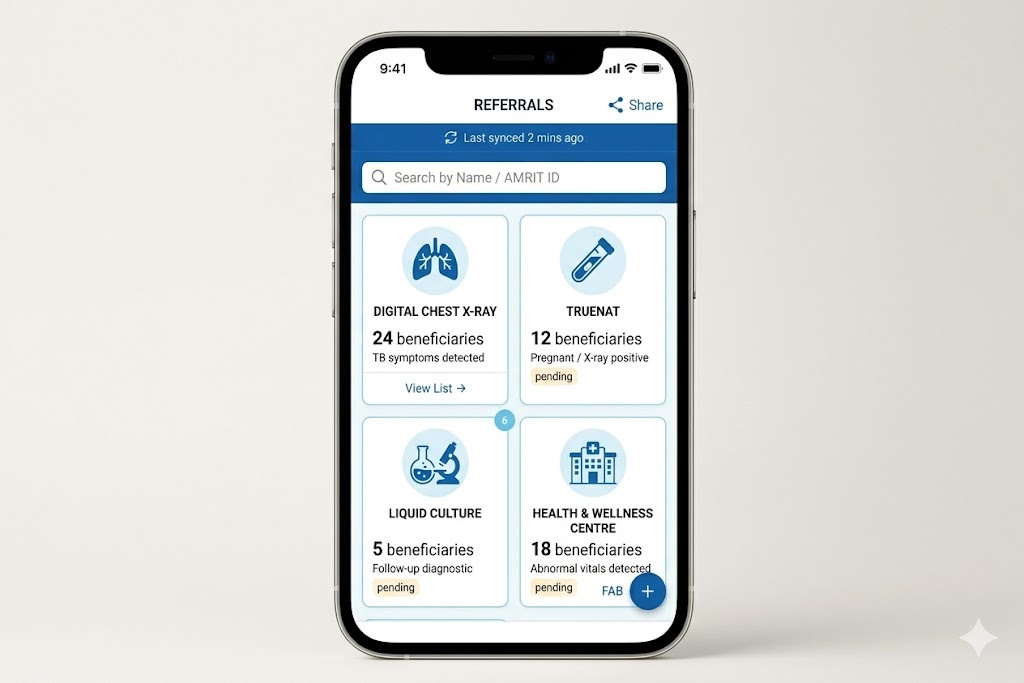
9. Dashboard
Landing page has 2 tabs: Home and Dashboard. The Dashboard tab flips to the analytics view.
This Dashboard is Camp Team's reference Dashboard, for purpose of at glance team's performance view.
Two filter options are provided at the top of the Dashboard:
Time Period: Dropdown: All Time/ Today / Yesterday / This Week/ This Month/ Previous Months of This Year (January / February / March / April / May / June / July / August / September / October / November / December)
Village Name: Dropdown populated with Village names
All dashboard indicators auto-populate based on the filter selected.
Refer to the attached Dashboard Protype: tbmja_mobile_Dashboard-1.html
Dashboard Card: Primary KPIs | Secondary KPIs | Logic / Condition/ Formula |
Screening Coverage Summary |
Total Eligible Population for TB Screening, with the following demographic-wise breakdown:
| Calculates and show respective counts based on selected Village and Period Unscreened Population: Calculates and show respective counts based on selected Village (but Not Period) Definition of Unscreened: Count of beneficiaries not screened (TB Symptom Screening). People who are registered but not screening, should be marked as Unscreened.
|
Screened Population Summary | Total Number of Beneficiaries Screened, with the following demographic-wise breakdown:
For each of the above categories, display the count under the following screening outcome classifications:
| Calculates and show respective counts based on selected Village and Period. Definition of Screened: Count of beneficiaries screened on following:
|
Total Presumptive Cases Summary |
| Calculates and show respective counts based on selected Village and Period |
Past History of TB Cases Summary |
| Calculates and show respective counts based on selected Village (but Not Period) |
Currently on Anti-TB Drugs |
| Calculates and show respective counts based on selected Village (but Not Period) |
Chest X-Ray Summary |
| Calculates and show respective counts based on selected Village and Period |
Sputum Collection Summary |
| Calculates and show respective counts based on selected Village and Period |
MTB Test Summary |
| Calculates and show respective counts based on selected Village and Period |
RIF Test Summary |
| Calculates and show respective counts based on selected Village and Period |
Samples for Liquid Culture Test Summary |
| Calculates and show respective counts based on selected Village and Period |
| HWC Referral Cases Summary | Total Number of Cases Referred to HWCs, with the following demographic-wise breakdown:
| Calculates and show respective counts based on selected Village and Period |
Clinical Assessment & Diagnosis Cases Summary | Total Number of Beneficiaries Undergoing Clinical Assessment and Diagnosis, with the following demographic-wise breakdown:
| Calculates and show respective counts based on selected Village and Period |
TB Confirmed Cases Summary | TB Confirmed Cases Summary:
| Calculates and show respective counts based on selected Village and Period |
TPT Cases Summary | TPT (TB Preventive Treatment) Cases Summary
| Calculates and show respective counts based on selected Village and Period |
NIKSHAY IDs Summary | Total Number of Beneficiaries Issued with a NIKSHAY ID | Total number of Nikshay IDs created in selected time period and Village. |
ABHA IDs Summary | Total Number of Beneficiaries Issued with a ABHA ID | Total number of ABHA IDs created in selected time period and Village. |
Role-Based Access Control (RBAC)
Role | Modules Accessible | Write Access | Read Access/ View Access | Cannot Access |
Registration Officer | Registration, Anthropometry |
|
| All Nurse, Counselling, Diagnostic, and Admin panel |
Nurse | General Examination, TB Screening, Other Complaints and Management, Diagnostics Screen |
|
| Counselling; Admin panel |
Lab Technician |
| Referral section | All Beneficiaries section Tuberculosis section (Privileges: View access) Dashboard | Registration, Counselling; Admin panel |
Counselling Officer | Confirmed TB Cases, Counselling, TPT / Household Contact Line Listing |
|
| Admin panel |
Admin / NTEP / STOP TB | Full Dashboard, Reports, All modules (read), Configuration | Configuration, User management | All data — district and national level | full access |
Role Configuration and User Management: Admin can add/remove users and assign/modify roles from the local server (laptop) interface; role changes propagate to all devices on sync; role assignment is device-agnostic (handled at login, not device level).
Role based user access to be provided and single user can have multiple roles. This has to be managed by Admin role in the central server as well as the local server. Based upon the role access permission only the application should have specific role privileges. Roles will be Registration Officer, nurse, counsellor.
6 Comments
Shivani Garg
Aug 20, 2026Dr. Vanshika Gupta Hi, I have some queries on the BRD -
Section 1.2 — Users of the System (Lab Technician row)
"This row needs more detail before dev can start. Please confirm:
Section 2.1 — Role Configuration (Lab Technician privileges)
Counsellor Login section — Counselling Module row
. To build the 'Select All' checkbox requirement, I need:
Dr. Vanshika Gupta
Aug 21, 2026Hi Shivani Garg Madhava Ramu N
Shivani Garg
Aug 24, 2026Dr. Vanshika Gupta Madhava Ramu N
Dr. Vanshika Gupta
Aug 31, 2026As stated in the earlier comment Shivani Garg Dashboard is common for all roles and camp currently. If any further need or change arises in the future, it will be handled at the time.
Dr. Vanshika Gupta
Aug 31, 2026Shivani Garg Also for point 1, Nurse will only enter results if an LT is not available in the camp due to any whatsoever reason. It is the LT's responsibility to enter results (manually/device integration).
Shivani Garg
Sept 09, 2026index_mobile.html