
Connecting AI Assistants to Jira and Confluence
Overview
The AMRIT Atlassian MCP Server enables AI assistants to securely access Jira and Confluence using your own credentials.
Once connected, the AI assistant can:
Search Jira issues
Review project status
Summarize tickets
Identify blockers
Search Confluence documentation
Generate meeting summaries
Draft status updates
Retrieve project information using natural language
Prerequisites
Before connecting your AI assistant, ensure you have:
Access to Jira
Access to Confluence
Personal access tokens for Jira and Confluence
An MCP-compatible AI client (Claude Desktop/ Claude Code)
- Node.js (LTS version recommended) https://nodejs.org/en/download
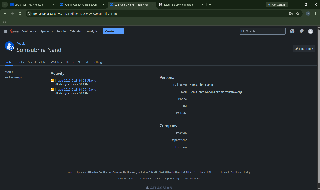
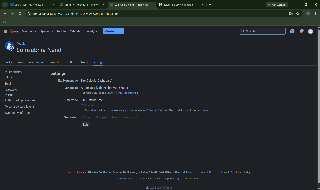
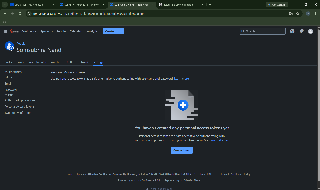
Generate Your Personal Access Tokens
Jira
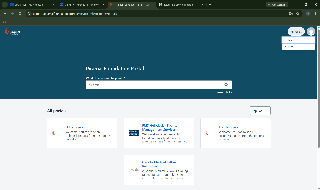
Log in to Jira.
Open your account settings.
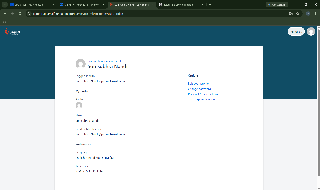
Navigate to API Tokens / Personal Access Tokens.
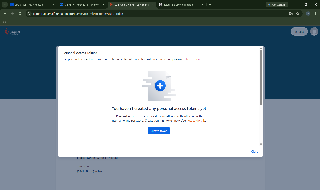
Create a new token.
Copy and securely store the token.
Confluence
Log in to Confluence.
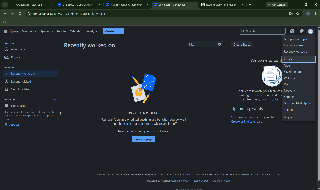
Open your account settings.
Navigate to Personal Access Tokens.
Create a new token.
Copy and securely store the token.
Important: Treat these tokens like passwords. Do not share them with anyone.
MCP Endpoint
Use the following AMRIT Atlassian MCP endpoint:
https://amrittools.piramalswasthya.org/atlassian/mcp
Configuration
Finding the Claude Desktop Configuration File
To configure MCP servers, you need to edit the Claude Desktop configuration file.
Windows
Open File Explorer and navigate to:
%APPDATA%\Claude\claude_desktop_config.json (Win+R)
Or directly:
C:\Users\<YourUsername>\AppData\Roaming\Claude\claude_desktop_config.json
macOS
Open Finder and navigate to:
~/Library/Application Support/Claude/claude_desktop_config.json
Linux
Navigate to:
~/.config/Claude/claude_desktop_config.json
Opening the Configuration File
You can open the file using any text editor such as:
Notepad (Windows)
TextEdit (macOS)
VS Code
Sublime Text
Nano/Vim (Linux)
Add the following MCP configuration to your AI client.
{
  "mcpServers": {
    "mcp-atlassian": {
      "type": "http",
      "url": "https://amrittools.piramalswasthya.org/atlassian/mcp",
      "headers": {
        "X-Atlassian-Jira-Url": "https://support.piramalfoundation.org/jira",
        "X-Atlassian-Jira-Personal-Token": "<YOUR_JIRA_TOKEN>",
        "X-Atlassian-Confluence-Url": "https://pmp.piramalswasthya.org/confluence",
        "X-Atlassian-Confluence-Personal-Token": "<YOUR_CONFLUENCE_TOKEN>"
      }
    }
  }
}
Replace:
<YOUR_JIRA_TOKEN><YOUR_CONFLUENCE_TOKEN>
with your own credentials(which you just created from Jira and Confluence).
After updating the configuration, completely close(this is very important,close from task managers) and reopen Claude Desktop for the changes to take effect.
Jira Capabilities Available Through the Atlassian MCP Server
The Atlassian MCP Server provides access to Jira project data, issue tracking, agile boards, service management, reporting, and collaboration features through natural language interactions.
Jira Issues
Used for managing Jira work items.
Capabilities include:
View issue details
Create issues
Update issues
Assign issues
Change issue status
Manage priorities
Manage labels and components
Manage epics, stories, tasks, and bugs
Track issue lifecycle
Search issues across projects
Typical use cases:
Reviewing assigned work
Updating ticket status
Creating defects and enhancement requests
Sprint execution tracking
Jira Search & Fields
Used for discovering and querying Jira metadata.
Capabilities include:
Search issues using Jira fields
View custom fields
Retrieve issue types
Retrieve priorities
Retrieve workflow statuses
Discover project-specific metadata
Filter issues based on business criteria
Typical use cases:
Reporting
Advanced issue searches
Data analysis
Project audits
Jira Agile
Used for Agile project management.
Capabilities include:
Access Scrum boards
Access Kanban boards
View active sprints
View sprint backlog
Review sprint progress
Track sprint velocity
Monitor sprint completion
Typical use cases:
Sprint planning
Daily stand-ups
Sprint reviews
Release planning
Jira Links & Versions
Used for dependency and release management.
Capabilities include:
View linked issues
Track blockers and dependencies
View parent-child relationships
Manage releases
View version progress
Monitor release readiness
Track release scope
Typical use cases:
Dependency management
Release coordination
Impact analysis
Project planning
Jira Comments & Worklogs
Used for collaboration and effort tracking.
Capabilities include:
View issue discussions
Add comments
Summarize discussions
View worklogs
Analyze effort spent
Generate work summaries
Track resource utilization
Typical use cases:
Team collaboration
Project reporting
Effort analysis
Stakeholder communication
Jira Attachments
Used for managing files associated with issues.
Capabilities include:
View attachments
Upload attachments
Access supporting documents
Review screenshots
Review design documents
Review implementation artifacts
Typical use cases:
Bug investigation
Documentation review
Design validation
Knowledge sharing
Jira Service Management
Used for support and service desk operations.
Capabilities include:
View service requests
Manage customer tickets
Track request status
Monitor SLAs
Review escalations
Analyze support workload
Typical use cases:
Helpdesk operations
Incident management
Customer support
SLA monitoring
Jira Forms & Metrics
Used for reporting and project analytics.
Capabilities include:
Generate project metrics
Calculate sprint velocity
Analyze cycle times
Analyze resolution times
Generate workload reports
Generate project health reports
Identify bottlenecks
Create executive summaries
Typical use cases:
Project governance
Leadership reporting
Performance monitoring
Delivery tracking
Confluence Capabilities Available Through the Atlassian MCP Server
The Atlassian MCP Server provides access to Confluence knowledge bases, project documentation, attachments, comments, and enterprise search capabilities through natural language interactions.
Confluence Pages
Used for creating, reading, updating, and managing Confluence pages.
Capabilities include:
View page content
Create new pages
Update existing pages
Retrieve page metadata
View page hierarchy
Browse spaces
Access page history
Review page versions
Organize documentation structures
Typical use cases:
Reading project documentation
Creating meeting notes
Maintaining SOPs
Updating project status pages
Managing knowledge repositories
Confluence Search
Used for discovering information across Confluence spaces.
Capabilities include:
Search pages by keyword
Search across spaces
Locate project documentation
Find technical documents
Find meeting notes
Discover related content
Search by title or content
Retrieve relevant documentation quickly
Typical use cases:
Finding implementation documents
Locating project specifications
Discovering onboarding materials
Retrieving historical decisions
Performing knowledge discovery
Confluence Attachments
Used for managing files stored within Confluence pages.
Capabilities include:
View page attachments
Access uploaded documents
Retrieve supporting files
Review PDFs and spreadsheets
Download attachment metadata
Upload supporting documentation
Manage project artifacts
Typical use cases:
Reviewing design documents
Accessing requirement specifications
Downloading reports
Sharing project deliverables
Managing supporting documentation
Confluence Comments
Used for collaboration and discussion around documentation.
Capabilities include:
View page comments
Add comments
Review discussion history
Summarize conversations
Track feedback
Capture review discussions
Identify action items from comments
Typical use cases:
Document reviews
Stakeholder feedback collection
Requirement clarification
Project discussions
Knowledge-sharing conversations
Common Business Use Cases
Business Analysts (BSA)
Search requirement documents
Retrieve historical decisions
Review project specifications
Create documentation drafts
Analyze stakeholder feedback
Project Managers
Review project documentation
Track project updates
Summarize meeting notes
Prepare status reports
Monitor project knowledge repositories
Scrum Masters
Access sprint documentation
Review retrospective notes
Track process documentation
Share team knowledge
Product Owners
Review requirements
Analyze feature documentation
Gather stakeholder inputs
Maintain product knowledge bases
Technical Teams
Access architecture documents
Review implementation guides
Retrieve deployment procedures
Search technical knowledge repositories
Security Model
All Confluence operations are performed using the user's own credentials.
Users can only access:
Spaces they are authorized to view
Pages they have permission to access
Attachments available to their account
Comments visible within their permissions
The MCP server does not grant additional permissions beyond those already assigned within Confluence.
Example Prompts
After connecting successfully, you can ask:
Jira
- Search for all issues in the 'PROJ' project where the status is 'In Progress' but the issue hasn't been updated in the last 7 days. For each issue found, use the `jira_add_comment` tool to add a polite comment asking the assignee for a status update. If the issue is a priority 'High' or 'Highest', also transition the issue to 'Blocked'.
- I need to break down Epic 'PROJ-100' (User Authentication). First, get the details of the Epic. Then, use the `jira_batch_create_issues` tool to create the following 3 tasks in the 'PROJ' project:
1. "Design auth flow UI" (Assign to UI/UX component)
2. "Implement JWT token validation" (Backend component)
3. "Write integration tests for auth endpoints" (QA component)
Make sure to link all of them to Epic 'PROJ-100' using the additional_fields parameter. - Find the 'Engineering' scrum board using `jira_get_agile_boards`. Retrieve the currently 'active' sprint from it. Then, fetch all issues in that sprint. Give me a structured summary of:
1. What was completed yesterday (look at recent transitions to Done).
2. What is currently 'In Progress'.
3. Any issues that are flagged or 'Blocked'. - Create a new sprint on board ID 42 named "Sprint 25 - Q3 Core Features" starting today and ending in 14 days. Once created, search the backlog using JQL for the top 5 highest priority unresolved issues in project 'DEV' with the label 'q3-roadmap'. Add these issues to the newly created sprint using the `jira_add_issues_to_sprint` tool.
- Get the issues from Queue ID 10 in Service Desk ID 4. For each issue, use the `jira_get_issue_sla` tool to check the 'time_in_status' and 'resolution_time' metrics. Identify any issues that are close to breaching their SLA. Add an internal comment (restricted to the 'jira-administrators' group) to those issues warning the team, and transition them to 'Escalated'.
- Retrieve the ProForma form details attached to issue 'SUP-404' using `jira_get_issue_forms` and `jira_get_form_details`. Read the answers provided by the customer. If the customer indicated that their system is completely down, update the Jira issue priority to 'Highest' and add a worklog of '15m' for triage time.
- Fetch the development info for issue 'API-505' using `jira_get_issue_development_info`. Check if there is a merged pull request attached. If there is:
1. Transition the issue to 'Done'.
2. Use `jira_create_version` to ensure version 'v1.4.0' exists in the 'API' project.
3. Update the issue to set its fixVersion to 'v1.4.0'.
4. Leave a comment thanking the developer and logging '1h' of time spent. - Search for all Epics in project 'CORE' that were transitioned to 'Done' this week. For each Epic, use the `jira_create_remote_issue_link` tool to attach a URL pointing to our Confluence design space (https://confluence.example.com/core-designs), titled "Final Design Documentation", with the relationship set to "documentation".
- Use `jira_get_issue_images` to view the images attached to bug ticket 'WEB-99'. Analyze the UI error shown in the screenshot. Then, use `jira_update_issue` to append a detailed technical description of the visual error to the issue's existing description. Include what the expected behavior should be based on standard UI/UX patterns.
- Run `jira_batch_get_changelogs` for issues 'PROJ-1', 'PROJ-2', and 'PROJ-3'. Filter the changelogs specifically for the 'status' and 'assignee' fields over the last 5 days. Generate a timeline report showing exactly who changed the statuses and when, and highlight any instances where an issue bounced back and forth between 'In Review' and 'In Progress'.
Confluence
- Create a new Confluence page in the 'ENG' space titled "Weekly Engineering Sync - [Insert Today's Date]". Use the page creation tool to set the parent page to ID '10293847'. The page content should use standard Atlassian storage format (HTML) with the following structure:
1. An "Attendees" section with a bulleted list.
2. An "Agenda" section.
3. A "Discussion" section.
4. An "Action Items" section using task list formatting.
Once created, return the URL of the new page. - Retrieve the current content of the Confluence page "ADR-014: Database Selection" (Page ID: 55667788) using the page retrieval tool. Read the existing content. Then, use the page update tool to append a new section at the very bottom titled "Review - Q3 2026". In this section, write a brief summary stating that the decision to use PostgreSQL is still valid and performing well under load. Ensure you increment the page version number correctly to successfully save the update.
- Use the Confluence Search tool to run a CQL (Confluence Query Language) query: `space = "DEV" AND lastModified < now("-52w")`. This will find all pages in the DEV space that haven't been updated in over a year. For each page in the results, fetch the page details to identify the creator. Then, use the comments tool to add a comment to each page saying: "Automated Ping: This page hasn't been updated in over a year. Could you please review it for accuracy and update or archive it?"
- Search Confluence using the search tool for pages containing the exact phrase "Environment Setup" or "Local Dev" across both the 'Engineering' and 'Operations' spaces. Retrieve the top 5 most relevant results. Read the content of those 5 pages, synthesize the prerequisite installation steps (like Docker, Node, etc.), and provide me with a consolidated, step-by-step markdown summary with links back to the original source pages.
- Fetch all comments on the Confluence page "Q4 Payment Gateway Integration" (Page ID: 998877). Analyze the comment threads and categorize them into two buckets: "Resolved/Agreed" and "Open Questions". Present the open questions to me as a bulleted list, noting who asked the question and what part of the document they are referencing.
- I have reviewed the draft for the "API Rate Limiting" page (ID: 112233). Use the comments tool to add a new top-level comment to this page. The comment should read: "Great start! However, we need to explicitly define the HTTP 429 response headers we plan to return (e.g., Retry-After). Let's add a table for that in the implementation section."
- Check the attachments for the Confluence page "Release v2.4.0" (Page ID: 445566). Use the attachment listing tool to see if a file named 'architecture-diagram-v2.png' is already present. If it is not, use the attachment upload tool to attach the local file located at `./assets/architecture-diagram-v2.png` to the page. Include a comment on the upload: "Finalized architecture diagram for v2.4.0 release."
- Use the Confluence search tool to find the page titled "Legacy Auth Flow Diagram". Once found, get the page ID and use the attachment retrieval tool to download the latest version of the file named "oauth-flow.pdf". After retrieving the file, analyze its contents and generate a text-based plantUML sequence diagram that represents the flow shown in the PDF, so we can embed it directly into the page text.
Security Considerations
Never share personal access tokens.
Tokens should be stored only in your AI client configuration.
Access is limited to resources your account is already authorized to view.
The MCP server does not grant additional permissions.
Troubleshooting
Authentication Errors
Verify:
The Jira token is valid.
The Confluence token is valid.
Tokens have not expired.
Tokens were copied correctly.
Unable to Access Tickets or Pages
Verify:
You have access to the requested project or space.
The requested resource exists.
Your account permissions are sufficient.
Connection Issues
Verify:
The MCP endpoint URL is correct.
Your network connection is available.
Your AI client supports MCP connections.
Support
For issues related to MCP connectivity or access, contact the AMRIT Agentic AI Framework team and provide:
AI client being used
Error message received
Jira project or Confluence space involved
Steps performed before the issue occurred